

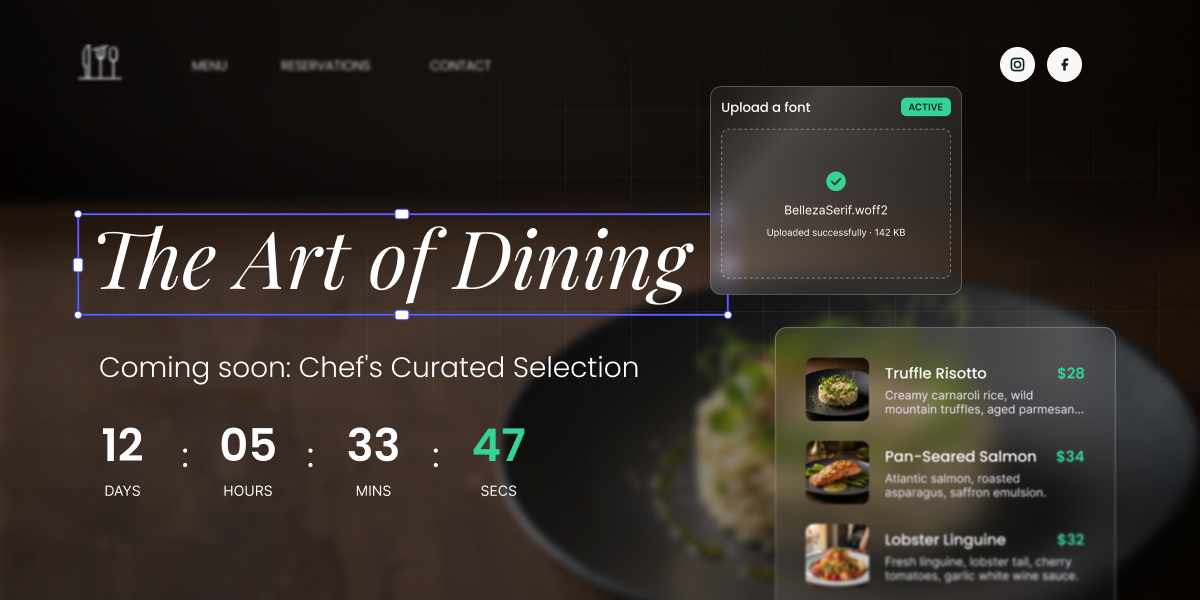
Five updates just went live in SiteGround Website Builder. Two give you more control over how your whole site looks and moves: custom fonts and section animations. The other three each solve a specific job: counting down to your launch, getting visitors to follow you on social media, and putting a restaurant or cafe menu online.
Upload your own fonts
If your brand uses a specific typeface, your website can now use it too. Your site then matches your logo, packaging and printed materials, so customers recognize the same business wherever they find you. It’s most useful for businesses with brand guidelines, and for designers and agencies building sites for clients who have them.
Upload your font files in WOFF2, the standard format for web fonts, then set them once for your headings and body text. They apply across every page of your site. If you only have TTF or OTF files, convert them to WOFF2 first and check that your font license covers use on a website, since some desktop licenses don’t.
How to add it: In the Website Builder, go to Styles → Typography → Upload Font, upload your WOFF2 files, and choose which font to use for headings and which for body text.
Add animations to any section
A little motion draws the eye to what matters most on a page. Animate the sections you want people to notice, like a new offer, a testimonial or a call to action, and they stand out from everything around them. Keep it to a few sections, though: a page where everything moves is harder to read than one where nothing does.
Choose from animations including Fade, Scale, Slide up, Click, and Flex, then set the speed, from a slow ease-in to a quick entrance.
How to add it: Select any section on a page, open Styles, pick an animation and set its speed.
Add a countdown to your coming-soon page
Without a date, a coming-soon page gives visitors little reason to return. A countdown tells them exactly when to come back, and with the redirect option you can send them straight to a booking page or a launch offer the moment the clock runs out. It works for a shop opening, a product release or an event.
Set a launch date and time, and a live countdown appears under the message on your coming-soon page. Pick a boxed or plain style to match your design, then decide what happens when it reaches zero:
- The timer freezes at zero.
- The timer disappears.
- A message of your own replaces it.
- Visitors are sent to a URL you choose.
How to add it: Open your coming-soon page settings, switch on Show Countdown Timer, then set the date, time, style and what happens at zero.
Add social media icons to your header or footer
Most visitors won’t buy on their first visit. A follow keeps you in their feed, so you can reach them again with your next post, offer or launch. With your profiles in the header or footer, following you is one click away on every page.
Add your profiles to the header, the footer or both. Choose from platforms including Facebook, Instagram, TikTok, YouTube and LinkedIn. Show the icons in each platform’s own colors, in black or in white, and add a label of your own, like “Follow us”.
How to add it: Open the navigation drawer, click Add Item and choose Social Profiles. Pick your platform, add the link, then choose the header, the footer or both.
Create a restaurant menu with pictures, prices and more
Your menu is one of the first things visitors look for, and the menu component puts it right on your page instead of in a PDF. Visitors can read it on their phone without zooming, and when a price changes or a dish comes off the menu, you edit one item instead of redesigning a file. It’s built for restaurants, cafes, bakeries and anyone else who serves food.
For each item, add a photo, title, description and price, then tag its allergens from a list of 14 predefined options. Choose left or center alignment, one to three columns and the spacing between items. You can also show or hide section names, images, descriptions and allergen information.
How to add it: Add the menu component to any page from the General tab in Add component, then add your items and choose the layout.
Which plans include these updates
All five updates are available on every SiteGround Website Builder plan, and you can try them during the 14-day free trial.
How to get started
Log in to your Client Area and open your site in the Website Builder. If you’re about to launch, start with the countdown. If you run a restaurant or cafe, start with the menu. If you’ve been waiting for your site to match your brand, upload your fonts first.
New to SiteGround? Try SiteGround Website Builder free for 14 days.
[113]