SiteGround Optimizer 5.6 – Heartbeat control, Automatic Database Optimization and More for Even Faster Websites!

We have just launched the latest major update of the SiteGround Optimizer plugin. The new version greatly enhances what’s already the best performance solution for your website if you are hosted with SiteGround! If you follow the plugin’s changelog you will notice that for the last few years we’ve constantly improved and added more and more functionalities turning the plugin from a simple connector to our server caching systems to an overall performance solution for your WordPress site. Now I am excited to guide you through the most recent features that will help you make your site run even faster:

WordPress Heartbeat Control

The Heartbeat API allows your browser to communicate with the WordPress application when you’re logged into your admin panel. This functionality makes it possible to handle things like scheduled tasks, post and page revisions, locking of a post when someone else is editing it, and more. 

Although it’s a great piece of functionality it may cause excessive CPU usage when left unsupervised. For example, if you just leave a couple of tabs open in your browser on the post edit page, that will execute a script saving your content as a draft for each tab every 15 seconds. That alone results in 480 executions per hour and 11520 per day.

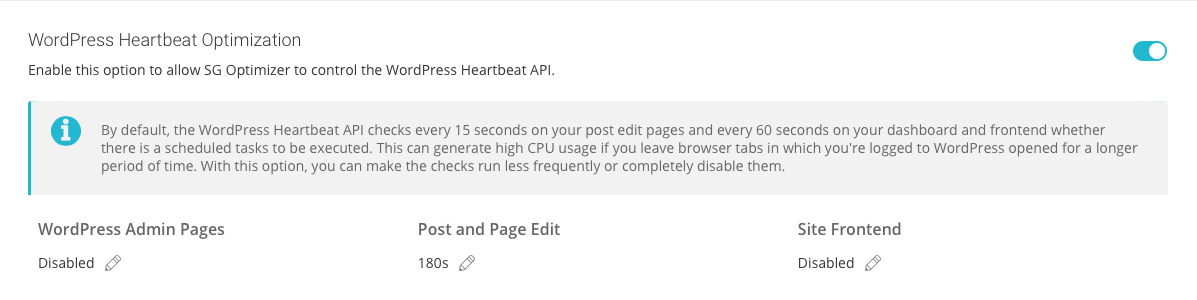
Most people don’t need to save that often. For example, if you’re writing a blog post, having a save every 3 minutes is perfectly fine. With the new settings in the SiteGround Optimizer, you can either completely disable the Heartbeat API if you don’t have any functionality requiring it, or you can set it to work at far bigger intervals. By default, we disable it on your admin and frontend pages and leave it only on post edit to run every 180 seconds.

WordPress Heartbeat Optimization

Automatic Database Maintenance

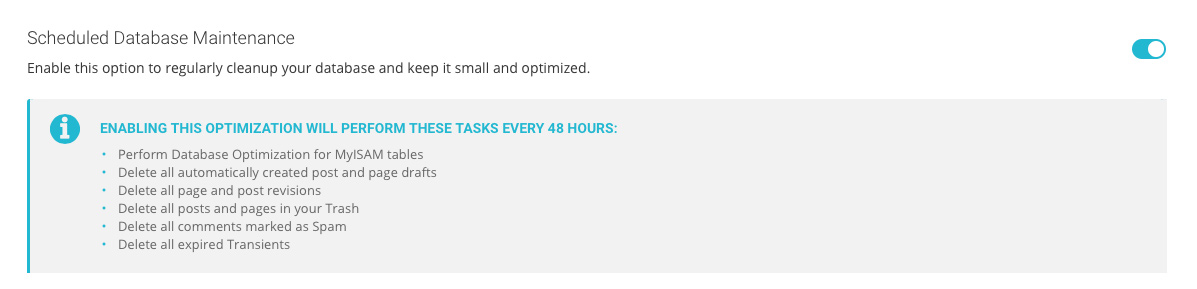
This optimization is really important for WordPress websites but often neglected by webmasters. That’s why we’ve added it to the plugin and set it to run every week. Having that feature enabled will automatically clean your spam comments and trashed posts and pages, and will perform a table optimization and clear all the expired transients from your database. Basically, you will be sure that your database is in a top condition without having to perform the same tasks manually on a regular basis.

WordPress Database Optimization

DNS Pre-fetch 

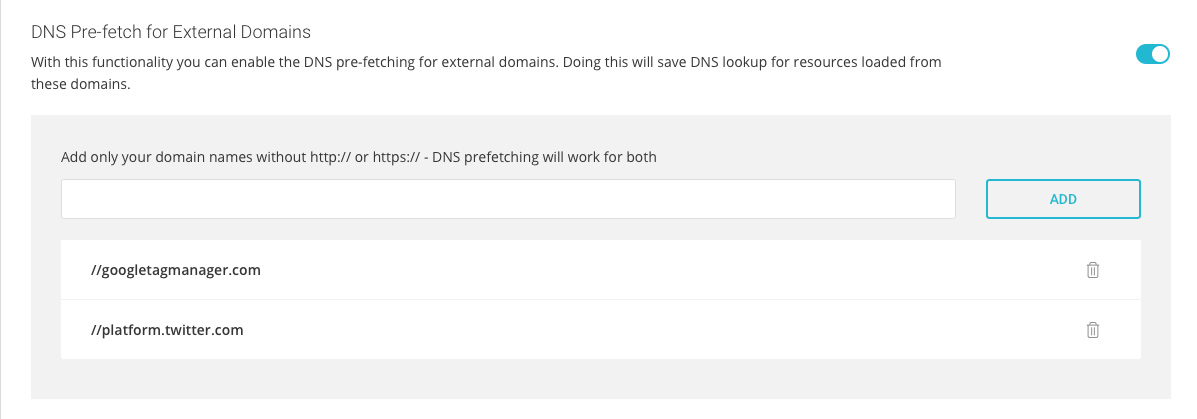
With this option, you can easily add all external domains that your site uses to serve external resources so your site can tell browsers to pre-fetch them and save time from resolving these domains each time they are used by a resource.

By default, browsers are pretty smart when it comes to domain resolution and pre-fetching all commonly used external domains. They manage to avoid resolving the same domain multiple times. But, their automatic pre-fetch doesn’t work at all times. For example, if you have external resources in your CSS and JS they won’t be automatically pre-fetched by the browser. That is why we added an option in the SiteGround Optimizer where you can list all external domains and thus make sure that the browsers will have those domains’ IP addresses ready for use. That feature helps reduce page loading times. 

Improved Memcached Integration

Memcached is a great optimization feature, but due to compulsory Memcached limits it works only for objects smaller than 1MB. That’s more than enough in 99% of the cases, but as more and more plugins and themes are dropping huge chunks of data into the options table, we have started to notice more attempts for using Memcached for bigger objects. That is why we have come up with a smart way to use Memcached in such cases too. We have added a self-learning mechanism that excludes the options with the biggest values from the object that needs to be cached, so it stays under 1MB. This way we manage to provide Memcached at least for a part of the initial big object. 

Deprecation of the PHP Switcher

In this version, we’ve decided to completely remove the functionality to switch the PHP version of a website. We took that decision for two main reasons – we wanted to avoid duplication of the functionality as that version control already exists in cPanel and Site Tools, where it logically belongs; and to alleviate the plugin so it takes less disk space and inodes.

Archive Your Instagram Photos on a WordPress Site

add your Instagram photos to WordPress

Instagram has become one of the indispensable tools for marketers worldwide. Everything from hiring influencers to hawk their wares, to posting stories about how things get made or how they got where they are, if it can be expressed as a photo, Instagram is it’s home. Recent articles in marketing journals have flat out stated that Instagram is the social network. 

But Instagram, like all other social media networks, is ephemeral. Content has a very short shelf life on social media and given the time that it takes to craft great Instagram photos, that’s a shame. 

There is no need for you to lose your juice once a photo has been buried in the feed, give it new life by posting it on your WordPress site. Archive all of your Instagram photos on your site and link back to them giving them life both on and off of Instagram.

This doesn’t even require a plugin. All you need are three things.

  1. an Instagram account
  2. a WordPress powered website
  3. an If This Then That (ITTT) account.

If you are reading this, my guess is you already have the first two. You may not however have heard of ITTT. ITTT has been connecting web services for a long time. You can connect a WordPress site to:

  • Twitter
  • Instagram
  • Pinterest
  • Reddit
  • Telegraph
  • Youtube
  • Slack
  • …and more

All with the click of a few buttons on a website.

While Instagram is an Instagram → WordPress integration, there are several of the integrations that take WordPress content and share it out to other services. For instance, you can notify Twitter and a Slack channel that you have new content on your site automatically.

Since most ITTT integrations are written by users, there are usually multiple integrations for any given combination that you want, each with a unique feature set that you can tap. One of the WordPress → Twitter integrations will post the title of your latest post, a link to it, and a link to your bio page on WordPress each time you post.

One caveat, for integrations that post to WordPress, it will ask you for a user name and password. ITTT stores these credentials in their database. While they have never had a reported data breach, if they do, you will need to make sure that you change the password on that account immediately. It is highly recommended that you not use one of your administrator accounts for this, the Editor level should be sufficient. In case you’re interested to learn more about user access in your WordPress, we strongly recommend that you read the article on the Principle of the Least Privilege in WordPress.

Don’t lose your valuable content to the merciless timeline, archive, and even republish your beautiful pictures elsewhere using WordPress and If This Then That.

[subscribe_cta]

Webinar On Building a Website with WordPress

How to build a WordPress website

Last week we had the webinar “Building a Website with WordPress” where we explained how to easily set up a WordPress site with SiteGround. We received many questions and below, you can see answers to those we didn’t have time for during the webinar.

Also, if you’d like to watch the recording, here’s the video of the webinar session.

Questions about WordPress site setup

Q: Before this webinar, we tried to build the site without instruction. We had moderate success but would like to start over from square one. Is there an easy way to reset this and start from scratch?

A: The easiest way to do this is to delete your current website and then add a completely new one from your Client Area. First, go to Websites > Manage (next to the desired site), click on the kebab menu on the right, and select Delete. Then, again from the Websites list, click the New Website button. You will be prompted to select a hosting plan and after that, the Add New Website page will appear. 

If you don’t want to decide on a domain name at that moment, you can use the temporary domain option and change it afterward. On the second step of adding the new website, you will be able to choose WordPress as an application for your site, and it will be automatically installed for you. On the third step, you will be able to add some extra functionality to your site. When ready, click Finish and your new site will be up in a minute. 

Q: Will I need to purchase a separate domain to launch a new website? Is there any drag and drop application to build the frontend of the website?

A: To start a new website, you may use a temporary domain (free option available upon site creation), or use an existing domain, no matter where that domain is registered. You can change the primary domain of your site at any time from User Area > Websites > Manage website > Change Domain

If you wish to use WordPress as the backbone of your site, you may add a page builder like Elementor, or choose a theme with in-built drag and drop editor functionalities. When logging in your WordPress installation on SiteGround, you will first see a WordPress Wizard that helps you select a theme and plugins, which then get automatically installed for you. During that wizard setup, you will have the choice of adding Elementor as your page builder. 

Q: In the time I build my site, what happens with the index page?

A:
If you do not want visitors to see your new website while you are developing it, there are several methods you can use to restrict access to the website and make it visible only to yourself. For example, you can password-protect the website, set a coming soon or under maintenance page with the help of a maintenance plugin, or allow only your IP to have access to the site. Read more about these methods in this article

Q: Can I use WordPress to make mobile apps?

A: No, WordPress is a Content Management System, designed to be used to build websites. You can use WordPress plugins to build and customize a mobile version of your website though.

Questions about security 

Q: Is using Captcha good for security, which one is the best and secure Captcha to use?

A:
Using Captcha is good for security. If you choose to use a CAPTCHA on your website, the most popular one is Google’s reCAPTCHA. Alternatively, you can use the Wordfence plugin, which protects from brute force attacks by limiting login attempts.

Q: I have a main domain that is working ok with the free SSL certificate. I have also set up a subdomain. Can the SSL work with the subdomain as well?

A: The standard free  Let’s Encrypt SSL certificates cover only the domain name and the www subdomain. If you want to have an SSL certificate for another subdomain name as well, you can issue a new, free SSL certificate for the subdomain. Alternatively, you can use a free Let’s Encrypt WildCard SSL certificate for the main domain, which will cover any subdomains too.

Q: How to make sure WordPress is secure? I find Sucuri too complicated. Any tips on how to set up a security plugin without understanding what it does?

A: Security is a very important part of every website and you could check out our previous webinar where we explained the key security “layers” which every WordPress website should have, or our podcast episode “Is My Website Safe” .

Questions about plugins and themes

Q: I’m looking to create a virtual online debating arena or hall for my video hosting site uunitedtube.com that is on the way. What plugins are good for me to use to allow two separate located debating speakers and over 100s of audiences to all video streaming simultaneously, despite all their different IP addresses?

A:
The setup you describe is quite an advanced one and requires lots of customization so it would be best to hire a professional programmer to develop the necessary functionalities for your website.

Q: What themes are best for service-based businesses and ministries?

A:
ThemeForest is a trusted marketplace for WordPress themes and they have several ministry-oriented themes that you can choose from.

Q: Which plugin should I use to get a contact address?

A: Contact Form 7 is the most popular WordPress plugin for creating contact sections or pages on your website.

Q: Can you have multiple pages/titles and run a blog in each page?

A: With WordPress, you can create a custom template that renders your blogroll. Then, on the pages you want to have different blogs, simply set the Title and URL you want and configure them to use your custom template.

Questions about posts, pages

Q: Instead of creating a blog post, if I have created a page as a blog page using the Astra template, how do I create an index of blogs on that page and create a link to open a new webpage for my new blog posts, instead of just scrolling down ?

A: This is a question specific to the functionality of the Astra theme and it is best if you contact the official provider of that theme for guidance.

Q: Can you please tell me how to display recent posts anywhere I like on a WordPress website, pages as well as posts?

A: The WordPress editor (Gutenberg) has a built-in block interface for displaying your recent posts that can be easily added to any of your pages. To do this, log into your WordPress admin dashboard, go to the desired page, navigate to the part where you want your recent posts to appear, and click the “+” icon on the left. Then, from the Widgets drop-down menu, select Latest posts, and click the Update button on the top right.

Questions about transfers

Q: Is there anybody who could tell me how to transfer a full website to a new domain if I have the same WordPress id?

A: You can transfer your WordPress to a new domain name using our WordPress Migrator plugin. You can find detailed instructions on how to use it here.

Q: How can I move a site from wordpress.com to wordpress.org?

A: There is no easy way to migrate a website from the wordpress.com platform without losing elements of the look and feel, unfortunately. Here is a tutorial we prepared about this type of migration.

Q: Any tips on how to move WordPress websites with emails to SiteGround from another host, e.g. Webfaction?

A: To transfer your WordPress website you can use our Automatic Migrator plugin. For transferring your emails, you can follow the step-by-step instructions here.

Miscellaneous questions

Q: How do you add an opt-in list (to start an email list) to your website?

A:
You can use a plugin like Newsletter

Q: I have copyrighted science-based material that is for my site. Concerned about copying. Can WordPress protect my work? 23 years of research.

A: WordPress is a very well-maintained and secure software, but whether a malicious hacker would be able to hack your website depends on a combination of factors that go beyond WordPress. If you wish to store your material on your website, assumingly without allowing access of visitors to that content, we suggest that you password protect any URL containing sensitive information on your website from Site Tools > Security > Protected URLs. The tool allows you to limit access to the URLs you want, or allow access only to specific users. Also, it is extremely important to protect your admin login form with a plugin like Wordfence, or else that would stop possible brute force attacks. And, make sure you use very long and complex passwords, which you change frequently.

Q: How to encrypt the embedded video link in WordPress so that all view the video but can’t download it?

A: The embed itself can’t protect your video from being downloaded. You should rely on the video streaming service for such functionality. Note, however, that there isn’t a 100% protection against such downloads if the content is public.

Q: I want to add a captcha to my forum. How can I do it?

A:
You can use a plugin to add a CAPTCHA functionality to your WordPress. One of the most popular CAPTCHA WordPress plugins is this one.

Q: How do I link my site to social media?

A: You can use a plugin to add a “Share” button for various social network sites. One of the most popular plugins that provide this functionality is this one.

Q: What is the limit of web pages I can have on the GrowBig plan on SiteGround?

A: There are no limits on the number of pages you can add to your WordPress website on any of our plans.

Q: Hi, where should I place the Google search console code?

A: It would be best to add the code to the header of your website. To do that you can use a plugin like Insert Headers and Footers. Once you install the plugin, go to Settings > Insert Headers and Footers page and paste the Google HTML tag code you copied earlier inside the “Scripts in Header” box.

Q: How to make WordPress + Woo instant load. My web takes 10secs, and that’s bad.

A: The problem you describe is specific to the unique characteristics of your website. It may result from a multitude of factors starting with simple ones like a bad combination of plugins and getting to issues like poor scripts added to the site, It is best if you hire a specialist to examine the website and suggest optimizations. 

Q: How do you get rid of the little “Edit” word under the “Home” heading?

A:
The “Edit” button is a quick and easy way to get to your WordPress admin interface where you can edit the respective page of your website. It is only visible to you, not to your website visitors.

[subscribe_cta]

What’s New in WordPress 5.4

What's New In WordPress 5.4

On March 31st, the latest version of WordPress was released, number 5.4 and named after Nat Adderley, an American trumpet player, continuing the tradition of naming WordPress releases after jazz players.

I had the honor to be involved once again as the release co-lead, in the role of coordinator. This was possible with the support of SiteGround, donating my hours to the project.

By now, depending on the settings of your auto-update function in the SiteGround user area, your version of WordPress should be updated to 5.4, so let’s check the most exciting new features from the WordPress end-user perspective. 

Two new blocks

You can now add social media widgets in your post. By clicking on each icon you can add your link and show them inside a post.

The second one is the button block: now you don’t have to fiddle around with CSS to create your own buttons to use in those Call to Actions at the end of your sales page. Just add the button, or the buttons, you can have multiple inside the same block, adjust the settings (background color, text color, border width, link) and hit publish!

More Coloring options 

You can now selectively color parts of a text within a block. Gradients were added to the button and cover blocks and you can now apply color options to  Group and Columns blocks.

Fullscreen Editing 

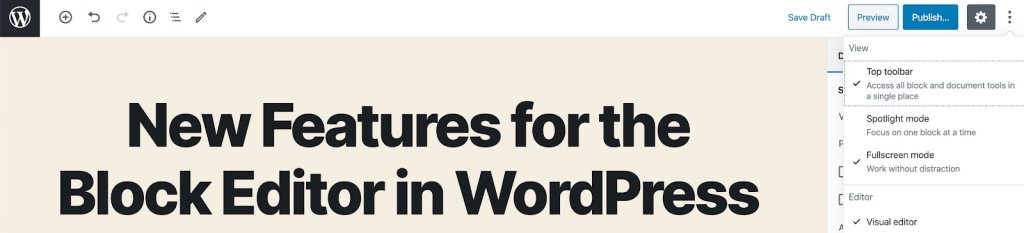
New WordPress installs now open the block editor in fullscreen mode by default for a distraction-free writing session. The W logo in the left corner is the shortcut to going back to the admin area, Posts list. If you want to switch off the fullscreen mode, click on the three small buttons to the right of your screen and unflag “Fullscreen Mode”. 

Full Screen Editing

Improved navigation and accessibility

It is now clearer to see what block you are using with block breadcrumbs: you will notice them on the very bottom of the screen.

breadcrumbs navigation

With each new release, the block editor becomes more accessible for people that rely on screen readers or keyboard navigation to use WordPress. The tabbing across elements has been improved and your screen reader will tell you if you are un Edit or Navigation mode.

What’s next

WordPress 5.4 has just been released, but the Core team is already working on preparing for the next two planned releases for 2020, 5.5 and 5.6. Josepha Haden, the WordPress.org Executive Director, wrote an update on the status of some upcoming projects and these are some of the features I am most excited about:

  • A block directory, so you can discover blocks and easily install them on your website like you would do for plugins. This is an opportunity to experiment with blocks and think of new ways to organize and show your content.
  • Support for blocks in the Customizer to make it easier to change the appearance of your website. This is another step towards full site editing via blocks. Endless possibilities!
  • A navigation block that will allow you to add a menu inside a post or a page. For example, you could create a “Where to start page” with links to relevant sources that might help your visitor move around easily.

Passing the mic to you

What do you like the most about the new release? What are you excited about in terms of future features. Let us know in the comments!

[subscribe_cta]
Even faster WordPress sites with our Speed Optimizer plugin (formerly SiteGround Optimizer)

Even faster WordPress sites with our SiteGround Optimizer plugin

During the past few years, the SiteGround Optimizer plugin has become an essential part of the SiteGround WordPress hosting product. We’re constantly adding new features and improving existing functionality to make your WordPress sites faster. Now, we would like to tell you more about the most exciting changes we have introduced with the latest versions of our plugin. Read below to find out about the most recent front end and media optimizations in the plugin and how to test your site speed easily through your site backend using our cool integration of the Google PageSpeed test.  

Stop render-blocking JavaScripts from slowing down your site

Very often JavaScripts in the site header do not allow the rendering of the rest of your web page until they are fully loaded. With our new feature you can defer render-blocking JS and load the rest of the page without waiting. Thus, your visitors will see a fully loaded page faster. We are aware that some scripts should always remain render-blocking. For example, like in the case of the jQuery script, there might be other scripts that rely on them. To accommodate such scripts, we’ve created an easy-to-use functionality to exclude specific scripts from being deferred. You can find and manage this new option in the Front End tab of the SiteGround Optimizer plugin.

Stop render-blocking JavaScripts from slowing down your site

Avoid unnecessary video loading with our new lazy load options

Lazy load of images has been available in the SiteGround Optimizer for quite some time. When enabled, it stops images from loading until they are scrolled to in the browser. Thus the first visible part of your page is loaded faster without waiting for images, that may never be reached by the visitor, to load at the background. Now you can use lazy load for iframes (YouTube, Vimeo & other embeds) and directly imported videos too. Another new feature allows you to select whether you want to lazy load your site on mobile devices or not.

Avoid unnecessary video loading with our new lazy load options

Use the latest and fastest web image format – WebP

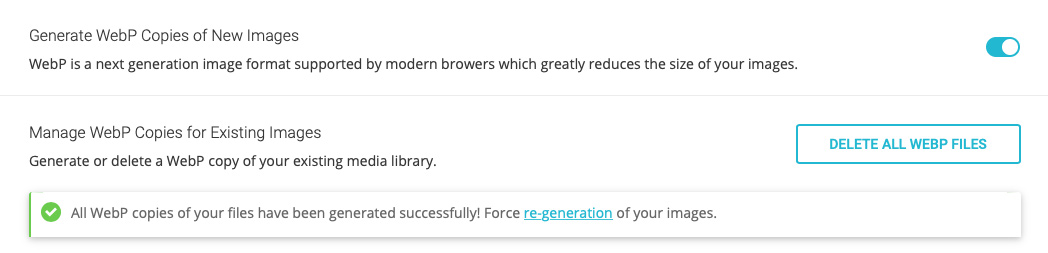
WebP is the newest, extremely exciting image format that has a great potential to optimize loading speed of all images on the web. This format may decrease the size of your images between 25% and 35%. The SiteGround Optimizer now allows you to create webP versions of all the images from your WordPress site with a click. Once you do that, we will load these smaller and faster images for browsers that support this format.

Use the latest and fastest web image format - WebP

IMPORTANT: WebP support is available for websites hosted at SiteGround using our Site Tools. 

Load Google Fonts without slowing down your website

Using multiple fonts, weights and languages from an outside source like Google can easily add up a lot to the number of site requests and slow it down if those requests are done in a render-blocking way. To tackle this, we’ve developed a mechanism to catch loaded fonts, parse them and load them in-line asynchronously. This method proved to be the fastest way to handle Google fonts, the most commonly used font sets online. Once they get cached by your browser, the effect they have on your page speed is reduced to zero.

Load Google Fonts without slowing down your website

Test your site speed with Google Pagespeed 

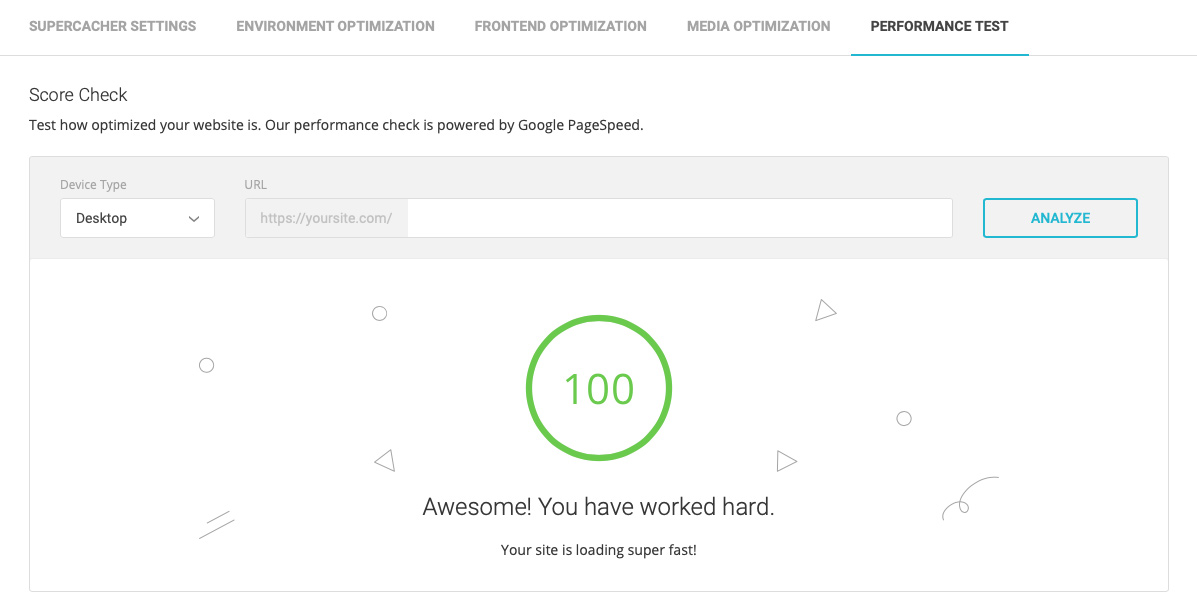
Another great functionality we’ve added to the plugin is the ability to test your site speed using the Google Pagespeed test right from the SiteGround Optimizer interface. Not only that, but we’ve linked each performance recommendation to a specific functionality in the plugin to guide you how to better optimize your site and achieve top performance!

Test your site speed with Google Pagespeed

Although we believe that the plugin now is the best optimization solution for every WordPress site on a SiteGround server, there are still things that we want to implement and will introduce with upcoming updates. Our roadmap is full of awesome new ideas that will soon become available to you. So keep an eye on our blog and the SiteGround Optimizer change log!

[subscribe_cta]
Contributing to Open-Source: Insights On the Latest Major WordPress Release

Plenty of work happens behind the scenes of a regular website. But even more work is needed for the maintenance and development of a Content Management System (CMS) like WordPress – the software that powers 34% of all websites on the web. New WordPress versions are released regularly to provide new functionality, security improvements, and all types of fixes. In the case of WordPress, which is an open-source software, a big part of the work is thanks to the voluntary support of dedicated individuals and companies within the WordPress community. 

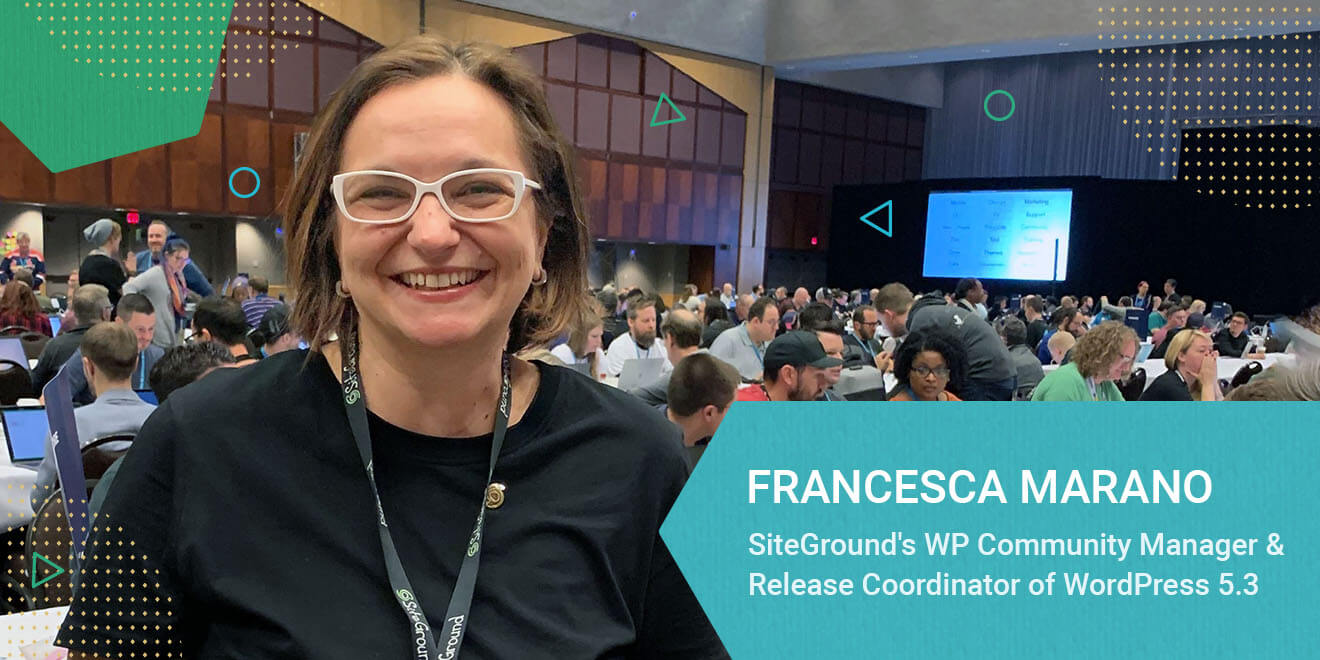
The team at SiteGround has a long history of WordPress involvement – we organize and sponsor both local and worldwide WordCamps, work on WordPress core and plugins, and are active on the WP.org security, community, marketing, and hosting teams. So we were stoked when our WordPress community manager, Francesca Marano was selected as a Release Coordinator for the latest major version, WordPress 5.3. On the verge of the official release, 12 weeks after she took upon that role, here is our chat with Francesca about her role and responsibilities in the process, and of course – what you can look forward to with the new release.

Read more

How WP-CLI Can Make Your Life Easier (Video)

Recently we had the pleasure of hosting a webinar with Alain Schlesser, the lead developer of the WP-CLI project, the command line interface for WordPress. Nearly 1300 people attended and we had a blast fielding questions and seeing our clients engage with us live. Even if you have missed the live stream, it is not too late to learn how to do some of the most popular things with WP-CLI, like automating backups, troubleshooting website errors, performing a search & replace in your database, cleaning up spam comments, resetting your passwords, and more. All you have to do is watch the webinar video below.

Continue reading “How WP-CLI Can Make Your Life Easier (Video)”

Powering good, one website at a time

Our customers use SiteGround to host a wide variety of projects, but some of our favorites are non-profit websites that use the internet to make the world a better place. That’s why we’re proud to support events like do_actions, annual hackathons held in cities around the world where participants from the WordPress community come together to build websites for local organiзations. On May 25, it’s Caceres’ turn to hold their do_action and we’re pleased to attend and sponsor.

Continue reading “Powering good, one website at a time”

SiteGround for WordPress in 2018

Our commitment to helping WordPress grow has been consistently strong throughout the years. About 80% of our 2 million domains are associated with sites built on WordPress and we have been helping more and more people get introduced to the possibilities of WordPress.

Traditionally, through sponsorships, we help a huge number of WordCamps and meetups happen all around the world. But what we consider even more important, is our personal involvement. In addition to encouraging our most talented people to attend, speak at and organize WordPress events worldwide, we also help independent experts share their expertise with an even wider audience through our WordPress Ambassador program.

Here is a brief roundup of our contribution in 2018. Stay tuned for more in 2019!

Continue reading “SiteGround for WordPress in 2018”

¡Vamos España! Taking Part In The Growth of an Amazing Local WordPress Community

Siteground contribution to WordCamps

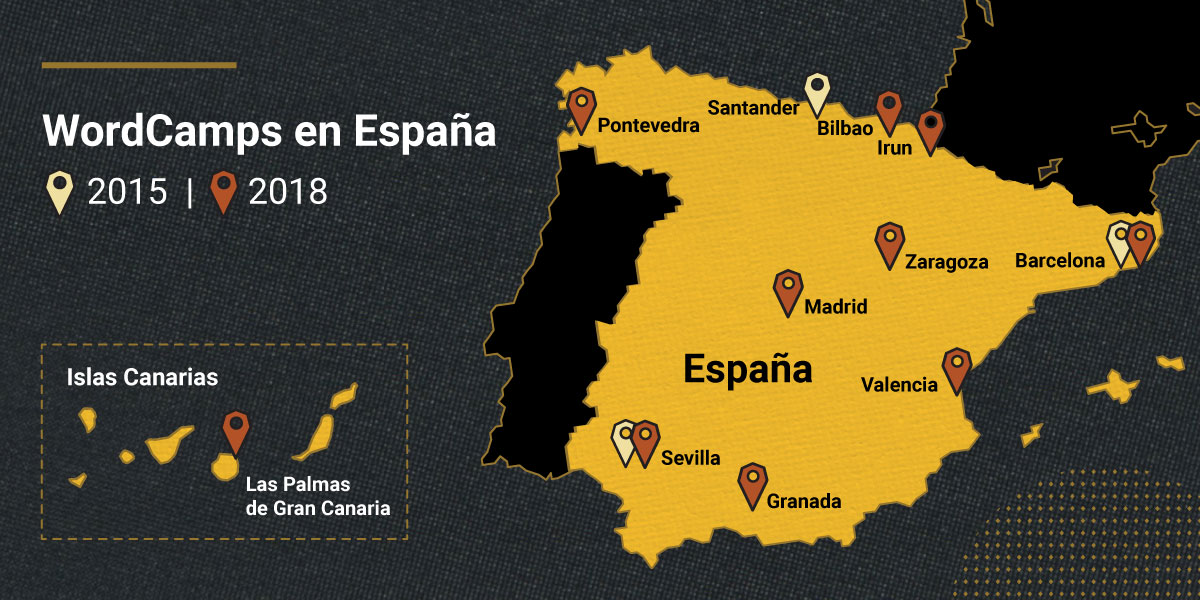
In 2018, Spain was the second most active country for local WordCamps, bested only by the US. Taking into consideration the population of the two countries, Spain actually had almost twice as many events per capita last year. When SiteGround launched its Spanish operations in 2015, there were only 3 WordCamps in Spain, including WCEU, and 9 meetup groups with 10,017 members in total (according to WordCamp Central registration). Fast forward to 2018 and we count 10 local WordCamps and 52 meetup groups with 24,862 members. This is an amazing 150% increase in membership and over triple the number of events!

So what’s the story behind this incredible growth? Of course, it all starts with the quality of the WordPress platform itself and the fact that its adoption rates are globally on the rise. However, from where we stand we see three additional factors that have influenced the local Spanish growth and we are proud of SiteGround’s role in all of them. By sharing our insider’s take on this development, we hope to help other local WordPress communities accelerate their growth too.

Continue reading “¡Vamos España! Taking Part In The Growth of an Amazing Local WordPress Community”