
WordPress 7.1 is the second major WordPress release of 2026, scheduled for August 19. It builds on version 7.0 with native responsive styling, a rebuilt client-side media processing, richer Notes, and two new blocks. WordPress 7.1 refines existing systems rather than laying new foundations, which makes it a lower-risk update than 7.0 for most sites.
Key takeaways:
- WordPress 7.1 is scheduled for August 19, 2026. The date is marked “tentative,” so it could still move if a last-minute problem turns up.
- The Classic block is staying. If you write posts using the older, simpler editor, nothing changes. A plan to hide it from the block inserter was reversed on July 7, 2026.
- WordPress 7.1 adds easier responsive design controls. You can now style how your site looks on phones and tablets, and how buttons react when someone points at them, without touching any code.
- Faster image uploads through WordPress 7.1 client-side media processing. Photos are prepared inside your visitor’s web browser instead of on your server, which lightens the load on your site.
- A few talked-about WordPress 7.1 roadmap features did not make it. Real-time co-editing, a big behind-the-scenes code upgrade, and two smaller items were pushed to a later release.
- Most sites can update with little to worry about. The only real risk is for sites with custom-built features or old plugins, and this guide shows you how to spot them.
When is WordPress 7.1 released, and is it safe to update yet?
WordPress 7.1 is scheduled for release on August 19, 2026, the final day of WordCamp US, WordPress’s big annual conference, held this year in Phoenix. Right now the release is in its last testing stage, called the Release Candidate phase, which started on August 5. At this stage, the features are locked, so nothing new will be added between now and release day.
The date is still marked tentative on the official release roadmap, and WordPress has moved a big release before: version 7.0 was pushed back from its original April date. So plan for August 19, but don’t build a product launch or a client deadline around it being set in stone.
Should you install the WordPress 7.1 update the moment it arrives? Not on your live site. The safe approach for any major WordPress update is always the same: make a copy of your site, apply the update to the copy, and check that everything still works before you touch the real thing. That copy is called a staging site, and we’ll cover how to make one later. First, take a full backup so you have a saved version to restore if something goes wrong. For a simple site, this is a five-minute check. For a site with lots of plugins or a custom design, it’s the difference between a calm update and a stressful one.
If your site is hosted on SiteGround, major WordPress releases install automatically 24 hours after they come out, and a full backup of your site is taken right before that happens. You can change the timing, delay it further, or skip a release from Site Tools > WordPress > Autoupdate.
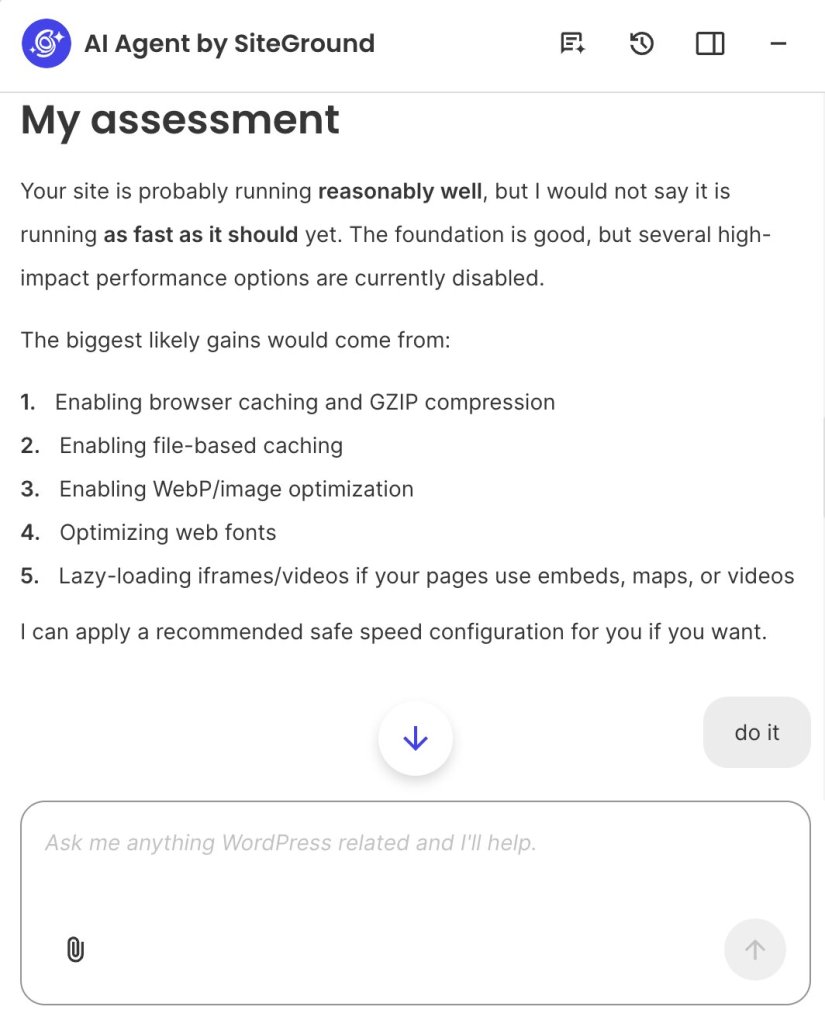
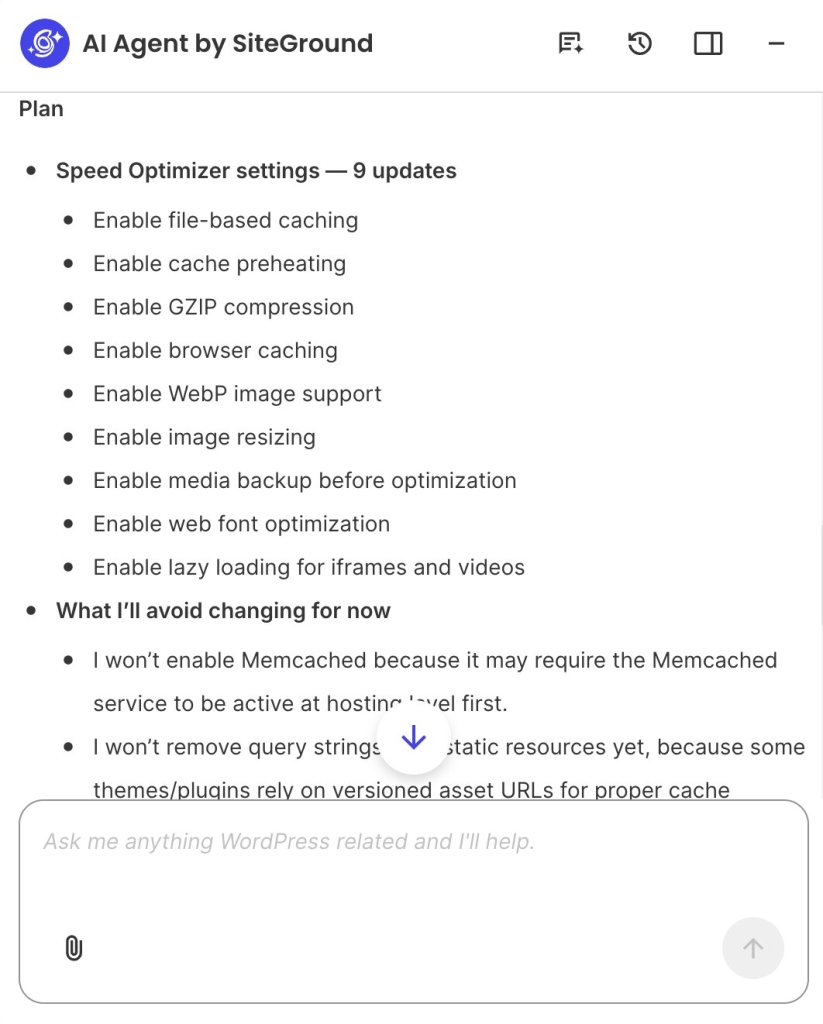
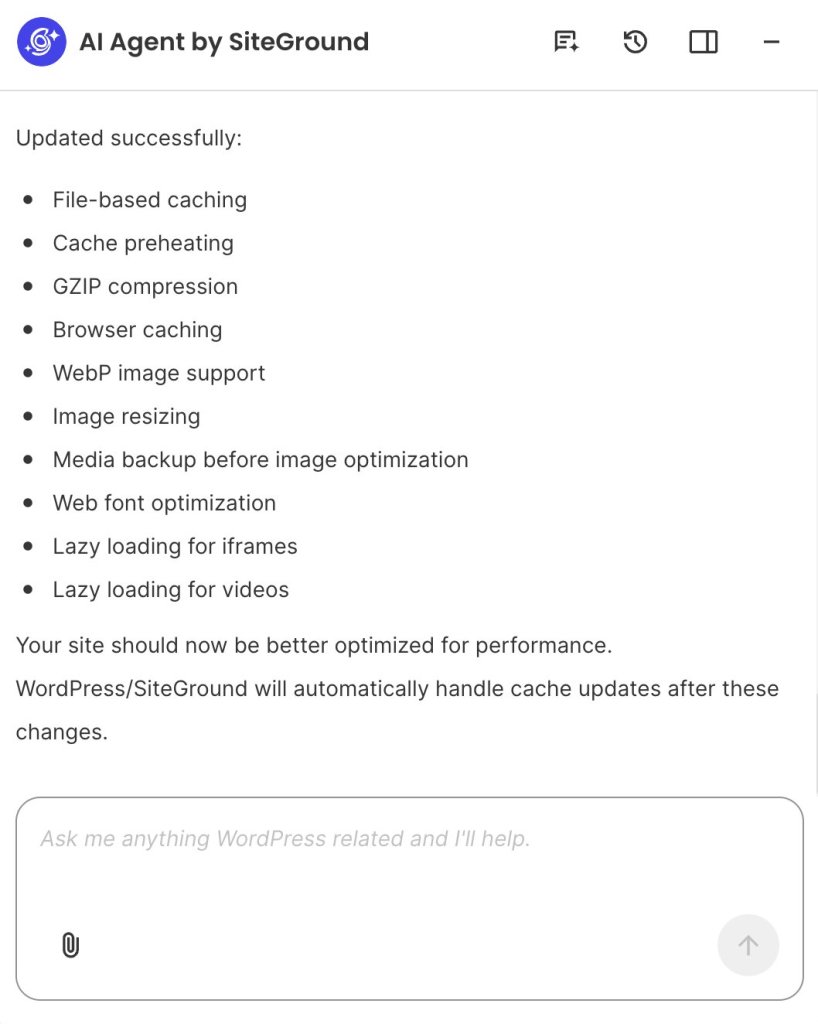
Pro tip: Check your plugins before you even build a staging site. Every plugin in the official WordPress directory has a “Tested up to” line on its page, showing the newest WordPress version its developer has checked it against. Open the pages for your most important plugins. Any plugin that hasn’t been updated in over a year, or that only lists compatibility up to 7.0, is your first suspect if something breaks. You can also simply ask the AI Agent for WordPress to list your active plugins and review their WordPress 7.1 compatibility and update status for you.
What’s new in WordPress 7.1, and what is expanded from WordPress 7.0?
WordPress 7.1 is a polishing release rather than a reinvention. The two biggest items, responsive styling and client-side media processing, aren’t brand new: they started in WordPress 7.0 and are being expanded here. The things that are genuinely new in 7.1 are the interactive design controls, two new content blocks, a new way to add icons, and a behind-the-scenes change to how the editor loads. Here is what each one means for you.
Responsive styling in WordPress 7.1 without custom CSS
CSS is the code that controls how your site looks: fonts, colors, spacing, and how things rearrange on smaller screens. Traditionally, changing those details meant writing CSS or paying someone who could. WordPress 7.1 moves a lot of that into simple on-screen controls.
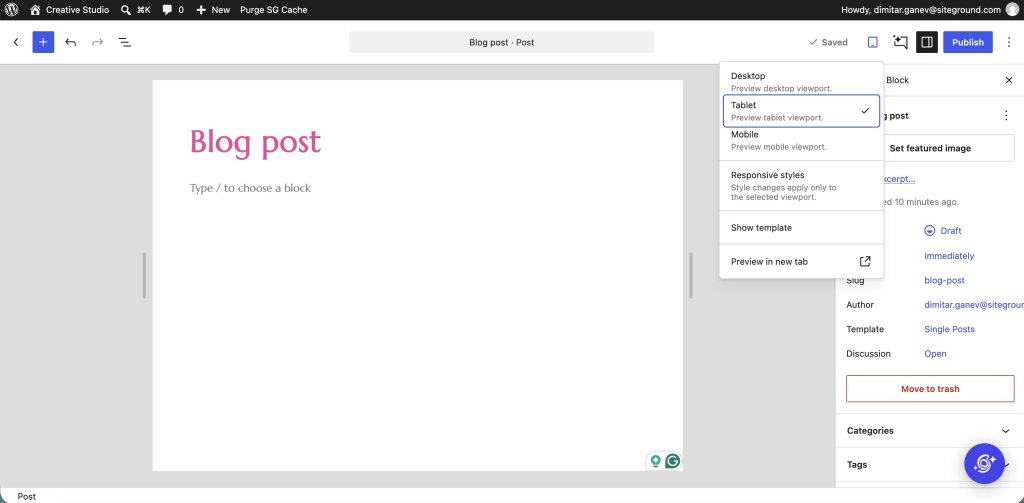
“Responsive” styling means controlling how your site looks on different screen sizes: a wide desktop monitor, a tablet, or a phone. WordPress 7.0 let you show or hide parts of a page depending on the screen. WordPress 7.1 goes further and lets you set different styles for each screen size, and for the first time it lets you style interactive states without code. An interactive state is simply how something looks when a visitor points at it, clicks into it, or presses it, such as a button changing color when you hover over it.
These interactive controls arrived for a limited set of blocks first rather than every block at once, so check the specific pieces of your design that depend on them. Site designers also get adjustable “breakpoints,” the screen widths where your layout switches from the desktop version to the tablet or phone version.
Here is where these controls appear: After you update, open any page in the editor and select a block, like a button or a heading. In the settings panel on the right, look for the small device icons: a desktop, a tablet, and a phone. Clicking those lets you set styles for each screen size, and the hover and click styles live in the same panel under that block’s styling options. If you’ve ever paid a developer to write “mobile CSS” for you, this is the feature that may save you that bill next time.
How WordPress 7.1 client-side media processing works
When you upload a photo to WordPress, it normally gets resized and compressed on the server where your website lives. “Client-side” media processing moves that work into the web browser of the person uploading, so it happens on their own computer before the image is even sent to your site. The payoff is less strain on your server and support for more modern image formats. WordPress 7.0 introduced this for basic resizing; 7.1 makes it the main way images are handled.
It works on Chrome and other Chrome-based browsers, and browsers that can’t do it, like Firefox and Safari, fall back to the old server-side method automatically, with no loss of quality. Nothing breaks for those visitors. The only people who need to test this carefully are those running plugins that do something special with images on upload.
If image credits or copyright info matter to you, test one upload. Photos often carry hidden data called metadata: the photographer’s name, copyright, or where a shot was taken. Because image handling now happens in the browser, it’s worth uploading one test image after you update and checking that this hidden information is still attached the way you expect. Photographers, stock-image users, and anyone with licensing rules will care about this.
Notes, the media editor, and the new blocks
WordPress 7.1 adds two new blocks and improves a collaboration tool called Notes.
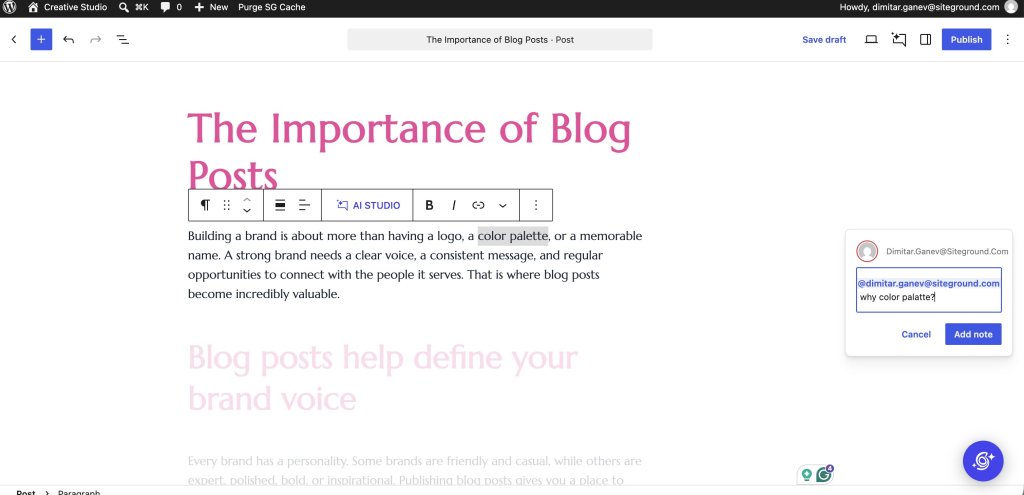
Notes are comments you can leave on a page while editing, handy when more than one person works on your content. In 7.1, you can tag a specific person with the @ symbol so they get pulled in, attach a note to an exact sentence rather than a whole section, run several separate discussion threads, and format your comments. There’s also a suggestion mode and emoji reactions. If you’re the only person who edits your site, you may never touch this. If you work with a team or a client, it’s the change you’ll feel most.
The first new block is Playlist, which gives you an audio player with a visual sound-wave display. If you publish podcasts, music, or audio versions of your posts, it replaces a job that used to need a separate plugin.
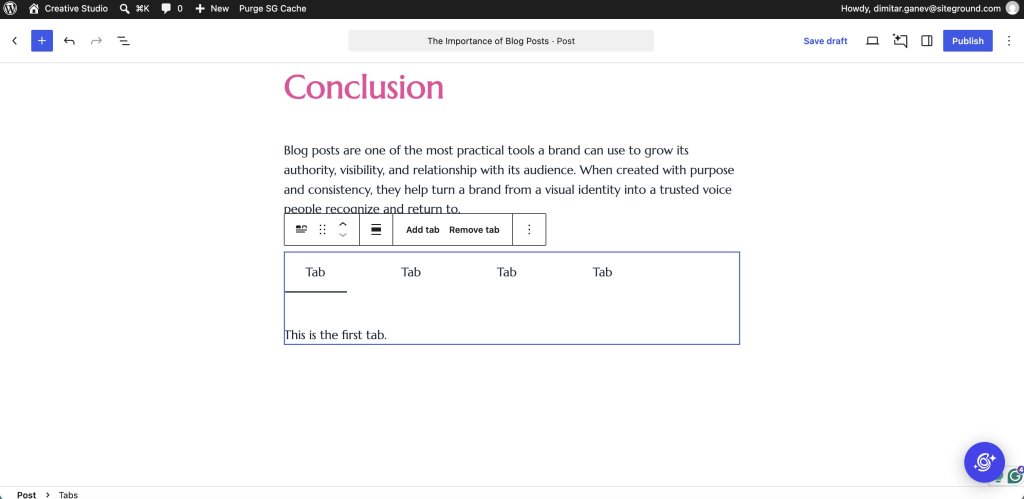
The second is Tabs, which lets you organize content into clickable tabs, so you can put something like FAQs, specs, and reviews behind separate tabs on one page without any extra tools.
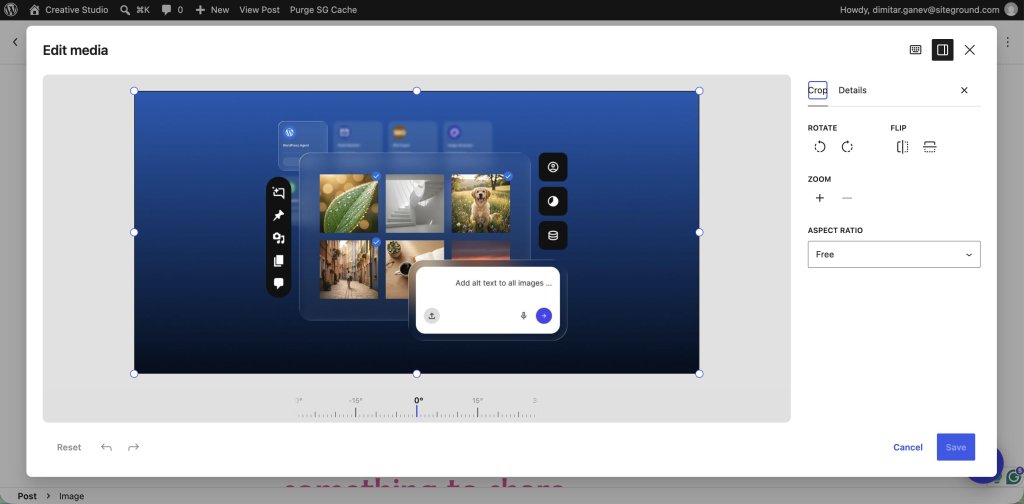
There’s also an improved image editor built right into the page editor. Clicking the Crop button on an image now opens a dedicated editing window over your page, replacing the older tool that worked inline. Inside it you can crop by dragging to any shape you like or snap to a preset such as square or widescreen, rotate in small steps with guides that help you straighten a crooked photo, flip the image, and edit its details, all in one place. Close the window, and you’re back on your page where you left off. The goal was to stop basic fixes from needing a separate photo app.
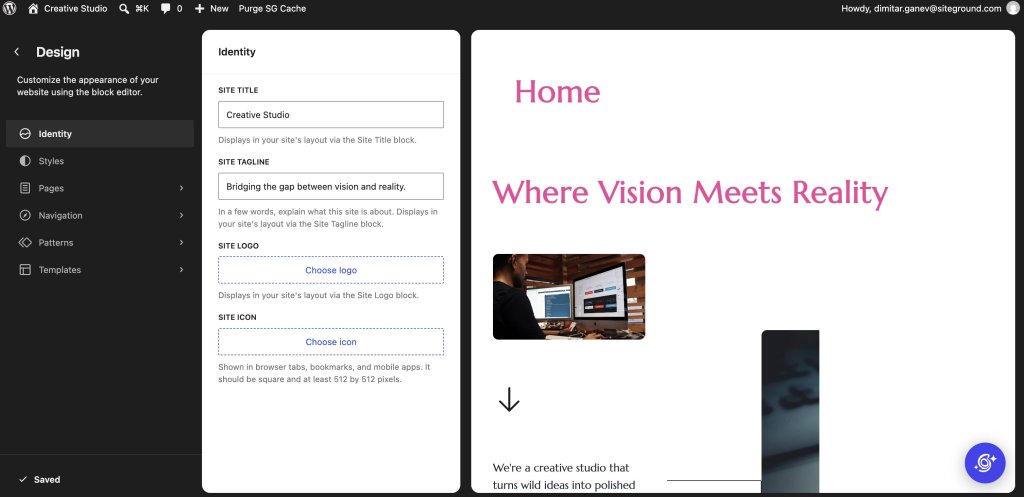
WordPress 7.1 also gives your site’s branding a home of its own. A new Identity screen, at Appearance > Editor > Identity, brings your site title, tagline, logo, and favicon (the small icon in a browser tab) together in one place, with editing right there on the screen. These settings used to be scattered, so this is a small change that saves a lot of hunting.
What is not in WordPress 7.1
There is a lot of outdated coverage, so if you came across it, let’s reassure you first: WordPress 7.1 does not remove the Classic block. The Classic block is the older, simpler way of writing posts that works like a basic word processor, and many long-running sites still rely on it. What was actually proposed was narrower: hiding it from the block inserter so it would not appear when you add a new block, while every existing Classic block kept working. Even that was reversed on July 7, 2026. Nothing changes.
Here’s what else people are asking about that is not in this release:
- Real-time co-editing didn’t make it. Having two people edit the same page at the same time, the way Google Docs works, is still not ready. It’s on the wish list but has open questions, and the team put its effort into the improved Notes instead.
- A big code upgrade was delayed. WordPress’s editor is built on a piece of software called React. An upgrade to the newest version, React 19, was expected but got pushed back. It’s available only as an experimental option for developers to try, not switched on by default. Most site owners will never notice this either way.
- A house style tool for AI did not make it into core. Guidelines lets you write your editorial rules once, things like tone, preferred wording, and words to avoid, so WordPress can remember them instead of you repeating them to an AI tool every time. It has been available as a Gutenberg plugin experiment since March, but the proposal to build it into WordPress itself was declined in July, five days before the first beta, because it needs more real-world use first. You can try it, but it is not part of 7.1.
- Two smaller features were pulled: support for email addresses that use non-English characters, and a “Table of Contents” block. Both were moved to a later release.
What about the AI features?
Worth clearing this up, since 7.1 was widely billed as an AI release. The AI you can actually see and use arrived in WordPress 7.0: the AI Client, which gives plugins one standard way to talk to services like ChatGPT or Gemini, and the Connectors screen where you connect a provider and paste in your key. Our guide to how AI works in WordPress 7.0 covers what that means in practice.
What 7.1 works on sits underneath all that, in something called the Abilities API. Think of it as a catalog of what your site can do, written so that software can read it: create a post, update a product, change a setting. It has been building over the last few releases, and it matters because an AI tool connected to your site is guessing until it can look up what actually exists there.
The 7.1 changes make that catalog easier and safer to work with. Tools can search it rather than read the whole thing. Entries can be marked as open to outside tools or kept private. The catalog describes itself in a standard format, so software can understand it without custom code. And there are checkpoints that run whenever an entry is used, which is where permissions and logging get attached. None of that is a button you press, but it decides how safely AI tools can work on your site later.
Two more additions work the same way. The AI code library bundled inside WordPress can now stream responses as they are generated, rather than waiting for a whole answer, and create embeddings, which is the technology behind search that understands meaning rather than matching exact words. Both are there for plugin developers to build on, and nothing in the editor uses them yet.
There is one change you might actually see. The Connectors screen now accepts a username and application password as well as an API key, which is a more familiar way to connect a service and means one less provider key to look after. WordPress also closed a gap where browsers could offer to autofill your saved passwords into the API key field. Beyond that, the parts of 7.1 you will click are about design, media, and teamwork.
WordPress 7.1 compatibility: what to test before upgrading
Here’s a table showing every change, who it affects, and what, if anything, you should check:
| WordPress 7.1 change | Who it affects | What to test | Status |
| Responsive and interactive styling (per screen size; hover and click states; no code) | Designers, theme authors, agencies | How the site looks on phone and tablet, and whether hover and click styles behave | Confirmed |
| Client-side media processing | Image-heavy sites, image plugins, hosts | Custom image sizes, format conversion, and any image-upload plugin | Confirmed |
| Editor now loads in a sealed frame (block themes) | Sites with custom-built blocks | Custom blocks (need Block API v3), editor styling, add-on panels | Confirmed |
| Built-in image editor (crop, rotate, edit info) | Content and editorial teams | Cropping, rotating, and editing image details in the editor | Confirmed |
| Better Notes (@mentions, notes on specific text, threads, formatting) | Editorial and content teams | Mentions, threads, and comment permissions | Confirmed |
| Playlist and Tabs blocks | Anyone using plugins for these today | The audio player and the tabbed panels | Confirmed |
| Toolbar and color scheme that stay put across editors | All editor users | Toolbar and color scheme carrying into the Site Editor | Confirmed |
| New way to add custom icon sets | Theme and plugin developers | wp_register_icon_collection(), icon file safety checks | Confirmed |
| React 19 upgrade (editor’s underlying software) | Developers only | Experimental option only. Don’t rely on it | Experimental only |
| Real-time co-editing | Teams | Nothing. Don’t plan production use | Roadmap only |
| Hiding the Classic block from the inserter | Classic-block users | Nothing. It stays in the inserter | Not happening |
| Table of Contents block; non-English email addresses | n/a | Neither ships in 7.1 | Not in 7.1 |
If you run a standard WordPress site (most people)
If your site runs on WordPress’s standard blocks and a regularly-updated theme (the design template that controls your site’s look), WordPress 7.1 is a low-risk update. The changes you’ll actually notice are the friendly ones: the better Notes, the new crop-and-rotate image tool, and the Tabs and Playlist blocks. Update a staging copy, run through your normal routine of writing and publishing a post, and check that any plugin you use for tabs or audio still plays nicely with the new built-in blocks.
If you design WordPress sites for others
If you build or heavily customize sites, test the new design controls against your existing work first. The adjustable breakpoints are a real improvement, but they can also change how your carefully-tuned mobile layouts appear. Open your main page templates and view them at desktop, tablet, and phone widths, confirm your buttons still look right when hovered or clicked, and compare the result against what you had before.
If your WordPress site has custom blocks or features
This is the section to forward to your developer if you have one, or to read slowly if you’ve had custom features built for your site. Two changes carry the main WordPress 7.1 compatibility risk of something breaking, and almost no other article mentions them.
The first is a change to how the editing screen loads. For modern “block” themes, the editor now loads inside a sealed frame, a bit like a window within a window (developers call this an “iframe”). Custom-built blocks made with an older set of building rules, known as Block API version 2, need updating to the newer version 3, or they may look broken after the update. This is the most common cause of an editor that suddenly looks wrong.
The second involves plugins that do something when you upload an image: resizing it a special way, adding a watermark, or creating custom sizes. Because image handling moved into the browser, the technical connection points those plugins rely on (developers call them “hooks”) may not fire the way they used to. Any plugin that touches image uploads needs a test upload after updating. This is the single most likely thing to trip up a customized site, and the easiest to miss, because it only shows up when someone actually uploads a file. One extra note for developers: the new Tabs block’s internal data store was removed during final clean-up, so don’t build anything against it yet.
Not sure whether the “block theme” changes even apply to you? Here’s a 10-second check. In your WordPress dashboard, open the “Appearance” menu. If you see an “Editor” option there (sometimes called the Site Editor), you’re using a block theme, and the editor-loading change applies to you. If you only see “Customize” and no “Editor,” you’re on a classic theme and can skip that particular worry entirely. This one check tells you whether half of this section is even relevant to your site.
How to test WordPress 7.1 safely
The golden rule before the WordPress 7.1 update: test on a staging site, never on your live one. A staging site is a private copy of your site where you can try updates, break things, and fix them, without any visitor ever seeing it.
On SiteGround, you can create a staging copy from your Site Tools dashboard, run the update there, and publish it to your live site only once you’re happy.
To get the pre-release version of WordPress 7.1 onto that copy, the simplest route is a free plugin called WordPress Beta Tester. Install it, choose the “Bleeding edge” option, and it will offer you the latest test build. If you just want a quick look at the new features without touching your own site at all, WordPress Playground runs a temporary, throwaway WordPress site right in your browser tab, with nothing to install and nothing you can break. Use Playground for a tour, and a real staging copy for a proper compatibility check before you update for real.
Conclusion
For most people, WordPress 7.1 is a safe and worthwhile update, and if you build or design WordPress sites, it’s a genuinely nice one: the new design controls take a real chunk of code out of everyday work. The only real caution is narrow. If your site has custom-built features, or plugins that handle images in a special way, test those on a staging copy before you update. For everyone else, a quick check that your site still works is enough.
The safe path is the one that has always worked: back up your site, test on a copy, then update for real. If managing all that yourself sounds like more than you signed up for, WordPress hosting with one-click staging and automatic updates that can roll back if anything goes wrong takes the pressure off update day, so you can try WordPress 7.1 properly and go live only when you’re ready.
FAQs
WordPress 7.1 is scheduled for release on August 19, 2026, the final day of WordCamp US in Phoenix. The date is marked tentative on the official schedule, so it could shift if a release candidate uncovers a serious bug.
You should not update your live site to WordPress 7.1 on release day. Test on a staging copy first, especially if you run custom-built blocks, a heavily customized theme, or plugins that process image uploads, and update the live site once that testing is clean. If your site is hosted on SiteGround, decide this before release day rather than after. By default, SiteGround’s WordPress Autoupdate tool installs major releases 24 hours after they come out, and it takes a full backup of your site immediately before the update runs. You can lengthen the delay, skip the release, or update sooner from Site Tools > WordPress > Autoupdate.
WordPress 7.1 will not break most sites built on standard blocks and an up-to-date theme. The real risk is for custom-built blocks made with the older Block API version 2, which need updating to version 3, and for plugins that handle image uploads, because browser-based image processing changes when some of their connection points run.
No. WordPress 7.1 does not remove the Classic block, and removal was never proposed. A narrower plan to hide it from the block inserter was reversed on July 7, 2026, so the Classic block remains available and works as before.
No, not as finished features. Real-time collaboration remains on the roadmap with open questions, and the React 19 upgrade was delayed, returning only as an experimental option for developers. The improved Notes received the collaboration work for this release.
WordPress 7.1 client-side media processing prepares images inside the visitor’s web browser on Chrome-based browsers, handling compression, resizing, and format conversion before upload. Browsers without support fall back to the older server-based method automatically, so nothing breaks.