

21 Useful WooCommerce Plugins To Boost Your Woo Store Functionalities Out Of The Box

WooCommerce, built on top of WordPress, is one of the most popular eCommerce platforms on the web. By every metric available, it is the cheapest platform to get started with as it can be installed on any WordPress website and the basic functionality is free.

If the basic functionality is all you need then it is absolutely free. Beyond the basic functionality though, WordPress – like all of WordPress – is extendable via plugins. In all my years of working with WooCommerce I have never been able to just install it and launch. I’ve always had to install a series of WooCommerce plugins

Choosing a Plugin

Price and budget are always a consideration when setting up an eCommerce site but that shouldn’t be the only consideration when selecting plugins. Other things you need to consider when selecting a plugin are:

  • Feature set
  • Developer (or company’s) reputation
  • How current is the code

A plugin that does exactly what you want done but hasn’t been updated in three years or tested with a recent version of WordPress will usually end up costing you more time and money than it is worth. If you are a programmer and have time to spare, yes, you can bring the plugin up-to-date if it is open source. However that means that you are now on the hook to keep it current.

Paid vs. Free WooCommerce Plugins

All WooCommerce plugins fall into two basic categories:

  1. Free WooCommerce plugins
  2. Paid WooCommerce plugins

In all the plugins that we talk about here, I will note whether the plugin is free or commercial. Being the cheap person that I am, I always gravitate towards the free WooCommerce plugins wherever possible. That having been said, if you are going to be making money, you are going to have to spend a little to get the more useful functionality.

The plugins I list here are what I consider to be the top WooCommerce plugins, regardless of whether they are free or commercial. If they happen to be free then that’s a win for everyone.

The Most Useful WooCommerce Plugins

There are a lot of lists of WooCommerce plugins out there on the web. Some of them look like people just went through the plugin directory searching for the word WooCommerce and listed them for you. The plugins I’ve listed here may not be the shiniest or the ones that sparkle and get the most attention. They are however the ones that I have found the most useful in building my WooCommerce sites. I hope you find them useful as well. 

So let’s take a look at my favourite WooCommerce plugins.

A security plugin to keep WooCommerce safe

WordPress and WooCommerce go a long way to ensure your site stays safe and secure but it never hurts to add another layer or two of security. Of course the first layer of security is always making sure you have a hosting partner that is focused on the security of your site. Second though are a series of small steps you can take to make it more difficult for bad actors to get into your site. This plugin solves that problem.

Security Optimizer

Author: SiteGround

Price: Free

This has become only the second plugin I have ever put on my “must install” list. When I am setting up a new WordPress site for myself or for friends, family, or clients, Security Optimizer is always installed. I don’t always use all of the options, but that is one of the things I love about it, everything is optional. I can use one or two features, or I can use them all.

Make sure that your site is as secure as it possibly can be by installing the Security Optimizer plugin. Good news: If you are hosting with SiteGround, this is automatically installed and activated for you when you install WordPress.

If you are hosting with another hosting company, you can still use 100% of the features of the Security Optimizer plugin. It does not require SiteGround hosted sites.

WooCommerce payment plugins

WooCommerce Payments

Author: WooCommerce

Price: Free

WooCommerce is the latest of the payment processors. It’s powered by Stripe as the payment processor, but you do not need to have the Stripe extension on your site nor an existing Stripe account prior to installing and using WooCommerce Payments. This plugin is more tightly integrated into WooCommerce than any of the other payment gateway plugins and it’s a fully integrated solution, meaning that merchants can manage everything to do with payments from one central place – their own site’s WooCommerce dashboard.

It should be noted that one of the biggest selling points of this plugin is that eligible merchants can get almost immediate access to their funds.

WooCommerce Payments also enables Apple Pay and Google Pay.

Stripe Gateway

Author: WooCommerce

Price: Free

If you don’t want to process your money through WooCommerce and then through Stripe, you can use the Stripe plugin. As with WooCommerce Payments, you will need to set up a Stripe account to be able to use this plugin. 

Stripe is a well documented system and a safe bet for anyone who isn’t sure which payment gateway to use.

Paypal Payment

Author: WooCommerce

Price: Free

Paypal is probably the oldest of all the online credit card gateways. Their interface is kind of clunky but it still gets the job done. Because it’s been around so long, it is accepted in a lot of different countries where some of the newer gateways may not yet be available.

If Stripe isn’t available in your area, PayPal is a solid second choice.

Amazon Pay

Author: WooCommerce

Price: Free

A newcomer to WooCommerce, Amazon Pay has been rolling out over the past few years. The upside is that if your customers have an Amazon account, they can pay for your goods and services with that account. Since most customers trust Amazon to keep their information private, this trust is transmitted down to you if you offer Amazon Pay.

Amazon Pay does support subscriptions.

Square for WooCommerce

Author: WooCommerce

Price: Free

If you work in the real world and in cyberspace, Square is a great choice for a payment processor. As far as a normal eCommerce payment gateway goes, Square is as good as any of the rest but they are the only one that also integrate your real-life payments in the same account.

WooCommerce shipping plugins

These days shipping isn’t something that every store owner has to deal with. If you are selling virtual products or information then you probably aren’t shipping anything./ For everyone else there are a few plugins that you are going to have to consider installing.

JetPack

Author: Automattic

Price: Free with commercial options

JetPack has some core functionality that helps with the shipping and tax collection plugins, so, even though it is not technically a shipping plugin, you’ll need it for that purpose. The good news is that as of this writing, you don’t need any of the paid options to get shipping and tax functionality working.

WooCommerce Shipping

Author: WooCommerce

Price: Free

If you are shipping via United States Postal Service or DHL, install this plugin. It gives you the ability to print out labels for your packages for both of those services. 

UPS Shipping Method

Author: WooCommerce

Price: $99/year

This plugin will calculate UPS shipping for you by talking with UPS’s API. It will calculate both domestic (United States) and International shipping for you.

Please note that this plugin requires that you have the PHP extension SimpleXML installed. This extension is installed by default on SiteGround. If you are using another hosting parter, you will need to contact them to make sure it is installed before you can install this plugin.

This plugin calculates shipping rates but does not print labels.

FedEx Shipping Method

Author: WooCommerce

Price: $99/year

Like the UPS plugin, the WooCommerce FedEx Shipping Method plugin allows you to talk to the FedEx API and accurately estimate shipping costs for your customers

Like the UPS plugin, the FedEx plugin requires that you have a PHP extension installed. This one requires the SOAP extension. As with the SimpleXML plugin, this is installed standard on all SiteGround plans. If you are not hosting with SiteGround, make sure and consult your host to make sure this extension is installed before you install the FedEX Shipping Method plugin.

This plugin calculates shipping rates but does not print labels.

Canada Post Shipping Method

Author: WooCommerce

Price: $99/year

If you live in Canada or you ship a product to Canada then you will want the Canada Post Shipping plugin. This calculates shipping costs for your orders using the Canada Post API.

This plugin calculates shipping rates but does not print labels.

Royal Mail Shipping Method

Author: WooCommerce

Price: $99/year

For those in the United Kingdom, you will want the Royal Mail Shipping plugin. This calculates shipping for your orders based on the 2021 posted price guidelines. This plugin does not talk to an API therefore will not affect the speed of your cart pages. (Some API can slow down the display of pages)

Shipment Tracking Plugin

Author: WooCommerce

Price: $59/year

Regardless of what shipping service you use to ship your product to your eager buyers, you want to give them a way to track those orders to their doorstep. The WooCommerce Shipment Tracking Plugin does just that. It supports all of the shipping method plugins we have discussed here plus many others.

WooCommerce plugins to sell different kinds of products 

Since selling things is the actual point of an eCommerce website, let’s look at a few plugins that will help you actually sell subscriptions, event tickets, custom printed items and arrange bookings.

WooCommerce Subscriptions

Author: WooCommerce

Price: $239/year

There are a lot of subscription plugins out there for WordPress. However, if you are using WooCommerce for selling other products, consider the WooCommerce Subscriptions plugin before you look at the others. This plugin is going to be better integrated into your overall solution than anything else out there. 

The WooCommerce Subscriptions plugin will work with all the payment plugins to handle recurring payments, the trickiest part of selling any subscriptions.

WooCommerce Subscriptions will allow you to sell subscriptions to both physical or virtual products. It is good whether you are selling coffee by the month or your monthly newsletter about coffee.

FooEvents

Author: FooEvents

Price: Starting at $139/year

If you are selling tickets to events, using WooCommerce you have several options. I’ve tried most of them at one point or another and off all of them, I like FooEvents the best. FooEvents makes it easy to sell tickets and manage your events. If you are selling tickets to a physical event, you even have the option of a seating chart to sell individual seats.

Event management and ticket sales are not trivial endeavors so I encourage you to look at all your options before making a decision. Make sure though that you include FooEvents in your list of potential solutions.

Printful Integration for WooCommerce

Author: Printful

Price: Free

If you’ve ever wanted to have a store selling custom printed T-Shirts, water bottles, beach towels, etc. Printful is a good place to start. I looked at five different vendors before I selected Printful for my project and have never regretted the decision. Their products are top-notch and their integration with WooCommerce is seamless.

WooCommerce Accommodation Bookings

Author: WooCommerce

Price: Free

The accommodations industry is not one you traditionally think of when you think of setting up a WooCommerce/WordPress eCommerce site. That doesn’t however mean that WooCommerce has left them out. In the category of WooCommerce booking plugins, the standout is WooCommerce Accommodation Bookings. 

You can set things like check-in and check-out times and it allows you to sell by the quantity of nights stayed.

Given the money to be made in this industry, I find it very interesting that WooCommerce currently offers this plugin for free.

Product and cart plugins to help you sell more stuff

Once you have a customer lined up and ready to buy, wouldn’t it be nice to be able to sell them a little more stuff while they are here? These product plugins will help you do just that.

Product Add-Ons

Author: WooCommerce

Price: $59/year

Whether you want to sell personalization or gift-wrapping, this plugin will help you add options to make your sale even more valuable. This is one of the most popular WooCommerce product plugins available for WooCommerce. 

AutomateWoo

Author: WooCommerce

Price: $119/year

If you’ve ever wanted to hire an assistant to help you run your WooCommerce store, you are in luck. AutomateWoo is almost like having an assistant.

AutomateWoo is all about getting things done. 

  • Follow-up Emails
  • Personalized Coupons
  • Text Messaging
  • …and so much more

AutomateWoo allows you to define triggers. These are events that kick off a series of events that you define, called a workflow. A workflow has rules to make sure that the events triggered are the ones you want done, and if they are, then the action you define takes place.

A simple example would be:

TRIGGER: The date changes. (every morning at midnight) 

RULE: Find all the customers whose birthday is today. 

ACTION: Send an email wishing the customer a happy birthday

That’s a very simple one and yours can be much more complex. The thing is, once you define a workflow, it runs until you turn it off. You don’t have to remember to do things, AutomateWoo remembers what you want done and takes care of it for you.

Check out this great plugin and see how easy it is to get an assistant to help you with your store for only $99/year.

WooCommerce Cart Abandonment Recovery

Author: Addify

Price: $79/year

Abandoned carts don’t do anybody any good. Most good merchants will chase after them. After all, if someone took the time to visit your site and show interest in a product, why just let them walk away?

This plugin allows you to configure and automatically send recovery emails. You can add incentives and relevant coupons as well.

Don’t let your customers just walk away, take a look at the Card Abandonment Recovery Plugin for WooCommerce.

WooCommerce coupon plugin to create great deals

Smart Coupons

Author: StoreApps

Price: $129/year

WooCommerce comes with a pretty good system for creating coupons for your store. It is built into the basic core. However, if you need something a little more, check out Smart Coupons by StoreApps, the most popular of WooCommerce coupon plugins available.

It builds on the basic functionality of WooCommerce’s coupon system and allows you to do things like:

  • Offer free shipping
  • Store Credit
  • Gift Certificates

And several other things that make this plugin nice to have.

*Disclaimer: Prices mentioned in this blog post are subject to change. For accurate and up-to-date information on pricing, we strongly recommend checking the official page of the respective plugin.

Wrap Up

WordPress and WooCommerce are a powerful and extendable platform for eCommerce. There are hundreds of plugins out there that will help you sell, track, market, and report. I’ve only scratched the surface here. I’ve tried to narrow my list of plugins presented to you to the ones that will be most useful to you right out of the box. Once you get some experience, you will undoubtedly start to experiment with many of the more complex plugins and systems available to you. 

Good luck and I can’t wait to see what you build!

[subscribe_cta]

Centralized DNS for Faster, Safer and Easier Hosting

Looking back 2 years ago at our promise to unleash a series of service enhancements after switching fully to Site Tools, we keep delivering! After launching the Ultrafast PHP, new MySQL setup on shared and cloud, SG Optimizer new features, and more, we have also reworked our DNS service to make it faster, safer, more flexible and easy to use than ever. Take a read at what we have done and how that affects your websites hosted on our platform. 

What’s under the hood of our new DNS service 

Let us first make a quick reminder – the DNS (domain name system) is what makes it possible for a domain name to open a specific website. This system indicates on which of all the servers in the whole internet your website is hosted. Usually, a specific set of 2 nameservers and 2 IPs correspond to each server and they should be added in your domain’s management panel for the system to work. Each server also has a DNS service installed on it that processes the DNS queries and shows the proper website when a visitor types your domain in the browser. 

With our new centralized DNS setup we no longer need DNS service installed on each of our production servers that host your website. We are able to move all our DNS services to a completely separate cluster of multiple servers. This cluster is dedicated for DNS service only and is geographically dispersed around the globe thanks to the super cool Anycast network routing technology. Centralized DNS also allows us to have just one pair of nameservers and IPs for all the servers that SiteGround manages, and these are:

  • ns1.siteground.net
  • ns2.siteground.net

What are the benefits of our new DNS service

Faster Domain Resolving, Faster Website Loading

When a visitor searches for your website’s domain, the first thing that the browser does is make a DNS lookup to see on which IP the domain resolves and connects to the server with that IP. With the previous DNS setup lookup requests coming from a different continent from your server’s were handled a bit slower due to the physical distance between the visitor and the server resolving your domain. Now, with the centralized DNS which works on five different geographical locations and multiple instances, the resolving is handled by the closest node saving networking delays and improving your website loading speed.

Enhanced Redundancy 

As the new DNS setup relies on multiple geographically dispersed machines, it is extremely resilient. For example if one of the DNS servers goes down, the DNS requests would be handled by the second closest point, which is up and running. This setup also guards against DDoS attacks, as if there is a high amount of malicious traffic, it will be distributed among multiple DNS machines and it becomes much more difficult for such an attack to succeed. On top of that the DNS service is super scalable, and new machines can be added easily whenever there is a need for more resources.

If you are using your domain simultaneously for your hosting at SiteGround and other services too (for example your MX records are pointed to Gmail), having the DNS service hosted on a different location from your website has one more advantage. In case your hosting server goes down, your DNS will still work and your outside services will still resolve without being affected. 

Seamless Migrations Between Servers 

It’s part of our job to move data around – whether we transfer your account from an old hardware to a newer one, from cPanel server setup to machines with Site Tools setup, or from an old data center to Google Cloud infrastructure, migrations are something that happen and will continue to happen. Every time we migrate servers, one of the biggest challenges is handling the DNS zones. The new server comes with new nameservers and once websites get transferred, the domains have to be pointed to use the new nameservers. We have been updating them automatically for all domains managed via our control panels, but external domains needed manual change by webmasters. In both cases, there would be DNS propagation with potential downtime impact. With the new Centralized DNS it will be much easier to migrate and perform server upgrades in the future. In most of the cases such migrations would not involve any kind of DNS settings change thus preventing any issues caused by propagation. 

More Convenience & Ease of Use for you

With the decentralized DNS, people managing multiple sites on different servers have to keep track of different sets of nameservers, which may be inconvenient. The new centralized DNS simplifies multiple web site management processes for our clients, as all domains of all sites hosted on our platform, regardless of their hosting account or server can now use the same pair of nameservers.

When will the new DNS service become available?

All new websites created on our platform are already using the new DNS service. For older websites, we are now starting a gradual switch to the new centralized DNS. We will be updating nameservers for all domains registered with us automatically. For external domains used with our system, we will be informing our clients by email, confirming when it will be safe to update their DNS settings to the new ones. The old DNS system will continue to be supported for several more months, till the migration to the new one is fully completed. 

[subscribe_cta]

A Critical WooCommerce Vulnerability Promptly Addressed

Last week, the Woo team announced a critical vulnerability in the most popular eCommerce plugin for WordPress – WooCommerce. As described in their post, security updates were pushed to all Woo branches for users who have not disabled such updates. This was done in a very fast and efficient way. Furthermore, the Woo team has been extremely cooperative with providing all the needed information that allowed us to proactively add security rules to our WAF (Web Application Firewall) for an additional layer of protection. Read below to learn more about all actions taken and their results.

Branched updates pushed by Woo

Due to the severity of the vulnerabilities discovered, the WooCommerce team has worked more than 36 hours around the clock to patch every major release branch. This means that you don’t have to switch from WooCommerce 4 to 5 to protect yourself. Those updates were pushed and if not explicitly disabled, most probably your Woo has been already patched. However, we strongly recommend that you check this! All WooCommerce versions prior to the latest patch are vulnerable. You can check your version and compare it to the WooCommerce Releases (https://developer.woocommerce.com/releases/) page. For example, if you have WooCommerce 5.5.1 you should simply update to 5.5.2. That will fix the security problem without breaking any functionality.

Proactive WAF protection set by SiteGround

In regards to security, we’ve always believed that being proactive is the best approach. This particular vulnerability was no exception. As soon as we were informed about it by the Woo team, we acted immediately and added a new security rule to our Web Application Firewall (WAF) – an elaborate system for exploit prevention, running on all of our servers. You can think of the firewall as a set of rules that address exploit attempts. We are constantly on the watch out for information about common security issues and we are quick to act by adding security rules so that our system can block attempts to exploit such issues. WAF will not patch a security hole of a particular website, which can be only done through updating with the security release, but prevents attackers from using it to gain unauthorised access to your site.

You may wonder why you need a WAF rule when the Woo team is fast to release a new security version. We do it to ensure that clients have more time to react, during which their sites are safe from the exploit. While the majority of the WooCommerce users are automatically updated by Woo, some sites are not updated for various reasons – auto-updated failed, disabled, or postponed too far in the future. Some webmasters prefer to manage the updates themselves, mainly as they want to be sure that the update does not mess with any of their website functionality. After all, we are usually talking about online stores, relying on many additional plugins for shipping, payments, tracking, taxation, and many more. For these people, the WAF rules provide time to make sure all their critical functionality will work with the new Woo version.

As a whole, the handling of this Woo vulnerability shows how the combined efforts of responsible plugin developers and your hosting company pay off – even in emergency situations your clients are safe and business continues as usual!

[subscribe_cta]

Enhanced Protection Against WordPress Vulnerabilities with SiteGround Security Plugin Preinstalled

We have recently launched our own WordPress security plugin — SiteGround Security (now named Security Optimizer), which aims to protect WordPress users against the most common vulnerabilities plaguing the sites. It is available for anyone to download and use for free, regardless which hosting platform they use. To make sure that our WordPress sites are well protected on application level, however, we have started preinstalling SiteGround Security on all new installations on our platform with some of the features enabled by default. 

Default SiteGround Security Settings Against Common WordPress Vulnerabilities 

Having your site set up with security in mind from the start can easily protect you against some of the most popular vulnerabilities out there. To help you achieve that goal, when we preinstall the SiteGround Security plugin we enable the following settings:

WordPress Version is Hidden by default

Hackers often crawl websites scooping information about software versions used. That way, when they get to discover a vulnerability in any of those versions, they are able to reach to and quickly hack many sites in bulk using that information. For WordPress application this data is openly available in 2 places – in an HTML tag and in the readme.html file. 

By default, our plugin removes the HTML tag with the WordPress version and we strongly recommend that you also remove the readme.html file via the option in the SiteGround Security plugin.

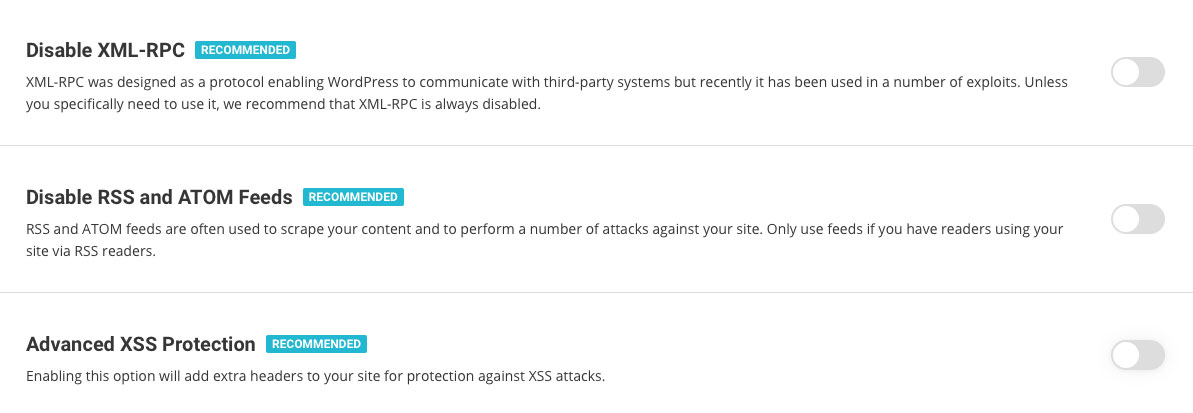
Advanced XSS Vulnerability Protection enabled

The cross-site script vulnerability, known as XSS, allows different apps and plugins to access information in your WordPress that they shouldn’t. Such attacks are often used to gather sensitive user data for example. By default, the SiteGround Security plugin enables protection against XSS by adding headers instructing browsers not to accept JS or other code injections.

Disabled XML-RPC protocol to prevent many vulnerabilities and attacks

The XML-RPC is an old protocol used by WordPress to talk to other systems. It is getting less and less used since the appearance of the REST API. However, it is available in the application and many are using it for exploiting vulnerabilities, starting DDOS attacks and other troubles. That is why our SiteGround Security plugin disables this open access line to your WordPress application by default.

NOTE:

Jetpack plugin and mobile apps are valid users of the XML-RPC protocol. If you download Jetpack at some point, we will automatically enable the protocol back. You can also enable it yourself through the plugin interface.

Option to Disable RSS and ATOM Feeds 

Similar to XML-RPC, feeds are rarely used nowadays, but they are often used by attackers and bad bots to scrape your site content. So the SiteGround Security plugin allows you to disable them easily. Unless you really need them, we recommend using this option and disable them as soon as possible.

Lock and Protect System Folders by default

Usually, when an exploit happens, attackers try inserting and executing PHP files in public folders to add backdoors and further compromise your account. By design, those publicly accessible WordPress folders are used for uploading media content (images for example). Via the SiteGround Security plugin, we do not forbid the upload of files, but we stop PHP files and malicious scripts from being executed and causing problems for your sites.  This feature protects those system folders and prevents potentially malicious scripts from being executed from them.  

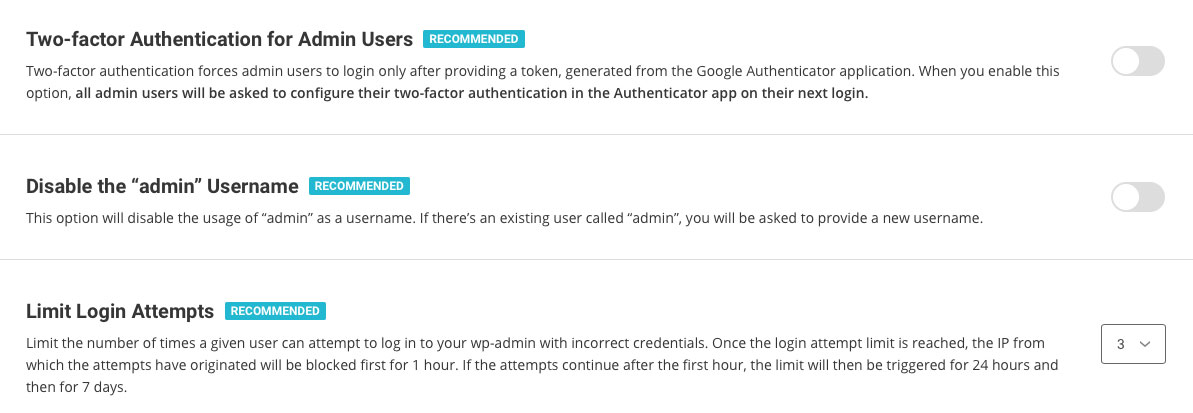
Disabled “Admin” Username 

The default username and one most widely used on all applications by their owners is “Admin.” Hackers know that and when they wish to bruteforce a login form, they will definitely try it. That is why we disable this username by default. 

Disabled Themes & Plugins Editor

Editing code through the plugins and themes editor poses direct security risks both from potential elevation of privileges attacks and errors made by a regular site administrator. If you want to edit your files, it is strongly recommended that you use the File Manager tool in Site Tools, or your preferred editor through FTP or SSH (ideally on a staging copy of your site). To help you avoid bad practices and attacks, we disable the themes & plugins editor by default.

There are a few settings, which you can control from the SiteGround Security plugin, which we have not enabled by default because they need your permission or they pose a risk on the way you use your app. Yet, we wish to encourage you to enable them consciously as they are quite powerful protection tools as well.

Two-Factor Authentication is a MUST

You already know that 2FA protects your login from brute force attacks and hijacking of login credentials. You can read more on the topic here and you can enable it easily using the SiteGround Security plugin.

Limit Login Attempts 

When someone tries to log in several times with wrong credentials, they are most likely trying to guess your logins. That is why it is strongly recommended to block such attempts after the first few – 3 or 5. You can set that in the SiteGround Security plugin interface and after that many times of wrong logins, the user gets blocked for 1hour the first time, then 24hours on the second trial, and finally for 7 days on their third trial. Again, since if you don’t know about this functionality, you may lock yourself out of the WordPress admin area, we are not enabling it by default for you, but you can do it easily in a click!

More Tools Against WordPress Vulnerabilities Coming Up

We’re continuing the development of the plugin and will add a lot of new functionality soon. Monitor the change log for new features added with the upcoming updates. There isn’t a strict roadmap that we can share at this point but some of the features coming next are custom login URLs, Strict Transport Security headers and X Frame options that will prevent page hijacking. As usual, we want to bring what’s usually difficult to implement technologies to everyone and with an interface easily accessible without having to spend hours researching the exact syntax of the necessary headers or other code.

[subscribe_cta]

Security Optimizer (formerly SiteGround Security) – our new must-have WordPress plugin

The security of our clients’ websites has always been an extremely important part of our web hosting services. Some of the brightest technical minds in our team have been continuously dedicated to crafting unique security solutions and keep the safety level of our hosting infrastructure on an unmatched high level. We have been an industry pioneer in developing server level protections like account isolation, server health monitoring, anti-bot traffic prevention, etc. We also know that on top of the server level solutions, the security of each individual website should be strengthened on application level too. That is why we provide services like auto updates, backups and WAF protection to our clients. 

Today we are happy to introduce another tool that can greatly enhance any WordPress site security – our brand new plugin – Security Optimizer (formerly SiteGround Security). The Security Optimizer plugin is available for free download for anyone and it comes preinstalled with all new WordPress installations hosted at SiteGround and provides its users an easy way to protect a WordPress site from malicious attacks. It also includes valuable tools that can help a website owner react in case there is a suspicion that the site might have been compromised. Read below to learn how to make your site safer with our new plugin.

Protect your WordPress against common attacks

In the Site Security section of our plugin you will be able to easily switch on several rules that will harden your website security and prevent common malware, bruteforce and other security issues. Some of these rules, like hiding your WordPress version or deleting your default readme.txt, will make it harder for crawlers to detect you’re even using WordPress. Thus your website will not be easily identified as a possible attack victim when a vulnerability appears. Other rules in this section will add advanced XSS protection and protect your system folders from being injected with malicious files. 

Strengthen your login security 

In the Login Security section of our plugin you will be able to apply several methods that protect your login from unauthorised access. One of the most recommended methods to protect your login is the 2-factor authentication and with the Security Optimizer plugin, you can easily switch it on for your WordPress administrative area. Some simple, yet very effective protection measures like changing your login URL and not allowing “admin” to be used as a username can be also easily set here. You can also limit the number of login attempts from one and the same IP, which will block attackers trying to guess your password through brute force. And if you want to go even deeper in protecting your WordPress login, there are two more advanced options available. You can specify the IPs from which your login page can be accessed. The option should be used with caution if you use dynamic IP, so that you do not block yourself out.

Monitor your admin area activity log

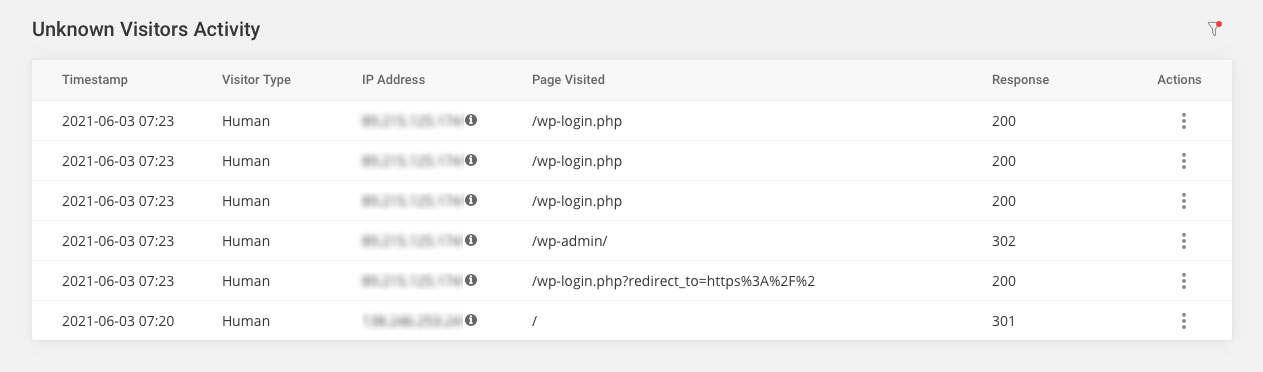
One of the best plugin features is the detailed Activity log. It allows you to pinpoint things like bad IP addresses that try to access your website as well as registered users that are performing tasks they are not supposed to. For example, you can block with one click IPs that have numerous incorrect logins and at the same time find out which user has deleted that post you are missing. For the initial version, we keep the log 16 days back so it’s worth giving it a look every now and then especially if you have a busy site and number of users with the capabilities to edit content.

React if you suspect your site might have been compromised.

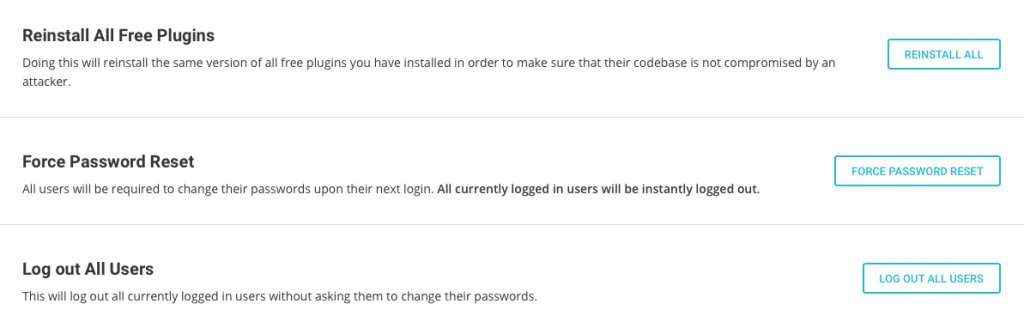
In the Post-hack section of the plugin you will find a set of actions that are useful, if you believe your site security has been compromised. Here you will be able to automatically log out all users and force them to change passwords. This way if any user was compromised, you may stop the malicious access through its account. You will also be able to reinstall all your current plugins. This will make sure you are using a clean copy of each plugin instead of a possible compromised one. Please bear in mind that although these post-hack actions are handy, they are not a substitute to a thorough site clean up that might need to be done by a WordPress security expert, if there are signs that your website might have been hacked.

How to get Security Optimizer?

Security Optimizer is available as any other free WordPress plugin. You can find it in the official WordPress plugin repository (https://wordpress.org/plugins/sg-security/) or install it directly through your WordPress admin area. If you host your next WordPress website at SiteGround, using the plugin comes right out-of-the-box, since all new WordPress installations now come with the plugin preinstalled with some of its features enabled by default.

This is the first plugin we are releasing whose full functionality can be used by anyone, even people that are not hosted by SiteGround. This said, we haven’t done excessive testing on every other company so issues caused by their particular setup may occur. If that’s the case, don’t hesitate to post a thread in the plugin forum in the WordPress repository, we will do our best to make sure it works great on all platforms.

[subscribe_cta]

Optimizing the RAM Utilization by the MySQL on the Cloud

Over the last 6 months, it has been all about speed at SiteGround. We have boosted the performance of the websites hosted with SiteGround up to 5 times by launching the new Ultrafast PHP and MySQL setups and enabling the dynamic cache (full page caching) for all sites. As a next major step in this process, we have turned our attention to our cloud servers and are glad to announce that we rolled out a new dynamic RAM-allocation algorithm that further improves the resource utilization of the MySQL and makes the database-intensive websites hosted on our higher cloud plans run faster. 

What is the problem with MySQL?

MySQL could be a real troublemaker. When left untamed, it devours resources and keeps asking for more. If it doesn’t get what it wants, it starts slowing processes one after the other and turns into a bottleneck for database-driven apps like WordPress. So the MySQL settings are the key to resolving many of the site slow issues reported, but many webmasters have difficulties tracing the origins of the slow performance. It is not just a question of adding more RAM. This RAM should be smartly utilized in a way that allows MySQL to run as fast as possible, but still to be restrained from eating up all the available resources.  

We have been helping clients with evaluating what is an optimal allocation of RAM to the MySQL given the specific services running on the website and the available specs and manually resolving those case by case, but, now we have come up with a way to automate that and diminish the amount of work and expertise required by our clients in the process.

What have we done?

We have implemented a dynamic configuration that depends on the amount of memory your Cloud account has. This means that MySQL settings will be adjusted depending on the available resources. We will not only start new Cloud instances with predefined configurations, but in case of an Automatic Scale event (or upgrade), the server config will adjust itself for optimal resource utilization without manual intervention.  That means that database queries will be processed faster and the I/O usage will be lower. Last, but not least, the additional RAM you add will now be utilized more efficiently, and even fast-growing sites will have to add less of it less often and thus save on their hosting expenses.  

Who Gets It?

The new system is already deployed on all Cloud servers! You don’t need to enable it or otherwise configure it. Just watch out for performance improvements and do let us know your feedback. The more database-intensive your site is (such are, for example, membership sites, online stores, forums, etc.), the bigger the improvement from the change will be!

[subscribe_cta]

Piping Email with PHP and SiteGround

One of the fun things to do with computers is to think outside the box, to use tools for things they aren’t exactly designed for. Email is one of my favorite toys with which to play with. Email is universal, and everyone has it. So when you create a new user for it, everyone can now do that.

What can we make email do that it doesn’t do already? Well, email is a delivery system, so we can use it to not only deliver data of some kind, but also to trigger an event that causes a computer somewhere to do something. If necessary, email can also respond back to you.

In the early days of the web, there were email addresses you could send an email to with a URL in the body. It would retrieve the URL and send you back the copy. Email pre-dated the web on the Internet, so there was a time when people had email but not web browser. This was a great way to get to the web before you got a web browser. The downside was that most email at that time didn’t support images, but this was okay because most webpages at this time didn’t HAVE images. 🙂

I’ve also used email to deliver data and trigger processing. Last year for Mother’s day, I built my mother and mother-in-law digital picture frames based on Raspberry Pis. The front-end media management for these frames is a WordPress site. This gave me a convenient API already built to deliver images to. The problem is that my siblings are not programmers, so I needed an easy way for them to send images to these frames. Email was that easy way.

I created a system that allows them to send a picture via email. Each digital picture frame has an email address, and they can send pictures to it. While WordPress handles all the user management and image processing, SiteGround’s email system allows me to make all of this happen.

The way to do this is called a “pipe” because you are “piping” the contents of an email to a program of your choosing.

I’ll stop here and tell you upfront that if you are not a programmer or at least a very technical user, this is not for you. Programmers can write programs (like I did) to take the input and process it. Technical users may also be able to install programs on their server that will accept the input and do something with it. If you are not in one of these two groups, I suggest you go find a programmer you trust and hire them to help you do this.

In SiteGround, the process is pretty simple. You first create an email address, then you create a filter for that email address. In my case, I created momspictureframe@example.com (not the real email address) in my Site Tools.

Then I went to filters and created a filter for momspictureframe@calevansxample.com.

  • I gave it a name that I could recognize, “Pipe Pictures to Mom’s Frame”.
  • I set the proper condition. I want this filter to trigger any time any email comes to momspictureframe@example.com. So I set it to:
    • IF ANY
      And then, I set it to trigger on the TO email address.
    • TO EQUALS momspictureframe@example.com
  • Finally, I set it to perform actions. In this case, I perform 2 actions.
    • First, “Pipe to a program”
      This is where you need to be a programmer. I wrote the program necessary to process the emails and uploaded it to my SiteGround site. I have to know the exact path and program name for this to work. Even a good programmer is going to have to experiment a little to get this right. Still, once they get it right once, it’s easy to do it again for other pipes.
    • Second, I set a “Discard Message” action.
      Remember that the first thing I did was create an actual email address? This means that unless I do something, emails will actually be stored for this address. Since I never plan to log into the email server to view them, I want it to toss each and every email coming to momspictureframe@example.com after I’ve handed it off to my script for processing. If I wanted to archive the email for future use, I would drop this action.

That’s it. Assuming you have a program handy that will accept the contents of an email and do something, you can now trigger it using a SiteGround email pipe.

Once you understand the power of piping emails to programs, the possibilities are endless. The example I gave you was a simple one but by no means the only one I’ve written. Again, since email is ubiquitous and available on just about any platform, you can open up a whole new world of processing and interactions for your users.

One word of caution, be aware that email is designed to be mostly insecure. You need to build security into your applications to make sure that only the users you want to, can interact with your system. The easy way to do this is to check the sender of the email, but that’s also insecure. If you do this, it should just be one of the checks you do.

[subscribe_cta]

SuperCacher and Up to 5 Times Faster Sites for All!

It was in the ancient 2012 when we announced our SuperCacher – the feature that allowed our clients to enable static cache, dynamic cache, and Memcached for their accounts. Since then, we have heavily enhanced the technology and fine-tuned its behavior and we believe it is one of the most powerful speed tools we have created for our clients. Currently, the most massively used part of our SuperCacher is the Static cache (NGINX direct delivery), as it is switched on by default on all our plans. Today we take a major step that will result in much more massive adoption of the other two SuperCacher layers and will significantly increase the speed of the sites we host. We now make Dynamic Cache and Memcached available at no additional cost on our StartUp plans too. Additionally, the dynamic cache will be activated on our servers by default. 

Dynamic caching ON for everybody!

Between 50% and 500% faster page loading

To briefly recap, dynamic caching is a technology that caches the HTML output of your PHP code. The PHP language is used so that the content of that same HTML is changed dynamically and upon a set of conditions predefined by the web creator. When using cache, next time that a page is requested, the pure HTML will be displayed from the Cache which is in the server’s RAM, as opposed to wasting CPU and I/O resources to read the PHP file from the disk. Thanks to that mechanism the web page loads significantly faster. And by “faster”, we mean like 50-500% faster based on our internal statistics for sites that have it turned on. The bigger the impact we see on heavier sites – those with more products and queries. Once you enable the cache, the pages start loading as fast as your Internet allows it, literally, since the page response is returned instantaneously from the memory of the server.

WordPress cached out-of-the-box, other applications can also be configured

Until now, the dynamic cache has been available on our GrowBig and higher plans and had to be activated by the users through our WordPress SiteGround Optimizer plugin. Now, we are making the cache available on all plans and we are activating it by default on all servers. Thus, all WordPress sites hosted on our platform will be cached out of the box. Additionally, our clients will be able to configure other applications to take advantage of the cache too. For instructions on how to use the Dynamic Cache with some of the other popular applications, you can refer to our SuperCacher Knowledge base articles.

Dynamic cache management options 

As already mentioned, our dynamic cache option will now work with WordPress installations out-of-the-box. However, WordPress users will achieve the best results through the Dynamic Cache controls of our SiteGround Optimizer plugin. The plugin acts as an additional connector between our dynamic cache and the WordPress application. For example, the SiteGround Optimizer tells your server to clean the cache automatically on each relevant content change and it provides you with an easy option to exclude URLs from being cached altogether. You can also turn off the caching through the plugin. 

If you are using another application, you may need to allow the caching from its backend in order to start using it, regardless that it is activated on server level by us.

As for the flush option, if a change on your website is not shown immediately, as the cached version is still served, you may always use the Flush button in your Site Tools. 

Memcached available on all plans to opt-in

Memcached is probably the most popular memory caching system that is used by thousands of database-driven sites, which speeds up these websites by caching results from database queries in the server’s RAM. Thus, if the result of the same query is needed again, it will be instantaneously taken from the RAM, rather than generated again from the Database, which is usually a slower process and requires more computing power.

Memcached is now available on StartUp plans with Site Tools as well. You can enable it from Site Tools > Speed > Caching, look for tab Memcached. However, please bear in mind that you also need to configure your application to use this cache, once you switch it on from our interface. For WordPress, this takes just a click in our SiteGround Optimizer plugin > Memcached control section, for some of the other popular applications you can refer to our SuperCacher Knowledge base articles

Note:

The described changes will affect only our Site Tools based servers. However, in case your account is still on cPanel, don’t you worry – by the end of March 2021 we aim to complete all migrations from cPanel to Site Tools so you’ll also get these SuperCacher enhancements soon.

[subscribe_cta]

The Hidden Cost of Free

the hidden cost of free

I’ve been involved in the open-source software movement since there was an open-source software movement. Over time I’ve seen the perception of it change. In the beginning, there were a lot of people writing software and contributing because they could. It made them feel good to give to others.

Users of open-source software recognized this gift they were being given and respected it and the talents of those doing the giving. Many users contributed back to their favorite projects by way of code, documentation, advocacy, and sometimes even money.

Over time, things have changed. These days I see more people using open-source software because they think it’s free. They think that because they didn’t have to pay a programmer for their efforts they are getting away free. Sometimes, this is true, sometimes you can install a piece of software and just start generating value from it. WordPress used to be like this.

These days, however, software, even open-source software, is complex. Yes, WordPress used to have the “5-minute install,” and yes, you may actually still be able to install WordPress in 5 minutes. However, if your goal is to do anything more than write your own blog, you are going to need to add a few hours, or days, to that number.

These days software is complicated. WordPress themes used to be pretty simple. Now, they are complex beats with settings pages and many configuration options. Options that, if you aren’t familiar with the theme, can be difficult to navigate.

This is the hidden cost of free. These days, this is the high cost of free.

Many plugins are “free” these days, but they require you to subscribe to their underlying backend service. Technically they are free, but it is still going to cost you. Other plugins offer you a free version but lock the best features until you pay. Again, technically free, but if you want them to do the cool stuff, you are going to have to pay.

Don’t get me wrong, I am not advocating that all software should be free. As someone who earns their living writing code, I strongly advocate paying developers. It’s just that as a non-technical site owner, you have to understand the cost of “free.”

Be prepared to hire someone to help you. In most cases, you will need:

  • A project manager. We used to call these “implementers,” but these days, I think that term has fallen out of favor. This is a technical person but may not be a programmer. They understand WordPress, plugins, and they know how to make them work together to get things done. They also know when a developer is needed and usually know a couple they can call on for help.
  • A designer. You will most definitely need someone who can make your site look good. Bonus points if they are also a User Experience (UX) expert so they can make your site easy to understand and use.
  • A copywriter. (You thought I was going to say developer, didn’t you?) Yes, you are going to need a copywriter — someone who is a wordsmith. You want them to look at every word on your site and make sure that what you are saying is clear and easy for your user to understand.
  • Optionally you may need a developer. If you do, your project manager will know this and should know who to hire. Don’t go around them and hire your niece and put her on the team. Let the experts do the job you hired them to do.

Once you’ve got your site up, it’s still not free. Make sure you are hosting it with a reputable host who understands WordPress. It may come as a surprise to some of you, but I have sites that are not hosted at SiteGround. Some of my WordPress installs are hosted on a virtual server that I manage myself. I understand what needs to be done, and I understand the risks of managing my own server.

The projects I host myself are fringe projects with special requirements that many hosts won’t provide out of the box. While in a technical sense, yes, each additional site I spin up on my virtual server is “free,” it’s also one more thing that I have to worry about. My time is not free so hosting sites on that server turns out to be very expensive.

For all my sites that do not have very special requirements, I use SiteGround. After 25+ years of managing web servers and 15+ years of managing WordPress, I know what I need in a web hosting partner, and SiteGround ticks every box.

Free and Open Source (FOSS) software is awesome. It literally powers the world we live in. But a lot of times, free only applies to the price you pay for the code itself. When you are preparing to launch your next site, factor in more than just the cost of the code. If your site is going to add value to your enterprise, prepare a budget that will let you do it right. Don’t forget the high cost of free.

[subscribe_cta]

What are Brute Force Attacks and Why YOU Don’t Have to Worry About Them

Exactly what is a “brute force” attack on a website? Just the name “brute force” conjures up a bad guy in a cheesy action movie. For most websites, a brute force attack can be very serious.

What is a brute force attack?

A brute force attack is exactly what the name sounds like. There is no deep logic involved in guessing logins or passwords, it’s just a bot that starts with a login of “A” and a password of “A” and works from there. It will patiently try every combination of letters and numbers there is until it finds a login and password that works. When brute force attacks started, that was all there was to it. Over the years, they have gotten more sophisticated, but at the core, it’s just a bot.

These days, you have bot networks that do this. The problem was that brute force attacks from a single computer were real easy to detect and block. So now a network of hundreds or thousands of computers work together to attack your site and guess a login or password.

Also, these days we have “dictionary tables” which are just lists of passwords that have already been used or words that can be combined together to make a password. A bot network can try thousands of times per second to guess a login and password. Your site is only as secure as the weakest password on it.

In addition to dictionary tables, attackers have gotten even smarter. As a site is hacked and all of the user info is pulled down, the logins and passwords for that site are added to the ones to try. They know that a lot of people don’t bother to create different logins and passwords most of the time so a login on one site is probably good on another.

How do you mitigate a brute force attack?

Well, there are 2 answers to this question.

If your website is not hosting with SiteGround

If you are not hosted with SiteGround then you need to start researching security plugins and configuring firewalls. We’ve talked about some of this before in previous blog posts. You will need to:

Install an application firewall and properly configure it.
There are several good plugins in the WordPress plugin repository that will secure your site against brute force attacks and other types of attacks. The top 3-5 are well respected and while I won’t recommend one here, you can probably find one that comes highly recommended and get it implemented. All of the good ones have a monthly fee associated with them but that’s what it takes to protect your site.

Require strong passwords for all users
We’ve talked about passwords before but it bears repeating. Strong passwords are your first line of defense. Your users might not like it but it will keep your site and their data secure.

Require Two-Factor Authentication (2FA) for all logins
2FA mitigates brute force attacks 100% because the login and password are only 2/3 of the login procedure. For the final 1/3, you have to have the person’s phone. That’s a game-ender for brute force attacks.

As with strong passwords though, users usually hate 2FA. You can limit 2FA to admin accounts but if an attacker gets into your site, you are compromised. So you have to decide which is more important and that’s a bad choice to have to make.

Implement a password rotation policy that forces new passwords at least every 90 days
Another one that users hate but is effective in helping prevent brute force attacks is requiring users to reset their passwords. This is another thing that users hate and if you do enough things in the name of security that users hate, you start to lose users. So it’s a tightrope you have to walk.

Bonus tip: Fail2Ban
In addition to all of those, my personal favorite tool is Fail2ban and WP-fail2Ban. Properly configured (and it takes a developer or network admin to properly configure) this combination can be a very powerful tool to prevent a brute force attack. It’s not easy to configure but it is very powerful. Fail2ban is open source and free, the plugin WP Fail2Ban has a pro version that seems to be worth the money.

I don’t usually recommend specific plugins but this one is unique. I have the free version installed on all my blogs that are not hosted on SiteGround and it works wonderfully. I am strongly considering upgrading to the pro version.

WARNING: This plugin requires Fail2ban to be properly installed, configured, and working on your server. Fail2ban itself has a couple of requirements as well. This is not a trivial plugin to get working. If you are not a developer or very familiar with Linux, get help.

If your website is hosted with SiteGround

If your site is hosted with SiteGround, go back to sipping your coffee. SiteGround has a full suite of tools already implemented including AI to detect brute force attacks from bot networks. This doesn’t mean your site is 100% absolutely secure, nobody can get to 100% safe. It does however mean that this is one less thing you have to worry about.

Wrapup

Brute force attacks are well known and well understood. There are tools that you can install that will mitigate the risks of them compromising your site. That having been said, your best bet is a hosting partner like SiteGround that deals with it for you to that you can spend your time making your site more awesome.

[subscribe_cta]