Stay ahead of the curve with expert updates on server technology, security protocols, and performance optimizations. This section covers essential hosting advancements, from PHP and MySQL upgrades to practical tips for securing and scaling your online presence.
Earlier today our security team received confirmation about a critical vulnerability in Linux affecting all kernels since 5.8 (CVE-2022-0847). Dubbed The Dirty Pipe, the vulnerability poses an extremely high-security risk, allowing attackers to overwrite key website files and gain full access to servers. Needless to say, that is a huge security threat with a very large scope that allows unprivileged access to root processes and configuration files.
Our security team started working on it immediately after the initial reports. Even though the Linux kernel is a third-party software, at SiteGround we’ve always been proactive, with a dedicated hands-on expert security team instead of waiting for an official patch release. Our kernel specialists developed a custom mitigation which was extensively tested. Once we were certain no other functionalities were affected, the fix was deployed across all our systems and servers, hours after the vulnerability was discovered.
We were among the very first, if not the first host, to successfully write and deploy a patch against this high-risk security threat. At the moment, no SiteGround servers are affected by this vulnerability and there was zero downtime involved in the entire process. Our clients are fully protected and don’t need to make any changes!
When we started developing the SiteGround Optimizer plugin back in 2012 we wanted it to be a bridge between our services and our clients’ WordPress sites. During the years we introduced more and more features and the SiteGround Optimizer (now named Speed Optimizer) became one of the best performance optimization plugins for WordPress, based on popular ratings. And naturally, we started getting inquiries about how websites non-hosted on our platform could benefit from it. That interest gave us a push to decouple the plugin from its dependency on our infrastructure and convert it into a hosting-agnostic, completely free solution for all. We are now excited to announce that as of its latest version, the Speed Optimizer plugin can be used by any WordPress website, regardless where it’s hosted!
Features Available on Any Hosting Platform
Making the Speed Optimizer available on other platforms wasn’t a simple task. Part of the success of the plugin is tied to the SiteGround server setup that is built with performance in mind and takes advantage of some of its unique features. To open it up, for every feature that was dependent on our platform’s services, we had to come up with a solution that would work just as effectively on different platforms and configurations.
File-based Caching (NEW FEATURE)
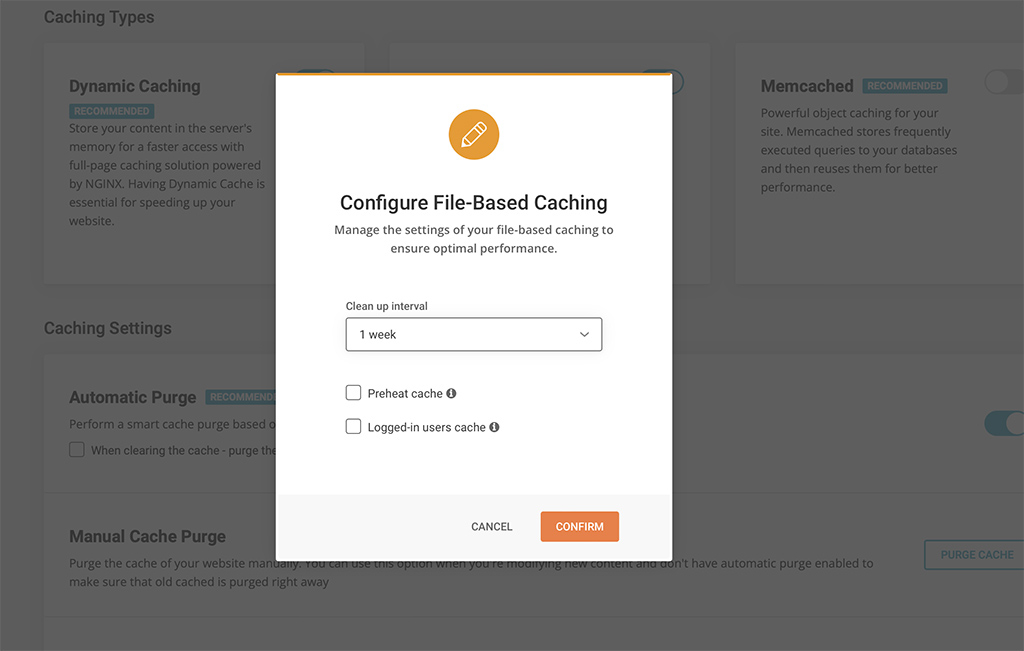
File-based Caching introduces preheating and cache for logged-in users!
Nowadays caching is one of the most effective means to optimize performance. When looking for alternatives to Dynamic Caching (built-in feature for all SiteGround websites) we decided to implement File-based caching because of its versatility and compatibility with different hosting configurations. File-based Caching can be used on its own on websites hosted outside SiteGround or as an additional caching layer for SiteGround customers who already have Dynamic Caching and Object caching (Memcached) enabled.
Some great features of the File-based caching are the ability to keep cache for logged in users, pre-heating cache (especially useful for rarely opened pages that are opened for the first time in a while) and defining longer cache expiration. These options are configurable in the plugin interface. Although file-based caching alone is generally slower than the Dynamic caching, our tests show that its implementation in Speed Optimizer is still up to 20% faster than any other plugin that provide similar performance-optimization functionality that we have tested.
Environment Optimizations
All users can enjoy several types of environment optimizations that will tidy up your WordPress environment to achieve top performance. Here you can find features like WordPress Heartbeat Optimization where you can define how the WordPress API interacts with your application to optimize resource usage, and Schedule Weekly Database Maintenance to make sure that your WordPress remains tidy and uncluttered.
Frontend Optimizations
The website’s front-end code can often be heavy and significantly reduce loading speed. There are several features in the Speed Optimizer that can optimize it and as a result speed up your website. Minifying your HTML, CSS and JavaScript output will decrease the size and number of server requests related to these types of files and as a result decrease loading time. We have made these functionalities available through simple toggles in the plugin. You can specify which types of files you want to minify, combine and even exclude from minification or combination. And if all of this sounds too technical for you, you can just look for the “Recommended” labels next to each option to figure out what would have the greatest impact on your website’s performance.
Media Optimizations
There are several media optimization tools in the Speed Optimizer that will work on all hosting platforms. You can enable Lazy Load with which only the media in the visible part of the browser will be loaded. This makes loading faster and smoother for longer pages with multiple media items. You can also define the Maximum Image Width allowed for images on your website. A lot of themes and plugins tend to upload excessively large images that slow loading speed without ever being displayed in their full width.
SiteGround Exclusive Features
As mentioned earlier, our platform has some unique speed settings and services, which cannot be replaced with plugin functionality alone since they need the specific server environment to run as designed. These remain exclusively available to websites hosted on SiteGround.
Dynamic Caching and Object Caching
One of the best speed-enhancing features you can get for your website and our top choice when we talk about speed, is the Dynamic Caching. The Dynamic Caching is part of our proprietary 3-level server caching implementation that relies on NGINX Direct Delivery for static cache handling, Dynamic Cache for dynamic content and Object Caching (Memcached) for storing data and objects in the RAM. We believe that Dynamic Caching is essential for every website and we have it included in all of our hosting plans. From the Speed Optimizer plugin you have control over advanced WordPress-specific settings for the Dynamic Cache and Memcached to get the most of this technology.
Image compression and WebP
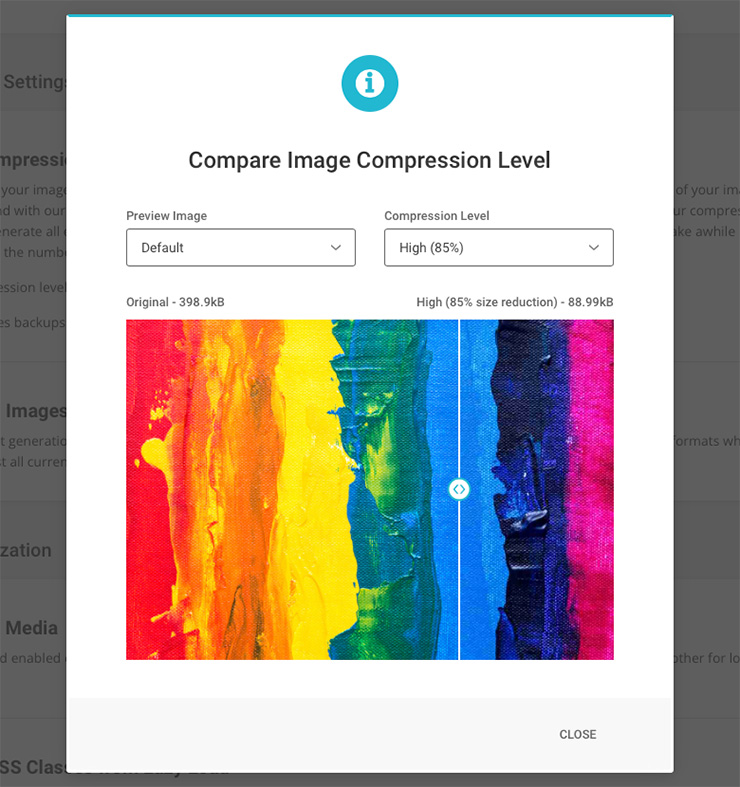
The Image Compression and WebP features of the Speed Optimizer plugin are two essential features available to websites on the SiteGround platform exclusively. With our image compression algorithm you can decrease your image size (and respectively the time it takes for your images to load) by up to 85%, while keeping the image quality high for your visitors. You can also enable WebP which will convert your images to a WebP format which adds an additional reduction in size without affecting image quality.
Opening the plugin to websites hosted outside of SiteGround was a big step for us. After running multiple tests on different hosting platforms and benchmarking performance against WordPress plugins with similar functionalities, we’re confident that the Speed Optimizer plugin is the best performance optimization tool you can get for your website regardless where it’s hosted. And it’s completely free. Download it here, try it yourself and let us know how it works for you by leaving a comment in the section below.
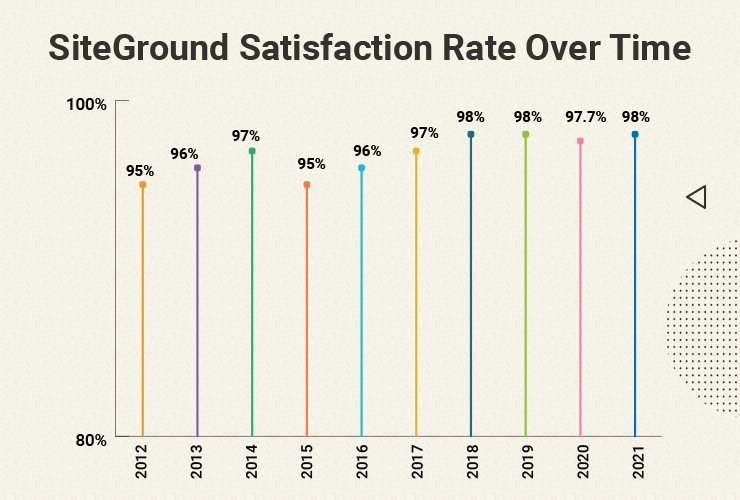
At the end of every year, we turn to our clients for the most important mark that really matters – how you rate our efforts and services throughout the year in our traditional client satisfaction survey. Each year we are amazed and humbled by the positive feedback we receive, and every time we manage to raise the bar a tad higher. In 2021, the result is a stellar 98% overall client satisfaction rating, which is spectacular in any type of client service business, but especially so in the website hosting industry.
Of course it’s hard to put a number to satisfaction, but it’s a pointer that takes into account your ratings of the main pillars of our web hosting services – website speed, security and support, which we keep strengthening and improving on year after year. Here is a breakdown of some of the things we did in these key directions and the impact that they had on your websites, leading up to such staggering satisfaction numbers in all aspects of our service.
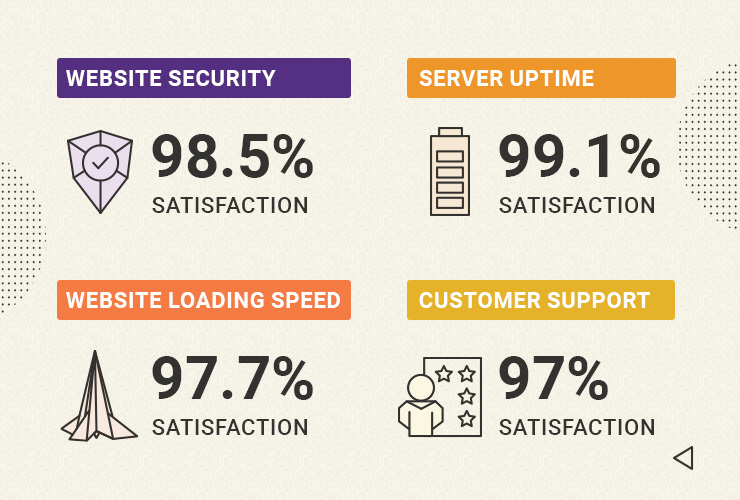
97.7% Client Satisfaction with Website Speed
We’ve always been famous for proactively adopting the latest web speed technologies for the benefit of our clients. In 2021 we again introduced multiple new website performance enhancements at no extra cost. We started off by enabling Google’s state-of-the art Brotli image compression algorithm on our servers, ensuring between 15% to 20% website speed gains for clients right out of the box. To add to that, our new MySQL setup allowed websites hosted with us to serve more visitors simultaneously, lowering the number of slow website queries between 10x to 20x times. And by enabling our unique Dynamic caching by default on all hosting plans, clients now enjoy up to 5x times faster page loading time. These are just some of the latest and major improvements we introduced to make your websites run faster, improve your website’s user experience, conversions, and SEO rankings. In return you rated our website speed efforts with the highest marks in the history of our end-of-year client survey – a stellar 97.7% Website Speed Satisfaction Rate!
98.5% Client Satisfaction with Website Security
Parallel to our website speed improvements, we’re always working on new ways to help you with the never-ending quest of securing your website. Our mission to provide the best data protection took another big step this year with the launch of our off-site backups. Apart from our free daily backups and easy restore, we deployed a geo-redundant backup system which minimizes the risk of data loss in case a whole data center facility is in jeopardy for whatever reason. That way we ensure a safe recovery of your site with minimum downtime. In addition to that, our SiteGround Site Scanner security service got improved to include a new scanning method that allows users to run a thorough file scan of their site directly on the host server with a single click. And we also introduced our new centralized DNS for faster, safer, and easier hosting.
4.3/5 Stars for our Client Tools and Services
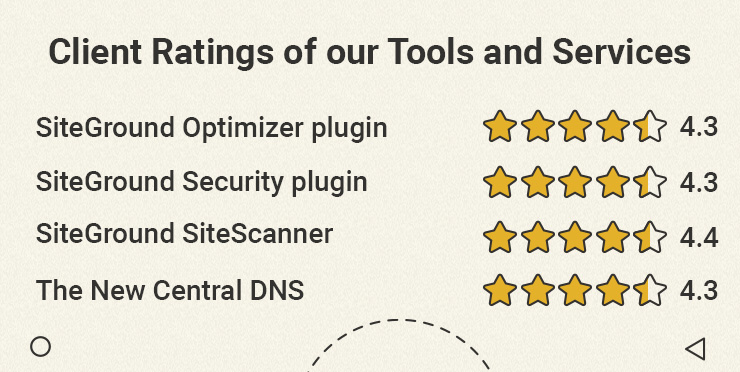
This year was especially rich in new website tools and services for our WordPress users. We launched the SiteGround Security plugin for WordPress – a free tool that greatly improves WordPress security in just a few clicks. And it’s available for everyone, not just SiteGround clients. Just a few months after its release, the plugin was awarded Silver for Best WordPress Security Plugin in the biggest WordPress community award, Monster’s Award. And to round off our list with added-valued services and tools, we released a new version of our SiteGround Optimizer WordPress plugin to upgrade its functionality and add new features for even more site speed and convenience for webmasters. All of these efforts did not go unnoticed, and we got an average rating of 4.3 out of 5 stars for each of our latest tool releases.
SiteGround Optimizer WP plugin → 4.3/5 rating
SiteGround WP Security plugin → 4.3/5 rating
SiteGround Site Scanner → 4.4/5 rating
The New Central DNS → 4.3/5 rating
A Look Back and a Look Ahead
We’ve been doing our client end-of-year survey for 10 years now, the first one dating back to 2012. A decade later, with over 2,800,000 hosted domains, your feedback ratings still manage to go up – starting from 95% overall client satisfaction, up to а steady 98% in the last couple of years.
We are thankful for your feedback and for helping us improve our services year after year. In 2022 we will continue to improve our tools and services and launch new ones for existing and potential clients alike, and hopefully manage to further exceed your expectations yet again.
A serious security issue was found in All In One SEO Plugin, affecting all versions between 4.0.0 and 4.1.5.2. The vulnerability is of the Privilege Escalation type, meaning that authenticated users with minimal rights can execute actions that are above their access level.
Due to the type of the exploit and its severity, we have decided to forcefully update all affected versions of this plugin hosted on SiteGround servers to 4.1.5.3 which fixes the problem. We do not expect any negative effects on the plugin functionality or your site performance. However, don’t hesitate to contact our support team if you notice an issue that might be related to this update.
A couple of days ago a serious security issue with the PublishPress Capabilities plugin was discovered. Usually, we always try to protect our customers using our powerful WAF (Web Application Firewall) system and build rules to stop hacking attempts while leaving the update itself to the client’s preferences.
However, due to the nature of the exploit, we couldn’t protect our clients’ sites with WAF rules so, we decided to perform an emergency update on all our active installations of the plugin. Although, we do not expect any problems associated with this update (even the default WordPress system issued an update), if you notice something not working properly, feel free to contact the PublishPress Support for additional assistance!
Who’s Affected?
Only plugin versions between 2.0.0 and 2.3.0 are affected by this vulnerability. That’s why our team has performed the update only on them in order to avoid any problems with the plugin’s normal operation.
UPDATE
PublishPress Capabilities plugin has been successfully updated on our servers. As the vulnerability was reported to affect a few other plugins and themes we have gone deeper with the investigation of the issues and have managed to create a WAF rule that is protecting against possible exploits of this particular vulnerability.
As WordPress has grown in popularity, application, and complexity, we have all discovered something very important, making everyone an administrator isn’t a winning strategy. Thankfully WordPress provides us with a very powerful tool called User Roles and Capabilities that helps us give people just the capabilities they need without giving them too much or too little. This helps us keep our sites secure.
As sites become bigger and more complex it takes more people to manage and maintain them.
Yes, sites still need:
Authors to write new content that makes people’s lives better.
Editors to fix all the mistakes in the authors contents
Administrators to keep everything upgraded and working smoothly
Contributors to assist editors in editing posts
Subscribers who may or may not have paid us money but they have at least registered with us and given us an email address. (that’s worth something right there)
But these days sites also need:
Warehouse staff to log in, print labels, and ship products.
Accounting staff to make sure we collect all the money that is owed to us.
Social Media managers who can see behind the scenes, but not necessarily change things.
Community Members who have paid a premium subscription to access the really good stuff the authors are writing and editors are editing
And of course…premium community members who can log in and access the really REALLY good stuff we save for those special few who see our vision and subscribe at the premium level.
The list of needed WordPress user roles is endless. It changes with every site because each site’s needs are different.
The Main Types of WordPress User Roles And Their Capabilities
A WordPress User Role is a collection of capabilities. A capability is a permission to do something. The standard WordPress install comes with around 40 capabilities, as well as with 6 user roles by default, ordered by level of power over those capabilities:
Administrator:
The default administrator role (not to be confused with the administrator account…that you should not have on your site. If you do have one, stop and watch this video) has all of the standard capabilities.
What can a WordPress administrator do?
In a regular WordPress site, there is nothing that the administrator role cannot do, such as:
Create or delete users & manage their permissions
Customize WP dashboard
Update the WP core, themes and plugins
Edit and manage posts and categories
Upload files
Moderate comments
…and a lot more.
Who should get the Administrator role?
The administrator role should be reserved for the person that is responsible for the technical aspects of the site. If you don’t manage the security of the site, update plugins, and handle problems, you probably don’t need to be an administrator.
For safety sake, I always create a separate account that I use on my sites as the administrator. My normal account – the one I use to post content and manage users – is an editor. Therefore, I have to make a conscious decision to log in to do administrator things.
My administrator level accounts all have Two Factor Authentication enabled (see below) and have very strong passwords.
Things get a little more complicated if you are running a WordPress Multisite, because the admins user capabilities are limited for these types of sites. For this, there is a bonus WordPress user role in WordPress, the Super-Admin role.
Editor:
The editor manages things. The account I normally log into my sites with is an editor. I can do everything except manage plugins, themes, and other technical things that require some serious thought before doing. Having my day-to-day account be an editor keeps me from accidentally disabling or deleting a plugin or theme.
Who should get the Editor role?
Anyone who is managing things on your site (content, users, etc.) is a candidate for being an editor.
Don’t be fooled by the role name, editoris still a very powerful role and in the wrong hands can cause serious damage to your site. Seriously consider enabling Two Factor Authentication on editors and enforcing strong passwords to keep these accounts safe.
Author:
Next is the author role. The author role is a much more limited role. Out of the box, basically an author can: upload files and create, edit, publish or delete his own posts.
Who should get the Author role?
The author role is great for guest posters on a blog orregular authors whose only function is to write and edit content.
Subscriber:
A subscriber is a guest that has registered with your site. They have no capabilities other than to be able to read content and edit their information.
Some sites have content that is not visible to users unless they register. The subscriber is a good role to use for that. You will need a plugin to be able to hide content from users who are not of a given role or higher, but those are easy to find in the WordPress Plugin Repository.
Other Roles:
Many plugins you install like WooCommerce will add new roles and new capabilities to WordPress automatically. For instance, When you install WooCommerce, it adds the role “Customer”. A Customer has certain capabilities that mainly deal with them being able to view and change their own data, view their roles, etc. People are moved into the “Customer” role when they purchase something and set up an account on your site.
How to Assign WordPress User Roles to Your Site Users
WordPress does not come with a built in-role and capability editor (more on that below). You can however assign your users todifferent roles. There are two ways to do that with a standard WordPress install.
1. Manually
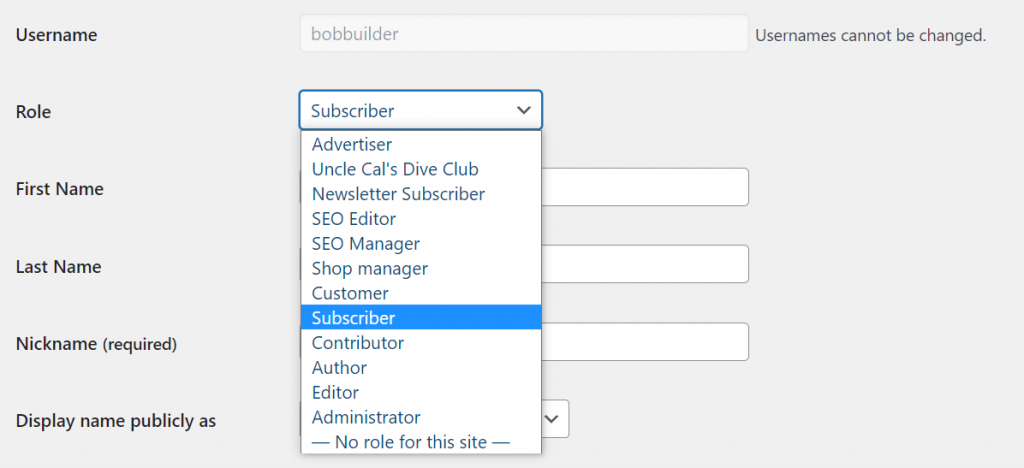
For each user on your site, you can bring them up in the User Editor and select the role you want them to have.
In the above screenshot, I have selected Subscriber for my site member Bob the Builder. You can assign – and re-assign – roles as often as you like.
2. Automatically
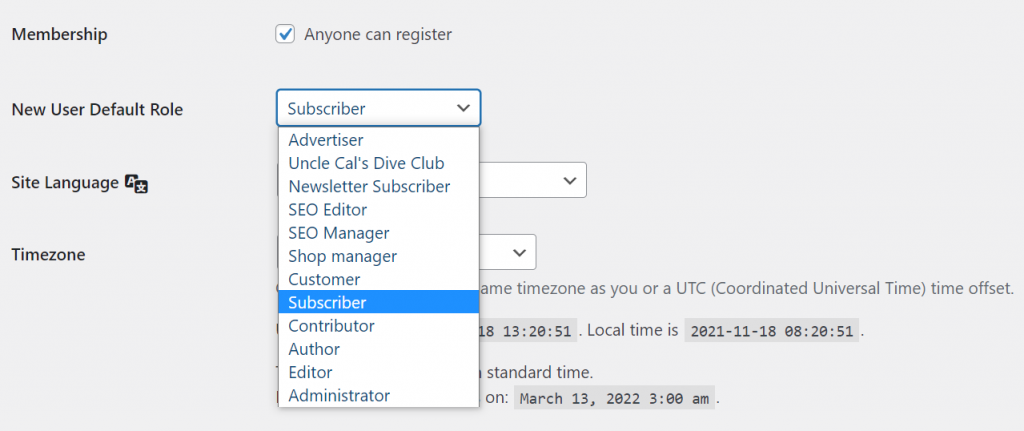
Using an account with the role of Administrator, you can go into the WordPress Admin Dashboard and select Settings > General. There you will find a drop down that allows you to decide what role users will be assigned automatically when they register with your site. This defaults to “Subscriber” but you can set it to any role you like.
How to Manage and Edit WordPress User Roles and Their Capabilities
As I said, almost all of the capabilities are reserved for the administrator, that doesn’t mean you can’t change things around. There are times when you may want your contributors to be able to moderate comments, a capability usually reserved for Editors. WordPress is flexible enough to allow you to move capabilities around and even create new roles.
Out of the box, there is no good way to look at what roles and capabilities are set up in WordPress nor create new ones. If you are a programmer, you can of course write code to show them to you and even write code that will create new ones. Where’s the fun in that though?
Like everything in WordPress, the easy way to manage roles and capabilities is to install a plugin. Also, like everything in WordPress, there are a lot of good plugins to choose from that will help you see, manage, and create user roles and capabilities.
Because there are so many plugins out there, I can’t tell you which one is best. I can, however, tell you which one I use. I use User Role Editor by Vladimir Garagulya and have for a while now.
The biggest reason I chose this particular plugin is that it does the job. The second biggest reason I chose it was because it’s free and I am cheap. When I say free, I mean that I use the free version. Vladimir has several options out there for those who want the advanced features and this code is well worth the money.
How to Manage WordPress User Roles With User Role Editor
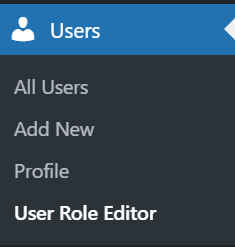
After installing User Role Editor, you will probably notice that it didn’t add yet another menu item to your left sidebar. Instead, it adds a sub-menu item to the “Users” menu, “User Role Editor”.
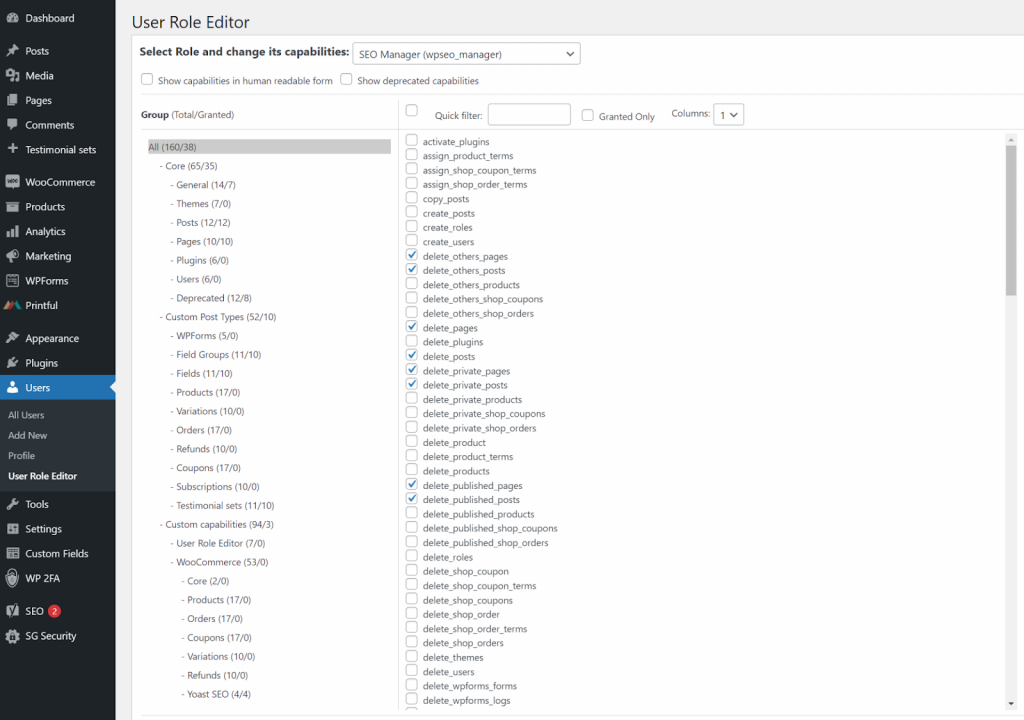
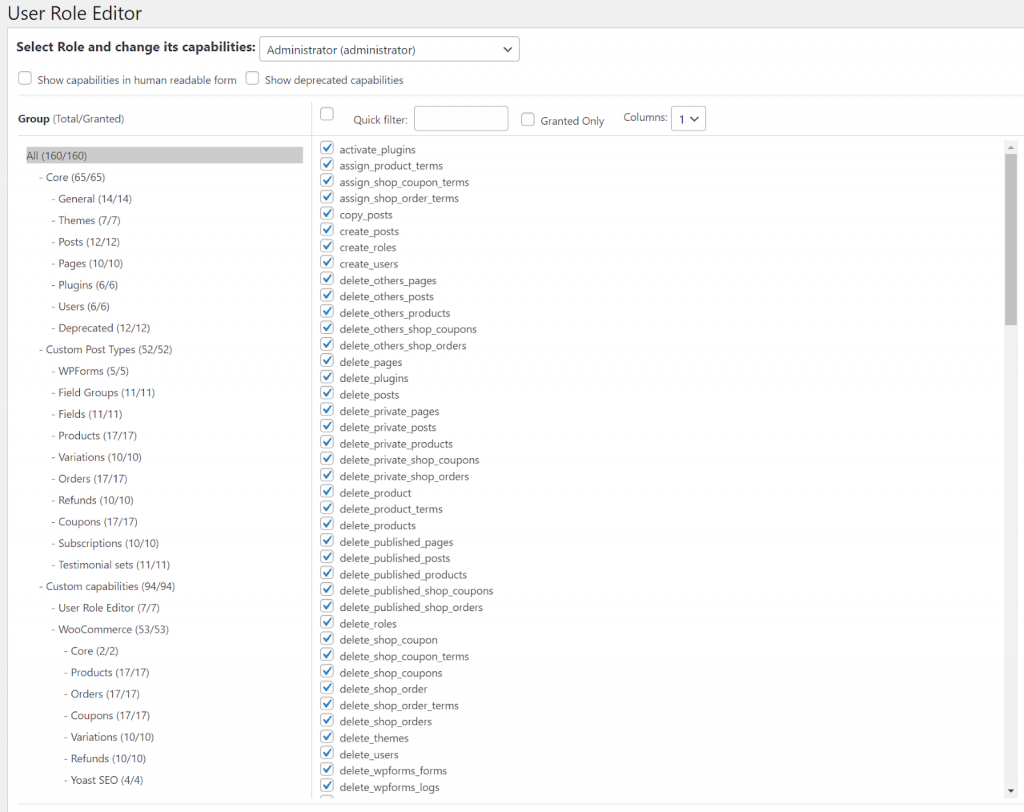
Click on that and you get a complete list of all the capabilities currently in use on your system.
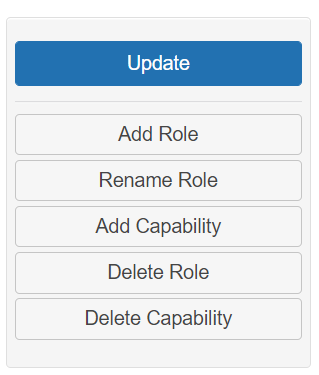
On the right side of the list are a series of buttons that allow you to add new roles and capabilities.
The screen layout can be a little confusing at first. However, once you begin to poke around and see how things are laid out, you begin to get the feel for it.
As you can see, if you select the “Administrator” role in the dropdown at the top of the screen, it shows you all the capabilities that the Administrator role has access to. (Hint: All of them)
The tree on the left is how the capabilities are broken down and organized. This way you don’t have to scroll through the entire list to find that one you want to turn on or off.
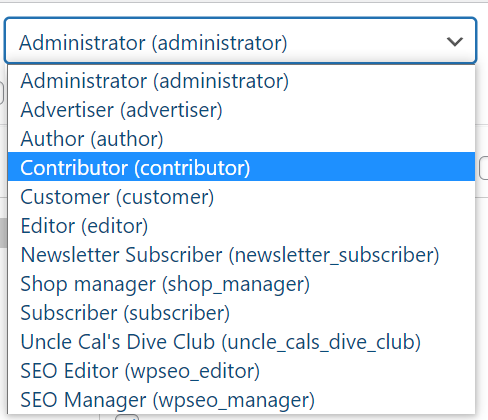
To use the example I used above, if I want my contributors to be able to moderate comments, the first thing I do is select “Contributor” from the list of roles.
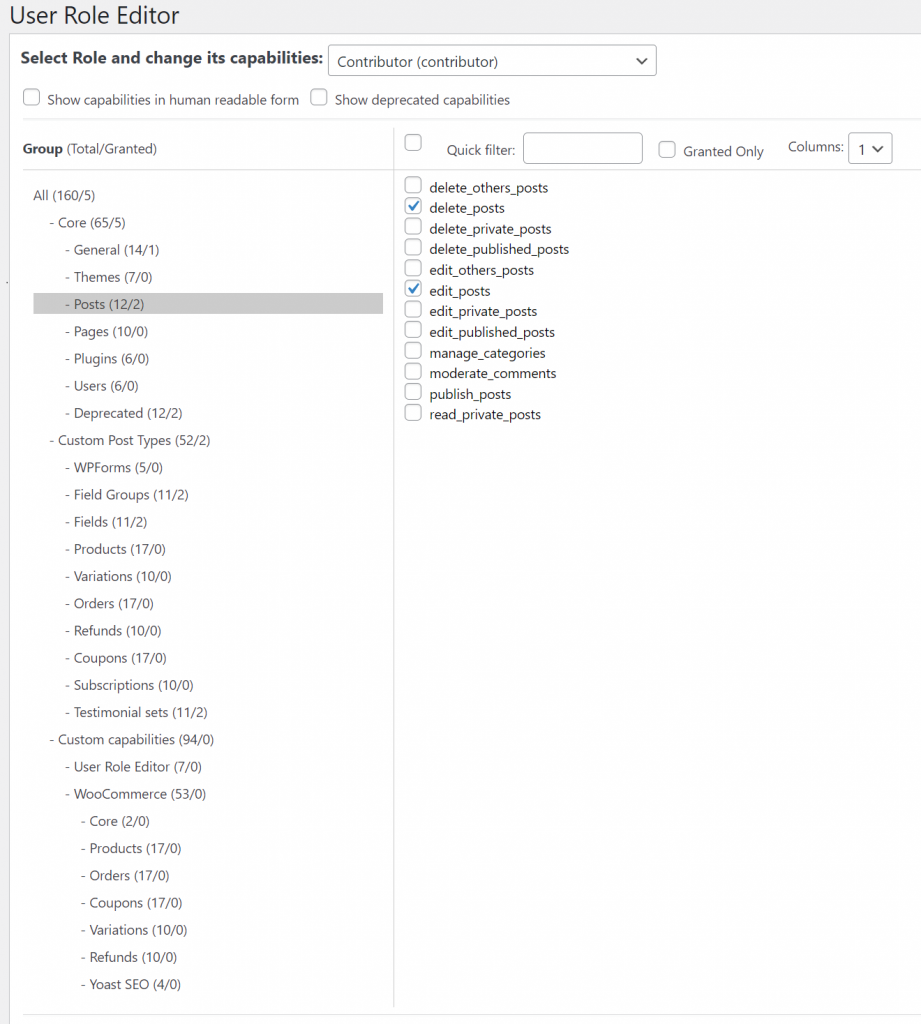
Once selected, I see that almost all of the checkboxes disappear. On the tree on the left, each category gives me 2 numbers, the number of capabilities in that category and the number of capabilities this role has in that category. In the case of “Contributor” most of the second number are 0.
Using the tree on the left, we can select “Posts” to find the moderate comments capabilities.
To grant our contributors the ability to moderate comments we just check the box and click “Update” on the right.
That’s all there is to it. Now any person who logs in and is a “Contributor” will have the ability to moderate comments on posts.
That gives you a feel for how easy it is to manage existing user roles and capabilities.
How to Create New WordPress User Roles and Capabilities With User Role Editor
What about new Roles and Capabilities? Are those as easy? Yes, they are.
On the right, click “Add Role” and follow the prompts.
If your new role is similar to an existing role, it even gives you the ability to clone an existing role to save time. Then you can simply change the capabilities of your new role to suit your needs.
New Capabilities on the other hand are a little more difficult. Yes, you can define them in the interface but unless there is code written to use the new capabilities they won’t have any effect. Before you start adding capabilities, talk to your programmer.
WordPress User Roles Security
So as you’ve seen it’s really easy to add new roles and customize them to fit your needs. Just because it’s easy though doesn’t mean you should add a bunch of them willy-nilly. Before you start, sit down and decide why a new role is necessary. What will this new role be able to do or not do that is different from existing roles. The more roles you add, the more you have to manage.
Also, there are 2 things you can do for better WordPress security in terms of user roles:
Apply The Principle of Least Privilege
Once you have decided to add a new role into your system make sure you adhere to the Principle of Least Privilege. When creating roles, less is more. Only give your new roles the minimum capabilities they need to fulfil their role. If you are setting up an accounting role, don’t give them the capability to Delete Posts. Stick with the minimum, you can always add later if you need to.
Implement Two Factor Authentication (2FA)
For every new role you setup that has significant permissions, make sure you setup and enforce Two Factor Authentication for those roles.
If the Administrator role is the only significantly powerful role you have, then the SiteGround Security Plugin is a great option. It makes setting up 2FA for the Admin Role very simple. Here is a demo on how it works.
If you have other roles that have significant power or can see Personally Identifiable Information (PII) for other users, make sure they have 2FA enforced as well. There are several good (free) 2FA plugins out there that can help you do that.
Wrap Up
WordPress has a power user role and capability system that is flexible enough to meet almost any site’s needs. Like any powerful tool though, you can do damage to your site. You can lock users out of capabilities they need to access the site or give users the power to do bad things.
Before you start, stop, think, and then act. That is the winning strategy for managing user roles and capabilities in WordPress.
For as long as there have been WordPress, site owners, managers, and developers have worried about how to backup WordPress. Even in the early days, WordPress was a complex system. It could do a lot, but backing it up and restoring it took time, patience, and of course, developers.
Still savvy site owners understood that it was worth the effort to back their sites up. Natural disasters, bad actors, and backhoes were all the enemy of web sites, and without a good disaster recovery program, you could lose everything.
In the early days my absolute favorite solution was a plugin that simply backed up my database each night using mysqldump and then emailed it to me. I thought this was the end-all/be-all of backup solutions. It was easy, it was off-site, and I had an email rule that deleted them so in 300 days, they were gone.
The problem that is obvious now is that my database, while important, is only part of what needs to be backed up.
I do not believe that there is a single best backup plugin for WordPress or solution. I believe that different types of sites have different needs and that WordPress site owners should evaluate their needs and options and pick the best solution for them.
That having been said, any WordPress backup solution is better than no solution at all. If you aren’t backing up your WordPress based website on a daily basis, read the rest of this article, pick a solution, and start backing your site up today.
The Best Solution to Back Up Your WordPress Site Without a Plugin
Backing up WordPress via your hosting partner
Most top-tier web hosts offer backup services as part of their monthly fee. This is going to be a little different than a plugin solution because your web hosting partner has access to the underlying infrastructure and can do things that plugins simply can’t do.
Your hosting partner backup solution will almost always operate faster in both backing up and restoring because they don’t rely on WordPress to do the heavy lifting. This means that if you have a large site or large database, backing up and restoring via your web hosting partner means less down-time.
One thing to look out for when utilizing your web hosts backup and restore is to make sure that the backups are stored off-site. This means not on the same server that your site is stored on and hopefully not even in the same geographic region.
Heaven forbid that a natural disaster hit the region your site is hosted in and the entire infrastructure is out for an extended time. If your backups are also stored there then you are down for the count.
At SiteGround they are aware of that. They create daily backups of your website, make them available on a rolling 30 day basis, and they geographically distribute your backups to better ensure your data is stored safely.
Expert Tip: Just because you are utilizing your web hosting partner’s backup service doesn’t mean that you don’t still have a responsibility to keep a backup of your site locally. If no automated service is available, log in once a month and download the last backup of the month to your local computer as an absolute last resort.
How to Back Up Your Website with a WordPress Plugin
Take in mind these 2 questions by the time you will need to choose a WordPress backup plugin that best fits your needs.
What should a WordPress backup plugin back up?
A good WordPress backup plugin or solution backs up at the very minimum 2 things.
Your database
Your uploads directory
In addition, you may also want to back up:
WordPress Core
Your Themes
Your Plugins
The reason I don’t list these in the must-backup section is that these can usually be downloaded and installed thus you don’t technically need to back them up. Still, it’s a good idea to include these in your backup because it makes restoring a site much easier.
What should a WordPress backup plugin do?
A good backup solution should cover at least these three points.
Backup your site
Store the backup in a different location. In tech, we call this “off-site”. That’s a hold-over term from when we used to back things up on tape and then physically take the tape to a different site.
Restore your backup. A good backup solution is only 1/2 the problem, you need to be able to USE those backups in case of an emergency. Most plugin based solutions require you to re-install WordPress and their plugin before you can restore. Usually this isn’t a problem, but solutions that are provided by top-tier web hosting providers are better in that they can restore everything.
The Best Backup Plugin for WordPress I’ve Tested
Now that we understand what a backup solution should do, let’s look at the best plugin that I have found for backing up WordPress.
UpdraftPlus
UpdraftPlus is the one I am using on about 70% of my sites and I consider it the best free backup plugin for WordPress. The paid version is even better!
UpdraftPlus is a “freemium” plugin in that some of the features are free, others cost you money. So far I’ve not needed any of the premium features. That doesn’t mean they aren’t worth the money, UpdraftPlus starts at only $42/year for two sites.
UpdraftPlus doesn’t automatically store your backup off-site. You need to set up where you want them to be stored. If you don’t set up an off-site storage then they are just backed up to your server’s local file storage. I strongly urge you to set up off-site backups.
The good news is that UpdraftPlus will work with dang near anyone when it comes to storing files off-site.
Dropbox
Google Drive
Amazon S3 (or compatible)
UpdraftVault
Rackspace Cloud
FTP
DreamObjects
Openstack Swift
… and email
My favorite is Amazon S3 and any service that utilizes the Amazon S3 API. Since I already store a lot of things on S3, it was easy for me to set this up and get it running.
Since FTP (and I assume SFTP) is on the list, you can use UpdraftPlus to store your backups anywhere you have an (S)FTP server. That’s most places these days.
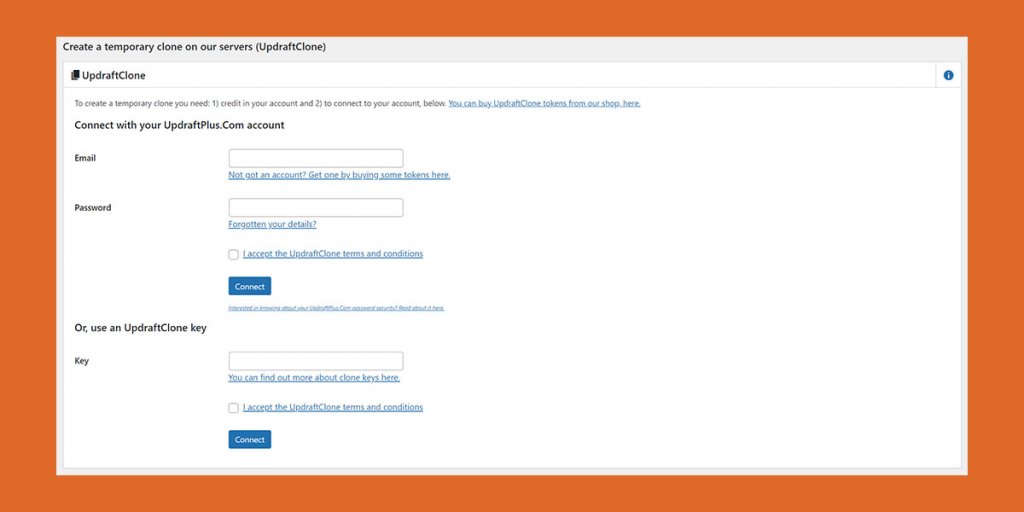
UpdraftPlus can be used to migrate sites as well. Each license comes with “Clone Tokens” that you can use to clone a site.
One of the things I love about UpdraftPlus is that if you are using WP-Optimize by the same company and you have UpdraftPlus installed, before you do any database optimizations or changes, it asks you if you want to back everything up first. I love that they take the time to help me not shoot myself in the foot.
Restoring a WordPress site via UpdraftPlus is as easy as selecting the menu option and then the backup to restore.
The plugin will do the rest. Since this requires WordPress and the plugin to already be installed, if you are having to restore from scratch then you will have to install WordPress, install UpdraftPlus, and configure your off-site storage before you can restore the rest of the site.
Bottom line, as far as plugin backup/restore solutions go, UpdraftPlus is a solid one. It is easy to use and the free version works very well.
Wrap Up
As I said, there is no single best WordPress backup plugin or best WordPress backup solution. The best solution is the one that gives you, the site owner, peace of mind and the ability to get a good night’s sleep because you know you’ve got a backup.
Sometimes that is a paid backup solution, other times it’s a free solution. However, you decide to back up your site, the important thing is that you do backup your WordPress site.
It’s that time of year again – time to put on the costume, carve the pumpkin, and trick or treat down the block to bring candy back home. While it’s all fun and games, website owners around the world should know that hackers also have tricks on their own and are not afraid to use them on Halloween or any other day of the year. Fortunately, here at SiteGround, we take security very seriously and have a lot of tips on how to protect yourself from malicious attacks.
Play our simple game to learn a thing or two about some of the most common security exploits and how to avoid them.
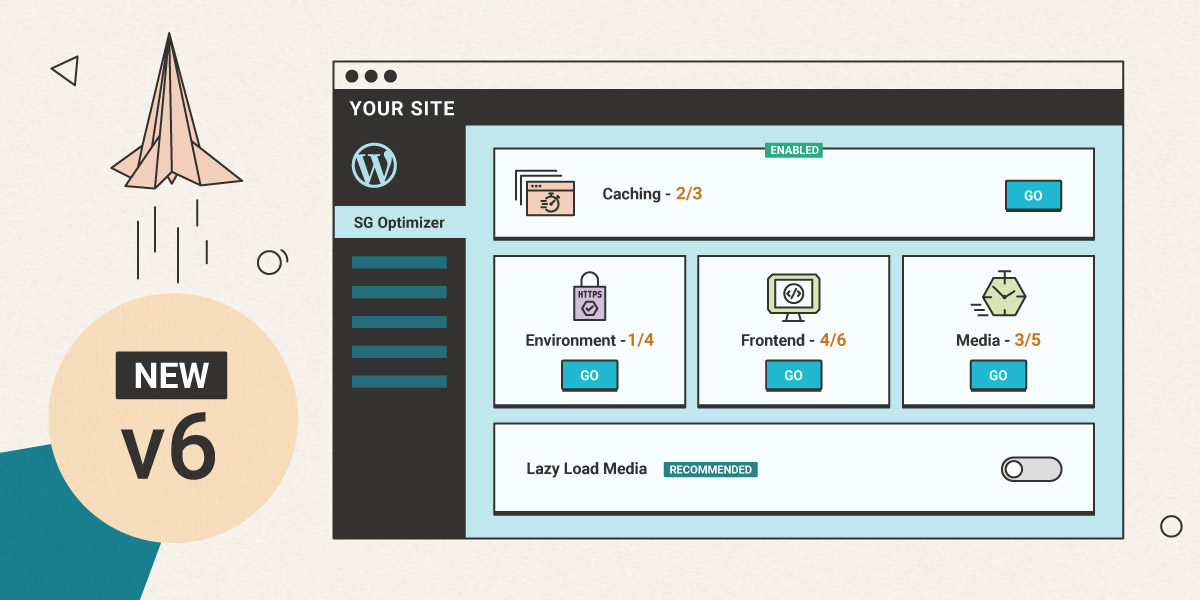
Since the launch of the SiteGround Optimizer plugin, we have been constantly working on adding new features, improving existing ones, and making sure that we use the best technology available to achieve a blazing fast loading speed for all of our users. That being said, we’re happy to introduce a major update to the SiteGround Optimizer plugin – v6.
Brand New Design and Structure
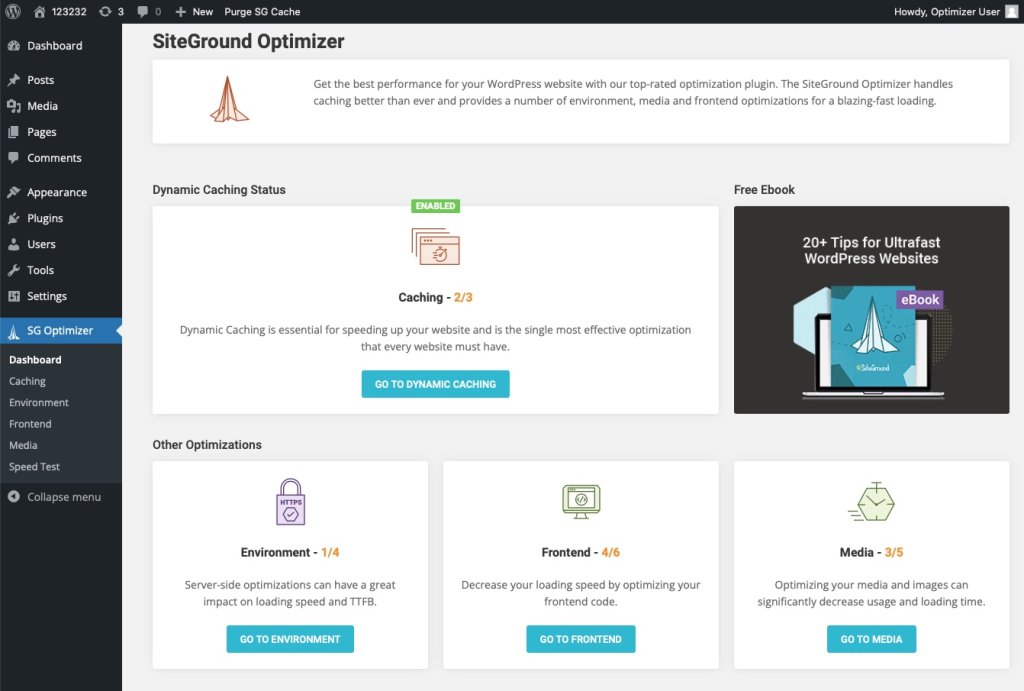
One of the biggest changes you’ll notice is our brand new design with separate pages and a brand new dashboard. We have been adding more and more features to the plugin recently and we decided that the previous tab structure was not the best interface for the numerous improvements we have in mind. That’s why we have divided the interface into 5 pages, consisting of separate sets of carefully crafted tools, designed to optimize your website, improve loading speed and even decrease your resource usage.
New Page – The Dashboard
The entirely new Dashboard offers a quick look at the current optimization status of your website, along with shortcuts to the relevant pages where optimizations may be in order. Since keeping your WordPress application, plugins, and themes up to date is important for your website speed and security, we’ve made sure to add a notification in the Dashboard in case your WordPress and/or plugins need an update.
Recommended Features Tag
While we’ve always done our best to explain the different features you can find in the Optimizer, we realise that some of them may still sound complicated to the regular WordPress user and one can find themself struggling to figure out which of the features they need to use. To help you make the best choice for your website, we have added a “Recommended” tag to all SiteGround Optimizer features that we’re certain to speed up your website without breaking something or interfering with other settings.
Improved Image Compression and Image Features
We have significantly improved our image compression technology to ensure that even at the highest compression and size savings, your images continue to look as good as ever. Additionally, we have added a “Preview” option so you can ensure that the compression level you have selected does not visibly affect the quality of your images. You can also choose to do a backup of your original images before you start the compression process – this is a great feature in case you plan to change the compression level in future or you just want to have a piece of mind.
WebP image generation has also been improved and a new option was added for larger images – automatic resizing for all images whose width is larger than 2560px, which is more than enough for most displays where websites appear.
Code Refactoring
The plugins redesign and restructuring gave us an opportunity to refactor our code and make sure that everything is optimized and tested for the best possible performance. While the whole plugin has benefited from the refactoring, there are two tools where the change was noticeable – the WordPress Heartbeat Optimization (available in the Environment page) which precision and options were improved, and the Automatic Cache Purge (available in Caching) which now includes the option to purge the WordPress API Cache too.
We have really enjoyed making this brand new version of the SiteGround Optimizer and we’re confident that the tools we have developed will help you serve the fastest and best version of your site. Drop us a comment to say which of the Optimizer features you like most and what would you like to see in future releases.
Our SG Site Scanner service has been one of the most valued tools by our clients since we launched it back in 2017. It has helped tens of thousands of site owners to protect their sites from destructive hacks, data theft and reputation damages via early detection of malicious software. For the last four years, sites subscribed to our SG Site Scanner service had their URLs crawled for suspicious code and their domain reputation checked daily. Now, our clients using the service will also be able to run a thorough file scan of their site directly on the host server with a single click. Read below to learn how this new scanning method enhances the existing site scanner functionality.
Daily URL scans and domain blacklist status checks
As always, we will continue to scan the publicly available URLs of any site that is subscribed to our SG Site Scanner on a daily basis. This is a powerful method for detecting malicious code and infected file locations by scanning your public website source code. Additionally, we do reputation checks of the website domain by looking for it in the blacklists of security authorities like Google, PhishTank, McAfee and more. If a Site Scanner-subscribed domain is present in any of them, the owner gets an immediate notification.
NEW: Comprehensive file scans on demand
Apart from the automatic daily checks described above, the SG Site Scanner service also includes the option for an on-demand scan to be initiated by the customers in their Site Tools. Now on top of the Daily URL scans, these on-demand scans include a new scanning method, developed in-house by our DevOps team. The new method is a deep file scan done directly on the server. It can detect malware that is not publicly accessible and thus can be missed by the external URL scans. For example, if the malicious code is located in a password-protected folder, it will not be found by the URL scan, but the new file scan will easily detect it.
An additional benefit of the file scan is that it uses its own comprehensive definitions about what is malicious code and thus can catch threads that may be missed by the URL scan. Another big advantage of the file scan is that it can give you valuable information about the location of a problem that has already been detected by the URL scan. This information can make cleaning a hacked website much easier.
How to take advantage of the extended scanning capabilities?
All clients who already have the SG Site Scanner activated can log in to their Site Tools > Security > SG Site Scanner and click to run an on-demand scan. If domain is pointed to our servers, the scan will include the new files checks too, on top of the URL scan and the blacklist status checks.
We strongly recommend that each site have an active SG Site Scanner at all times. The service has proven over the years to be essential for keeping sites safe and preventing data loss and downtime. It now has an unmatched value thanks to the unique additional scanning method available. If you don’t have it yet, you can find it in your Client Area > Marketplace > Hosting Services.