

How to avoid bad bot traffic during Black Friday

bots attacking a browser and finally cracking it

Last week, we helped you get your website ready for the Black Friday traffic spikes. Now that you’re all set to handle the upcoming traffic, do you know how much of it is real and how much – non-human? According to Statista, in 2022 more than 40% of Internet traffic is from bots, and a significant portion of that is bad bot traffic. This kind of bot traffic hurts your online business and can lead to both financial and conversion losses. Let’s dig deeper into what bot traffic is, why most of it is so harmful, and how to avoid it during the busiest time of the year.

What is bot traffic and why it should be cut down to a minimum

Bot traffic is any non-human traffic that comes to a website or app. Some of it is good, when it originates from SEO crawlers (such as Google crawl bot), commercial, site-monitoring, or feed bots. Needless to say, all of these cause no harm to your site. On the other hand, bad bots come with malicious intent. These can leave spam comments, irrelevant backlinks, weird advertisements, collect private information, reuse your content, perform DDoS attacks, and other malicious activities.

How bad bot traffic affects your website

Bad bot traffic may have different consequences on your website and business, causing multiple damages:

  • Website security and availability damage

Bad bot traffic hurts your website security and availability. For instance, these massive amounts of traffic to your site are a way for hackers to cause a DDoS attack. During such an attack, the traffic is so massive that the server where your site is hosted cannot handle it. This can make your website slow, unreliable or even unavailable for your users. 

Bad bots are also the main force of a brute-force attack – a way to guess your password/login details by trying numerous combinations of letters, numbers and symbols. If such an attack is successful, malicious hackers gain access to your account and/or private information.

  • Website speed issues

Even if it doesn’t cause massive hacker attacks, bad bots activity can make your website much slower or even unavailable for your real visitors, affecting their overall user experience. To have your visitors stay longer on your site and turn them into clients, you’d want them to have an excellent user experience. A huge part of that is your website loading speed being as fast as possible.

  • Analytics metrics and SEO rankings chaos

Bad bot traffic can also hurt your analytics metrics and SEO rankings. For example, too much bad bot traffic can bring your site down and cause 503 errors (“site is temporarily unavailable”). This directly negatively impacts your SEO rankings. What is more, bad bots can affect your analytics metrics, causing abnormally high pageviews and bounce rates, sudden drop/increase in session durations, and fake conversions. All these factors may confuse you as a site owner and you may not be able to make sense of your analytics data.

How we decrease bad bot traffic at SiteGround

At SiteGround we take multiple measures at different levels to reduce bad bot activity by default for the websites hosted on our servers, so you can have peace of mind.

Improved and advanced AI anti-bot system

Our AI anti-bot system has successfully been blocking millions of brute-force attempts per day. Recently, we improved it even further, resulting in 95% less bad traffic. Its core features are still there – analyzing and recognizing traffic patterns to eventually stop brute-force attempts. With each new brute-force attempt, the system’s knowledge expands and it gets better at preventing future attacks. As of recently, we’ve upgraded the system with a traffic validation feature that stops even more malicious non-human bots by minimizing the number of brute-force attacks. Currently, the system blocks a huge percentage of bad bots traffic towards our servers, allowing more capacity for your websites for legitimate traffic.

Combined with our enterprise-grade security system, these server-level security optimizations block the majority of all bad bot traffic and ensure website protection on a global scale. Let the numbers speak for themselves – 99,99% of bad traffic is blocked before it even reaches your website.

Smart, server-level WAF

Hacker attacks usually increase during the Black Friday season. A single outdated WordPress plugin, theme, or vulnerability can easily be used for massive damages during this busiest time of the year. That’s where our smart Web Application Firewall comes to the rescue. Our security experts closely monitor security bulletins and server activity 24/7, and in case of reported exploits, immediately add custom WAF rules (patches) into our server firewall to protect your site from current hacks and breaches due to outdated plugins, and other vulnerabilities. Our proactive security approach allows us to react much faster, often before the original plugin, theme or app developers have had the chance to release an official update. The most recent example of this was just last month, with two previous major ones not so far behind – a plugin vulnerability patched on day 0, and a Linux Kernel vulnerability patched within hours of detection.

DDoS protection

To address potential DDoS attacks from bad bots, we have a system of hardware and software mechanisms to protect your sites:

  • A hardware firewall that filters flooding traffic;
  • A local software firewall with more complex functions and traffic monitoring;
  • А limit to the number of connections a remote host can establish;
  • A check for a high number of failed login attempts from hosts and filtering them, if any.

24/7 server monitoring system

Again, in addition to all monitoring and prevention systems and checks in place, our expert system administrators team are monitoring our servers 24/7 for any system issues and in case of any, can react quickly to save the day.

How to identify that you have bad bot traffic coming to your site

Now, you probably wonder what are some signs and symptoms of bad bot traffic that will help you identify whether your site is in danger. Here are some of the red flags and ways to prevent them:

  • Check your site traffic stats

You also need to check your traffic statistics, especially the IP addresses and the sources of traffic. For example, regular and high number of visits from the same IP address or increase in traffic from other regions or countries, from which you didn’t have (much) traffic before, could be an indication of bad bot traffic. As a SiteGround customer, you can easily check your traffic statistics in Site Tools > Statistics > Traffic.

  • Keep an eye for unusual users’ behavior

Remember to monitor your users’ behavior regularly. In case there are increased spam comments under your posts, strange user registrations, and/or increased blocked login attempts, these are all red flags that you might be getting bad bot traffic to your site. WordPress users, who have the free SiteGround Security plugin installed, can monitor their site and login page for unauthorized visits and brute-force attempts from their Activity Log menu. What is more, they can easily block suspicious IPs and visitors.

  • Make regular speed tests

You probably already do that, but if you don’t, it’s a good idea to start making regular website speed tests. For this purpose, you can use a number of different tools to measure your site speed, such as Google PageSpeed Insights, Pingdom, GTMetrix, and others that generate results in all the major speed metrics. 

In case you have the free SiteGround Optimizer plugin installed on your WordPress website, you can run a speed test within the plugin in its Speed test functionality. The check uses Google PageSpeed, provides information on the level of optimization in over 20 different areas, and gives you optimization suggestions.

If you identify that your site is experiencing page loading speed issues, dig deeper into the problem to find out the causes. These might not necessarily be bad bot traffic issues, but that’s one of the main potential reasons behind the slow speed results.

How to filter bad bot traffic yourself on SiteGround

Some of the traffic that reaches your websites may seem legitimate, even if it’s not. Thankfully, there are a number of ways and free services we offer to let you filter good from bad website traffic all by yourself:

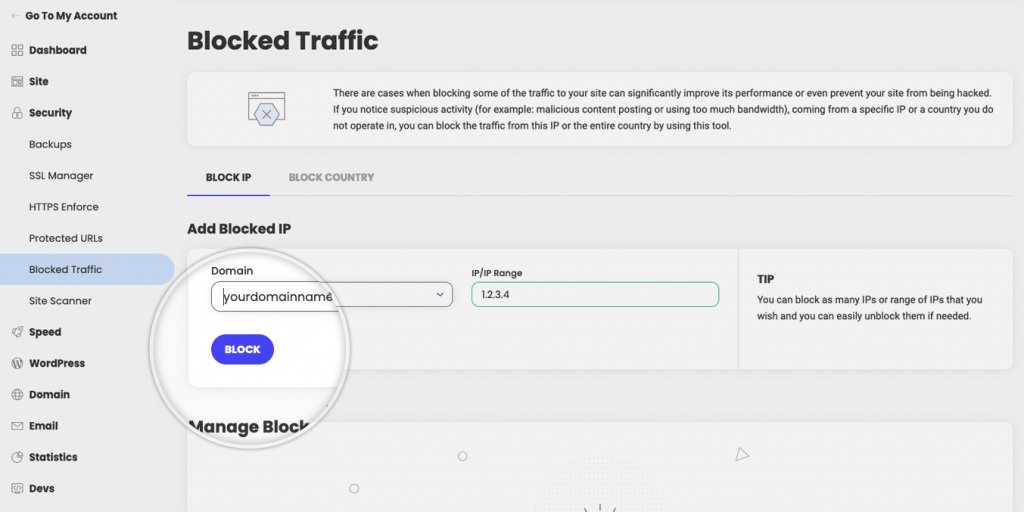
Both options allow you to easily block suspicious or malicious traffic to your website. If you want to block a specific IP address from accessing your site, because, for example, you see it’s using too much bandwidth, you simply go to Site Tools > Security > Block Traffic, choose the domain for which you want to block access, then add the IP address (or a whole range in IP/IP Range), and finally click ‘Block’.
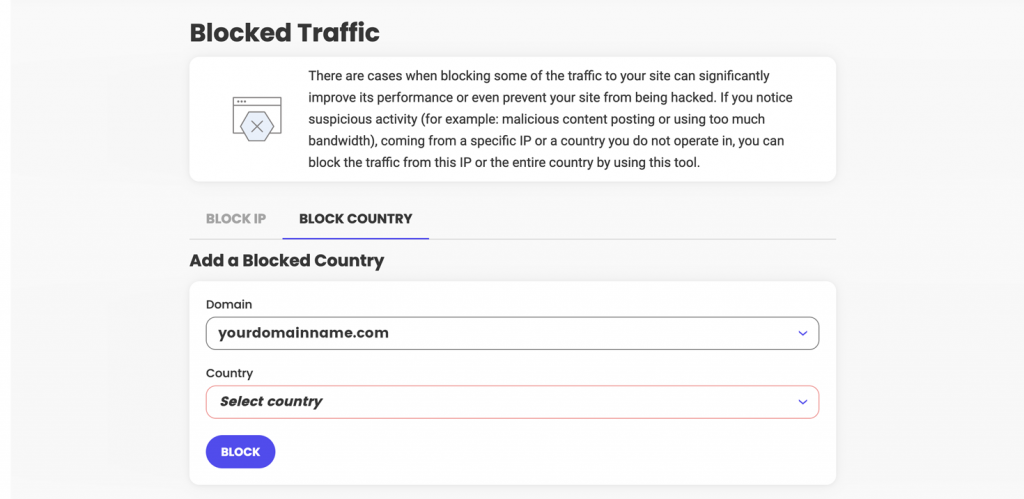
Similarly, if you notice that you get suspicious abnormal activity from a country you don’t usually operate in or have clients from, you can easily block traffic from it in a few clicks. You need to go to Site Tools > Security > Block Traffic > Block Country. There, you choose the domain for which you want to block access, pick the desired country to block in the Country dropdown, and finally click ‘Block’.
These two options will help you not only block bad bot traffic coming to your site, but they can also significantly improve your site performance by reducing the unwanted traffic and giving your site more capacity to handle real human traffic.

Improving your site capacity to handle more requests

In case you’ve identified that your site still gets some bad bot traffic which cannot be easily filtered or removed, you can decrease its negative impact by improving your website speed and performance, which will allow more capacity to handle any type of traffic altogether. Here’s how to do that:

We’ve developed a powerful caching system to help you cache as much content on your website as possible. Cached content is served much faster to visitors and thus improves your site capacity to handle traffic. Our system is comprised of three caching options that are all available in your Site Tools > Speed > Caching: NGINX Direct Delivery for caching static content, such as images and CSS files; Dynamic Caching for dynamic content to be stored in the server RAM, and Memcached for storing data and objects in memory (best for database-driven websites).

  • Use our other optimization services

We do a lot to improve website performance and you can make use of our premium solutions. Here are three of the main ones that can speed up your website and make room for more visitors’ requests. 

Our in-house developed SiteGround CDN requires no configuration, it’s easy-to-manage with just a few clicks, and above all, makes your site load blazingly-fast for visitors around the world. Its Basic version comes completely free of charge and provides your site with all the essential features to handle international traffic from various international locations.

Another in-house developed speed tool is the free SiteGround Optimizer plugin for WordPress websites. It provides you with many different optimization options (media, frontend, environment) that can all be enabled in a few clicks.

Last, but not least, our unique ultrafast PHP setup makes your pages load up to 30% faster and allows the server to process your website’s visits quicker.

Wrap-up

While most people are busy selling and buying goods and services during the Black Friday period, bad bots are also more active than ever, “visiting” websites and causing all kinds of potential issues. If not addressed on time and in the proper manner, they can ruin a big chunk of your holiday conversions during that time of the year, when you worked hard to get the highest number of sales.

[subscribe_cta]
Your Website’s Essential Security Features. Are They On?

essential website security features

Building and maintaining a strong website security is a constant process that often gets neglected by website owners due to its complexity, time consumption and cost. As a hosting provider, we know better. Over 18 years of experience in hosting, maintaining and securing millions of websites has taught us that website security is absolutely critical for every online business. We have seen the devastating consequences a hack can have on a website and ultimately on a business, and we have dedicated serious efforts to preventing and minimizing the effects of hack attempts. 

Over the years, we have optimized the security of our platform by developing sophisticated security systems, introducing a variety of security tools, plugins and features, and constantly analyzing and monitoring traffic and patterns to recognize potential threats. While all of this has made us one of the most secure and trusted web hosting providers in the world, we know that platform security on its own, is not enough. The involvement of webmasters and site owners is just as important for properly securing a website. That is why we have compiled a list of the most essential security features you can enable that can make the difference between a hacked website and peace of mind.

Use SSL

Today an SSL is absolutely essential for every website. An SSL certificate encrypts the connection between your visitors’ browsers and your website’s server so that the data transmitted between the two, such as personal information, credit card data, login credentials or else, cannot be hijacked by hackers. 

SiteGround clients get free Standard and Wildcard SSL certificates with all hosting plans, regardless of the number of sites. Make sure you have your SSL installed and traffic properly redirected via HTTPS from Site Tools > Security > SSL to ensure the encryption of the connection. 

If you have a business website or you’re processing online payments, you may consider our premium Wildcard certificates that come with $10,000 underwritten warranty and a dynamic site seal to create credibility and trust among your visitors.

Protect your login

Your login credentials are a gateway to your account and personal information (and when talking about websites, to your domain, site and emails, too). There are several things you can do to ensure that your login credentials are safe and secure, and that only you or the people you have authorized have access to your website:

Harden Your Passwords

Despite all the awareness created nowadays about weak passwords and the importance of never sharing login credentials with anyone, one of the most common credentials hacking is through guessing or brute-forcing easy-to-crack passwords. Having a long password, consisting of multiple characters and a combination of words, letters, numbers and symbols is an easy and super effective way to keep your accounts secure. Remember to use different passwords for different sites and apps, and never share your passwords with anyone, nor write them on publicly accessible places like post-it notes on your computer! Read more on the topic here.

Use 2-factor authentication

Regardless of how hard your password is, there’s still a possibility for a hacker to get to it through a brute-force attack, virus, malware or other. With 2-factor authentication enabled, a secondary step needs to be passed by anyone attempting to access your data. 2FA adds another layer of authentication, usually through a temporary dynamically generated code (accessible only from your phone or email, depending on the settings), which cannot be guessed or hacked and makes your login defense bulletproof!

  • For SiteGround Client Area, which is the gateway to your domains and sites, you can easily enable 2FA from Client Area > Login & Profile
  • For your WordPress application login, you can install and activate the SiteGround Security plugin and enable the 2FA feature. Download the plugin here, or install it directly through your WordPress admin area.

Monitor your website

Scan for malware regularly

There are numerous ways a website may get infected with malware – through compromised login credentials, infected or fake plugins and themes, corrupted software and more. Malware can have a serious impact on your site and online business. The best prevention for it is a secure web hosting platform and constant monitoring. If you’re a SiteGround customer, you can activate Site Scanner – a service that crawls your website on a daily basis and notifies you of potential malware and other threats. Just recently, Site Scanner helped save thousands of WordPress sites from particularly nasty malware.

Block suspicious traffic

There are cases where only the person managing a site can notice specific patterns or suspicious activity. We have provided easy-to-use powerful tools for blocking specific IP addresses or whole countries, enabling our customers to control who’s accessing their website and prevent unwanted visitors.

Back up your site regularly

While backups don’t protect you from hackers directly, they keep you safe from other unexpected events – a site update that may have gone wrong, an infected site that has to be reverted to a clean version, and any other situation where a copy of your website is all you need to bring it back online. We know how often backups can save an otherwise dire situation, so we do automated daily backups of all sites hosted with us and keep them for up to 30 days. You can easily restore your website, files, or databases for free in just a few clicks from Site Tools > Security > Backups.

Take special care of your WordPress

Being the most popular CMS in the world, WordPress is also one of the most popular targets for hackers. While all of the advice above applies to WordPress, there are a few additional things you can do to ensure that your WordPress site is well protected from bad actors and malicious software.

Keep your WordPress up-to-date

Keeping your WordPress up-to-date is essential for your website security. If your site is hosted with SiteGround, we’ve got this covered for you. All WordPress sites hosted with us get automatically updated to the latest stable WordPress version (only after we have thoroughly tested it). Free plugins are also auto-updated, depending on the user settings.

Add an extra safety layer with a trusted security plugin

There are WordPress-specific exploits and vulnerabilities that are best handled within WordPress itself. Some of our best WordPress engineers have developed the (free for all) SiteGround Security plugin that consists of a number of tools and features designed to keep your WordPress safe and secure. It helps site owners to disable XML-RPC if you don’t need it, add XSS protection, protect system folders from being injected with malicious files with just 1 click, and many more.

Avoid common usernames like “Admin”

Your login consists of two pieces – a username and a password. On many occasions, the username is something automatically generated by the platform where you register and you have no control over it, but on others, such as your WordPress application, you are in full control of what your usernames should be. Except, all WP installations come with the user “Admin” by default. And hackers know that, which means they are one step closer to accessing your site! That is why we suggest you disable all Admin users on your sites and create users with different usernames and equal to the Admin rights. You can disable the use of Admin and other common usernames with the free SiteGround Security plugin.

Limit login attempts

A standard behavior of unauthorized users is to try and guess your password (or username and password) on the login form by making multiple consecutive attempts for that. You can easily cut them off by limiting the number of consecutive unsuccessful login attempts they can make. After they reach the set amount, the IP from which they log in gets blocked for 1 hour. Use the free SiteGround Security plugin to activate this feature for WordPress sites.

Use a trusted web hosting provider with a security-first approach

As we mentioned in the beginning, protecting your website is a team effort and on our platform your website’s security is our number one priority. Here we want to recap some of the things we do and in case you are not a SiteGround client, you may want to consider these security essentials for any hosting provider you work with:

Server-level Web Application Firewall

The web application firewall monitors the traffic and blocks the opportunity for hackers to exploit many common application security holes. Although there are many solutions such as WordPress plugins, or third-party services to address that need, a server-level WAF is of utmost importance since it works with big data and real-time. That is why our dedicated Security Team constantly monitors various security bulletins for exploits and vulnerabilities, and immediately creates custom security rules, which they add to our smart and in-house managed Web Application Firewall. It protects all sites hosted with us out-of-the-box.

Brute-force prevention

Siteground has a sophisticated AI-driven bruteforce prevention system that for years has been stopping millions of bruteforce attempts per day (even hour)! And while this on its own is impressive, we recently made it even better. After the recent system upgrade, we have managed to reduce the amount of malicious traffic reaching your site by 95% and thus significantly minimizing the actual bruteforce attempts! No action is required on our clients’ end, they’re already using it. 🙂

DDOS protection

DDOS attacks are frequently used by hackers to bring down sites for different reasons – ransom demands, economical or business competition, political motives or simple vandalism. We have a system of software and hardware mechanisms that divert DDOS attacks, mitigate their impact, and eventually stop them. And the best thing is that you don’t have to do anything – we protect all sites hosted on our platform!

Managed PHP

Keeping PHP up-to-date is essential for keeping your website safe. Older PHP versions are often a gateway for vulnerabilities and malware, and a lot of web hosting providers tend to overlook this in order to make PHP management easier. We have developed a secure managed PHP solution that helps our customers keep their PHP updated to the latest stable PHP version.

On-demand traffic blocking (IP and Geo-Blocking)

There are cases where only the person managing a site can notice specific patterns or suspicious activity. We have provided easy-to-use powerful tools for blocking specific IP addresses or whole countries, enabling our customers to control who’s accessing their website and prevent unwanted visitors.

Smart Client Area & Site Tools Login

All SiteGround accounts are protected behind a smart login we have developed to recognize suspicious behavior and enforce additional client verification when an irregular pattern is detected. Our login system learns from your behavior – like the devices you’re usually using or the locations you often log from, for example – and knows whether a login attempt is coming from you or an impostor. In the latter case, a challenge is introduced – one that is easy to pass for the real account owner and very hard for anyone else.

Monthly Security Reports

There’s one more thing that often gets overlooked, but it’s important to include it in your website security strategy. You need to make sure that you keep an eye on your site’s security status regularly, yet this can take you much time, effort, and money. SiteGround clients receive free monthly security reports straight into their inboxes.

We perform automated security checks of our clients’ websites and then provide them with summary results in a user-friendly format, along with actionable tips on reducing the risk of malicious attacks, if we identify any weak areas.

These are the features that are essential for your website security. If you have all of them enabled, we’re confident that your website is well protected and you can have peace of mind that you have done everything in your power to secure your online business. We’d love to hear which of these features you’re already using and which are the ones you just found out about.

How to secure your WordPress website? (Video tutorial)

[subscribe_cta]

Enterprise-grade Security System Built in our Web Hosting Platform

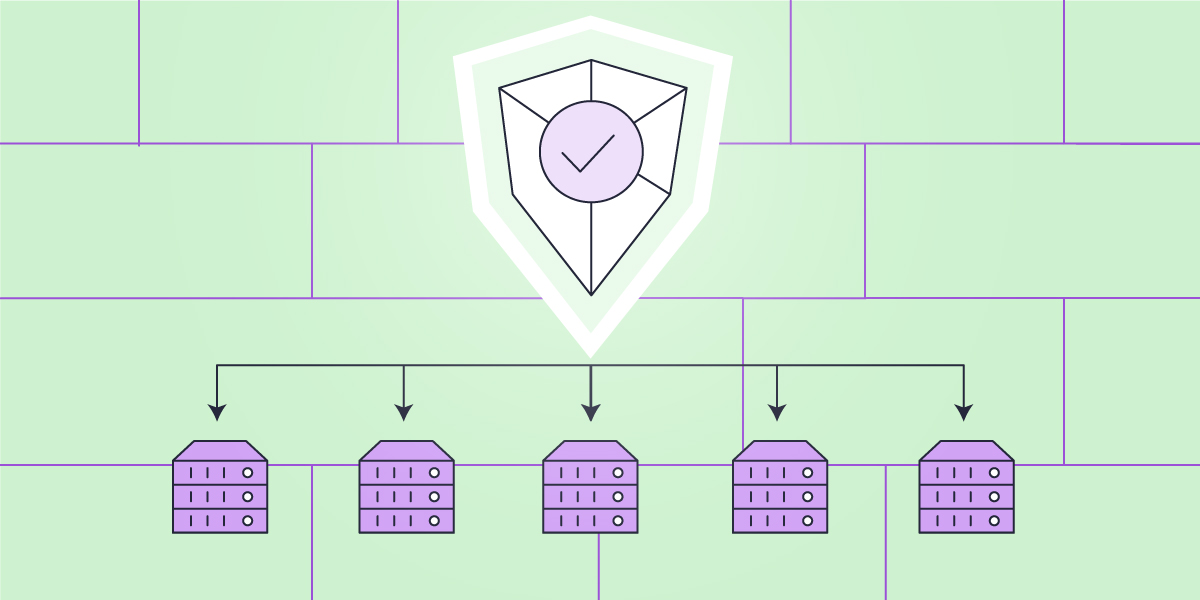
several servers pointing to a security icon

There is a saying amongst tech companies that if you can’t afford to pay for security, you can’t afford a security breach. The consequences of a breach can be  quite expensive in terms of data loss, human involvement, costs for business recovery, reputation damages, and many more. That is why big companies spend millions of dollars to protect their data and spend significant time in implementing and maintaining data safety procedures and security strategies. Naturally, small businesses cannot afford any of that and usually have a limited budget dedicated to security. That’s when and where using the services of a secure web hosting provider becomes critical. 

Although web hosts cannot be solely responsible for your website security, the good ones can do a lot to help you stay safe and prevent the worst from happening. Here at SiteGround, we have developed a centralized, enterprise-grade security system to protect our clients’ sites, applications and data. Its complexity has grown over time and describing it in whole can be quite overwhelming, but in this post we’ll give you a glimpse on how we analyze and filter web traffic coming to your sites and how we prevent on a daily basis hundreds of millions attacks to the sites we host.

Effective security-building blocks

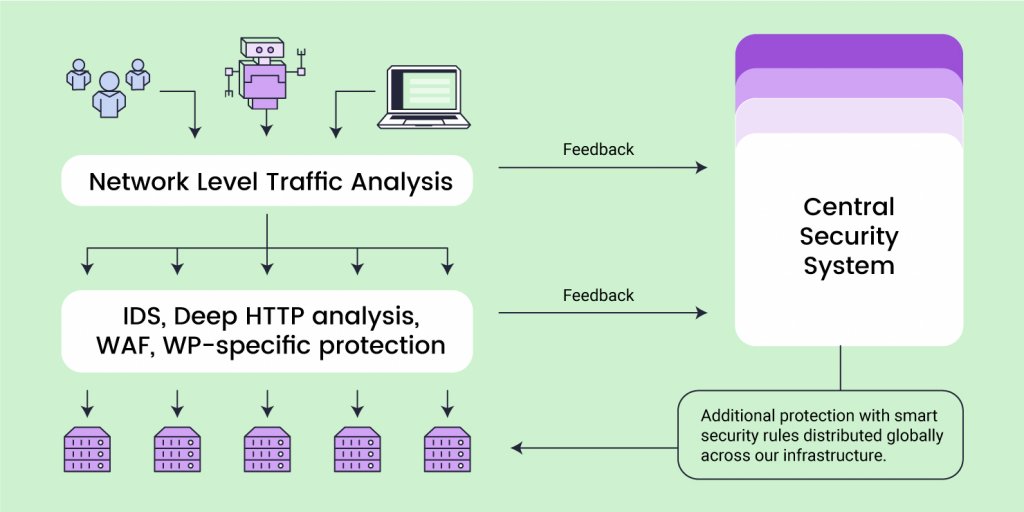
All our servers have essential security software installed on them and systems set to work locally per server – a network traffic firewall, Web Application Firewall, IDS/IPS (intrusion-detection/prevention-systems such as brute-force prevention), deep HTTP analysis of meta data, DDOS protection and more. These are classic and very effective means of filtering bad traffic and preventing brute-force attacks, malware injections, denial of service, and more, which we heavily rely on. Under the competent management of our DevOps engineers and System Administrators, these systems are constantly improved and all of them together filter roughly 1 TB of bad traffic and more than 300 million bad requests across our servers daily!

But if those systems operate stand-alone, on a server-level only, the following issues appear:  in case a hacker threatens server A, even if the server’s individual security systems can keep the server safe, they can’t stop the hacker from attempting the same attack on servers B, C, etc. To ensure that all of our servers are protected at all times, we have built our Central Security System that constantly gathers and analyzes data from all individual server security systems, and distributes smart security rules that are applied to and protect all machines.

Centralized big data analysis

Our Central Security system relies on the big data it receives from all the other server-level systems and analyzes the various attack sources, detects bigger patterns, and blocks many more attacks globally on the whole platform.

Web Application Firewall Data Feed

As mentioned above, every server has a WAF, whose main responsibility is to protect web applications like WordPress, Magento, Joomla, Drupal and others from a variety of attacks such as cross-site scripting (XSS), SQL injection, and more. The moment we become aware of a security threat (software vulnerability), our security engineers write a new rule to patch it and add that rule to our local WAFs. 

Every request that is not dropped at network level, is filtered by the server WAF. If the request is hitting the parameters of a WAF rule, the WAF sends information about it to the Central Security System. The Central System logs and analyzes all requests hitting WAF rules across all our servers (for example their IP and other metadata). If it detects a pattern, like multiple requests across many servers coming from the same IP address, the Central System will block that IP and distribute a rule to all the machines in our infrastructure. Depending on the specific case and the rule, the system may limit the suspicious IP requests to be challenged by captcha or entirely limit the traffic from it to any of our servers for a specific period (hours, days, weeks or even permanently).

Brute-force Prevention Traffic Patterns

As part of our brute-force prevention strategy, we have deployed local monitoring systems on all our servers. They monitor the login attempts to all applications hosted with us and report every failed one to the Central Security System. The system is notified of the attempt along with all important security information related to it, like an IP address, number of requests, IP history and more.  Every 60 seconds the Central Security System reviews the aggregated data and analyzes the volume and frequency of repetitive metadata looking for patterns. When patterns are clearly identified, the system creates blocking rules that are distributed to all servers. 

An example of this would be multiple failed login attempts on one or more servers, coming from the same IP address within a short period of time (different time thresholds are set for higher precision and effectiveness). In a case like this, our system would flagg the IP and the future requests coming from it towards any of our servers would be challenged with captcha.

Many more systems send data to our Central Security System

There are many more ways we feed our Central Security System with data – like monitoring login attempts to a server-level services like FTP, EXIM, Dovecot, etc; reviewing XML-RPC traffic of WordPress sites; inputting different traffic patterns from third-party systems, and more. 

The more relevant data sources we input, the bigger the pool of data becomes, which significantly improves the analytical power and accuracy of the Central Security System. Over time the System’s capability of effectively preventing attacks grows bigger and bigger. 

Enterprise-grade Protection on a Global Scale

And to wrap it up, here are some numbers that can help you understand the scale and effect of what the Central Security System does. On a daily basis over 260 million requests are challenged with captcha and less than 40,000 actually pass the challenge. We have more than 50,000 IPs currently flagged as bad or suspicious and nearly half of them are completely blocked from reaching our servers. The number is changing daily, as new IPs are flagged and challenged due to suspicious activity, while previously flagged ones get cleared after successful verification or ban expiration. 

All of these numbers and the comprehensive work involved in maintaining an effective Central Security System lead to the number that matters most – 99,99% of bad traffic blocked before it reaches your website.

[subscribe_cta]

Our Site Scanner Saved Thousands of WordPress Sites from a Massive Security Attack

site scanner services saves sites from attacks

In the middle of June, we launched our upgraded Site Scanner service. Little did we know back then how soon we would see the new functionality in full action. Just a few months after the upgrade the Site Scanner saved thousands of WordPress sites from a well-disguised attack, aiming to redirect traffic to bogus sites through a fake plugin, called Zend Fonts. Imagine all the reputation and other business damages a hack like this could have caused and take a read how our hero, the Site Scanner, saved the day.

How does the “fake Zend Fonts plugin” work?

The attack involved uploading an infected fake plugin called Zend Fonts through a backdoor. Once uploaded, the infected plugin would redirect site visitors to bogus scam sites without the site owner even suspecting it. The uploaded plugin file looks like that:

./wp-content/plugins/zend-fonts-wp/zend-fonts-wp.php

What makes the attack really bad is that this plugin file is hidden from the wp-admin or wp-cli plugin list, meaning the WP Admins would not be able to easily spot it, due to the following function:

//hide plugin
add_filter('all_plugins', 'hide_plugins');
function hide_plugins($plugins) {
        unset($plugins['zend-fonts-wp/zend-fonts-wp.php']);
        return $plugins;
}

Also it is configured to trigger the redirect only if the website is accessed by a normal user, not the site admin or editor:

//do redirect if user from REF and NOT Admin
        if(isset( $_SERVER['HTTP_REFERER']) && !$isAdmin){
                redirect();
        }

All these factors make the attack pretty much invisible for the site owners/editors, while the normal visitors would be redirected to scam sites. This hack could easily result in significant losses of sales, reputation damages, and other harms such as bad standings in search engines and more.

How did SiteGround detect the attack?

Our System Administrators monitor the load and behavior of our servers 24/7 and soon after this exploit was launched, we observed an abnormally high number of malicious files detected by our Site Scanner service crawling for malware. Our Sys Admins started digging further and spotted a pattern – there was an attempt for a massive fake Zend Fonts plugin upload affecting by that time around 2000 of our clients’ WordPress installations.

How does Site Scanner protect the sites it’s on?

Usually, in attacks like the Zend Fonts one, for the sites with Site Scanner Basic, reports are received in less than 24 hours after the malware is detected (right after the scheduled daily scan) and for those with Site Scanner Premium, an alert is received immediately after the (attempted) upload, giving our clients the opportunity to quickly react and delete the malicious files before they can cause any damage. 

Furthermore, for the sites with Site Scanner Premium where quarantine is switched on, the files never reach the attacked sites – they are safely quarantined for the site owners to review and delete when convenient. The quarantine effectively stops the attack and protects the sites from malicious hack attempts, and the business and reputation impact resulting from them. And the best part – the site owners don’t have to do anything.

Using Site Scanner data to protect all clients

Once our System Administrators had detected that the Zend Fonts plugin upload was not something isolated, but was happening across the whole platform, they deleted all malicious files from our servers. Furthermore, our Security Engineers added a new rule to our web application firewall (WAF) to prevent further attacks towards other WordPress sites hosted with us. 

We are quite excited to see how our Site Scanner service is actively protecting sites from a variety of really bad attacks. For massive, large-scale attacks such as the Zend Fonts plugin one, the Site Scanner helps us detect a pattern and take actions to protect all our clients by implementing WAF rules or enhancing our monitoring system. While this is something that we will continue doing, updating a platform-wide system takes some time and will not include smaller, site-specific malware attacks. If you want to have an early-on, comprehensive malware detection for your site, we strongly recommend that you activate one of our Site Scanner plans. And if you’re looking to not only detect but proactively stop malware attacks, get the Premium Site Scanner with quarantine on. 

To celebrate the Site Scanner success, this #CyberSecurityMonth we offer 3 months free for any new Site Scanner activation (both Basic and Premium) made until the end of October.

[subscribe_cta]

What is Phishing and How to Protect Yourself from It

Stay Safe From Phishing Attacks

With the rapid development of technology, the complexity of phishing attacks improves. The more technologically advanced people become, the more advanced the phishing attacks. Last but not least, now that everybody spends more time online, the number of phishing attacks also rises. Here is our short guide on simple things to remember in order to stay safe from phishing attacks, while browsing online.

What is Phishing?

Born circa 1995, just 4 years after the first site appeared, phishing refers to the practice of using deceptive emails and websites to illegally get personal and corporate information from users. That information – usernames, password, credit cards – is later used to steal either money or more information. 

The word “phishing” itself is a combination of “fishing” and “phreaks” which was what hackers used to call themselves. The practice of phishing is considered a form of social engineering, which is a term for manipulating people by falsely representing oneself in the context of web security. 

Types of phishing techniques

Spear phishing

What is spear phishing? Spear phishing targets a specific person or organization rather than random users. This scam usually intends to steal sensitive data or information from the specific victim, such as account passwords or financial information for malicious purposes. It requires specific knowledge about the victim such as some personal details. The cybercriminals use this information, usually in an email, to pretend they’re a trustworthy organization or person and acquire the data they need.

Spear phishing vs phishing

Both of them are online attacks that intend to steal sensitive information. However, phishing is the more general term for this type of attack, as this is basically any attempt to trick victims to share sensitive data. 

As per the spear phishing definition, it is personalized to the specific victim. It requires more thought, time and knowledge to achieve its goal. Since spear phishing’s messages are personalized, it’s more difficult to identify these types of attacks.

What helps protect from spear phishing is generally being careful with your online presence. Here are a few tips to follow in order to avoid spear phishing:

  • Be careful what personal information you post on the internet
  • Use smart and strong passwords
  • Update your software regularly
  • Watch out when opening emails and clicking on links

Microsoft 365 phishing

These types of attacks are phishing emails that target Microsoft 365 users. One of the most common things that attackers usually do is tricking victims into downloading a file by disguising its extension. Attackers use a special Unicode character, the right-to-left override. It allows them, for example, to disguise an “.exe” file as a “.txt” file. As a result, the victim downloads the “.exe” file which installs malicious software on their computer or laptop.

Whaling phishing

Whaling phishing is a highly targeted attack. This type of phishing attack targets particular individuals, such as senior executives, and disguises as a legitimate email. It attempts to encourage victims to do a particular action, usually related to transferring money or giving out specific information. Whaling phishing emails often target large financial institutions and are more complicated than general phishing emails because they target C-level executives.

These emails usually contain personalized information about the organization/C-level executive, create a sense of urgency, comply with the business tone, and they encourage you to do some of the following:

  • Click on a link that eventually brings malware
  • Transfer money to the attacker’s bank account
  • Provide further information about the business or individual

Voice phishing

Voice phishing is an attack which tricks individuals to provide important financial or personal information over the phone to third parties. You can become a victim of a voice phishing attack over various channels and devices, such as voice email, smartphone, landline phone, voice over IP, etc.

The message of such an attack usually informs the victim of a suspicious activity, related to their bank account/credit or debit card, etc. Then the attacker encourages the victim to call a phone number and provide more personal information or verify their account/identity. 

To protect yourself from such an attack, the best approach is to call the given institution via a valid contact channel you have and make sure that your account has not been compromised.

Business email compromise (BEC)

Business email compromise is an email message that appears legitimate, requests a particular action, and targets a specific company. The request in the message is usually about transferring funds to the attacker’s bank account that:

  • Pretends to be the “regular supplier” that has sent an invoice from an updated mailing address
  • Pretends to be the CEO of the company
  • Pretends to be an employee of the company and has hacked their email address
  • Pretends to be the lawyer of the company

Social media phishing

Social media phishing is related to attacks via social media such as Facebook, Instagram, Twitter, LinkedIn, etc. It aims at stealing your personal information or taking over your social media account. Such an attack can also result in financial loss due to getting data for access to financial accounts. To protect yourself from a social media phishing attack, follow these simple rules:

  • Don’t add/accept strangers as friends
  • Don’t click on links to update your personal information
  • Don’t use the same username and password for all your accounts
  • Use the latest version of your operating system

How Can You Prevent Phishing?

Because phishing can truly cost you a lot – from stolen money to huge data breaches in your company – taking proper safety precautions is a must. We’ve put together a shortlist of the things you need to keep in mind in order to stay safe online.

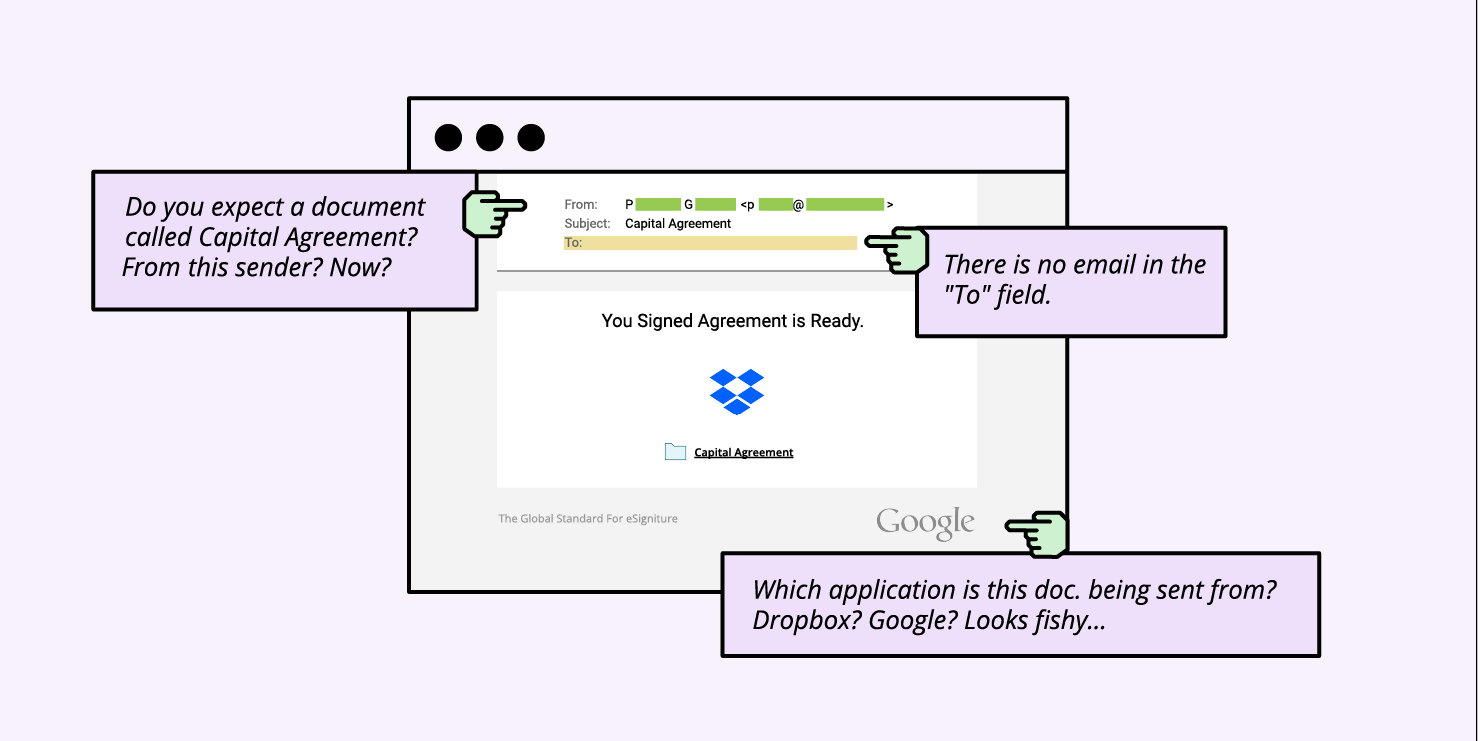
1. Pay Attention To The Sender and The URL in Your Emails

One of the most common phishing scams is to spoof a big brand by sending an email with their name (and usually color palette), and say there is something wrong with your account and ask you to log in “to fix it”. Usually, the look of the email is very similar to the original brand, however, there is a sure way to distinguish whether you’re looking at the real deal. 

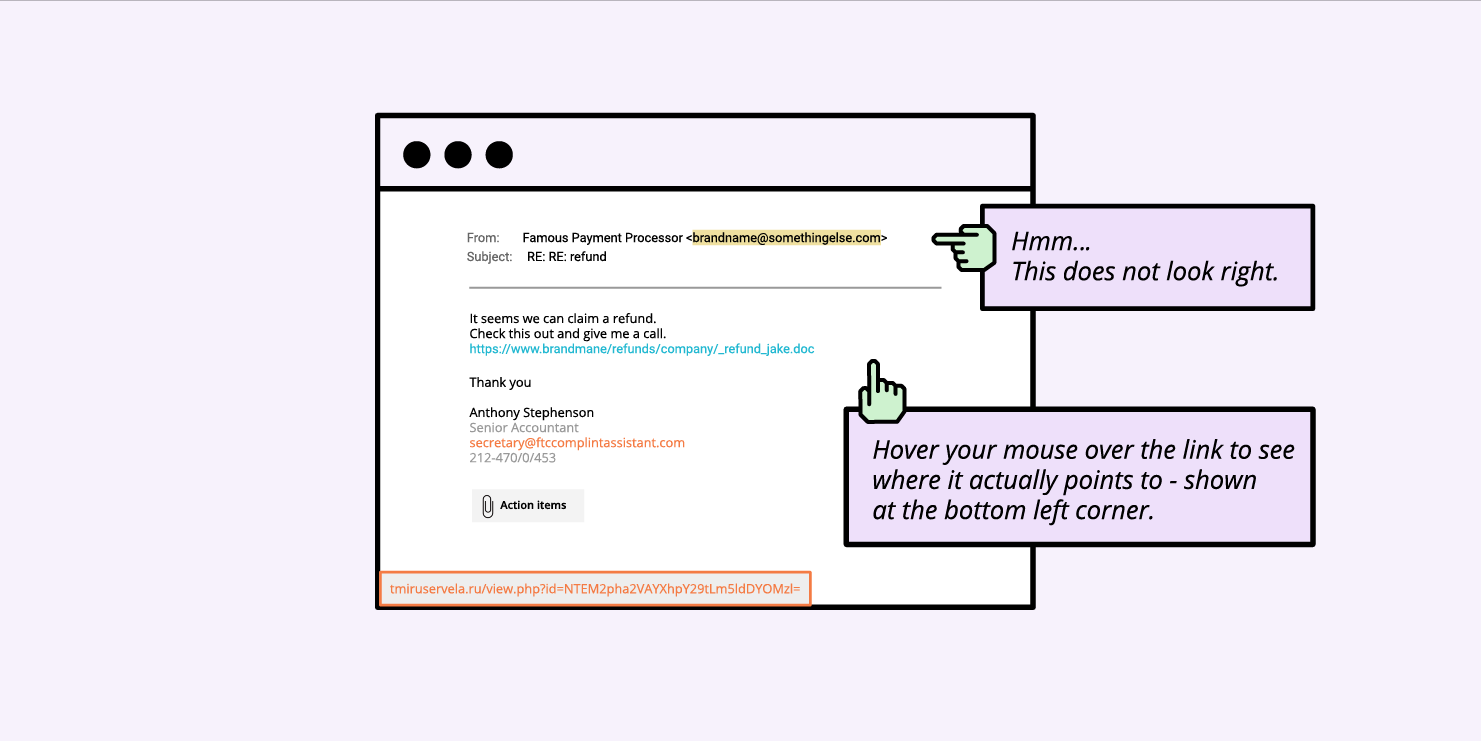
A good way to identify phishing emails is to check the email address: scammers cannot create email addresses with the actual domain name of the company, so instead of help@bigbrandname.com it will usually look like bigbrandname@somethingelse.com. Look carefully at the email address and not just the name appearing in your email client!

Check the email sender and hover over the link to see the destination

You should also check the URL before clicking. This can be done by hovering the mouse over the URL provided in the email, it will usually reveal the domain it’s pointing at, so you can see where this email actually wants to take you. If it’s not the official domain of the brand, don’t click on it.

2. Avoid Downloading Email Attachments You Don’t Expect

Sometimes the email looks like legitime business emails, and they don’t pretend to be a big company, but instead send over an attachment containing some sort of malware. The email is often structured as a business offer or аn email sent by the recipient’s own company/management containing files with sensitive information.

If you don’t know who the sender is, definitely don’t open any attachments. If you know the sender, but you don’t expect anything from them, or there is something fishy about it, it’s better to be cautious. Call the sender and ask them if they meant to send you anything, as sometimes scammers hack into people’s email boxes and use them for phishing attacks by spamming their contacts.

Be watchful of the mail title, recipient and body

The most common format for the attachments is zip (.exe is usually not allowed), however, even Microsoft Office files can contain viruses, which can contain macros that need to be enabled. Overall, keep an eye for all kinds of attachments.

3. Always Check The Site You’ve Landed On

If you happen to click on a phishing link (usually via email or through instant messages), it will often take you to a website with a form of some sort. The purpose of these forms most often aim to gather your most sensitive information – usernames and passwords.

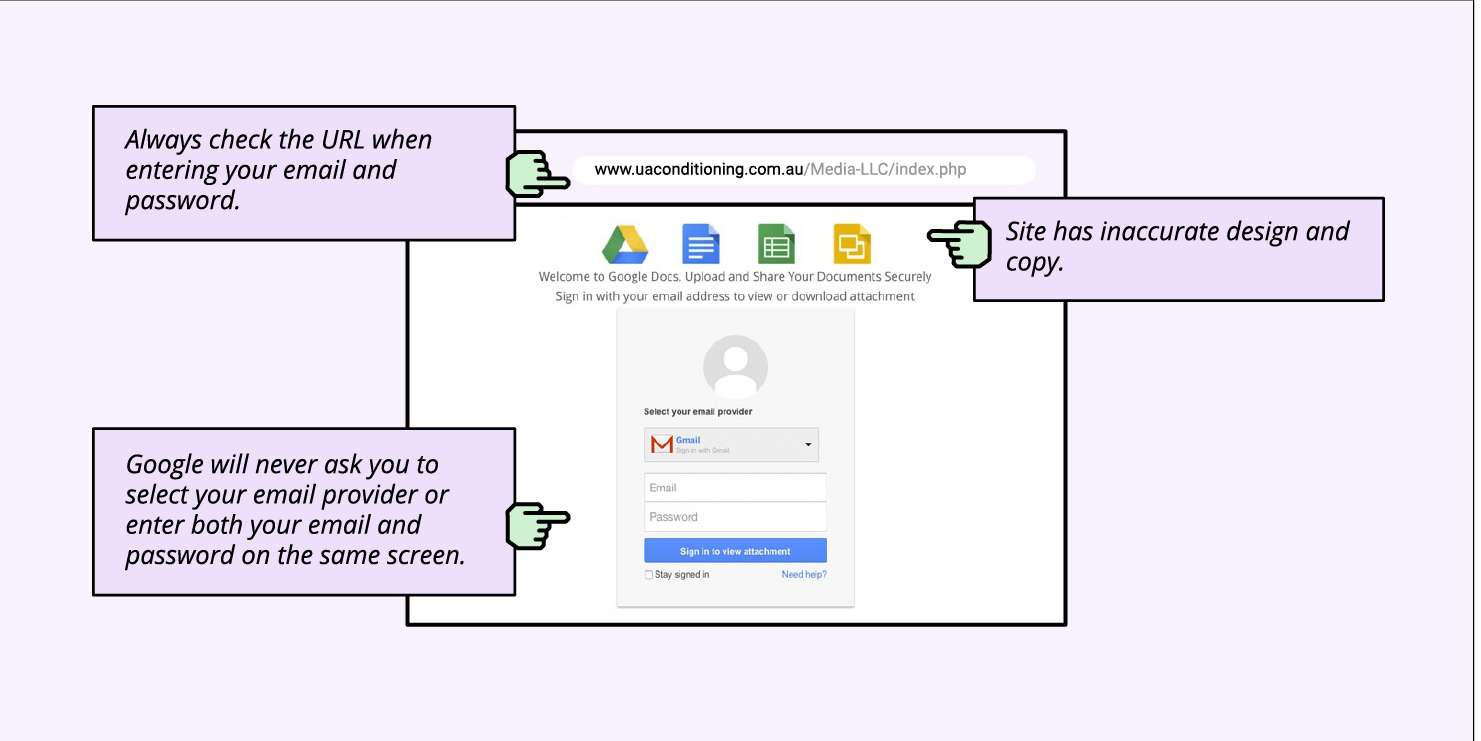
In order to be sure you’re at the correct site and before filling in any data, check the website address in the browser address bar.

Scammers can create a website closely resembling the design of the respective brand, but they can’t use their official domain or have the brand name in the domain (assuming the brand is trademark protected). So, often, these domains may resemble a brand’s name, but will never be the original one, and will have additional symbols, letters, or words. 

Usually, the scammy domains look completely nonsensical and sometimes the design and flow also feels odd, especially if it’s a known brand that you often see.

For example, when signing into Gmail, Google will never ask you to select your email provider or enter both your email and password on the same screen. So the flow you will often see on phishing sites is designed to resemble the original one, but it’s not. 

Always check the destination URL and site design before you enter your credentials

4. Ignore Money Requests

Another type of online scam that social engineers often use is misrepresenting themselves and asking for money under some form. An example of such phishing emails is a person in trouble, asking for financial help; you’re asked to send a small amount of money with the promise you’ll get way more in return. 

Sometimes these scams can take the form of extortion. A popular one was an email circulating in the past couple of years, stating that users have been recorded through their own webcams watching adult content and asking for money. Actually, this scam attack was so scary, it made the news as people were terrified – understandably so!  

Either way, if you are getting a money request under any form by strangers, it’s usually a scam; never give out money or financial information no matter how the situation is presented.

What should you do if you receive a phishing email?

Every time you receive an email, you need to be extra careful of the email address, the URL, their spelling, etc. After checking these and identifying that the email is actually a phishing email, you need to follow all of the steps below:

  1. Don’t click on any links & don’t open any attachments & don’t reply;
  2. Contact the alleged sender via official channel for communication;
  3. Report the email to your company & email provider & government body & the organization that allegedly sent the email;
  4. Mark the sender as junk or spam;
  5. Delete the email & remove from recycle bin/deleted items folder.

How to report phishing emails?

As previously mentioned, you need to report the phishing email to several people/institutions. Here we’ll show you how to report the email both to the email provider and to the government body.

How to report phishing emails to your email provider 

Let’s take as an example, Gmail accounts. Next to the “Reply” option in Gmail, click the “More” option and select “Report phishing”.

If you are an Outlook user, you need to select the phishing email message from the message list and above the reading pane, select Junk > Phishing > Report.

Other email providers have similar easy to use options for reporting phishing emails.

How to report to a specific institution, based on the country you’re in

The Anti-Phishing Working Group (APWG) is an international coalition that attempts to eliminate cybercrime. If you receive a suspicious or malicious email, forward it to this organisation at reportphishing@apwg.org. Below you can see some other country-specific institutions that can help you too:

  • For the USA, forward phishing emails to the National Cybersecurity Communications and Integration Center (NCCIC) at phishing-report@us-cert.gov.
  • For the UK, report the phishing email to Action Fraud, the UK’s fraud and cyber crime reporting center.
  • If you’re living in a European Union country, here you can find the reporting website, corresponding to your country, in case you are a victim of a cybercrime.

Final thoughts

Now that you know what is a phishing attack, you are much better prepared to protect yourself from it with our simple actionable advice. You can further explore our blog for similar topics and read how to protect your reputation by protecting your email.

[subscribe_cta]

Build in Security from Day 1 to Prevent Website Hacks

website hacks prevention

Website security should be on the mind of every site owner. It doesn’t matter if your site is large or small – if it is important to your business, you need to keep it safe and secure. As a site owner myself – and primarily a WordPress site owner – I’ve come up with a checklist I go through every time I spin up a new website for myself or a client. Let me share it with you in hopes that you will pick up a few new ideas. Let’s look at what it takes to secure a website.

Choosing A Secure Web Host

It should go without saying, but security starts with your web hosting company. I’ve used everything from ‘do it yourself web hosting’ to ‘concierge level hosting’. The trick is to find the level you need and the support you are comfortable with.

Check their support

The first thing I do when considering a new web host is to check their support and response time. I’ll sign up for a free trial, put up a site, and then ping support to ask a question. How quickly they respond and how well they understand the question gives me clues as to what I can expect from them if I host with them.

Check their security features

I’ll then check their website and hosting plans to see what security tools and features they provide. I’ll look for essential things like an SSL certificate to encrypt and protect my website data, domain privacy to hide my personal information from public Whois databases, 2-factor authentication to protect my website from unauthorized access, geographically distributed backups to have a safe copy of my website in case something goes wrong.

Other key security measures I’d like my website hosting provider to have in place is a Web Application Firewall – software that sits in front of my website and protects it from known bad traffic – to keep my host server safe from software exploits, DDOS and brute-force attacks protection, and the option for automatic updates to the latest PHP and WordPress versions to keep your site secure from malware.


If the host provides yet more security tools, that would be even better. For example, on top of all these features, available on the SiteGround platform, they also offer an in-house developed Site Scanner service and a free in-house built SiteGround WordPress Security plugin to make sure that your website would be as secure as possible.

Check their blog

Step 3 when selecting a web host is always to read the last 5 entries in their blog. 

  • Are they recent?
  • Do they talk about security?
  • Do the blog posts seem helpful?

No, not all blog posts are going to be about security, but I’d better be able to find a recent one. The Security landscape changes quickly so they need to be posting regularly.

Check their price

Finally, I check their pricing tiers and figure out where my site will fall. Price is the last thing I check because if the first two boxes aren’t checked then the price doesn’t matter. They could be giving it away for free and I wouldn’t use them.

Build Your Site Securely From The Beginning

Once you’ve laid a secure foundation for your website, it’s time to start framing it and building it out. At every step, you need to make sure that security is “baked in” not “bolted on”.

Security is baked in when you think about it before you start building your website

Security is bolted on when you build out your entire website and then decide to just add a security-focused plugin to cover your bases.

Baked in is always better.

What does it mean to bake in security?

Install an SSL certificate as soon as you get the website set up

Don’t wait until you are ready to deploy your website before you remember to install your SSL certificate. These days a secure website is just a few clicks away. Take the time to do it now and then make sure you force all traffic to be https after it is installed. For those users hosting with SiteGround, your Site Tools makes setting up and enforcing SSL easy. Just a few clicks and you are in business.

Set a strong password policy before you start adding users

Passwords are the lock on the front door to your site. When building out your site, put a strong lock on the front door by requiring all users to use strong passwords. Doing this before you let users start coming into your site will make sure that no users set up weak passwords.

Require Two-Factor Authentication (2FA) for any user that will have admin-level rights in the system.

Two Factor Authentication is the deadbolt on the inner office of your site. Yes, a strong password is important for anyone to get into the site, but to get to things like financial information or user management, you want a strong deadbolt as well. Keep your system secure by implementing 2FA for all your admins. The SiteGround Security plugin makes setting up 2FA very easy.

Set up a backup system that will regularly backup your entire website and store those backups securely.

You need a 30-day backup system implemented from day 1. Not 1 day, not 7 days, 30 days. The reason is, that if your site gets hacked, you may not notice immediately. Once you do notice, you want to clean your site and one of the best ways to do that is to restore your site from a clean backup. 

SiteGround’s Site Tools provides an intuitive tool for scheduling nightly backups and restoring from them when needed. 

While we are talking about backups. Don’t forget to force a backup before any upgrade, major site redesign, or installing a new plugin. It never hurts to have a fresh backup in case things go bad.

Adhere To The Principle Of Least Privilege

Before you start letting users into your system, think about the roles that they will play. A role is a set of permissions or privileges and you want to give each user the absolute minimum level of privilege they need to use your site.

There are several good role editors for WordPress and I suggest you install one, learn how to use it, and then audit the roles you have in your site to make sure they have only those privileges they need to use your site. 

On a regular basis – at the very least once a year – review these privileges to make sure they are still valid and to make sure that no role has been granted a privilege it does not need. 

Most users are not trying to do bad things, but we have to assume they would if they could. Adhering to the Principle of Least Privilege will help make sure that bad actors, or curious users, can’t do things to your site they aren’t supposed to.

Only Use Software From A Trusted Source

In software development – as in building a house – your supplier’s reputation is critical to your project’s success. If you use a cut-rate supplier for the framing materials of your house, the entire project will suffer. Worse yet, it will cost you more later on to fix these problems than it would to just buy good materials to begin with.

Building your website with quality materials like plugins and themes from reputable vendors will usually cost you money in the short run. However, knowing that you have companies standing behind their products and updating them when issues arise is worth the money.

Yes, you can choose a free plugin or theme to build a critical feature of your website. However, what do you do if you discover that there is a security flaw? Worse yet, what do you do when you discover that flaw and then discover that the author has abandoned the project? At that point you have 2 options, neither good.

  1. Hire a developer to fix the security flaw
  2. Rip out the plugin, find another one that does the same thing, implement it and make any changes to your process that are necessary.

Both of these can be expensive propositions that could be avoided by simply choosing wisely in the beginning.

SiteGround recently looked at the data from a lot of compromised websites. What they found was that the majority of the compromised websites were compromised because they had unpatched plugins that had security flaws in them. Much of the time these were the free versions of paid plugins downloaded from untrustworthy sources. Only download plugins and themes from trusted sites like WordPress.org or vendors you trust.

The WordPress plugin repo is a reputable source. WordPress.org has implemented a review process – both human and scanning software – to help filter out plugins that have potential security issues or otherwise violate WordPress policy.

Scan Your Site Regularly

Just like you build a security system into your house, you want to set up a security scanner for your website as soon as you build it. Security scanners look at your site both internally and externally to make sure that there are no known vulnerabilities. It will check your website for viruses as well. No security scanner is perfect, just like no home security system is perfect. But your website is more secure with one.

A good scanner will look for things like cross-site scripting vulnerabilities among other things. These vulnerabilities can allow your site to be used in the attack of other sites or attacks on the end user themselves.

SiteGround has a great scanning system available. I get regular emails from it telling me which sites it has scanned and either that they are all clear or that there is an issue I need to address…immediately.

Once you’ve built a new house, you don’t hand out keys to anyone who asks, even if they claim to have a good reason for wanting in. Similarly, you want to make sure that if you get an email that says it is from your site, you don’t automatically click on the link.

You should know every email your system is capable of sending. When you get one that you don’t remember setting up, you need to investigate. Don’t click, start looking at it. Check the headers, look at the exact URL any links go to. Most importantly, quarantine the email using your virus detection software. 

Unknown emails purporting to come from your site are just another way that bad actors try to get into your site. These phishing attacks come from servers that are not under your control, so you can’t stop them. You can, however, be aware so that when you get them, you delete them. In almost all cases, if you don’t click, the email itself can’t do any damage.

Tools I Regularly Use To Bake Security Into My Sites

Keeping a WordPress website secure doesn’t have to be a full-time job if you bake security into it from the beginning. To do this, there are a couple of tools I use on almost every WordPress website I have.

The SiteGround Security Plugin is the first plugin I install on any new website I spin up. I install it, I install an SSL certificate, and I configure everything to be secure before I do anything else. If I get this part right, everything else is easier. 

The SiteGround Optimizer plugin is a great way to make my site faster, but it is also where I check the “HTTPS Enforce” checkbox. This way all the traffic on my site goes over HTTPS even if it wasn’t originally. Having an SSL certificate is important, enforcing it on all traffic is equally important. 

SiteGround’s Site Tools have a lot of great options to make managing a website easy. The one tool I use in setting things up though is the Backup tool. After I get SiteGround Security and SiteGround Optimizer setup and configured, I have my foundation laid – I force a backup. This is my fallback in case I mess something up while building out my site. 

Then before I install each plugin or theme, I create a new one. I name these backups “BEFORE “ + the plugin or theme name. This way I can roll back to any point in the process.

Wrap Up

If you lay a secure foundation for your website and then think about security at every turn, then you can rest easy at night, knowing that your site is as secure as possible. No website, however, is bulletproof. Therefore, the last step is to build your Disaster Recovery plan. What steps do you take when your site has been hacked?

The SiteGround Security plugin has a series of steps you can take just for that situation. It is not a complete disaster recovery plan but when you combine it with 30 days of backups, you are well on your way to having one.

[subscribe_cta]

95% Less Bad Traffic with Enhanced Brute-force Prevention

brute force system improvement

We have been talking about brute-force attacks in the past, but the truth is that many of our clients don’t even realize how real and how common the threat of these attacks is for anyone with a website. Based on our experience of hosting millions domains, we fully understand the destructive potential of brute-force and we have set defence mechanisms to prevent and mitigate such attempts directed at the websites we host. For years our AI brute-force prevention system has been successfully blocking millions of attacks every day. Now, we are happy to announce that the system got even better – by constantly learning from thousands of brute-force attempts per day and adding new functionality for traffic validation, it now filters 95% more of the bad queries!

Advanced AI system that recognizes & blocks brute-force attempts

Analyzing traffic behaviour and recognising patterns is the core feature that makes our AI brute-force prevention system so effective. When a behaviour that matches a certain pattern associated with brute-force is detected (like too many unsuccessful login attempts from an unrecognized location for example), the suspicious source is immediately challenged with a CAPTCHA page that only a real human can pass. This effectively stops brute-force attempts, adds up to the system knowledge and enables legitimate users who have accidentally mimicked a suspicious behaviour to reach the requested location by completing the captcha. The beauty of this constantly evolving system is that it gets better with every brute-force attempt it stops, it keeps sites under attack safe and it ultimately protects the other websites hosted on our servers by blocking bad traffic before it even targets them.

NEW: Traffic validation that minimizes the number of brute-force attacks

We have recently upgraded our system to become even more powerful.  We are now able to more efficiently block the great majority of malicious non-human bots – e.g. incoming brute-force attacks or data hunting agents which aim to profile your site and later hack you through future software exploits. That significantly boosted the system success rate and reduced bad visits by roughly 95%. 

The best example to illustrate how the system works is with the XML-RPC, a file in the root directory of every WordPress installation. Many (WordPress) hosts block its usage because it’s known to be insecure and blocking it is the easiest way to avoid XML-RPC-related hacks. However, XML-RPC also has many legitimate use cases for communicating with external systems and software. That is the reason we don’t aim at stopping XML-RPC – we want to empower our clients to use the tools and services they need to get the best of their websites. Instead of blocking it, we have looked for ways to harden its security and significantly decrease the potential for brute-force attacks. After our latest AI brute-force prevention system upgrade, we now validate all traffic coming through XML-RPC to stop all recognized malicious visits and eventually reduce the overall hits reaching the clients’ sites through XML-RPC by 99%. This means that we successfully filter potential brute-force sources before an attack is even attempted.

Less resource consumption, lower carbon footprint

The impact of this upgrade to our AI bruteforce prevention system is enormous. Not only are we further minimizing the chances for our sites to get brute-forced and potentially hacked, but we significantly reduce resource consumption (like CPU and RAM) generated by traffic coming from bots and brute-force attempts. Lower resource consumption effectively means more resources available for your legitimate visitors and a lower carbon footprint of your site. 

Preventing brute-force attempts is just one of the many ways we constantly protect the websites we host, along with our Smart Web Application Firewall, DDoS protection, 24/7 server monitoring and many more. We believe that security is one of the foundations for any successful website, and we continuously develop new prevention and mitigation solutions, improve existing ones and keep adding new security features to our hosting, so you can have the peace of mind that your website is in good hands and focus on what’s important – your business.

[subscribe_cta]

Sell Digital Products and Grow Your Online Business with Managed EDD Hosting

image announcing the partnership between SiteGround and Easy Digital Downloads

At SiteGround we’re constantly working to add even more value to our services and respond to our customers’ growing business needs. Now, we’ve made it easier than ever to sell digital products online by partnering with Easy Digital Downloads – the leading WordPress-based eCommerce platform for selling digital products. You can now take advantage of a powerful managed eCommerce hosting platform for EDD to launch a ready-to-go eCommerce WordPress website in minutes and grow your online business even further!

Selling Digital Products Online Is a Growing Trend

Digital products are booming nowadays because of their numerous benefits. They provide high profits, as their production costs are low. Unlike physical items, there’s no limit to the inventory and no delivery costs. Digital buyers get what they need easily and immediately – in just a few clicks. Let’s take eBooks as an example. They are the top-trending digital item, and their industry is projected to reach $13.62 billion revenue in 2022. Other digital products in high demand include audio books, podcasts, videos, music, photography, software, web designs, and many more.

All You Need to Easily Start, Manage, and Grow an Online Store

If you want to join this growing trend and start selling digital products on WordPress, we’ve got you covered. Our new Managed EDD eCommerce hosting solution dramatically simplifies the process for setting up a WordPress eCommerce site by combining the premium hosting services of SiteGround and the eCommerce functionality of Easy Digital Downloads. You get WordPress pre-installed with the Vendd theme – a full-featured marketplace theme for EDD that gives you many options and features, together with the EDD plugin – the complete eCommerce solution for selling digital products on WordPress. On top of that, we add our powerful WordPress speed and security boosters – our top-rated SiteGround Optimizer and SiteGround Security plugins.

All you need to do to get all that is visit our Managed EDD Hosting page and choose the best hosting plan option for your online business. With no technical skills required, you’ll have your eCommerce site ready and fully equipped with premium features in a few clicks:

  • Sell online any digital products, such as eBooks, photos, videos, PDFs, plugins, software licenses, and more.
  • Build an amazing online store in minutes – with SiteGround WordPress Starter wizard pre-installed.
  • Have payment flexibility and accept credit card payments using Stripe, Apple Pay, Google Pay, and PayPal. Besides, you get flexibility on recurring payments and additional payment gateways.
  • Manage customers easily by keeping a record for each customer and tracking customer lifetime values. What is more, the managed hosting platform includes a built-in Customer Area so you can easily access the purchased digital goods and keep track of purchases.
  • Create and manage promotional campaigns by choosing the type of discount, specifying the products, setting an automated time period (start and end dates), and more.
  • Get full data reporting with the built-in reporting feature for stats viewing and custom reports creation. You can filter, track and export data about specific products, earnings, downloads, sales and more.
  • Enjoy tried-and-true website speed and security solutions – our top-rated  SiteGround Optimizer and SiteGround Security guarantee the best performance and security for your eCommerce website.
  • Enhance your store functionality with tons of extensions, such as a simple plugin installation or marketing integrations to improve your store and your visitors’ user experience and respond to your needs and budget growth.
  • Get top-rated, 24/7 live support for your eCommerce site.

Why Easy Digital Downloads (EDD)?

We’re already offering plenty of ecommerce features, like a free SSL, free CDN, business email, premium support, and more, but we were looking to simplify the online store management experience even further. We only partner with services that complement our own with the highest standard of quality and best in their class, and we’re committed to long-term partnerships with trusted providers we’ve been working with and using throughout the years.

Easy Digital Downloads is the most popular and useful WordPress-based eCommerce platform for selling digital products for WordPress online and is already used by more than 50,000 website owners. It was recently acquired by Awesome Motive, the leading software and media company helping shape the web for billions worldwide. Collectively, their software powers over 20 million websites and includes many of the well-known website tools such as OptinMonster, WPForms, MonsterInsights, All in One SEO, etc., and now also Easy Digital Downloads.

Syed Balkhi, CEO of Easy Digital Downloads, who’s also contributed to our expert round-up How to start your online business on a budget, commented, “EDD’s partnership with SiteGround offers small businesses around the world an easy way to start their eCommerce website and have peace of mind when it comes to on-site payments, security, and performance. Because EDD is open-source, it also helps small business owners retain full control and freedom over their online business vs. getting locked into a proprietary SaaS eCommerce platform”.


To start selling digital products easily on WordPress, go to Managed EDD Hosting, purchase the hosting plan that best suits your business needs, and get your eCommerce website ready-to-go in no time.

[subscribe_cta]

How to Keep Your Site Safe with Site Scanner Security Service (Webinar Video + Q&A)

q&a and webinar session explaining site scanner service

As hackers become more and more ingenious, protecting your website is an on-going process. To help you boost your website security even further, we’ve recently enhanced our Site Scanner addon service with new features and introduced a Premium plan for ultimate website safety. As many of you wanted to learn more about this service improvement, we held a live webinar with our Product and Technology Lead, Daniel Kanchev. He explained how the latest Site Scanner update will boost your site security and replied to your most frequently asked questions. If you did not have a chance to attend, you can now catch up with the recording of our Site Scanner live webinar on YouTube. We also summarized some of the answers to your most popular questions, as well the ones that we didn’t have enough time to answer during the live webinar.

Why should you protect your website in the first place?

Contrary to popular belief, all websites – big or small – are targets to hacker attacks. At the end of the day, attackers don’t care whether you have a brochure website or a big eCommerce store, whether you have a couple of hundred users or hundreds of thousands of visitors. Their goal is to maximize the impact of the attack, causing harm to both your business and your users. Some of the ills they cause include stealing credit card details, sending spam emails, hosting malware on your site, storing files on your account, etc.

Bottom line is that everyone can be a target and get affected. That’s why it’s important to know how to protect your website. At SiteGround, we’re fanatical about the security of the websites hosted on our platform. We’re taking a multi-level approach to secure your sites on infrastructure, server, and application levels, but since the security of a website is also the responsibility of every website owner, we’re constantly adding new features and services to help you in this process and save you time, effort, and money, because dealing with the aftermath of a website attack is time consuming, generates losses and requires certain technical skills.

Isn’t SiteGround taking care of my website security?

SiteGround has adopted a security-first approach in our services and we are taking a comprehensive care of the websites hosted on our platform. Here are some of the things we do:

General website security measures

  • Hosting account isolation makes sure that your site is secured and will not be affected in case another website on the same server gets hacked. It isolates your website from all other websites. If another client’s website gets hacked, this won’t affect your website. It’s good to keep in mind, though, that multiple applications within the same website (e.g. in different folders, or subdomains of the same website) will need some more attention, as they share the same isolated protected space. Hacking one of them might lead to exploiting the other application as well. Therefore, it’s a good idea to protect all your sites with strong passwords, and our SiteGround Security plugin for WordPress websites, for example.
  • Web Application Firewall (WAF) rules, being written by our security experts, prevent your site from being hacked due to a security hole in a popular plugin, theme, etc. We write such smart firewall rules for a really big percentage of WordPress plugins, themes and other applications.
  • Smart AI anti-bot system analyzes all servers, websites and traffic, and blocks illegitimate website requests, or shows a CAPTCHA, when it’s not 100% sure the requests are legitimate. Our AI anti-bot system also takes care of brute-force attacks.
  • Geographically distributed backups to have your data safely available at another location, in case something happens to your server and data center.
  • 24/7 server monitoring of the servers by our experienced system administrators to prevent security attacks, mitigate DDOS, and react in a timely manner against any known or unknown threat.

WordPress-specific website security measures

  • We offer automatic WordPress core and plugin updates to make sure your website is up-to-date and secure.
  • We have developed a free WordPress security plugin available to clients and non-clients alike – the SiteGround Security plugin. It allows you to put additional layers of security to your website and application.

Why do you need our Site Scanner security service then?

Even with all of the above security measures in place, there is always a chance that your site can be hacked by an attacker who has found a way to gain access to it.

Let’s imagine you’re connected to a public wifi network and you’re accessing your FTP account from it. If the hacker is on the same wifi network and it’s an open network, they can sniff the traffic and see your username and password. This is only one of the numerous examples of how attackers can “enter” the backdoor of your website.

That’s why our Site Scanner is useful – even if something happens to your site, it’ll notify you about the issue and you’ll be able to react, as it:

  • Checks regularly for websites threats and detects malware
  • Sends you timely threat alerts and notifications
  • Gives you tools for reaction, if your site is under attack (NEW)

Site Scanner is a great add-on to everything else we do, because it gives you visibility and control, if something suspicious is going on with your website, and provides you with a mechanism for a timely reaction to limit the scope of an attack.

FAQs on how Site Scanner works to protect your website

With the latest Site Scanner update, we offer two different Site Scanner plans – Basic and Premium that provide your website with various security features. Here you’ll find the answers to the most frequently asked questions about these features:

How often does Site Scanner run?

Both versions of the Site Scanner security service run daily scans of the crawlable URLs, while the Premium version includes automated daily scans of the files uploaded for that website.

Does Site Scanner scan the subdomains as well, or only the main website?

The part of Site Scanner that opens up the website in a browser and browses through pages works for the domain name for which you ordered the service. If you ordered a Site Scanner for yourname.com, then it will scan pages on this website. If you have subdomains like blog.yourname.com, they won’t be scanned by Site Scanner in this way – the service will only open the main website in a browser and scan through it.

On the Site Scanner Premium plan, the file scans will work for all the subdomains you have as part of this website. That’s because from a folder structure point of view, all the public HTML folders (the web root folders of the websites) are in one site.

Can Site Scanner scan files, as well as index.php, .htaccess, .txt? How does it work with old HTML sites?

No matter if it’s a PHP, .html, CSS, JavaScript, Python, Pearl, Go, or another type of file, the file scan will be performed. Our Site Scanner scans and looks for malicious patterns through the whole file system, no matter what type of files are in the folders.

If you have an HTML site, chances are that you will not be a target of an attack so often in comparison to a dynamic website; yet, HTML websites can still be hacked and malicious code can be inserted in the HTML. For example, if you have an index.html, someone can inject malicious JavaScript in those html pages, but Site Scanner will detect those.

Does Site Scanner affect website speed or CPU usage?

Site Scanner is lightweight and consists of two main things. The first one is the scanning from a browser perspective, and it runs on a different infrastructure, not on your server. Every day, it opens your website and browses through some pages, generating about 10 or 15 page hits per day which is quite minimal and can be ignored. Second, there are the file scans and the file upload scans. These are things that run on your hosting server, but they’re lightweight and consume very little CPU time. Thus, neither website loading speed, nor CPU usage are affected by Site Scanner.

Is Site Scanner white-labeled?

If you’re reselling services, your end users will see the Site Scanner interface inside Site Tools (it’s white-labeled in that way), but they will not get the email reports. These reports will be delivered to the owner of the website only (the SiteGround client that owns the website). Your clients will also be able to use the quarantine option, they will be able to see the history of scans, as these are also white-labeled.

How to activate Site Scanner?

You can simply log in to your SiteGround Client Area > Marketplace > Hosting services > Additional services and select Site Scanner. You will then see the comparison table between the Basic and Premium plans to choose from, along with their respective prices.

Site Scanner vs. SiteGround WordPress Security plugin

Site Scanner protects your website by detecting threats, attacks and vulnerabilities, sends you notifications, and gives you tools to react. The SiteGround Security plugin on the other hand gives you the ability to increase the level of security of your WordPress website by placing more firewall rules, e.g. you can enable 2FA, block an IP address that is trying to access your website too many times, etc. 

While the plugin increases the security of your WordPress website, Site Scanner works for non-WordPress websites as well. If you have a WordPress website, we recommend that you get the plugin to boost your site security and also get Site Scanner to have a peace of mind that if something happens, you will be notified, able to react easily through the Site Scanner interface and do it on time.

Does 2FA work for the content users on WordPress?

In the SiteGround Security plugin, 2FA can only be enabled for users with elevated privileges, such as administrators, publishers, editors, etc. Once you enable 2FA, these users would have to fill in a token, generated on their Google Authenticator application, to be able to proceed with the login process.

We surely recommend enabling 2FA for your registered users. The only thing that you need to keep in mind is that this might require you to spend some more time supporting end users, when they don’t have access to their phone/email address.

At the end of the day, it depends on your business – if you want your clients to have easy access to your website and to the information you provide, it doesn’t make much sense to enable 2FA. If the website provides access to confidential information that should be protected, then it makes a lot of sense to enable 2FA for the end users of the website.

Does SiteGround have something similar to the “Limit Login Attempts” blacklist feature and how effective is it?

We have this feature in the SiteGround Security plugin and it has proven effective for preventing brute-force attacks.

Can you use Site Scanner and SiteGround Security plugin, if your website is hosted elsewhere?

Our Site Scanner service can be used only for websites that are hosted on our platform. However, the SiteGround Security plugin can be used for any WordPress website, regardless of your web hosting provider, so installing it is the least you can do for your WordPress website security.

What is the best way to prevent visitors or bots from sending emails that appear to come from the domain of your website?

When attackers forge the ‘From’ email address, that’s called email spoofing. There is no way to completely prevent that, but you can restrict it. To do that, you need to specify in the DNS zone of each of your domains which mail servers/IPs are authorized to send emails on behalf of that domain by creating these DNS records: SPF, DKIM, DMARC. In this way, the mail servers of the recipients will be able to better distinguish if the emails are legitimate ones, which were sent from your mailboxes, or phishing attempts.

[subscribe_cta]

Raising WordPress Default Memory Limit for SiteGround Clients

raising WordPress memory limit to 256 mb

At SiteGround we always strive to go the extra mile for our clients and make website management on our platform as easy and hassle-free as possible. This is especially true for WordPress websites, us being one of the first web hosts to start offering managed WordPress services to spare you tons of manual work and hassle. The extra effort we put into it goes steadily throughout the years, complemented by a strong involvement from our team in the WordPress dev and hosting projects. 


As of recently, we have been receiving a growing amount of requests from clients for an increase of the default WP memory limits – a request reinforced by a new discussion within the WordPress community about raising the default memory limit of the software, since the current values are old and no longer relevant to the present day. Being the resource efficiency geeks that we are, we decided to increase the default values at a platform level and offer a global solution for all WordPress users on our hosting.

Why is an update of the WP memory limits needed?

The WordPress ecosystem, including WordPress themes, plugins, and the software itself is constantly evolving and growing and with that, the need for more resources. WordPress site builders, online store management, e-learning management, etc. get more complex and heavier with time, and require more resources to operate properly. If you have a low memory setting, this can lead to issues with saving your page (as WordPress does not have enough Memory to save the page content to the database). This can also be a cause for critical error messages, or memory-exhausted errors on your WordPress site.

The current WordPress default memory limits are 40 МВ for WP and 64 for WPMU – while many new plugins and themes require a minimum of 128 MB of memory to run properly – and most of them recommend 256 MB, if possible. We’ve always made sure to provide plenty of hosting resources for our clients but unfortunately, the way your application default settings are set to work plays a big role into how efficiently you are using the resources we provide. For example, the current PHP Memory Limit on SiteGround servers is 768 MB, so it definitely allows a higher WP Memory limit.

Currently, if you’re using a heavier plugin, and need a higher WordPress memory limit, you have to specifically contact your hosting provider and request it, or you have to do it manually yourself. But it’s a hassle, even if you know what you’re doing. 
That’s why we decided to override the default WordPress memory settings for SiteGround clients, increasing them to 256M from the default 40 МВ for WP and 64 for WPMU. Here is how we went about it:

All new WordPress Installations on SiteGround Now Come with the Higher Memory Limit Out of the box

We started out by including a new custom config file which overrides and automatically updates the default memory limit for all our new WordPress installations through SiteGround Site Tools. That way all new WordPress instances on our servers get a head start straight from the moment of installation. Same goes for all new WordPress transfers from other hosting companies to our servers, performed with our free WordPress Auto-migrator plugin.

All Existing WP instances will be gradually updated to the new default ones

The situation with our existing WordPress clients was a bit more complicated to tackle, since we needed to be mindful that some of you may have already set a custom WordPress memory limit on your applications. So our solution will not override any custom WordPress memory limit you might have set yourself.

Since we always test, double test, and then test some more everything before going full-scale, we have decided to start gradually updating only the default WordPress memory limit server by server to monitor and perform health checks for each. 

!NB If you have installed WordPress manually in your account, and have not added it to your Site Tools, then our system has no way of knowing about you using it, and your default WordPress limit will not be updated. You will need to do that manually yourself, if needed. In any case, adding your WordPress applications is quite easy. You can do that with a few clicks from Site Tools > WordPress > Install & Manage > Add Existing Site.

That’s why we highly recommend you use our WordPress installer whenever launching new WordPress installations, or WordPress Auto-migrator when migrating an existing WordPress site to us. That way you can take full advantage of our best-in-class WordPress managed hosting services, and multiple improvements that we keep on adding.

How can you check your WordPress Memory limit?

To check the current WP memory limit of your installation you can access your WP admin backend and go to Tools –> Site Health. Then select “Info” and expand the “WordPress Constants” list. Look for WP_MEMORY_LIMIT – this is the memory limit for the website you want to check.

[subscribe_cta]