A serious security issue was found in All In One SEO Plugin, affecting all versions between 4.0.0 and 4.1.5.2. The vulnerability is of the Privilege Escalation type, meaning that authenticated users with minimal rights can execute actions that are above their access level.
Due to the type of the exploit and its severity, we have decided to forcefully update all affected versions of this plugin hosted on SiteGround servers to 4.1.5.3 which fixes the problem. We do not expect any negative effects on the plugin functionality or your site performance. However, don’t hesitate to contact our support team if you notice an issue that might be related to this update.
A couple of days ago a serious security issue with the PublishPress Capabilities plugin was discovered. Usually, we always try to protect our customers using our powerful WAF (Web Application Firewall) system and build rules to stop hacking attempts while leaving the update itself to the client’s preferences.
However, due to the nature of the exploit, we couldn’t protect our clients’ sites with WAF rules so, we decided to perform an emergency update on all our active installations of the plugin. Although, we do not expect any problems associated with this update (even the default WordPress system issued an update), if you notice something not working properly, feel free to contact the PublishPress Support for additional assistance!
Who’s Affected?
Only plugin versions between 2.0.0 and 2.3.0 are affected by this vulnerability. That’s why our team has performed the update only on them in order to avoid any problems with the plugin’s normal operation.
UPDATE
PublishPress Capabilities plugin has been successfully updated on our servers. As the vulnerability was reported to affect a few other plugins and themes we have gone deeper with the investigation of the issues and have managed to create a WAF rule that is protecting against possible exploits of this particular vulnerability.
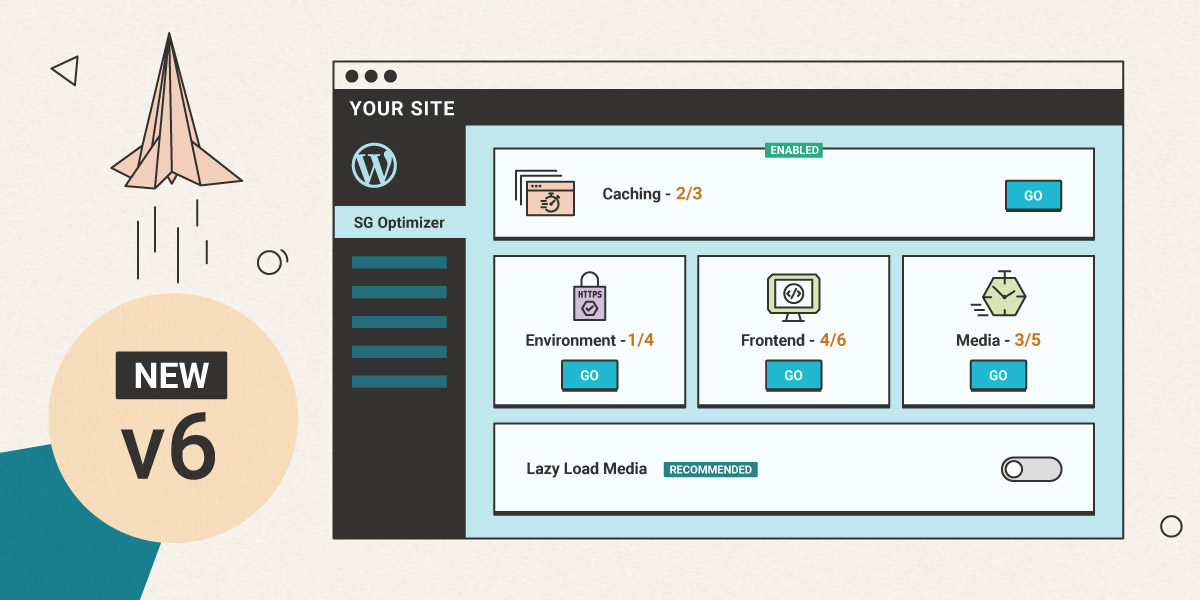
Since the launch of the SiteGround Optimizer plugin, we have been constantly working on adding new features, improving existing ones, and making sure that we use the best technology available to achieve a blazing fast loading speed for all of our users. That being said, we’re happy to introduce a major update to the SiteGround Optimizer plugin – v6.
Brand New Design and Structure
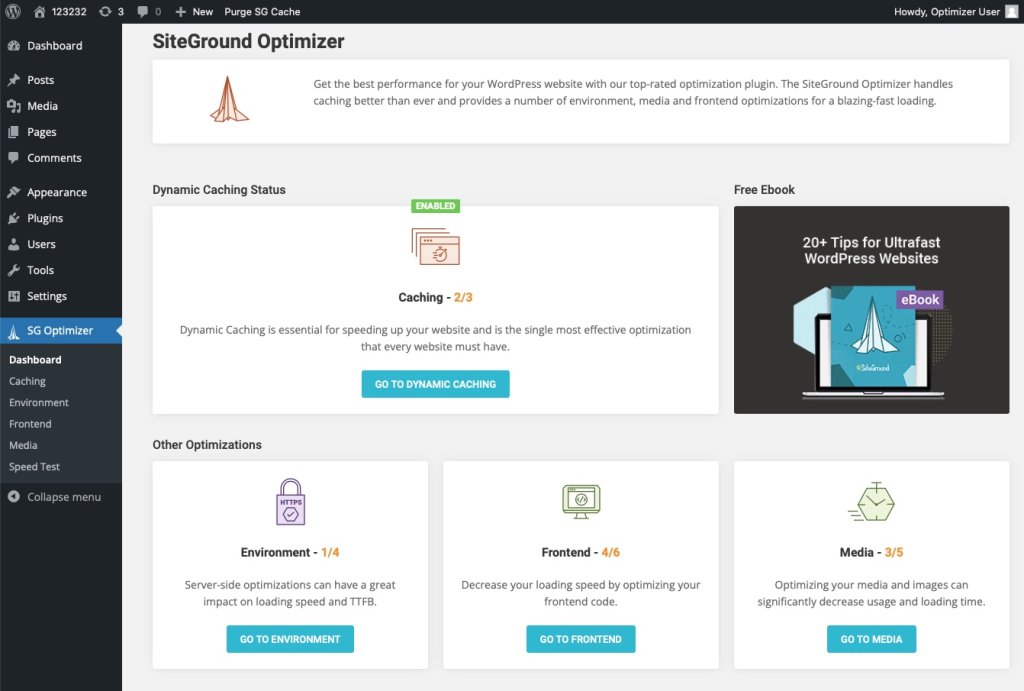
One of the biggest changes you’ll notice is our brand new design with separate pages and a brand new dashboard. We have been adding more and more features to the plugin recently and we decided that the previous tab structure was not the best interface for the numerous improvements we have in mind. That’s why we have divided the interface into 5 pages, consisting of separate sets of carefully crafted tools, designed to optimize your website, improve loading speed and even decrease your resource usage.
New Page – The Dashboard
The entirely new Dashboard offers a quick look at the current optimization status of your website, along with shortcuts to the relevant pages where optimizations may be in order. Since keeping your WordPress application, plugins, and themes up to date is important for your website speed and security, we’ve made sure to add a notification in the Dashboard in case your WordPress and/or plugins need an update.
Recommended Features Tag
While we’ve always done our best to explain the different features you can find in the Optimizer, we realise that some of them may still sound complicated to the regular WordPress user and one can find themself struggling to figure out which of the features they need to use. To help you make the best choice for your website, we have added a “Recommended” tag to all SiteGround Optimizer features that we’re certain to speed up your website without breaking something or interfering with other settings.
Improved Image Compression and Image Features
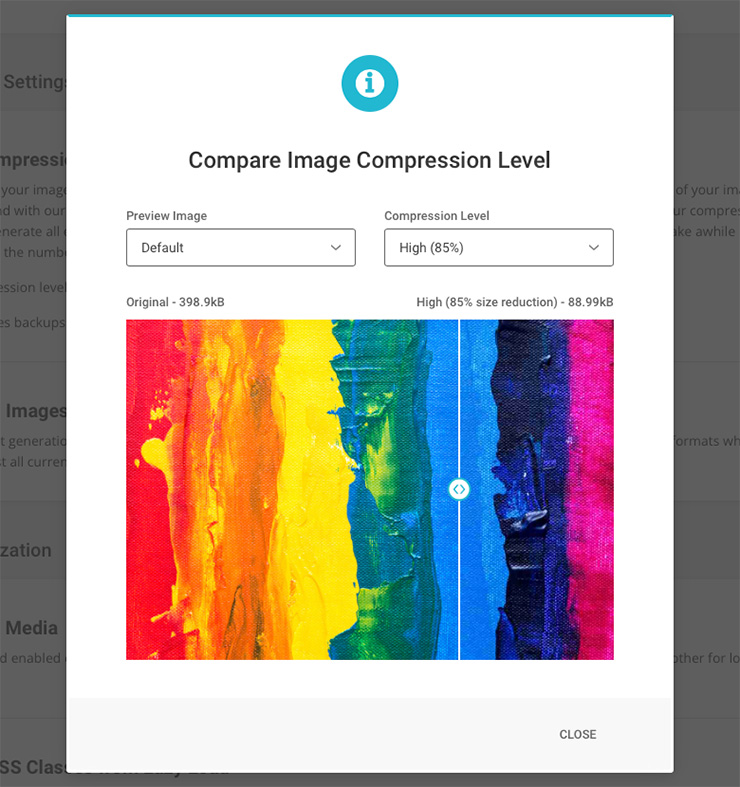
We have significantly improved our image compression technology to ensure that even at the highest compression and size savings, your images continue to look as good as ever. Additionally, we have added a “Preview” option so you can ensure that the compression level you have selected does not visibly affect the quality of your images. You can also choose to do a backup of your original images before you start the compression process – this is a great feature in case you plan to change the compression level in future or you just want to have a piece of mind.
WebP image generation has also been improved and a new option was added for larger images – automatic resizing for all images whose width is larger than 2560px, which is more than enough for most displays where websites appear.
Code Refactoring
The plugins redesign and restructuring gave us an opportunity to refactor our code and make sure that everything is optimized and tested for the best possible performance. While the whole plugin has benefited from the refactoring, there are two tools where the change was noticeable – the WordPress Heartbeat Optimization (available in the Environment page) which precision and options were improved, and the Automatic Cache Purge (available in Caching) which now includes the option to purge the WordPress API Cache too.
We have really enjoyed making this brand new version of the SiteGround Optimizer and we’re confident that the tools we have developed will help you serve the fastest and best version of your site. Drop us a comment to say which of the Optimizer features you like most and what would you like to see in future releases.
Today is the first day of the official partnership between SiteGround and one of London’s most beloved football clubs, West Ham United, part of the English Premier League. To add to the enthusiasm from their winning streak, here is a bit of background on how this whole partnership started and, most importantly, why.
Why Football?
True to our European hearts, we actually have a lot of football, or soccer, as it’s known outside of the old continent, fans at SiteGround. We even have our own in-house team, which regularly ranks in the top 3 in the local IT football league (yes, we may be geeks, but we do like our sports!). Since we’ve always made a point to support initiatives we love and are passionate about, a football club was a natural choice, embraced and celebrated fully by our own staff. Moreover, football is a dynamic game, it’s all about speed, securing your base, and the effort you put in advance, so that you can give your best performance on the pitch. This matches perfectly the main pillars of SiteGround’s hosting services: speed, security, and support.
Why West Ham United?
West Ham is a team that always strives for top performance to the benefit and enjoyment of the fans. It originated in 1895 as the team of the workers at Thames Ironworks & Shipbuilding Company. Known as The Academy of Football, the east London club has an extremely strong legacy and deep-rooted traditions, and has been represented by some of the finest players in the history of English football. The Club also competes in the Premier League, one of the most prestigious sporting leagues in the world, synonymous with the highest-quality football and professionalism. It’s this shared passion for excellence and strong experience in delivering outstanding results that made us look forward to working together.
But perhaps most importantly, West Ham United has a very strong bond with their fans. It’s this unique identity which sets West Ham United apart and very much resembles SiteGround’s own. As one of the very few remaining independent web hosting companies with our long-lasting values, still led by the principle to always give our best- to the benefit of our users and community. Both SiteGround and West Ham United put significant focus into giving back to those around us, always remembering our long-lasting values of care, commitment, doing everything with purpose and mutual respect.
There’s still a lot to come from our joint efforts, and fans can expect some exciting initiatives. Follow us on Twitter, Facebook, and Instagram, because we’re certain we are in for an exciting season, both on the pitch and on the web.
Looking back 2 years ago at our promise to unleash a series of service enhancements after switching fully to Site Tools, we keep delivering! After launching the Ultrafast PHP, new MySQL setup on shared and cloud, SG Optimizer new features, and more, we have also reworked our DNS service to make it faster, safer, more flexible and easy to use than ever. Take a read at what we have done and how that affects your websites hosted on our platform.
What’s under the hood of our new DNS service
Let us first make a quick reminder – the DNS (domain name system) is what makes it possible for a domain name to open a specific website. This system indicates on which of all the servers in the whole internet your website is hosted. Usually, a specific set of 2 nameservers and 2 IPs correspond to each server and they should be added in your domain’s management panel for the system to work. Each server also has a DNS service installed on it that processes the DNS queries and shows the proper website when a visitor types your domain in the browser.
With our new centralized DNS setup we no longer need DNS service installed on each of our production servers that host your website. We are able to move all our DNS services to a completely separate cluster of multiple servers. This cluster is dedicated for DNS service only and is geographically dispersed around the globe thanks to the super cool Anycast network routing technology. Centralized DNS also allows us to have just one pair of nameservers and IPs for all the servers that SiteGround manages, and these are:
ns1.siteground.net
ns2.siteground.net
What are the benefits of our new DNS service
Faster Domain Resolving, Faster Website Loading
When a visitor searches for your website’s domain, the first thing that the browser does is make a DNS lookup to see on which IP the domain resolves and connects to the server with that IP. With the previous DNS setup lookup requests coming from a different continent from your server’s were handled a bit slower due to the physical distance between the visitor and the server resolving your domain. Now, with the centralized DNS which works on five different geographical locations and multiple instances, the resolving is handled by the closest node saving networking delays and improving your website loading speed.
Enhanced Redundancy
As the new DNS setup relies on multiple geographically dispersed machines, it is extremely resilient. For example if one of the DNS servers goes down, the DNS requests would be handled by the second closest point, which is up and running. This setup also guards against DDoS attacks, as if there is a high amount of malicious traffic, it will be distributed among multiple DNS machines and it becomes much more difficult for such an attack to succeed. On top of that the DNS service is super scalable, and new machines can be added easily whenever there is a need for more resources.
If you are using your domain simultaneously for your hosting at SiteGround and other services too (for example your MX records are pointed to Gmail), having the DNS service hosted on a different location from your website has one more advantage. In case your hosting server goes down, your DNS will still work and your outside services will still resolve without being affected.
Seamless Migrations Between Servers
It’s part of our job to move data around – whether we transfer your account from an old hardware to a newer one, from cPanel server setup to machines with Site Tools setup, or from an old data center to Google Cloud infrastructure, migrations are something that happen and will continue to happen. Every time we migrate servers, one of the biggest challenges is handling the DNS zones. The new server comes with new nameservers and once websites get transferred, the domains have to be pointed to use the new nameservers. We have been updating them automatically for all domains managed via our control panels, but external domains needed manual change by webmasters. In both cases, there would be DNS propagation with potential downtime impact. With the new Centralized DNS it will be much easier to migrate and perform server upgrades in the future. In most of the cases such migrations would not involve any kind of DNS settings change thus preventing any issues caused by propagation.
More Convenience & Ease of Use for you
With the decentralized DNS, people managing multiple sites on different servers have to keep track of different sets of nameservers, which may be inconvenient. The new centralized DNS simplifies multiple web site management processes for our clients, as all domains of all sites hosted on our platform, regardless of their hosting account or server can now use the same pair of nameservers.
When will the new DNS service become available?
All new websites created on our platform are already using the new DNS service. For older websites, we are now starting a gradual switch to the new centralized DNS. We will be updating nameservers for all domains registered with us automatically. For external domains used with our system, we will be informing our clients by email, confirming when it will be safe to update their DNS settings to the new ones. The old DNS system will continue to be supported for several more months, till the migration to the new one is fully completed.
Last week, the Woo team announced a critical vulnerability in the most popular eCommerce plugin for WordPress – WooCommerce. As described in their post, security updates were pushed to all Woo branches for users who have not disabled such updates. This was done in a very fast and efficient way. Furthermore, the Woo team has been extremely cooperative with providing all the needed information that allowed us to proactively add security rules to our WAF (Web Application Firewall) for an additional layer of protection. Read below to learn more about all actions taken and their results.
Branched updates pushed by Woo
Due to the severity of the vulnerabilities discovered, the WooCommerce team has worked more than 36 hours around the clock to patch every major release branch. This means that you don’t have to switch from WooCommerce 4 to 5 to protect yourself. Those updates were pushed and if not explicitly disabled, most probably your Woo has been already patched. However, we strongly recommend that you check this! All WooCommerce versions prior to the latest patch are vulnerable. You can check your version and compare it to the WooCommerce Releases (https://developer.woocommerce.com/releases/) page. For example, if you have WooCommerce 5.5.1 you should simply update to 5.5.2. That will fix the security problem without breaking any functionality.
Proactive WAF protection set by SiteGround
In regards to security, we’ve always believed that being proactive is the best approach. This particular vulnerability was no exception. As soon as we were informed about it by the Woo team, we acted immediately and added a new security rule to our Web Application Firewall (WAF) – an elaborate system for exploit prevention, running on all of our servers. You can think of the firewall as a set of rules that address exploit attempts. We are constantly on the watch out for information about common security issues and we are quick to act by adding security rules so that our system can block attempts to exploit such issues. WAF will not patch a security hole of a particular website, which can be only done through updating with the security release, but prevents attackers from using it to gain unauthorised access to your site.
You may wonder why you need a WAF rule when the Woo team is fast to release a new security version. We do it to ensure that clients have more time to react, during which their sites are safe from the exploit. While the majority of the WooCommerce users are automatically updated by Woo, some sites are not updated for various reasons – auto-updated failed, disabled, or postponed too far in the future. Some webmasters prefer to manage the updates themselves, mainly as they want to be sure that the update does not mess with any of their website functionality. After all, we are usually talking about online stores, relying on many additional plugins for shipping, payments, tracking, taxation, and many more. For these people, the WAF rules provide time to make sure all their critical functionality will work with the new Woo version.
As a whole, the handling of this Woo vulnerability shows how the combined efforts of responsible plugin developers and your hosting company pay off – even in emergency situations your clients are safe and business continues as usual!
This summer has been especially hot at SiteGround because new features come up one after the other. The latest addition to our platform is the option for Multisite SFTP access with a single SSH key. From now on, people that manage multiple sites on our platform will no longer have to use a separate SSH key for each of their sites in order to be able to securely upload files over SFTP. The Multisite SFTP Access can be used for all the sites you own or are added as a collaborator in a single Client Profile.
Multisite SFTP Access is super convenient
This feature is especially handy for people that manage a lot of websites on our platform. If you are one of them, with our new feature you will no longer lose time creating a separate SSH key for each of your websites you wish to access over SFTP. Moreover, you will no longer need to remember different usernames and hostnames for each site. From now on you may authenticate for an SFTP connection to each of your websites through one and the same central hostname and username. Our system will then grant you SFTP access to all the sites that have been added to your multisite SSH key.
Multisite SFTP access is highly secure
The Multisite SFTP access is definitely making it more convenient to manage multiple websites. But rest assured this convenience does not come at the expense of security. As with our single site SFTP option, you get an encrypted file transfer between your local computer and the remote server hosting your site. We also use the much more secure authentication method of SSH keys instead of simple passwords. Keys have a number of undeniable security benefits – they are much longer and more complex, making it impossible to be brute-forced. In addition to that, the key itself is not transmitted during the authentication process. On the other hand passwords, even ones generated from tools, are prone to brute force attacks and they often rely on the same master password stored on a computer that could be potentially infected. And if you want to add a layer of security yourself, you have the option to easily restrict the multisite SFTP access of your SSH key to a specific IP.
Multisite SFTP access is easy to set up and manage
To use our new Multisite SFTP access you just need to create a master SSH key through your Client Area. At the time of the initial key setup you may choose which of your current sites to be accessible through it. Once you activate the key, each new site you create or you are made a collaborator to, will be automatically added to the key. You can edit the list of sites accessible through the key at any time through your Client Area. To learn more check out our detailed Multisite SFTP access tutorial.
NOTE: An obvious prerequisite for using our new service is to have more than one website managed through your client profile. If you have just one website, you still can access it through SFTP, of course, but you need to use its unique SSH key, generated through its Site Tools.
We have recently launched our own WordPress security plugin — SiteGround Security (now named Security Optimizer), which aims to protect WordPress users against the most common vulnerabilities plaguing the sites. It is available for anyone to download and use for free, regardless which hosting platform they use. To make sure that our WordPress sites are well protected on application level, however, we have started preinstalling SiteGround Security on all new installations on our platform with some of the features enabled by default.
Default SiteGround Security Settings Against Common WordPress Vulnerabilities
Having your site set up with security in mind from the start can easily protect you against some of the most popular vulnerabilities out there. To help you achieve that goal, when we preinstall the SiteGround Security plugin we enable the following settings:
WordPress Version is Hidden by default
Hackers often crawl websites scooping information about software versions used. That way, when they get to discover a vulnerability in any of those versions, they are able to reach to and quickly hack many sites in bulk using that information. For WordPress application this data is openly available in 2 places – in an HTML tag and in the readme.html file.
By default, our plugin removes the HTML tag with the WordPress version and we strongly recommend that you also remove the readme.html file via the option in the SiteGround Security plugin.
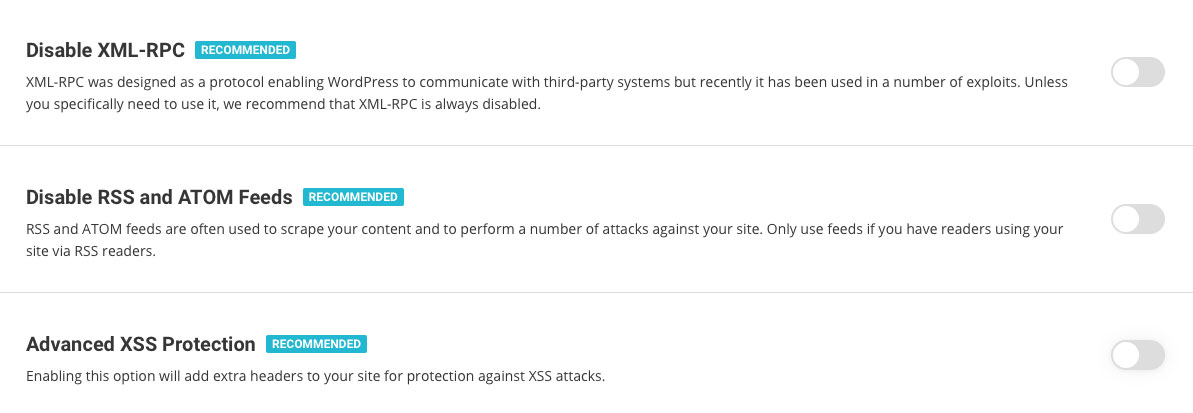
Advanced XSS Vulnerability Protection enabled
The cross-site script vulnerability, known as XSS, allows different apps and plugins to access information in your WordPress that they shouldn’t. Such attacks are often used to gather sensitive user data for example. By default, the SiteGround Security plugin enables protection against XSS by adding headers instructing browsers not to accept JS or other code injections.
Disabled XML-RPC protocol to prevent many vulnerabilities and attacks
The XML-RPC is an old protocol used by WordPress to talk to other systems. It is getting less and less used since the appearance of the REST API. However, it is available in the application and many are using it for exploiting vulnerabilities, starting DDOS attacks and other troubles. That is why our SiteGround Security plugin disables this open access line to your WordPress application by default.
NOTE:
Jetpack plugin and mobile apps are valid users of the XML-RPC protocol. If you download Jetpack at some point, we will automatically enable the protocol back. You can also enable it yourself through the plugin interface.
Option to Disable RSS and ATOM Feeds
Similar to XML-RPC, feeds are rarely used nowadays, but they are often used by attackers and bad bots to scrape your site content. So the SiteGround Security plugin allows you to disable them easily. Unless you really need them, we recommend using this option and disable them as soon as possible.
Lock and Protect System Folders by default
Usually, when an exploit happens, attackers try inserting and executing PHP files in public folders to add backdoors and further compromise your account. By design, those publicly accessible WordPress folders are used for uploading media content (images for example). Via the SiteGround Security plugin, we do not forbid the upload of files, but we stop PHP files and malicious scripts from being executed and causing problems for your sites. This feature protects those system folders and prevents potentially malicious scripts from being executed from them.
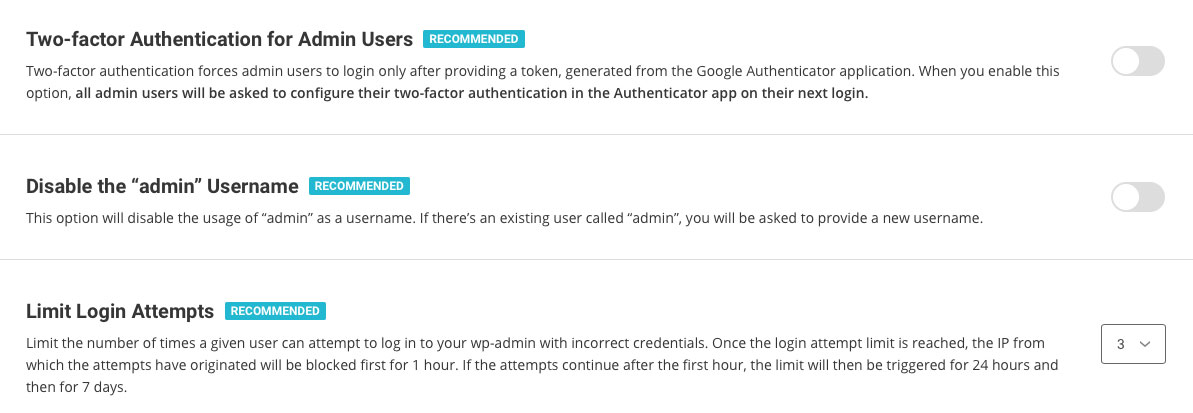
Disabled “Admin” Username
The default username and one most widely used on all applications by their owners is “Admin.” Hackers know that and when they wish to bruteforce a login form, they will definitely try it. That is why we disable this username by default.
Disabled Themes & Plugins Editor
Editing code through the plugins and themes editor poses direct security risks both from potential elevation of privileges attacks and errors made by a regular site administrator. If you want to edit your files, it is strongly recommended that you use the File Manager tool in Site Tools, or your preferred editor through FTP or SSH (ideally on a staging copy of your site). To help you avoid bad practices and attacks, we disable the themes & plugins editor by default.
Recommended Vulnerabilities Protection Settings
There are a few settings, which you can control from the SiteGround Security plugin, which we have not enabled by default because they need your permission or they pose a risk on the way you use your app. Yet, we wish to encourage you to enable them consciously as they are quite powerful protection tools as well.
Two-Factor Authentication is a MUST
You already know that 2FA protects your login from brute force attacks and hijacking of login credentials. You can read more on the topic here and you can enable it easily using the SiteGround Security plugin.
Limit Login Attempts
When someone tries to log in several times with wrong credentials, they are most likely trying to guess your logins. That is why it is strongly recommended to block such attempts after the first few – 3 or 5. You can set that in the SiteGround Security plugin interface and after that many times of wrong logins, the user gets blocked for 1hour the first time, then 24hours on the second trial, and finally for 7 days on their third trial. Again, since if you don’t know about this functionality, you may lock yourself out of the WordPress admin area, we are not enabling it by default for you, but you can do it easily in a click!
More Tools Against WordPress Vulnerabilities Coming Up
We’re continuing the development of the plugin and will add a lot of new functionality soon. Monitor the change log for new features added with the upcoming updates. There isn’t a strict roadmap that we can share at this point but some of the features coming next are custom login URLs, Strict Transport Security headers and X Frame options that will prevent page hijacking. As usual, we want to bring what’s usually difficult to implement technologies to everyone and with an interface easily accessible without having to spend hours researching the exact syntax of the necessary headers or other code.
Data storage and safety are key components of our web hosting service. That is why we are extremely conscious of keeping your websites frequently backed up and safeguarding those copies in good status for a potential future usage. Having been in the business for 17 years, we have witnessed different incidents seriously affecting or threatening different hosting providers around the world. There have been hurricanes in close proximity to big data centers, power outages due to a state emergency, and quite recently, we all saw how a large data center in France was caught by fire and all data, including backups was lost.
That is why we never let our guard down, periodically evaluate the risk and add new policies to make our disaster recovery strategy better and better. For example, we recently introduced a new backup algorithm that keeps your accounts’ backups in а datacenter different from the one hosting the live account and in case of an accident we can power up your website quickly in a new facility.
Now we want to give you an overview of how we keep your data safe and how we restore them when needed so that you rest assured we are proactively taking care of your websites and information.
How do we keep your data safe?
Google cloud infrastructure redundancy and omnipresence
Since we migrated our platform to Google Cloud’s infrastructure, we feel more confident in the redundancy of our service. Natively, Google Cloud maintains a highly redundant clouds of servers in different data centers worldwide and allows us to easily migrate data from one virtual machine to another, or one data center to another, regardless of the continent. That by default means that in case of an incident with your live server, it is quite likely that your files would be still on the cloud.
Daily backups
The Cloud-based infrastructure ensures a great ground level of data safety, but is not a 100% guarantee that we will be able to restore your files when needed, which is why we have been creating free daily backups to all our accounts. Not only that, but we keep multiple backup copies of the accounts we host. That way even if our backup script fails for some reason one day, we will have previous copies to revert to and that significantly improves the chances for having a backup when you need one. To be specific, for StartUp, GrowBig and GoGeek plans we store 30 copies, while for cloud accounts we keep 7 copies.
Backup storage in a different geo location [NEW FEATURE]
To minimize the damages possible due to a server failure, we have always kept your backups separately from your account – on a different physical machine, but in the same data center. As of last month, however, we have introduced an awesome enhancement – we now keep your account’s backups in a different physical facility from the one hosting the live sites.
We evaluated the risk factor of having not just a whole server down, but the whole datacenter and with the climate change which leads to an increasing number of natural disasters worldwide, as well as a recent incident when a fire hit a large data center in France and resulted in huge data losses, we see that probabilities are growing so we decided to take actions. Thanks to Google Cloud’s facilities, we are now doing the following:
– Iowa, US servers are backed up on machines in Virginia, US
– London, UK servers are backed up in Eemshaven, NL
– Frankfurt, DE servers are backed up in Eemshaven, NL
– Eemshaven, NL servers are backed up in Frankfurt, DE
– Sydney, AU servers are backed up in Singapore, SG
This service is not available only for accounts hosted in the Singapore data center.
On-demand backups
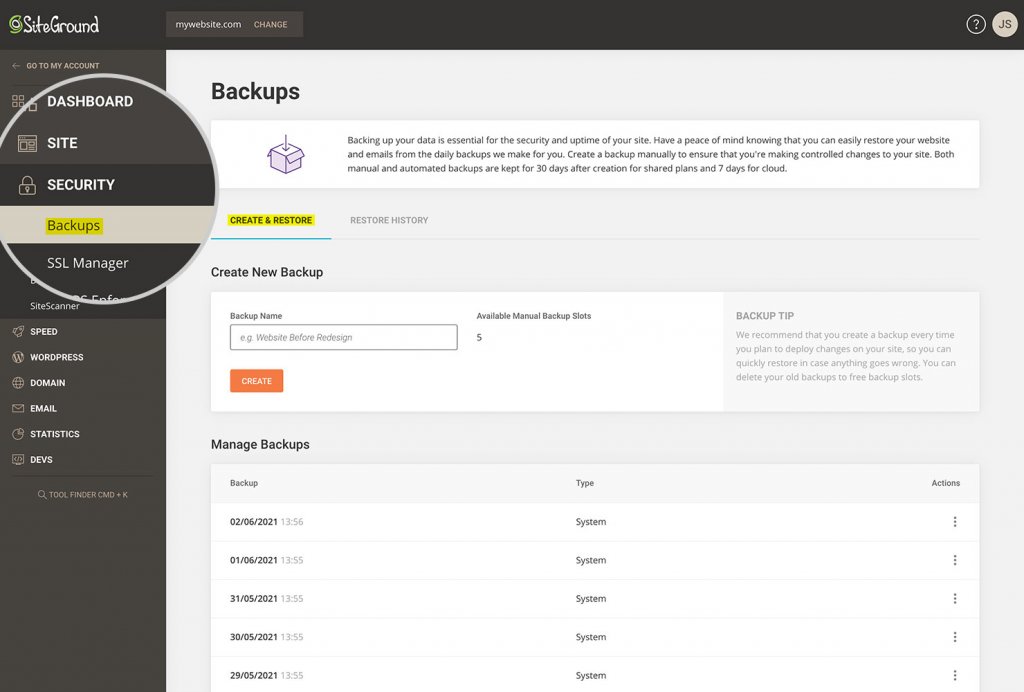
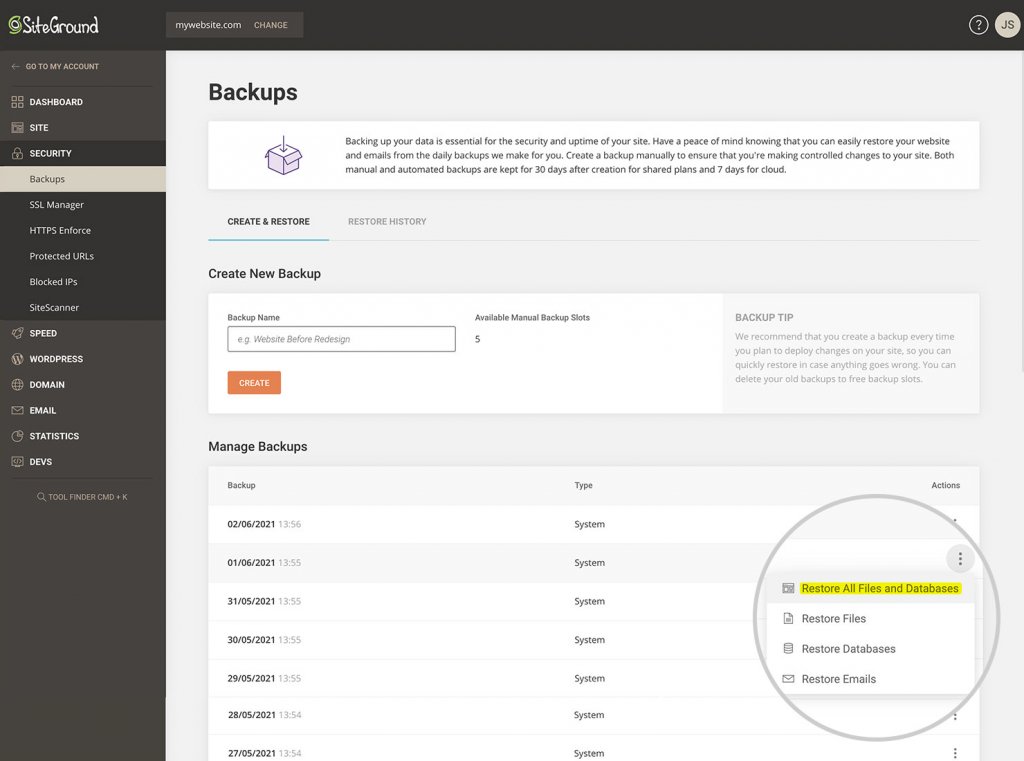
Since the highest likelihood of losing data and breaking a website is when users try to upload changes on their sites, we strongly recommend using the on-demand backup creation tool available in your Site Tools. Make a backup right before you deploy new code, plugin, theme or else on the site so you can revert in a click in case anything goes wrong. Try to make it a routine! You have the tools at your disposal, just go and hit that backup button before you deploy anything!
How do we recover data in case of an incident?
In case of any incident, whether a self-incurred by the user website damage, or a more serious hardware failure, your account data can be easily restored from the available backups. Here’s how:
Restore tool for quick website issue resolution
All our clients have a free restore tool in their Site Tools control panels, which gives you access to all available copies made by our daily backup script or manually by you from the backup creation tool. Just click and restore the copy that is either the most recent one, or seems to be unaffected by malware or human errors.
Mass incident disaster recovery
So accidents happen, regardless how much you try to protect against them. In case of a massive server crash, or power outage for a long period of time, or a natural disaster, we as your host need to be able to step up and find a way to restore your data and minimize the downtime. That is why years ago we built our sophisticated backup system. The main advantage of this system is that it could migrate TB of data in just a few hours as it allows simultaneous restores from multiple backup instances to multiple production servers.
What is more, we will be able to power up your website on a server that is in a different country or continent if that’s the fastest way to put it back online!
The security of our clients’ websites has always been an extremely important part of our web hosting services. Some of the brightest technical minds in our team have been continuously dedicated to crafting unique security solutions and keep the safety level of our hosting infrastructure on an unmatched high level. We have been an industry pioneer in developing server level protections like account isolation, server health monitoring, anti-bot traffic prevention, etc. We also know that on top of the server level solutions, the security of each individual website should be strengthened on application level too. That is why we provide services like auto updates, backups and WAF protection to our clients.
Today we are happy to introduce another tool that can greatly enhance any WordPress site security – our brand new plugin – Security Optimizer (formerly SiteGround Security). The Security Optimizer plugin is available for free download for anyone and it comes preinstalled with all new WordPress installations hosted at SiteGround and provides its users an easy way to protect a WordPress site from malicious attacks. It also includes valuable tools that can help a website owner react in case there is a suspicion that the site might have been compromised. Read below to learn how to make your site safer with our new plugin.
Protect your WordPress against common attacks
In the Site Security section of our plugin you will be able to easily switch on several rules that will harden your website security and prevent common malware, bruteforce and other security issues. Some of these rules, like hiding your WordPress version or deleting your default readme.txt, will make it harder for crawlers to detect you’re even using WordPress. Thus your website will not be easily identified as a possible attack victim when a vulnerability appears. Other rules in this section will add advanced XSS protection and protect your system folders from being injected with malicious files.
Strengthen your login security
In the Login Security section of our plugin you will be able to apply several methods that protect your login from unauthorised access. One of the most recommended methods to protect your login is the 2-factor authentication and with the Security Optimizer plugin, you can easily switch it on for your WordPress administrative area. Some simple, yet very effective protection measures like changing your login URL and not allowing “admin” to be used as a username can be also easily set here. You can also limit the number of login attempts from one and the same IP, which will block attackers trying to guess your password through brute force. And if you want to go even deeper in protecting your WordPress login, there are two more advanced options available. You can specify the IPs from which your login page can be accessed. The option should be used with caution if you use dynamic IP, so that you do not block yourself out.
Monitor your admin area activity log
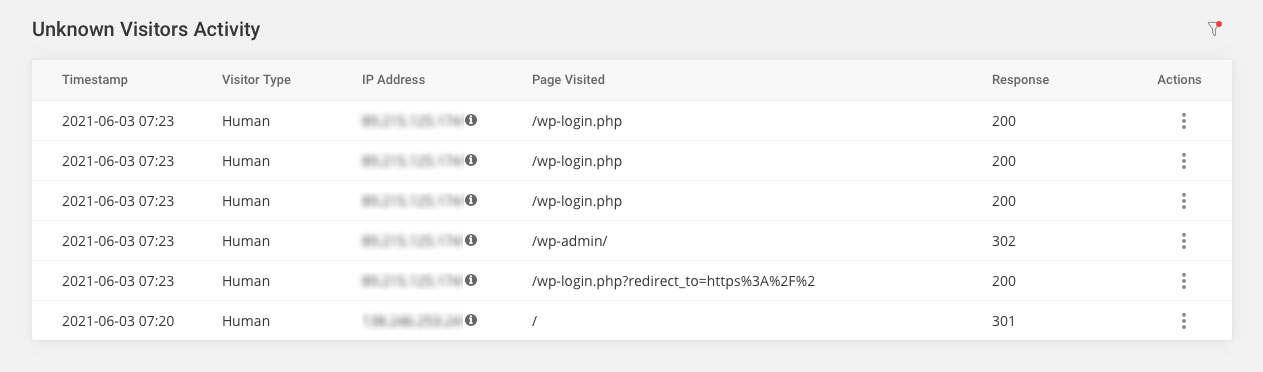
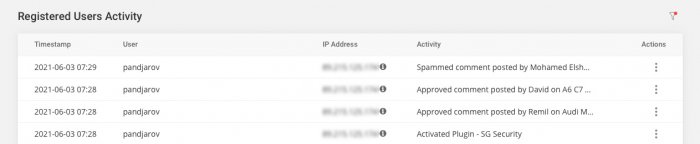
One of the best plugin features is the detailed Activity log. It allows you to pinpoint things like bad IP addresses that try to access your website as well as registered users that are performing tasks they are not supposed to. For example, you can block with one click IPs that have numerous incorrect logins and at the same time find out which user has deleted that post you are missing. For the initial version, we keep the log 16 days back so it’s worth giving it a look every now and then especially if you have a busy site and number of users with the capabilities to edit content.
React if you suspect your site might have been compromised.
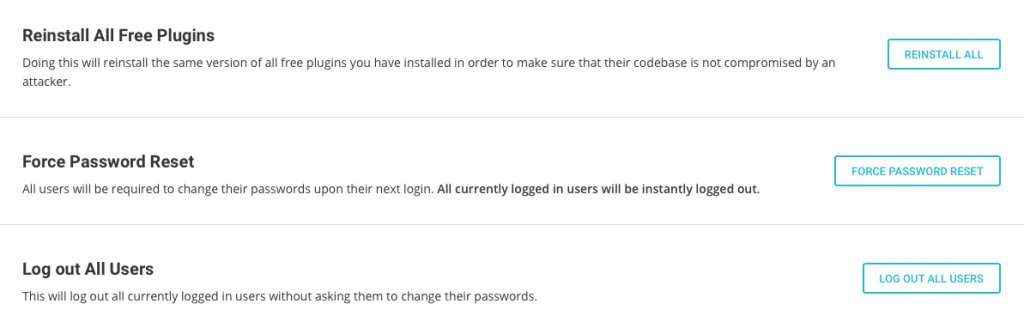
In the Post-hack section of the plugin you will find a set of actions that are useful, if you believe your site security has been compromised. Here you will be able to automatically log out all users and force them to change passwords. This way if any user was compromised, you may stop the malicious access through its account. You will also be able to reinstall all your current plugins. This will make sure you are using a clean copy of each plugin instead of a possible compromised one. Please bear in mind that although these post-hack actions are handy, they are not a substitute to a thorough site clean up that might need to be done by a WordPress security expert, if there are signs that your website might have been hacked.
How to get Security Optimizer?
Security Optimizer is available as any other free WordPress plugin. You can find it in the official WordPress plugin repository (https://wordpress.org/plugins/sg-security/) or install it directly through your WordPress admin area. If you host your next WordPress website at SiteGround, using the plugin comes right out-of-the-box, since all new WordPress installations now come with the plugin preinstalled with some of its features enabled by default.
This is the first plugin we are releasing whose full functionality can be used by anyone, even people that are not hosted by SiteGround. This said, we haven’t done excessive testing on every other company so issues caused by their particular setup may occur. If that’s the case, don’t hesitate to post a thread in the plugin forum in the WordPress repository, we will do our best to make sure it works great on all platforms.