How to Keep Your Site Safe with Site Scanner Security Service (Webinar Video + Q&A)

q&a and webinar session explaining site scanner service

As hackers become more and more ingenious, protecting your website is an on-going process. To help you boost your website security even further, we’ve recently enhanced our Site Scanner addon service with new features and introduced a Premium plan for ultimate website safety. As many of you wanted to learn more about this service improvement, we held a live webinar with our Product and Technology Lead, Daniel Kanchev. He explained how the latest Site Scanner update will boost your site security and replied to your most frequently asked questions. If you did not have a chance to attend, you can now catch up with the recording of our Site Scanner live webinar on YouTube. We also summarized some of the answers to your most popular questions, as well the ones that we didn’t have enough time to answer during the live webinar.

Why should you protect your website in the first place?

Contrary to popular belief, all websites – big or small – are targets to hacker attacks. At the end of the day, attackers don’t care whether you have a brochure website or a big eCommerce store, whether you have a couple of hundred users or hundreds of thousands of visitors. Their goal is to maximize the impact of the attack, causing harm to both your business and your users. Some of the ills they cause include stealing credit card details, sending spam emails, hosting malware on your site, storing files on your account, etc.

Bottom line is that everyone can be a target and get affected. That’s why it’s important to know how to protect your website. At SiteGround, we’re fanatical about the security of the websites hosted on our platform. We’re taking a multi-level approach to secure your sites on infrastructure, server, and application levels, but since the security of a website is also the responsibility of every website owner, we’re constantly adding new features and services to help you in this process and save you time, effort, and money, because dealing with the aftermath of a website attack is time consuming, generates losses and requires certain technical skills.

Isn’t SiteGround taking care of my website security?

SiteGround has adopted a security-first approach in our services and we are taking a comprehensive care of the websites hosted on our platform. Here are some of the things we do:

General website security measures

  • Hosting account isolation makes sure that your site is secured and will not be affected in case another website on the same server gets hacked. It isolates your website from all other websites. If another client’s website gets hacked, this won’t affect your website. It’s good to keep in mind, though, that multiple applications within the same website (e.g. in different folders, or subdomains of the same website) will need some more attention, as they share the same isolated protected space. Hacking one of them might lead to exploiting the other application as well. Therefore, it’s a good idea to protect all your sites with strong passwords, and our SiteGround Security plugin for WordPress websites, for example.
  • Web Application Firewall (WAF) rules, being written by our security experts, prevent your site from being hacked due to a security hole in a popular plugin, theme, etc. We write such smart firewall rules for a really big percentage of WordPress plugins, themes and other applications.
  • Smart AI anti-bot system analyzes all servers, websites and traffic, and blocks illegitimate website requests, or shows a CAPTCHA, when it’s not 100% sure the requests are legitimate. Our AI anti-bot system also takes care of brute-force attacks.
  • Geographically distributed backups to have your data safely available at another location, in case something happens to your server and data center.
  • 24/7 server monitoring of the servers by our experienced system administrators to prevent security attacks, mitigate DDOS, and react in a timely manner against any known or unknown threat.

WordPress-specific website security measures

  • We offer automatic WordPress core and plugin updates to make sure your website is up-to-date and secure.
  • We have developed a free WordPress security plugin available to clients and non-clients alike – the SiteGround Security plugin. It allows you to put additional layers of security to your website and application.

Why do you need our Site Scanner security service then?

Even with all of the above security measures in place, there is always a chance that your site can be hacked by an attacker who has found a way to gain access to it.

Let’s imagine you’re connected to a public wifi network and you’re accessing your FTP account from it. If the hacker is on the same wifi network and it’s an open network, they can sniff the traffic and see your username and password. This is only one of the numerous examples of how attackers can “enter” the backdoor of your website.

That’s why our Site Scanner is useful – even if something happens to your site, it’ll notify you about the issue and you’ll be able to react, as it:

  • Checks regularly for websites threats and detects malware
  • Sends you timely threat alerts and notifications
  • Gives you tools for reaction, if your site is under attack (NEW)

Site Scanner is a great add-on to everything else we do, because it gives you visibility and control, if something suspicious is going on with your website, and provides you with a mechanism for a timely reaction to limit the scope of an attack.

FAQs on how Site Scanner works to protect your website

With the latest Site Scanner update, we offer two different Site Scanner plans – Basic and Premium that provide your website with various security features. Here you’ll find the answers to the most frequently asked questions about these features:

How often does Site Scanner run?

Both versions of the Site Scanner security service run daily scans of the crawlable URLs, while the Premium version includes automated daily scans of the files uploaded for that website.

Does Site Scanner scan the subdomains as well, or only the main website?

The part of Site Scanner that opens up the website in a browser and browses through pages works for the domain name for which you ordered the service. If you ordered a Site Scanner for yourname.com, then it will scan pages on this website. If you have subdomains like blog.yourname.com, they won’t be scanned by Site Scanner in this way – the service will only open the main website in a browser and scan through it.

On the Site Scanner Premium plan, the file scans will work for all the subdomains you have as part of this website. That’s because from a folder structure point of view, all the public HTML folders (the web root folders of the websites) are in one site.

Can Site Scanner scan files, as well as index.php, .htaccess, .txt? How does it work with old HTML sites?

No matter if it’s a PHP, .html, CSS, JavaScript, Python, Pearl, Go, or another type of file, the file scan will be performed. Our Site Scanner scans and looks for malicious patterns through the whole file system, no matter what type of files are in the folders.

If you have an HTML site, chances are that you will not be a target of an attack so often in comparison to a dynamic website; yet, HTML websites can still be hacked and malicious code can be inserted in the HTML. For example, if you have an index.html, someone can inject malicious JavaScript in those html pages, but Site Scanner will detect those.

Does Site Scanner affect website speed or CPU usage?

Site Scanner is lightweight and consists of two main things. The first one is the scanning from a browser perspective, and it runs on a different infrastructure, not on your server. Every day, it opens your website and browses through some pages, generating about 10 or 15 page hits per day which is quite minimal and can be ignored. Second, there are the file scans and the file upload scans. These are things that run on your hosting server, but they’re lightweight and consume very little CPU time. Thus, neither website loading speed, nor CPU usage are affected by Site Scanner.

Is Site Scanner white-labeled?

If you’re reselling services, your end users will see the Site Scanner interface inside Site Tools (it’s white-labeled in that way), but they will not get the email reports. These reports will be delivered to the owner of the website only (the SiteGround client that owns the website). Your clients will also be able to use the quarantine option, they will be able to see the history of scans, as these are also white-labeled.

How to activate Site Scanner?

You can simply log in to your SiteGround Client Area > Marketplace > Hosting services > Additional services and select Site Scanner. You will then see the comparison table between the Basic and Premium plans to choose from, along with their respective prices.

Site Scanner vs. SiteGround WordPress Security plugin

Site Scanner protects your website by detecting threats, attacks and vulnerabilities, sends you notifications, and gives you tools to react. The SiteGround Security plugin on the other hand gives you the ability to increase the level of security of your WordPress website by placing more firewall rules, e.g. you can enable 2FA, block an IP address that is trying to access your website too many times, etc. 

While the plugin increases the security of your WordPress website, Site Scanner works for non-WordPress websites as well. If you have a WordPress website, we recommend that you get the plugin to boost your site security and also get Site Scanner to have a peace of mind that if something happens, you will be notified, able to react easily through the Site Scanner interface and do it on time.

Does 2FA work for the content users on WordPress?

In the SiteGround Security plugin, 2FA can only be enabled for users with elevated privileges, such as administrators, publishers, editors, etc. Once you enable 2FA, these users would have to fill in a token, generated on their Google Authenticator application, to be able to proceed with the login process.

We surely recommend enabling 2FA for your registered users. The only thing that you need to keep in mind is that this might require you to spend some more time supporting end users, when they don’t have access to their phone/email address.

At the end of the day, it depends on your business – if you want your clients to have easy access to your website and to the information you provide, it doesn’t make much sense to enable 2FA. If the website provides access to confidential information that should be protected, then it makes a lot of sense to enable 2FA for the end users of the website.

Does SiteGround have something similar to the “Limit Login Attempts” blacklist feature and how effective is it?

We have this feature in the SiteGround Security plugin and it has proven effective for preventing brute-force attacks.

Can you use Site Scanner and SiteGround Security plugin, if your website is hosted elsewhere?

Our Site Scanner service can be used only for websites that are hosted on our platform. However, the SiteGround Security plugin can be used for any WordPress website, regardless of your web hosting provider, so installing it is the least you can do for your WordPress website security.

What is the best way to prevent visitors or bots from sending emails that appear to come from the domain of your website?

When attackers forge the ‘From’ email address, that’s called email spoofing. There is no way to completely prevent that, but you can restrict it. To do that, you need to specify in the DNS zone of each of your domains which mail servers/IPs are authorized to send emails on behalf of that domain by creating these DNS records: SPF, DKIM, DMARC. In this way, the mail servers of the recipients will be able to better distinguish if the emails are legitimate ones, which were sent from your mailboxes, or phishing attempts.

[subscribe_cta]

Raising WordPress Default Memory Limit for SiteGround Clients

raising WordPress memory limit to 256 mb

At SiteGround we always strive to go the extra mile for our clients and make website management on our platform as easy and hassle-free as possible. This is especially true for WordPress websites, us being one of the first web hosts to start offering managed WordPress services to spare you tons of manual work and hassle. The extra effort we put into it goes steadily throughout the years, complemented by a strong involvement from our team in the WordPress dev and hosting projects. 


As of recently, we have been receiving a growing amount of requests from clients for an increase of the default WP memory limits – a request reinforced by a new discussion within the WordPress community about raising the default memory limit of the software, since the current values are old and no longer relevant to the present day. Being the resource efficiency geeks that we are, we decided to increase the default values at a platform level and offer a global solution for all WordPress users on our hosting.

Why is an update of the WP memory limits needed?

The WordPress ecosystem, including WordPress themes, plugins, and the software itself is constantly evolving and growing and with that, the need for more resources. WordPress site builders, online store management, e-learning management, etc. get more complex and heavier with time, and require more resources to operate properly. If you have a low memory setting, this can lead to issues with saving your page (as WordPress does not have enough Memory to save the page content to the database). This can also be a cause for critical error messages, or memory-exhausted errors on your WordPress site.

The current WordPress default memory limits are 40 МВ for WP and 64 for WPMU – while many new plugins and themes require a minimum of 128 MB of memory to run properly – and most of them recommend 256 MB, if possible. We’ve always made sure to provide plenty of hosting resources for our clients but unfortunately, the way your application default settings are set to work plays a big role into how efficiently you are using the resources we provide. For example, the current PHP Memory Limit on SiteGround servers is 768 MB, so it definitely allows a higher WP Memory limit.

Currently, if you’re using a heavier plugin, and need a higher WordPress memory limit, you have to specifically contact your hosting provider and request it, or you have to do it manually yourself. But it’s a hassle, even if you know what you’re doing. 
That’s why we decided to override the default WordPress memory settings for SiteGround clients, increasing them to 256M from the default 40 МВ for WP and 64 for WPMU. Here is how we went about it:

All new WordPress Installations on SiteGround Now Come with the Higher Memory Limit Out of the box

We started out by including a new custom config file which overrides and automatically updates the default memory limit for all our new WordPress installations through SiteGround Site Tools. That way all new WordPress instances on our servers get a head start straight from the moment of installation. Same goes for all new WordPress transfers from other hosting companies to our servers, performed with our free WordPress Auto-migrator plugin.

All Existing WP instances will be gradually updated to the new default ones

The situation with our existing WordPress clients was a bit more complicated to tackle, since we needed to be mindful that some of you may have already set a custom WordPress memory limit on your applications. So our solution will not override any custom WordPress memory limit you might have set yourself.

Since we always test, double test, and then test some more everything before going full-scale, we have decided to start gradually updating only the default WordPress memory limit server by server to monitor and perform health checks for each. 

!NB If you have installed WordPress manually in your account, and have not added it to your Site Tools, then our system has no way of knowing about you using it, and your default WordPress limit will not be updated. You will need to do that manually yourself, if needed. In any case, adding your WordPress applications is quite easy. You can do that with a few clicks from Site Tools > WordPress > Install & Manage > Add Existing Site.

That’s why we highly recommend you use our WordPress installer whenever launching new WordPress installations, or WordPress Auto-migrator when migrating an existing WordPress site to us. That way you can take full advantage of our best-in-class WordPress managed hosting services, and multiple improvements that we keep on adding.

How can you check your WordPress Memory limit?

To check the current WP memory limit of your installation you can access your WP admin backend and go to Tools –> Site Health. Then select “Info” and expand the “WordPress Constants” list. Look for WP_MEMORY_LIMIT – this is the memory limit for the website you want to check.

[subscribe_cta]

Content Delivery Networks and SiteGround CDN Explained (Webinar Q&A + Video)

SiteGround CDN webinar questions and answers

Your website speed is a crucial part of your online success. To help you optimize your website loading time even further, we recently launched our own SiteGround CDN for our clients. Since many of you were curious about this in-house solution, we organized a live webinar with our Product and Technology Lead to answer the most common questions about our latest speed-boosting CDN service, available for free with each of our hosting plans as a Basic version, and as a paid upgrade Premium version. Here are the answers to the frequently asked questions by our webinar audience, as well as to those that we didn’t have the time to answer during the live session.

What is a CDN?

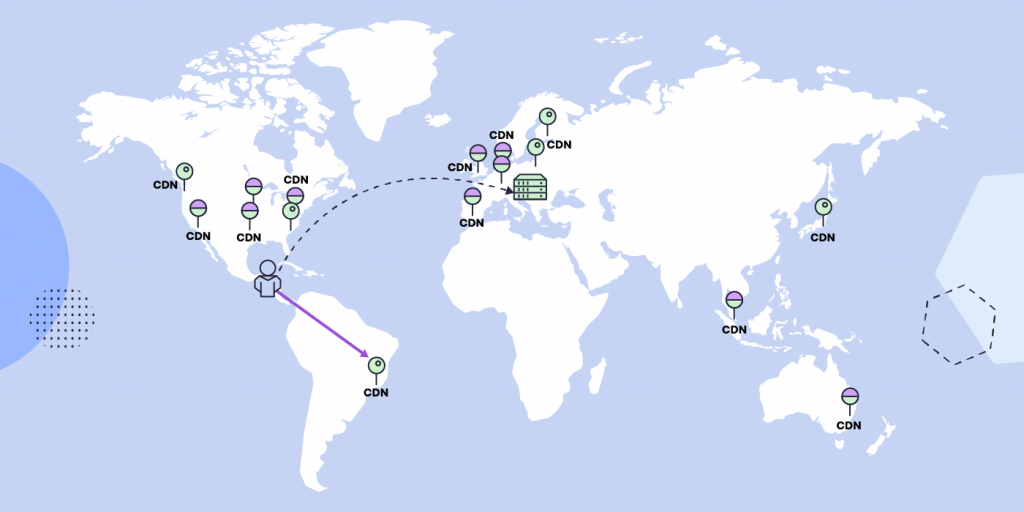
Every website lives on a server somewhere around the world. For example, SiteGround offers several data center locations in the U.S., Europe, Asia and Australia, which you can choose from when purchasing our web hosting services. When your website visitors open your website, they connect to the server that hosts your website. The closer your visitors are to your host server, the faster your website loads, and the better their user experience. However, the purpose of a website is to be accessible and fast from every point of the world, 24/7/365. For this purpose, a CDN exists.

What does CDN mean? It’s a content delivery network that caches parts of your website or the entire website and distributes it on servers that are closer to your visitors. Basically, it keeps copies of your website in many locations around the world. Thus, if you have an active CDN, every time a user visits your site, it will be loaded from a location that’s the closest to them instead of loading it from the origin server. As a result, a CDN service tremendously reduces page loading times and speeds up your website.

What are the benefits of using a CDN for your website?

Websites with international visitors

If your website has a lot of international traffic, it will be distributed well among different CDN locations. For example, when we launched our SiteGround CDN in locations where we didn’t have data centers, the response time for end users improved drastically – between 6 and 8 times for some websites, and even 10 times for others. Currently, SiteGround has 14 CDN locations all over the world (including the newest CDN location in Sao Paulo, Brazil, as well as our new data center and CDN location in Madrid, Spain) that optimize website performance for international visitors.

Websites with users in remote areas

In many locations around the world, people do not have access to fast internet. Thus, a CDN is very beneficial for users in remote areas, where the internet connection is not so good. When they want to load a website, they will be connected to a server which is closer to their location and thus the website will load faster.

Websites that change content frequently

A CDN caches your website content on a server close to your site visitors and delivers this cached version to them every time they visit your site. So the period you want the CDN to keep a cache of your files is important. If you set your CDN to keep the cached copies for too long – for example, one month – but you make changes to your site frequently within this timeframe, then they won’t be displayed live until you clear the cache manually. Similarly, if you set the cache time to be too short, then it will pretty much not be working as it should be, because the idea behind it is to store a cached version for a particular period of time. Therefore, it’s good to choose a period of time that will suit your site depending on how frequently you intend to make changes to it. For instance, SiteGround CDN cache time to live is set by default to 12 hours, and you can easily customize cache time to live to your own needs on the Premium version.


You also need to consider your website software application. For example, for WordPress websites, we have the SiteGround Optimizer plugin which connects to WordPress in such a way that when you make changes to your site (e.g., change a post or theme, install a plugin, etc.), the plugin detects those changes in real time, it connects to our CDN and flushes only the respective pages that have been changed. This is super handy! For any other type of CMS/application that you may use on your site, we honor the standard cache headers of your application. If your application allows you to set a certain amount of time for caching your pages and resources, then our CDN will honor that time.

CDN Benefits for websites with no international traffic

Even websites with no international traffic will benefit from using a CDN. For instance, if your business is in the U.S., you may have website visitors from the East coast, from the West coast and the central states. If you have a US-based website with us, it will be hosted in our data center in Iowa. In this case a visitor from New York for example will have to wait some more time compared to other users, if you don’t have a CDN enabled. Switching on our CDN service that offers several CDN locations in the US  will make your website load much faster for all US-based users. A similar case scenario applies to pretty much all the rest of the continents in the world.

How does SiteGround CDN compare to third-party services?

Compared to a third-party provider, SiteGround CDN offers many benefits for your website, because it is a service developed around three main pillars:

Easy-to-use

Let’s assume you’re using a third-party CDN provider that’s not integrated with your hosting provider’s services. Then, you’ll need to manage the hosting from one place and configure the CDN settings from another place which often may cause issues. What is more, you’ll have to apply different configurations on your own, depending on the CDN provider you use. For example, in certain cases, when you enable a specific CDN provider, you need to go and reconfigure all of your images to be loaded from specific URLs, in order for those images to be loaded from the CDN.

Therefore, we built our SiteGround CDN in a way that doesn’t need much configuration to be enabled. In fact, you just click one button and it starts working. What is more, it is super easy to use. We’ve given you the smart defaults and from then on you can change some of the things depending on your website needs with just a few clicks. Our CDN allows you to enable it without technical knowledge required, as well as use and change its functionalities hassle-free, with a click of a button.

Blazingly-fast

Another benefit of our CDN is that it makes your website load blazingly-fast because it’s based on the same cloud network which our hosting services are based on – the Google Cloud network. What is more, by utilizing this network, data travels securely through it. Using the same private network allows us to improve website performance and offer fast website loading speed.

In-house built

  • Safety net for issues

Usually, a lot of website owners use a CDN service. If something goes wrong with this service, their whole website and/or business depends on it. Therefore, we believe it’s important that we have full control over any potential issues that may arise and thus, we built our SiteGround CDN in-house. Since it’s an in-house built product, our support team will be able to fix a potential issue with it, as it is a core service we offer.

  • Room for expansion

There is always room for improvement and when the time comes for a new feature or our clients require a new functionality, we’ll be able to add them, as we’ve already built the service ourselves and know its technical specifics. We will consider and evaluate feature requests based on the business case and the feature type. What is more, we’ll be able to do it in a timely manner, as we’ve built the whole CDN for a year and a half (including the research phase). This gives us the confidence that we can expand the service as much as we want to.

Do you need to first disable other CDNs?

In the general use case scenario, it’s enough to have the domain pointed to the SiteGround Central DNS and enable SiteGround CDN. In this way, the DNS will route the requests to our CDN, even if you have Cloudflare enabled, for example. However, in some cases, the apps are configured to use CDN subdomains for static resources, for example, or in other custom CDN setups, it would be better to disable the other CDN and enable only SiteGround CDN.

Can you use SiteGround CDN with our SiteGround Optimizer plugin for WordPress?

A lot of you already use our top-rated SiteGround Optimizer plugin for your WordPress sites. Since the plugin offers multiple website caching benefits, resulting in optimized WordPress website performance, we get a lot of questions about how that would work with our CDN. One of the perks that both of these tools were developed in-house by our team, is that they are designed to be compatible and complement each-other. For example, if you have SiteGround CDN enabled, purging the cache from the SiteGround Optimizer will purge the cache both on the CDN and your origin server. This is true for every type of our CDN plan. Keep in mind that this will not be working for combinations with other CDN providers, i.e. the SiteGround Optimizer plugin won’t flush the cache on another CDN provider.

Website Caching and SiteGround CDN

Is it best to use several of your options or is CDN alone enough?

Your website would be optimized for the best performance, if you have Premium CDN with the following features enabled: Advanced dynamic caching and “Always online” mode to ensure that the CDN edges will serve cached copies of your pages, if there’s a problem with the site on the origin server. What is more, when hosted with us, our Dynamic cache feature will be enabled by default for your site. If you’re using WordPress for your website, you can also take advantage of our SiteGround Optimizer plugin which offers powerful caching options that complement the rest of the above-mentioned features.

Is dynamic content cached statically or is it computed at the CDN edge?

Dynamic cache means that after the PHP on the origin server processes the PHP request and generates the HTML, the origin server sends this HTML as a response and the HTML itself is cached on the CDN edge servers. The default cache time to live (TTL) on the CDN edges is set at 12 hours. However, you can always change the cache TTL from your application or .htaccess file. Alternatively, if you have the SiteGround CDN Premium, you can customize your cache TTL with just a few clicks.

What happens to sites that pull data into the site real time, e.g. a real estate site?

The answer to that question would depend on whether you want to pull the data each time, or pull the data and then cache it. If you want to pull and cache the data, it’s better to use our Premium CDN with dynamic cache. However, if you want to pull the data from the remote source on each request without caching it, and to deliver the freshly pulled data to your client, then you don’t necessarily need dynamic cache.

What is and isn’t delivered by the CDN local node?

If you use the free CDN, only your static files will be delivered from the CDN edge cache. If you use Premium CDN, you can also have dynamic cache. This caching logic is similar to the SiteGround hosting server’s cache logic. Just like it is on the SiteGround hosting server, logged in users, carts, checkout pages and others are bypassed by the cache. What is more, if you’re using WordPress, you can also download the SiteGround Optimizer plugin to exclude specific pages from the cache.

Does it matter for the CDN, if the website is WordPress or not WordPress content-based?

The simple answer to this question is no, the CDN is respecting the cache-control headers and you can pass such headers to control the CDN cache, no matter what application you’re using. The cache files generation and manipulation works the same way for every application.

However, for WordPress sites we do more and automate cache flushing for example. Certain WordPress pages are excluded by default too. We do advise WordPress users to go for the Premium CDN combined with the WordPress Optimizer plugin.

How quickly does a cached page update over the CDN when a page is updated?

If you’re using WordPress with our SiteGround Optimizer plugin, you can take advantage of all caching features and purging options, such as “Purge cache” or “Auto-purge” from the plugin. If you’re not a WordPress+SiteGround Optimizer user, there won’t be an auto-purge, so you’ll need to purge the cache from your Site Tools > CDN section. The cache purge usually happens immediately but in some cases, you might need to allow 30 seconds for the cache to be purged on all CDN edges.

How to choose between SiteGround Free CDN with each hosting plan & Premium CDN Version

Can you touch on the difference between free version and premium version?

Our SiteGround CDN is an in-house built solution that comes with each of our hosting plans completely free of charge. The free plan allows you to take advantage of different functionalities, such as caching of your website static content; up to 10 GB bandwidth CDN traffic per month; immediate initiation of purge of all cached resources for your website (the cache purge usually happens immediately, but in some cases you might need to allow 30 seconds to purge the cache on all edges); development mode to temporarily suspend caching, make changes to cacheable content and see those changes right away.

What is more, SiteGround CDN also comes with a Premium version that offers even more benefits for your website. The Premium plan allows for advanced dynamic caching; unlimited CDN traffic; activation of the CDN for all your domains (including subdomains and parked); custom time to live for you to choose for how long website resources are cached; “always online” feature that will keep delivering the already cached pages, in case your website starts returning errors.

What happens if you exceed the traffic quota on the Basic plan?

As mentioned above, the traffic quota on the Basic plan is limited to 10 GB per month. If you reach that limit, the Free CDN will automatically stop working. Yet, 10 GB is enough for all the small to medium-sized businesses hosted with us, because that was one of the conclusions during the SiteGround CDN Beta period. If your website makes more traffic than that, you’ll definitely need to upgrade to the Premium version.

How to set up SiteGround CDN?

The setup of SiteGround CDN is easy – you can enable it with the click of a button from your Site Tools > Speed > CDN section.

How will this process affect the existing DNS entries?

In order to use our CDN, you need to be using our central DNS service. To do that, you need to make sure that your domain is pointing to our name servers: ns1.siteground.net & ns2.siteground.net. Read some more information on how to change the name servers of your domain. Why do we need to be in control of the whole DNS zone for your domain name? So that we know exactly how to configure the service without breaking anything else, such as Microsoft Office 365, or Google Workspace, or a similar service. 

What will we do? We’ll only change the DNS A records for your domain name and for www.yourdomainname.com. Thus, by enabling the CDN, we’ll change the IP address to which your domain name resolves, but other than that, there won’t be any other changes. All the traffic for your domain name and for www.yourdomainname.com will be routed to the closest CDN location, but no other related services should be affected. That’s the perk of us controlling all these services, such as web hosting, DNS part, and CDN part – we can guarantee to some extent that we will not break other connected services.

Note: If you are migrating your DNS management to SiteGround’s Central DNS please make sure that you manually create all needed DNS records via the Site Tools interface before actually pointing your domain name to ns1.siteground.net and ns2.siteground.net.

Do I have to run my server to www or can I do it without www?

There’s no need to convert your website to a www version (if it’s not), as SiteGround CDN works either way.

Does the CDN give you any extra server resources?

If you use the SiteGround CDN, it will allow you to better utilize the existing resources of your hosting plan. This means that extra resources will not be added but your current hosting plan will probably be able to handle a bit more traffic.

What is the best way to set up SiteGround CDN for client sites?

The setup process is a piece of cake. As mentioned above, as long as the domain is using our name servers, it’s a matter of a few clicks in your Site Tools.

Can you enable the CDN once for all sites you run?

If you have more than one website, the SiteGround CDN should be enabled separately per each individual website from the SiteGround Site Tools panel.

[subscribe_cta]

New Data Center and CDN Location in Madrid

map of the world with new Data center in Madrid, Spain

We’re expanding our data center and CDN network with a new location in Madrid, Spain. As soon as Google Cloud, on which our platform is built, announced the launch of their new region Madrid, we started the process of adding this location to our network too. Now all customers, whose websites receive traffic from Spain, may further increase the loading speed of their websites for Spanish visitors by using this new data center and CDN point.

Data Center in Madrid, Spain

Throughout the years, we’ve been growing our data center network by adding new geographical locations. We started off with one server location in the USA, and later on launched our first data center in Europe (in the Netherlands), followed by data centers in Singapore, London, Sydney, and Frankfurt. Currently, all our data centers are part of the modern Google Cloud infrastructure that ensures high redundancy, fast connectivity and multi-layered security.

When choosing which of our data center locations is best for you, you should take into consideration where the majority of your website traffic is coming from. If your website traffic is predominantly from Spain, our Madrid data center is now the best option as it shortens the distance between your website visitors from Spain and the best Google Cloud data center. The geographical proximity, combined with the unmatched Google network will result in reduced latency of the connection and faster page loading time, which in turn helps improve your SEO rankings, ensures better user experience, and leads to higher conversion rates.

Our newly launched data center in Madrid is available for all shared and cloud hosting plans. From now on all new accounts of our Spanish customers will be created by default in our Madrid data center, while existing customers can order a relocation to that data center in their Client  Area > Marketplace > Hosting services > Hosting relocation.

CDN location in Madrid, Spain

Our CDN service is used by thousands of websites with traffic from multiple geographical locations to optimize their loading speed globally. The CDN makes sure that a copy of your website is accessible from a location closer to your visitors from all over the world.

With the launch of our Madrid CDN location we provide an option for sites with traffic from Spain to increase their loading speed there and all over the world by simply switching the CDN on. We encourage all our customers to activate the CDN service. This can be done completely free of charge through your Site Tools > Speed > CDN.

[subscribe_cta]

SiteGround Launches New Site Scanner Plans

upgraded Site Scanner service

Since its launch in 2011, our Site Scanner website security service has helped hundreds of thousands of website owners protect their sites from destructive hacks, data theft and reputation damages via early detection of malicious software. We’ve been constantly improving the service for even higher website security by adding more functionalities, such as deep file scan done directly on the server in its previous update last year. Now we’re enhancing the existing Site Scanner service by adding a Site protect feature to it and we are also introducing a new premium plan that includes two more types of automatic scans and a quarantine option for malicious files.

What Is Site Scanner

Our Site Scanner feature is a security service that’s crafted to protect your website by:

  • Detecting malware and the latest threats that might affect your website;
  • Warning you about such potential threats at an early stage and in a timely manner;
  • NEW: Providing you with tools for reaction if your site is under attack. 

In order to do the above, Site Scanner runs a range of scans and checks on your website in search of any signs of malware daily. If it identifies a threat, you get notified by email which gives you enough time to react in case of any danger to your website security. With our latest Site Scanner version update we’re also adding tools that allow you to react and minimize the impact when your website is under attack.

The service now comes in two plans: Basic Site Scanner, which is an enhanced version of our current SG Site Scanner, and Premium Site Scanner, which includes a brand new set of features. Read on to learn more about each of these plans.

What’s Included in our Site Scanner Basic Plan

The Basic Site Scanner includes many functionalities that will detect and warn you about malware at an early stage, but now we’ve added a brand new feature that will allow you to minimize any damage in case of an attack, and further protect your website.

NEW FEATURE: Site protect

If you get a malware notification or you suspect that your website was compromised, you can now manage four different on/off options from the Site protect interface. They allow you to temporarily disable all file uploads to your website by three different methods: disabling FTP and/or SSH transfers, and disabling file upload via PHP. The fourth on/off option prevents the execution of malicious scripts on the server. While any of these options are enabled, you can safely review the site status and ensure that no additional threats can reach it. This gives you some time to assess the situation, take action to clean any malicious code on your site, and minimize the damage. Once you are sure that your site is safe, you can switch off the respective option from the Site protect interface and resume file uploads again.

URLs scan

The automatic URLs scan crawls your website URLs every day and checks if there is publicly detectable malware on your website.

Domain blacklist check

We automatically check whether your domain has been blacklisted for malware by some of the most popular and authoritative search engines, browsers and anti-virus databases. The blacklist check takes into consideration information from Google, Yandex, Chrome, Firefox, Norton, McAfee and many more.

On-demand manual scan (URLs, domain, and files)

With the Basic Site Scanner you can manually run an advanced scan of your site that will not only check your site URLs and your domain blacklist status, but will also make a comprehensive scan of all your files hosted on our server.

Email Reporting

You get immediately notified if our automatic scans detect anything suspicious with your site. Additionally, you will also get a weekly email summary of your website status.

30-day scan history

You can find a 30-day history of your site scans in your Site Scanner interface with the scan results and detailed information about threats and malware (if any).

NEW: Premium Plan With Awesome Additional Features

We now offer a Premium plan of our Site Scanner service that includes all the above-listed functionalities from the Basic plan, plus some premium-exclusive features for even more enhanced website security.

Daily automatic files scan

Whereas our Basic plan daily scan only checks your URLs and domain for publicly detectable threats, our Premium plan goes deeper. It includes our most thorough check, which goes automatically through every file of your website on the server and looks for malware, suspicious code that may remain publicly unnoticed.

File upload scan

With the file upload scan we will check every new file being uploaded to your site, through File Manager, FTP, WordPress backend or else. This is one of our best prevention tools that can detect malware as soon as it appears and notify you immediately with an instant email notification.

File upload quarantine

The Premium Site Scanner allows you to switch on an automatic quarantine. If you choose to do so, any newly uploaded file that is detected to be malicious will be automatically placed in quarantine (separate folder, outside of your document root), so that it does not become active on your website. You will then be able to manage each of these quarantined files separately, having the option to either restore them to their original location, or delete them. File upload quarantine is a powerful tool that may protect your site in times of an attack.

If you’d like to learn more about protecting your website and see the Site Scanner tool in action, watch the recording of our recent webinar that explains the different levels of protection websites get on our platform and the benefits of using our Site Scanner tool:

Activate or Upgrade Site Scanner for Your Site Now

If you still don’t use our Site Scanner service, we strongly recommend that you activate it to keep your site safe from malware. To purchase the Basic or Premium version of our Site Scanner security service for your site, go to your Client Area > Marketplace > Hosting Services > Additional Services

If you’re already using our Site Scanner service, you’ve been automatically switched to the Basic plan and all its latest features are now available for you to use. As a special offer for all our long-time Site Scanner users, we now offer a free upgrade to the Premium Plan until the end of your current service period. (Your Site Scanner should have been activated before June 15, 2022, in order to be eligible for the offer, regular Premium Site Scanner renewal prices apply after the end of your current term.)

To upgrade to the Premium version log in to your Client Area.

[subscribe_cta]

SiteGround CDN Is Now Officially Here

SiteGround new feature CDN official release

UPDATE

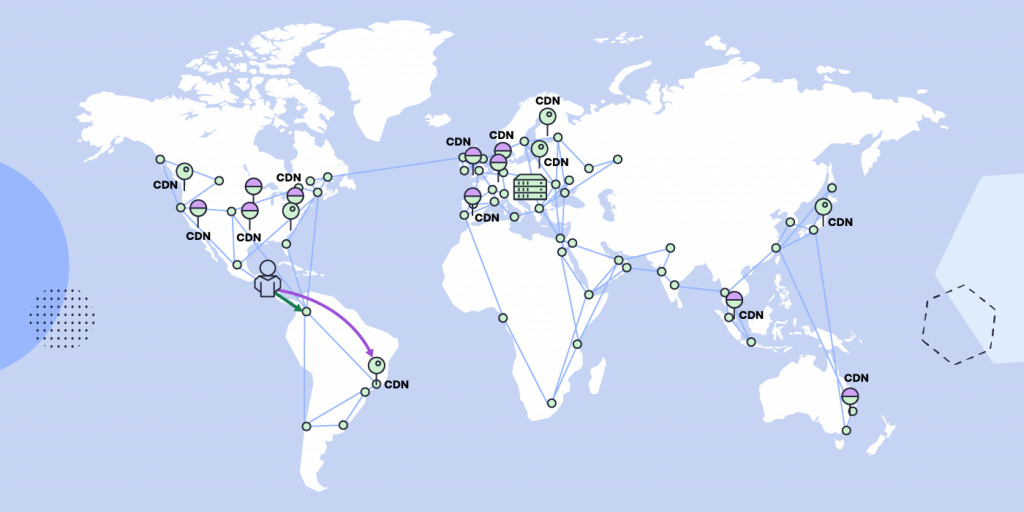
We’ve already launched a newer, even faster version of our CDN service – SiteGround CDN 2.0! It increases the website loading speed by 20% on average, going up to 100% for visitors located in some specific parts of the world, by utilizing the power of anycast routing and Google network edge locations.

We are excited to announce that the SiteGround CDN is out of its beta period and is now officially available for use to all our customers. SiteGround CDN is a site speed optimization service developed in-house specifically for our customers, who receive traffic from different geographic locations. Thousands of users have enabled the CDN during its beta phase and are already actively using it. We are happy and thankful for their strong positive feedback and their input that helped us apply the final touches to our CDN before its official release today.

What are the benefits of the SiteGround CDN

Our SiteGround CDN is an in-house built solution that provides you with a simple On/Off service with smart defaults and native server performance. It is carefully developed to incorporate all related services needed for best results. Here are some of its main benefits:

Blazing-fast websites loading speed

Our SiteGround CDN ensures the fastest loading speed for your websites to its visitors from different parts of the world, thanks to the facts that:

  • Our CDN service is hosted entirely in the Cloud where content is cached and replicated across multiple locations on 4 continents and thus served to your website visitors with minimal latency.
  • Our CDN ensures blazing-fast loading speed of your websites because it uses a super fast private network between our client-specific CDN locations and our hosting servers.

No configuration and easy management

Setting up your SiteGround CDN and managing its features happens with a few simple clicks in your Site Tools -> Speed -> CDN section, thanks to the fact that every layer of our system is built in-house. The activation of the CDN happens with a single click with NO additional site reconfiguration needed regardless of your site setup. No matter if your site is opened with www, or without www, or if it uses SSL or not, the CDN simply works.

SiteGround CDN plans and features

SiteGround CDN includes a free and a premium plan, that you can choose from, based on your website’s needs. Find out more about the two plans in the following sections:

Features in the Free CDN plan

If you choose to use the Free CDN plan, you can take advantage of the following functionalities, completely free of charge:

  • CDN activation for primary domain names with just one click
  • Caching of your website static content on CDN servers
  • Up to 10 GB bandwidth CDN traffic per month
  • Immediate initiation of purge of all cached resources for your website
  • Development mode for checking the latest website changes live quickly and ensuring everything looks good

Features in the Premium CDN plan

The Premium CDN plan includes all of the above-mentioned features in the free plan and in addition, it gives you access to the complete list of premium CDN functionalities:

  • CDN activation for all domains, including subdomains and parked domains
  • Advanced dynamic caching, delivering cached copies of the dynamically generated pages of your site by default
  • Unlimited CDN traffic
  • Custom TTL (time to live) that allows you to choose your desired cache time to live
  • “Always online” feature that keeps delivering the already cached pages from our CDN servers, in case your site starts returning errors

How to get started

You can switch on the Free CDN for your website with a single click from your Site Tools > Speed > CDN section. If you want to unlock the premium CDN features, you need to purchase the Premium CDN service from Client Area > Marketplace > Hosting Services > Additional Services, currently available with 50% off for the first 12 months, starting from $7.49/mo USD (prices are subject to change).

If you would like to use the SiteGround CDN, keep in mind that you cannot use it simultaneously in combination with another CDN. To be able to utilize the CDN service, you need to be using our centralized DNS as well, i.e. your domain should point to our name servers:

  • ns1.siteground.net
  • ns2.siteground.net

Try out our new CDN service for yourself and feel free to leave us a comment, in case you have any feedback or suggestions.

[subscribe_cta]

Creating a Carbon Literate Society with Our Client Clever Carbon

Clever Carbon

Did you know that even your website makes an impact on the environment? To celebrate Earth Day, SiteGround launched an educational campaign that helps website owners calculate their site carbon footprint as well as offer optimization tips and tricks to help reduce CO2 emissions. 


However, our efforts did not stop there. It’s important to remember how all our individual everyday actions add up to a cleaner and healthier Earth. We invited our client, Michelle Li, to share her insights on how we can live a greener life. Hosted on SiteGround, she founded clevercarbon.io with a mission to build a carbon literate society and help people make clever carbon decisions for themselves and our planet.

Learn About Carbon Footprint in a Simple and Hip Way

In her quest to understand and reduce her carbon footprint, Michelle was unpleasantly surprised that most of the websites she visited were full of confusing technical data. How can someone understand their carbon footprint when it appears that the majority of educational websites are overly complicated?


That motivated her to start Clever Carbon, with the mission to educate people about their carbon footprint in a fun, hip, and relatable way. The Clever Carbon team manages to simplify the complexities of carbon footprint data so that everyone can understand the problem and implement solutions. At the heart of their work stands the carbon footprint quiz which helps people understand the things in their daily lives that generate carbon footprint.

3 Tips to Reduce Your Personal Footprint

A person’s highest individual carbon footprint comes from their home energy use, their diet and transportation choices. Together with Michelle, we prepared a few day-to-day actions that you can take to limit your impact on the environment.

First you can start by calculating your carbon footprint here.

Smart energy consumption at home

While electricity generation is shifting toward more renewable sources, home energy consumption still accounts for the majority of our emissions. Some simple actions you can take to reduce the consumption are:

  • Unplug your phone charger, monitor or any other electrical device when it isn’t in use.
  • Use energy-efficient light bulbs.
  • Turn off lights when you’re not using them.
  • Choose renewable sources when possible.

Plant-based Diet

Did you know that emissions are directly related to what we eat? When it comes to food, we must examine what happens during manufacturing as well as transportation. Here’s what you can do: 

  • Fill your plate with vegetables, fruits, grains and beans. 
  • For meat-lovers, swap a few meals per week to vegan or vegetarian. 
  • Choose local and seasonal food.

Commuting

Carbon dioxide emissions from transportation are a well-known issue. There’s no need to get rid of your car just yet, but here are several things you can do better:

  • Choose public transportation or even biking when possible. 
  • Consider switching to an electric vehicle. 
  • Carpool to work to split the emissions between the number of people in the car.

3 Tips to Reduce Your Website Footprint

It may surprise you, but on average, a website generates 1.76g of CO2  per visit due to all of the processing power required to load and deliver to users all over the world. Don’t worry, there are several things you can do to create a more sustainable website. The good news is that most of the actions are based on best website practices, so it’s a win-win situation for both the planet and your business.

Choose a Green Web Host

Start by choosing a host committed to minimizing data centers energy consumption and is running on renewable sources. On top of that it offers blazing-fast speed for your website success with top security measures in place, like SiteGround.

Optimize Your Website

From caching to media and front-end optimizations, your website will get lighter and page load faster, saving energy from the processing time. Here are some actions you can take: 

  • Enable Full-page Caching: Caching is a sure way to speed up your website. Our powerful full-page (Dynamic) caching solution can make your website 5 times faster with no additional settings required.
  • Optimize media and front-end: Your website is the face of your business and you want it to stand out. But media and front-end files can surely slow your website. With our easy SiteGround Optimizer plugin for WordPress, you can enjoy powerful website optimizations with a click.
  • Use a CDN: The purpose of a CDN service is to reduce the distances between server and user. With SiteGround’s free CDN, you’ll be able to speed up your website for users who are browsing from all over the world.

Write Clear Web Content

On-point content and user-friendly experience will help your website get easily found. This way, you’ll save users time from surfing the internet all day and lower their energy consumption.

Make Better Decisions for Our Planet

“Starting our carbon literacy journey is an important way for each of us to make small, but better decisions for our planet.” It creates a pattern where each person can make smarter and healthier choices in our daily lives.

[subscribe_cta]

SiteGround Addresses Critical Security Vulnerability in Elementor WordPress Plugin on Day 0

The Elementor 3.6.0 version of the WordPress website builder plugin introduced a new functionality for easy plugin setup. Unfortunately a serious security vulnerability has been detected, which if exploited, allows full website access, rendering all Elementor 3.6.0 – 3.6.2 versions vulnerable. SiteGround took immediate action to protect our WordPress clients using the plugin, resulting in all instances on our servers being updated to resolve the issue on day 0 of the vulnerability report. Read on for more information on how we have protected our clients.

How severe is the vulnerability?

The issue is critical, since it allows regular website users, including subscribers, to fake an Elementor Pro .zip file, upload and activate it to a website, executing pretty much any code part of the archive. That means that if you are using Elementor version 3.6.0, 3.6.1 or 3.6.2 for your WordPress site, and user registration is enabled on it (for example WooCommerce websites, membership websites, etc.) an attacker could get full access to your site.

What did we do to protect SiteGround clients?

Due to the severity of the issue, we immediately updated all Elementor plugin instances on our hosting servers. We did that for all clients using the Elementor plugin for WordPress on SiteGround – both the free and the paid versions of the plugin – just to be on the safe side. So, if you’re a SiteGround client, your Elementor plugin version is updated to fix the vulnerability. If you have a WordPress website using the Elementor plugin hosted elsewhere, we recommend updating your plugin version immediately to avoid staying vulnerable.

[subscribe_cta]

New Private DNS Service for Enhanced Online Privacy and Completely White-Label Hosting

image introducing our new Private DNS service

We are now introducing our own Private DNS service, which allows you to customize the default name servers on our platform for enhanced online privacy and completely white-label hosting. It takes full advantage of our centralized DNS service, which was built to ensure faster domain name resolving for a faster website loading, enhanced reliability, and easy DNS management, and which also formed the basis for our own Cloud-based Content Delivery Network to additionally improve site performance.

Introducing our Private DNS service

The DNS service translates the domain names (pages’ URLs) to the numerical IP addresses of the servers hosting the website content. Thus instead of visitors having to type a combination of numbers in the browser, they can use letters and words. Thanks to our centralized DNS service, all domains registered with SiteGround are now using the same default name servers: ns1.siteground.net and ns2.siteground.net. Our Private DNS service makes it possible to change those to your own custom name servers, based on your own domain names or your brand. It allows you to point all your websites’ domains to these unique name servers. For example:

  • ns1.mydomainname.com
  • ns2.mydomainname.com

What are the benefits of our new Private DNS service?

Enhanced online privacy

Using custom domain server names helps enhance your online privacy. The Private DNS service hides the default ns1.siteground.net and ns2.siteground.net name servers. This obfuscation of the information makes it harder for third parties to find out where exactly your domain is located, which hinders them from taking advantage of potential issues that may arise on the servers.

Completely white-label hosting

The Private DNS service is especially useful for white-label resellers. If you wish to offer hosting to your clients, but you don’t wish them to know that the service is provided by SiteGround and have them communicate with us directly, using the Private DNS is a great idea. That will help you conceal who’s the original host, which makes you the sole provider and increases your brand name visibility.

How to activate and manage the Private DNS service?

You can activate Private DNS for your domain from Client Area > Marketplace > Hosting Services > Additional Services. You get this service for free if you are on a GoGeek or Cloud hosting plan. The Private DNS is also available on a yearly subscription basis for all other customers who want to use this service. To be able to enable Private DNS for your domain name, it must be registered with SiteGround.

How to Activate Private DNS

To manage and view your DNS information, you can do so from Client Area > Services > Domains > Manage (for the associated domain) > Extras.

How to Manage Private DNS

[subscribe_cta]

Rise Above with Alisha Kumar: Women-Owned Online Businesses on SiteGround

Women-Owned Businesses Hosted on SiteGround

We dedicated the month of March to inspiring women entrepreneurs who turned their ideas and passions into full-time businesses. Our Women-owned series features amazing women from various industries, including hand-made pottery, web development and design, and tour photography. And all those powerful females trusted SiteGround to host, build, and grow their websites.

We’re excited to share the story of another one of our customers. Alisha Kumar, founder of thesocialproject.ca – an all-in-one creative agency. As part of our mission to inspire people worldwide through the power of the web, we wanted to share her story so that you can learn from her experience. Let’s dive in.

The Start of The Social Project

From a business aspect, Alisha found a gap in how businesses use social media to achieve their marketing goals. So she took that opportunity and founded her creative agency specializing in helping brands with their marketing efforts through social media to increase brand awareness and sales.

However, The Social Project was inspired by one leading personal question: “How do I break the barriers of being in rooms where nobody else looks like me.” Being in the marketing industry for over 12 years now, Alisha struggled to find a way to stand out in the industry as a woman, and more notably, as a woman of color.  She aspires to change the marketing industry “because it doesn’t look like me at all.”

Your Website is Your Storefront

When people are browsing, you want to be that one website that they stop at. Looking back on her brand identity back in 2017 – being all rose gold with a heart in the logo – Alisha didn’t find it authentic; instead, she felt she was trying to fit in with the current scene. She had to rethink her branding “because I can’t show up for a business that isn’t representative of me.” As a result, she returned to the drawing board and refined her brand into an edgier look that fully embodies her.

Initially, Alisha was hosting her website with another company. However, after the rebrand, her web designer suggested using SiteGround, and after the switch, “I honestly haven’t had a problem at all.”

Tips for Social Media Engagement

Being a social media expert, Alisha remarks that “social media isn’t about you, it’s about your audience.” Listening to your audience, learning what they want to see, and knowing what they want to learn is essential for success. There is a lot of social listening to do.

Social listening refers to monitoring your brand’s social media channels, explicitly tracking mentions of your brand, customer feedback, industry trends, and more. With social listening, you can produce the kind of content that followers want, develop new ideas based on trends, have a better customer experience by interacting with customers directly, and consistently adjust your strategy to best fit their needs.

On Being a Good Leader

Alisha believes that good leaders should be good listeners. They should listen to what their team has to say and contribute to their ideas. Working with a team means you will use the strengths of each member, making the whole better than the individual.

As for being a good leader to your business, Alisha says, “remember why you started.” It’s so easy to get lost in the little things, and businesses should go back to why they started in the first place. Focus on your company’s original mission and what you hope to achieve with it.

Create Your Agency Website

If you have been thinking of starting your own agency, you have to have concrete ideas of what type of services you would provide. Ideas, while important, are not enough. Start a business plan for your new agency, which includes picking a niche, defining a target audience, creating a value proposition, and considering how you’ll earn money. Then you need to go online! Most of all, give your ideas a chance and as Alisha says, “no risk, no story.”

Your branding is influenced by your personality, which in turn influences the tone of your copy, your color scheme, and your fonts. With SiteGround, you can have that complete freedom, coupled with amazing tools to build, host, manage, and launch your successful business website that reflects who you are. Our high-performance platform will make your site load up to 500% faster thanks to our proprietary technologies crafted for top speed and security. We also crafted our own account management software that provides an outstanding user experience, along with superior efficiency when managing one or multiple websites. With the right partner you can take that leap without thinking “what if” down the road.

[subscribe_cta]