A serious security issue was found in All In One SEO Plugin, affecting all versions between 4.0.0 and 4.1.5.2. The vulnerability is of the Privilege Escalation type, meaning that authenticated users with minimal rights can execute actions that are above their access level.
Due to the type of the exploit and its severity, we have decided to forcefully update all affected versions of this plugin hosted on SiteGround servers to 4.1.5.3 which fixes the problem. We do not expect any negative effects on the plugin functionality or your site performance. However, don’t hesitate to contact our support team if you notice an issue that might be related to this update.
A couple of days ago a serious security issue with the PublishPress Capabilities plugin was discovered. Usually, we always try to protect our customers using our powerful WAF (Web Application Firewall) system and build rules to stop hacking attempts while leaving the update itself to the client’s preferences.
However, due to the nature of the exploit, we couldn’t protect our clients’ sites with WAF rules so, we decided to perform an emergency update on all our active installations of the plugin. Although, we do not expect any problems associated with this update (even the default WordPress system issued an update), if you notice something not working properly, feel free to contact the PublishPress Support for additional assistance!
Who’s Affected?
Only plugin versions between 2.0.0 and 2.3.0 are affected by this vulnerability. That’s why our team has performed the update only on them in order to avoid any problems with the plugin’s normal operation.
UPDATE
PublishPress Capabilities plugin has been successfully updated on our servers. As the vulnerability was reported to affect a few other plugins and themes we have gone deeper with the investigation of the issues and have managed to create a WAF rule that is protecting against possible exploits of this particular vulnerability.
For as long as there have been WordPress, site owners, managers, and developers have worried about how to backup WordPress. Even in the early days, WordPress was a complex system. It could do a lot, but backing it up and restoring it took time, patience, and of course, developers.
Still savvy site owners understood that it was worth the effort to back their sites up. Natural disasters, bad actors, and backhoes were all the enemy of web sites, and without a good disaster recovery program, you could lose everything.
In the early days my absolute favorite solution was a plugin that simply backed up my database each night using mysqldump and then emailed it to me. I thought this was the end-all/be-all of backup solutions. It was easy, it was off-site, and I had an email rule that deleted them so in 300 days, they were gone.
The problem that is obvious now is that my database, while important, is only part of what needs to be backed up.
I do not believe that there is a single best backup plugin for WordPress or solution. I believe that different types of sites have different needs and that WordPress site owners should evaluate their needs and options and pick the best solution for them.
That having been said, any WordPress backup solution is better than no solution at all. If you aren’t backing up your WordPress based website on a daily basis, read the rest of this article, pick a solution, and start backing your site up today.
The Best Solution to Back Up Your WordPress Site Without a Plugin
Backing up WordPress via your hosting partner
Most top-tier web hosts offer backup services as part of their monthly fee. This is going to be a little different than a plugin solution because your web hosting partner has access to the underlying infrastructure and can do things that plugins simply can’t do.
Your hosting partner backup solution will almost always operate faster in both backing up and restoring because they don’t rely on WordPress to do the heavy lifting. This means that if you have a large site or large database, backing up and restoring via your web hosting partner means less down-time.
One thing to look out for when utilizing your web hosts backup and restore is to make sure that the backups are stored off-site. This means not on the same server that your site is stored on and hopefully not even in the same geographic region.
Heaven forbid that a natural disaster hit the region your site is hosted in and the entire infrastructure is out for an extended time. If your backups are also stored there then you are down for the count.
At SiteGround they are aware of that. They create daily backups of your website, make them available on a rolling 30 day basis, and they geographically distribute your backups to better ensure your data is stored safely.
Expert Tip: Just because you are utilizing your web hosting partner’s backup service doesn’t mean that you don’t still have a responsibility to keep a backup of your site locally. If no automated service is available, log in once a month and download the last backup of the month to your local computer as an absolute last resort.
How to Back Up Your Website with a WordPress Plugin
Take in mind these 2 questions by the time you will need to choose a WordPress backup plugin that best fits your needs.
What should a WordPress backup plugin back up?
A good WordPress backup plugin or solution backs up at the very minimum 2 things.
Your database
Your uploads directory
In addition, you may also want to back up:
WordPress Core
Your Themes
Your Plugins
The reason I don’t list these in the must-backup section is that these can usually be downloaded and installed thus you don’t technically need to back them up. Still, it’s a good idea to include these in your backup because it makes restoring a site much easier.
What should a WordPress backup plugin do?
A good backup solution should cover at least these three points.
Backup your site
Store the backup in a different location. In tech, we call this “off-site”. That’s a hold-over term from when we used to back things up on tape and then physically take the tape to a different site.
Restore your backup. A good backup solution is only 1/2 the problem, you need to be able to USE those backups in case of an emergency. Most plugin based solutions require you to re-install WordPress and their plugin before you can restore. Usually this isn’t a problem, but solutions that are provided by top-tier web hosting providers are better in that they can restore everything.
The Best Backup Plugin for WordPress I’ve Tested
Now that we understand what a backup solution should do, let’s look at the best plugin that I have found for backing up WordPress.
UpdraftPlus
UpdraftPlus is the one I am using on about 70% of my sites and I consider it the best free backup plugin for WordPress. The paid version is even better!
UpdraftPlus is a “freemium” plugin in that some of the features are free, others cost you money. So far I’ve not needed any of the premium features. That doesn’t mean they aren’t worth the money, UpdraftPlus starts at only $42/year for two sites.
UpdraftPlus doesn’t automatically store your backup off-site. You need to set up where you want them to be stored. If you don’t set up an off-site storage then they are just backed up to your server’s local file storage. I strongly urge you to set up off-site backups.
The good news is that UpdraftPlus will work with dang near anyone when it comes to storing files off-site.
Dropbox
Google Drive
Amazon S3 (or compatible)
UpdraftVault
Rackspace Cloud
FTP
DreamObjects
Openstack Swift
… and email
My favorite is Amazon S3 and any service that utilizes the Amazon S3 API. Since I already store a lot of things on S3, it was easy for me to set this up and get it running.
Since FTP (and I assume SFTP) is on the list, you can use UpdraftPlus to store your backups anywhere you have an (S)FTP server. That’s most places these days.
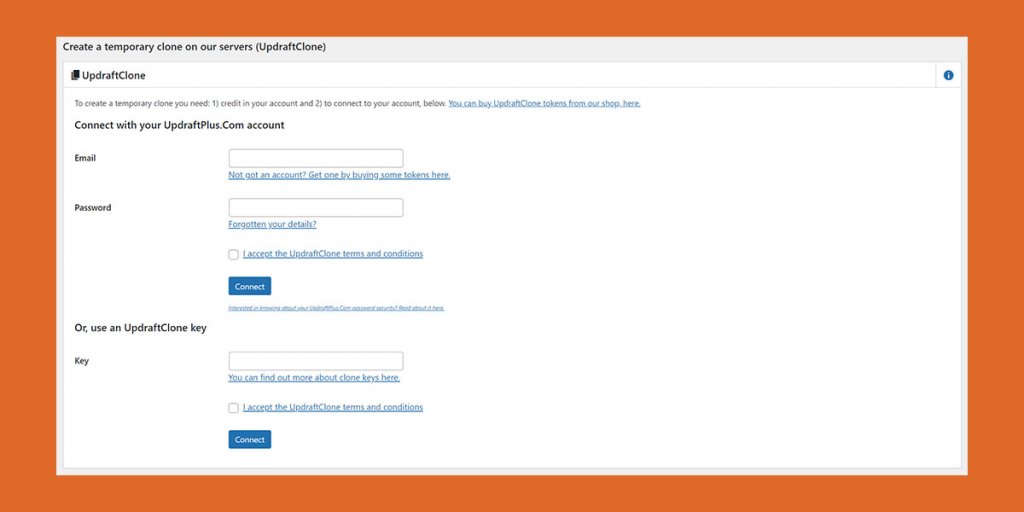
UpdraftPlus can be used to migrate sites as well. Each license comes with “Clone Tokens” that you can use to clone a site.
One of the things I love about UpdraftPlus is that if you are using WP-Optimize by the same company and you have UpdraftPlus installed, before you do any database optimizations or changes, it asks you if you want to back everything up first. I love that they take the time to help me not shoot myself in the foot.
Restoring a WordPress site via UpdraftPlus is as easy as selecting the menu option and then the backup to restore.
The plugin will do the rest. Since this requires WordPress and the plugin to already be installed, if you are having to restore from scratch then you will have to install WordPress, install UpdraftPlus, and configure your off-site storage before you can restore the rest of the site.
Bottom line, as far as plugin backup/restore solutions go, UpdraftPlus is a solid one. It is easy to use and the free version works very well.
Wrap Up
As I said, there is no single best WordPress backup plugin or best WordPress backup solution. The best solution is the one that gives you, the site owner, peace of mind and the ability to get a good night’s sleep because you know you’ve got a backup.
Sometimes that is a paid backup solution, other times it’s a free solution. However, you decide to back up your site, the important thing is that you do backup your WordPress site.
It’s that time of year again – time to put on the costume, carve the pumpkin, and trick or treat down the block to bring candy back home. While it’s all fun and games, website owners around the world should know that hackers also have tricks on their own and are not afraid to use them on Halloween or any other day of the year. Fortunately, here at SiteGround, we take security very seriously and have a lot of tips on how to protect yourself from malicious attacks.
Play our simple game to learn a thing or two about some of the most common security exploits and how to avoid them.
Our SG Site Scanner service has been one of the most valued tools by our clients since we launched it back in 2017. It has helped tens of thousands of site owners to protect their sites from destructive hacks, data theft and reputation damages via early detection of malicious software. For the last four years, sites subscribed to our SG Site Scanner service had their URLs crawled for suspicious code and their domain reputation checked daily. Now, our clients using the service will also be able to run a thorough file scan of their site directly on the host server with a single click. Read below to learn how this new scanning method enhances the existing site scanner functionality.
Daily URL scans and domain blacklist status checks
As always, we will continue to scan the publicly available URLs of any site that is subscribed to our SG Site Scanner on a daily basis. This is a powerful method for detecting malicious code and infected file locations by scanning your public website source code. Additionally, we do reputation checks of the website domain by looking for it in the blacklists of security authorities like Google, PhishTank, McAfee and more. If a Site Scanner-subscribed domain is present in any of them, the owner gets an immediate notification.
NEW: Comprehensive file scans on demand
Apart from the automatic daily checks described above, the SG Site Scanner service also includes the option for an on-demand scan to be initiated by the customers in their Site Tools. Now on top of the Daily URL scans, these on-demand scans include a new scanning method, developed in-house by our DevOps team. The new method is a deep file scan done directly on the server. It can detect malware that is not publicly accessible and thus can be missed by the external URL scans. For example, if the malicious code is located in a password-protected folder, it will not be found by the URL scan, but the new file scan will easily detect it.
An additional benefit of the file scan is that it uses its own comprehensive definitions about what is malicious code and thus can catch threads that may be missed by the URL scan. Another big advantage of the file scan is that it can give you valuable information about the location of a problem that has already been detected by the URL scan. This information can make cleaning a hacked website much easier.
How to take advantage of the extended scanning capabilities?
All clients who already have the SG Site Scanner activated can log in to their Site Tools > Security > SG Site Scanner and click to run an on-demand scan. If domain is pointed to our servers, the scan will include the new files checks too, on top of the URL scan and the blacklist status checks.
We strongly recommend that each site have an active SG Site Scanner at all times. The service has proven over the years to be essential for keeping sites safe and preventing data loss and downtime. It now has an unmatched value thanks to the unique additional scanning method available. If you don’t have it yet, you can find it in your Client Area > Marketplace > Hosting Services.
Last week, the Woo team announced a critical vulnerability in the most popular eCommerce plugin for WordPress – WooCommerce. As described in their post, security updates were pushed to all Woo branches for users who have not disabled such updates. This was done in a very fast and efficient way. Furthermore, the Woo team has been extremely cooperative with providing all the needed information that allowed us to proactively add security rules to our WAF (Web Application Firewall) for an additional layer of protection. Read below to learn more about all actions taken and their results.
Branched updates pushed by Woo
Due to the severity of the vulnerabilities discovered, the WooCommerce team has worked more than 36 hours around the clock to patch every major release branch. This means that you don’t have to switch from WooCommerce 4 to 5 to protect yourself. Those updates were pushed and if not explicitly disabled, most probably your Woo has been already patched. However, we strongly recommend that you check this! All WooCommerce versions prior to the latest patch are vulnerable. You can check your version and compare it to the WooCommerce Releases (https://developer.woocommerce.com/releases/) page. For example, if you have WooCommerce 5.5.1 you should simply update to 5.5.2. That will fix the security problem without breaking any functionality.
Proactive WAF protection set by SiteGround
In regards to security, we’ve always believed that being proactive is the best approach. This particular vulnerability was no exception. As soon as we were informed about it by the Woo team, we acted immediately and added a new security rule to our Web Application Firewall (WAF) – an elaborate system for exploit prevention, running on all of our servers. You can think of the firewall as a set of rules that address exploit attempts. We are constantly on the watch out for information about common security issues and we are quick to act by adding security rules so that our system can block attempts to exploit such issues. WAF will not patch a security hole of a particular website, which can be only done through updating with the security release, but prevents attackers from using it to gain unauthorised access to your site.
You may wonder why you need a WAF rule when the Woo team is fast to release a new security version. We do it to ensure that clients have more time to react, during which their sites are safe from the exploit. While the majority of the WooCommerce users are automatically updated by Woo, some sites are not updated for various reasons – auto-updated failed, disabled, or postponed too far in the future. Some webmasters prefer to manage the updates themselves, mainly as they want to be sure that the update does not mess with any of their website functionality. After all, we are usually talking about online stores, relying on many additional plugins for shipping, payments, tracking, taxation, and many more. For these people, the WAF rules provide time to make sure all their critical functionality will work with the new Woo version.
As a whole, the handling of this Woo vulnerability shows how the combined efforts of responsible plugin developers and your hosting company pay off – even in emergency situations your clients are safe and business continues as usual!
We have recently launched our own WordPress security plugin — SiteGround Security (now named Security Optimizer), which aims to protect WordPress users against the most common vulnerabilities plaguing the sites. It is available for anyone to download and use for free, regardless which hosting platform they use. To make sure that our WordPress sites are well protected on application level, however, we have started preinstalling SiteGround Security on all new installations on our platform with some of the features enabled by default.
Default SiteGround Security Settings Against Common WordPress Vulnerabilities
Having your site set up with security in mind from the start can easily protect you against some of the most popular vulnerabilities out there. To help you achieve that goal, when we preinstall the SiteGround Security plugin we enable the following settings:
WordPress Version is Hidden by default
Hackers often crawl websites scooping information about software versions used. That way, when they get to discover a vulnerability in any of those versions, they are able to reach to and quickly hack many sites in bulk using that information. For WordPress application this data is openly available in 2 places – in an HTML tag and in the readme.html file.
By default, our plugin removes the HTML tag with the WordPress version and we strongly recommend that you also remove the readme.html file via the option in the SiteGround Security plugin.
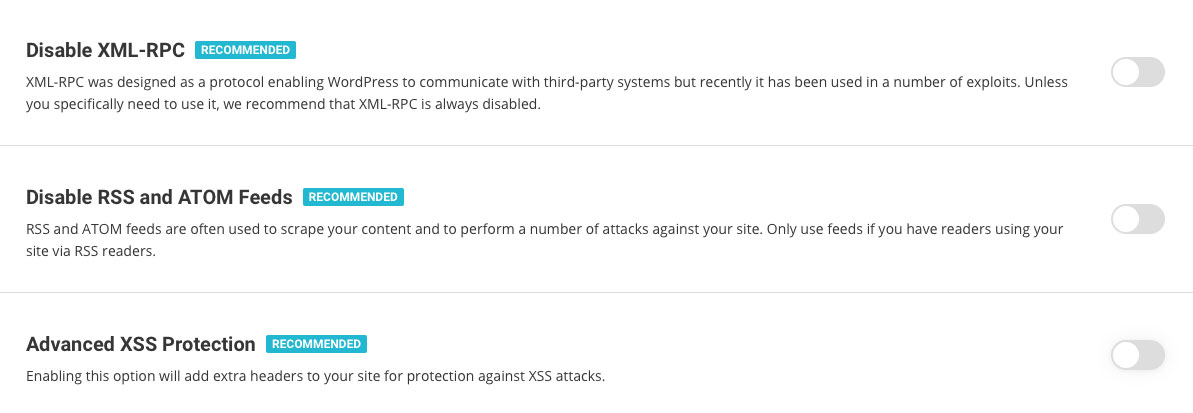
Advanced XSS Vulnerability Protection enabled
The cross-site script vulnerability, known as XSS, allows different apps and plugins to access information in your WordPress that they shouldn’t. Such attacks are often used to gather sensitive user data for example. By default, the SiteGround Security plugin enables protection against XSS by adding headers instructing browsers not to accept JS or other code injections.
Disabled XML-RPC protocol to prevent many vulnerabilities and attacks
The XML-RPC is an old protocol used by WordPress to talk to other systems. It is getting less and less used since the appearance of the REST API. However, it is available in the application and many are using it for exploiting vulnerabilities, starting DDOS attacks and other troubles. That is why our SiteGround Security plugin disables this open access line to your WordPress application by default.
NOTE:
Jetpack plugin and mobile apps are valid users of the XML-RPC protocol. If you download Jetpack at some point, we will automatically enable the protocol back. You can also enable it yourself through the plugin interface.
Option to Disable RSS and ATOM Feeds
Similar to XML-RPC, feeds are rarely used nowadays, but they are often used by attackers and bad bots to scrape your site content. So the SiteGround Security plugin allows you to disable them easily. Unless you really need them, we recommend using this option and disable them as soon as possible.
Lock and Protect System Folders by default
Usually, when an exploit happens, attackers try inserting and executing PHP files in public folders to add backdoors and further compromise your account. By design, those publicly accessible WordPress folders are used for uploading media content (images for example). Via the SiteGround Security plugin, we do not forbid the upload of files, but we stop PHP files and malicious scripts from being executed and causing problems for your sites. This feature protects those system folders and prevents potentially malicious scripts from being executed from them.
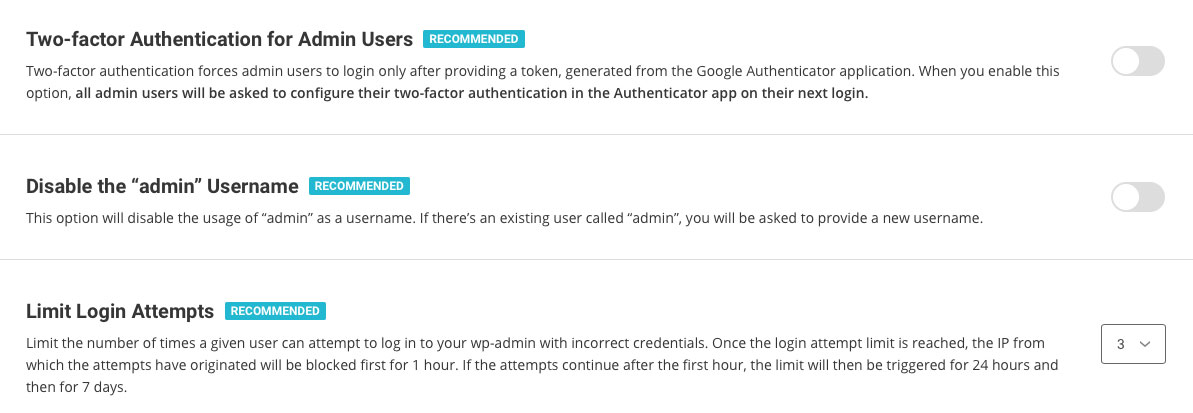
Disabled “Admin” Username
The default username and one most widely used on all applications by their owners is “Admin.” Hackers know that and when they wish to bruteforce a login form, they will definitely try it. That is why we disable this username by default.
Disabled Themes & Plugins Editor
Editing code through the plugins and themes editor poses direct security risks both from potential elevation of privileges attacks and errors made by a regular site administrator. If you want to edit your files, it is strongly recommended that you use the File Manager tool in Site Tools, or your preferred editor through FTP or SSH (ideally on a staging copy of your site). To help you avoid bad practices and attacks, we disable the themes & plugins editor by default.
Recommended Vulnerabilities Protection Settings
There are a few settings, which you can control from the SiteGround Security plugin, which we have not enabled by default because they need your permission or they pose a risk on the way you use your app. Yet, we wish to encourage you to enable them consciously as they are quite powerful protection tools as well.
Two-Factor Authentication is a MUST
You already know that 2FA protects your login from brute force attacks and hijacking of login credentials. You can read more on the topic here and you can enable it easily using the SiteGround Security plugin.
Limit Login Attempts
When someone tries to log in several times with wrong credentials, they are most likely trying to guess your logins. That is why it is strongly recommended to block such attempts after the first few – 3 or 5. You can set that in the SiteGround Security plugin interface and after that many times of wrong logins, the user gets blocked for 1hour the first time, then 24hours on the second trial, and finally for 7 days on their third trial. Again, since if you don’t know about this functionality, you may lock yourself out of the WordPress admin area, we are not enabling it by default for you, but you can do it easily in a click!
More Tools Against WordPress Vulnerabilities Coming Up
We’re continuing the development of the plugin and will add a lot of new functionality soon. Monitor the change log for new features added with the upcoming updates. There isn’t a strict roadmap that we can share at this point but some of the features coming next are custom login URLs, Strict Transport Security headers and X Frame options that will prevent page hijacking. As usual, we want to bring what’s usually difficult to implement technologies to everyone and with an interface easily accessible without having to spend hours researching the exact syntax of the necessary headers or other code.
The security of our clients’ websites has always been an extremely important part of our web hosting services. Some of the brightest technical minds in our team have been continuously dedicated to crafting unique security solutions and keep the safety level of our hosting infrastructure on an unmatched high level. We have been an industry pioneer in developing server level protections like account isolation, server health monitoring, anti-bot traffic prevention, etc. We also know that on top of the server level solutions, the security of each individual website should be strengthened on application level too. That is why we provide services like auto updates, backups and WAF protection to our clients.
Today we are happy to introduce another tool that can greatly enhance any WordPress site security – our brand new plugin – Security Optimizer (formerly SiteGround Security). The Security Optimizer plugin is available for free download for anyone and it comes preinstalled with all new WordPress installations hosted at SiteGround and provides its users an easy way to protect a WordPress site from malicious attacks. It also includes valuable tools that can help a website owner react in case there is a suspicion that the site might have been compromised. Read below to learn how to make your site safer with our new plugin.
Protect your WordPress against common attacks
In the Site Security section of our plugin you will be able to easily switch on several rules that will harden your website security and prevent common malware, bruteforce and other security issues. Some of these rules, like hiding your WordPress version or deleting your default readme.txt, will make it harder for crawlers to detect you’re even using WordPress. Thus your website will not be easily identified as a possible attack victim when a vulnerability appears. Other rules in this section will add advanced XSS protection and protect your system folders from being injected with malicious files.
Strengthen your login security
In the Login Security section of our plugin you will be able to apply several methods that protect your login from unauthorised access. One of the most recommended methods to protect your login is the 2-factor authentication and with the Security Optimizer plugin, you can easily switch it on for your WordPress administrative area. Some simple, yet very effective protection measures like changing your login URL and not allowing “admin” to be used as a username can be also easily set here. You can also limit the number of login attempts from one and the same IP, which will block attackers trying to guess your password through brute force. And if you want to go even deeper in protecting your WordPress login, there are two more advanced options available. You can specify the IPs from which your login page can be accessed. The option should be used with caution if you use dynamic IP, so that you do not block yourself out.
Monitor your admin area activity log
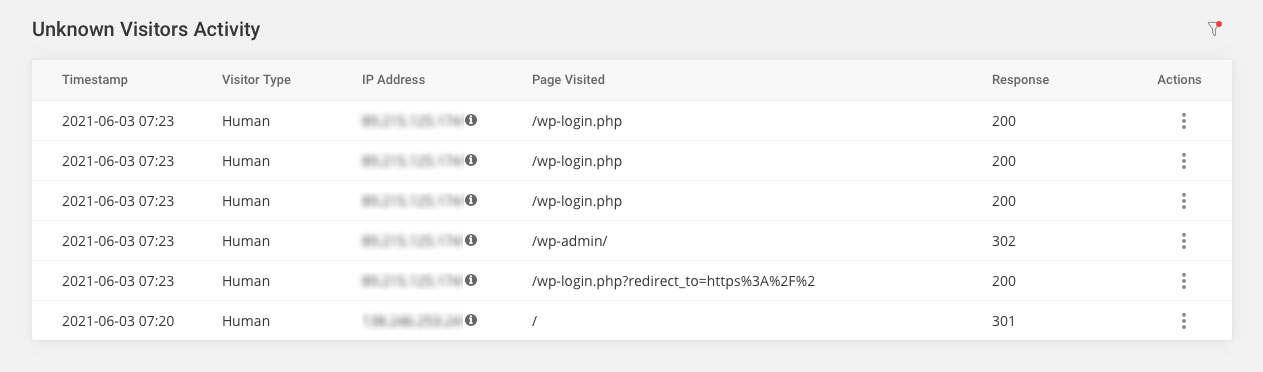
One of the best plugin features is the detailed Activity log. It allows you to pinpoint things like bad IP addresses that try to access your website as well as registered users that are performing tasks they are not supposed to. For example, you can block with one click IPs that have numerous incorrect logins and at the same time find out which user has deleted that post you are missing. For the initial version, we keep the log 16 days back so it’s worth giving it a look every now and then especially if you have a busy site and number of users with the capabilities to edit content.
React if you suspect your site might have been compromised.
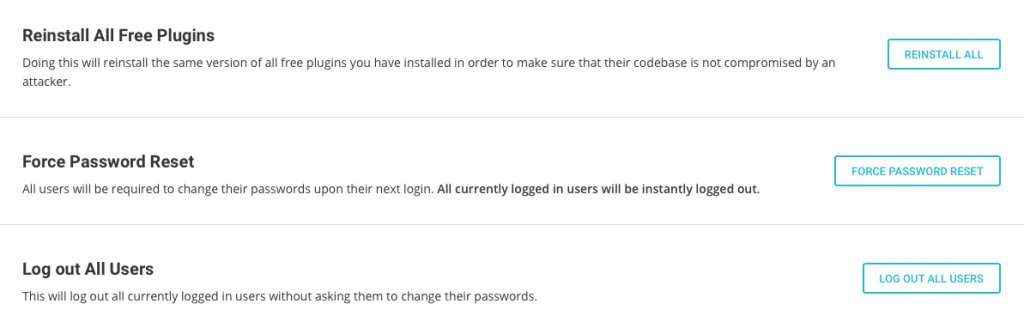
In the Post-hack section of the plugin you will find a set of actions that are useful, if you believe your site security has been compromised. Here you will be able to automatically log out all users and force them to change passwords. This way if any user was compromised, you may stop the malicious access through its account. You will also be able to reinstall all your current plugins. This will make sure you are using a clean copy of each plugin instead of a possible compromised one. Please bear in mind that although these post-hack actions are handy, they are not a substitute to a thorough site clean up that might need to be done by a WordPress security expert, if there are signs that your website might have been hacked.
How to get Security Optimizer?
Security Optimizer is available as any other free WordPress plugin. You can find it in the official WordPress plugin repository (https://wordpress.org/plugins/sg-security/) or install it directly through your WordPress admin area. If you host your next WordPress website at SiteGround, using the plugin comes right out-of-the-box, since all new WordPress installations now come with the plugin preinstalled with some of its features enabled by default.
This is the first plugin we are releasing whose full functionality can be used by anyone, even people that are not hosted by SiteGround. This said, we haven’t done excessive testing on every other company so issues caused by their particular setup may occur. If that’s the case, don’t hesitate to post a thread in the plugin forum in the WordPress repository, we will do our best to make sure it works great on all platforms.
Exactly what is a “brute force” attack on a website? Just the name “brute force” conjures up a bad guy in a cheesy action movie. For most websites, a brute force attack can be very serious.
What is a brute force attack?
A brute force attack is exactly what the name sounds like. There is no deep logic involved in guessing logins or passwords, it’s just a bot that starts with a login of “A” and a password of “A” and works from there. It will patiently try every combination of letters and numbers there is until it finds a login and password that works. When brute force attacks started, that was all there was to it. Over the years, they have gotten more sophisticated, but at the core, it’s just a bot.
These days, you have bot networks that do this. The problem was that brute force attacks from a single computer were real easy to detect and block. So now a network of hundreds or thousands of computers work together to attack your site and guess a login or password.
Also, these days we have “dictionary tables” which are just lists of passwords that have already been used or words that can be combined together to make a password. A bot network can try thousands of times per second to guess a login and password. Your site is only as secure as the weakest password on it.
In addition to dictionary tables, attackers have gotten even smarter. As a site is hacked and all of the user info is pulled down, the logins and passwords for that site are added to the ones to try. They know that a lot of people don’t bother to create different logins and passwords most of the time so a login on one site is probably good on another.
How do you mitigate a brute force attack?
Well, there are 2 answers to this question.
If your website is not hosting with SiteGround
If you are not hosted with SiteGround then you need to start researching security plugins and configuring firewalls. We’ve talked about some of this before in previous blog posts. You will need to:
Install an application firewall and properly configure it. There are several good plugins in the WordPress plugin repository that will secure your site against brute force attacks and other types of attacks. The top 3-5 are well respected and while I won’t recommend one here, you can probably find one that comes highly recommended and get it implemented. All of the good ones have a monthly fee associated with them but that’s what it takes to protect your site.
Require strong passwords for all users We’ve talked about passwords before but it bears repeating. Strong passwords are your first line of defense. Your users might not like it but it will keep your site and their data secure.
Require Two-Factor Authentication (2FA) for all logins 2FA mitigates brute force attacks 100% because the login and password are only 2/3 of the login procedure. For the final 1/3, you have to have the person’s phone. That’s a game-ender for brute force attacks.
As with strong passwords though, users usually hate 2FA. You can limit 2FA to admin accounts but if an attacker gets into your site, you are compromised. So you have to decide which is more important and that’s a bad choice to have to make.
Implement a password rotation policy that forces new passwords at least every 90 days Another one that users hate but is effective in helping prevent brute force attacks is requiring users to reset their passwords. This is another thing that users hate and if you do enough things in the name of security that users hate, you start to lose users. So it’s a tightrope you have to walk.
Bonus tip: Fail2Ban In addition to all of those, my personal favorite tool is Fail2ban and WP-fail2Ban. Properly configured (and it takes a developer or network admin to properly configure) this combination can be a very powerful tool to prevent a brute force attack. It’s not easy to configure but it is very powerful. Fail2ban is open source and free, the plugin WP Fail2Ban has a pro version that seems to be worth the money.
I don’t usually recommend specific plugins but this one is unique. I have the free version installed on all my blogs that are not hosted on SiteGround and it works wonderfully. I am strongly considering upgrading to the pro version.
WARNING: This plugin requires Fail2ban to be properly installed, configured, and working on your server. Fail2ban itself has a couple of requirements as well. This is not a trivial plugin to get working. If you are not a developer or very familiar with Linux, get help.
If your website is hosted with SiteGround
If your site is hosted with SiteGround, go back to sipping your coffee. SiteGround has a full suite of tools already implemented including AI to detect brute force attacks from bot networks. This doesn’t mean your site is 100% absolutely secure, nobody can get to 100% safe. It does however mean that this is one less thing you have to worry about.
Wrapup
Brute force attacks are well known and well understood. There are tools that you can install that will mitigate the risks of them compromising your site. That having been said, your best bet is a hosting partner like SiteGround that deals with it for you to that you can spend your time making your site more awesome.
Your online reputation is one of your most precious possessions. Because of this, you need to do everything in your power to protect it. The problem is that the more powerful your reputation becomes online, the more that people with bad intentions want to take control of it and use it for their own purposes. Nowhere is this easier online than email.
Email started as a trust system. I trust the email server I used to send my email. It trusts any number of servers to help deliver the email along the way. The recipient of my email trusts their email server.
In the beginning, email didn’t necessarily go from you to your server, to your recipient’s server, to your recipient. The internet was still fragile, so email was designed to hand mail to any server and trust that that server would either deliver it, hold it until it could deliver it, or hand it off to another server for delivery. Trust, however, has a price, and once bad people figured out that email was based on trust, they started making us pay that price.
Because bad people figured out they could send emails that look like they are coming from anyone on the Internet, people much smarter than me knew they had to do something to secure our email system. If someone could send you an email that said it was from your mom, and that email contained a link to show you cute puppies, you trusted that it was from your mom, so you clicked the link; thus Phishing was born.
These days, email is a lot more secure. The smart good people have figured out ways to build technologies like Sender Policy Framework (SPF) and DomainKeys Identified Mail (DKIM). These systems help protect emails by protecting who can send emails for a given domain. If you have SFP and DKIM setup, most email servers will recognize them and use them to make sure that the email it just received that SAID it was from you, actually IS from you.
The biggest problem with SPF and DKIM is that they are not easy to setup. To configure them, you need to understand DNS and how to create specific types of records. This has hampered the widespread adoption of these concepts in the past.
Thankfully, these days, there are good hosts like SiteGround.com out there that set them up for you automatically. When you set up a domain on a good host, one of the things they do is not only set up your mail system but also set up SFP and DKIM to protect others from fraudulently sending emails that look like they come from you.
If your host does not automatically set up DKIM and SPF for you then all is not lost. There are many good tutorials available and with some time, you can set them up yourself. There are even online checkers you can use to make sure you have done it correctly.
Or, if you’ve got better things to do with your time than figure out DNS, you can host with a host like SiteGround.com. Your call.