

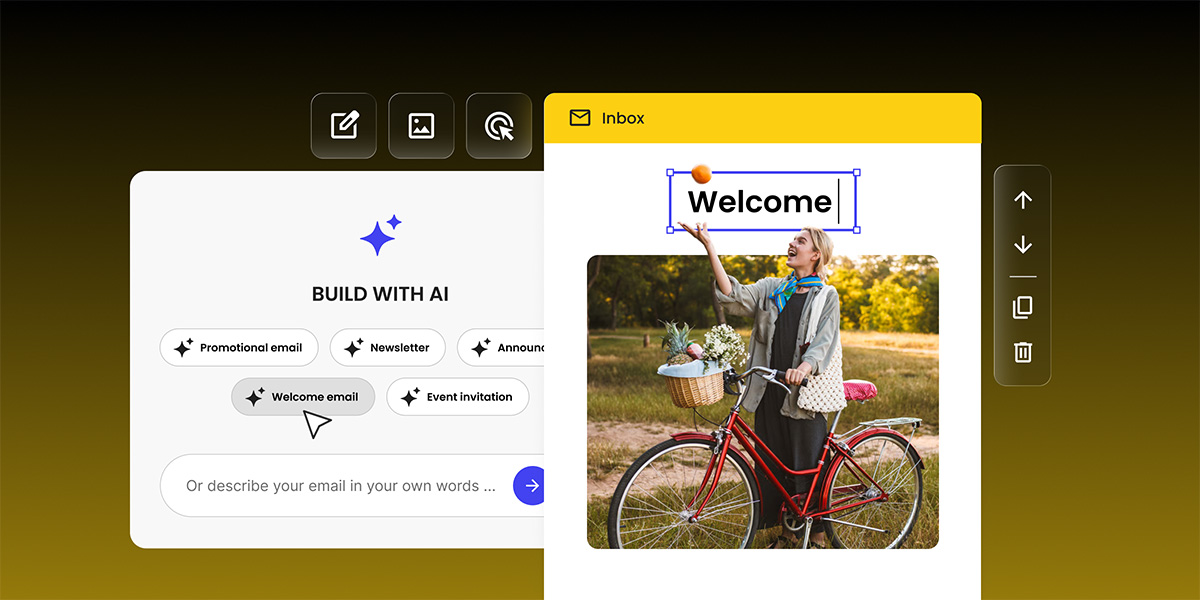
You can now generate a complete email with AI in SiteGround Email Marketing. With the new Generate with AI functionality you just describe your business and the email you want to send, and you get back a finished email, ready to edit in the email editor you already use.
The first draft is on the other side of a short conversation. Let’s see how.
What is an AI email generator?
An AI email generator creates a ready-to-send email from a short description of your business and your goal. Inside SiteGround Email Marketing, that means a draft with the subject line, preheader, and body already written and designed. It opens in the same email builder you use for every other campaign.
Getting AI to help with an email used to mean doing it in pieces. Add a section, ask the writer for a hand, generate an image, move to the next section, repeat. Every stop and start cost you time and pulled you out of your flow. Building the generator directly into Email Marketing puts writing and designing in one place, so a first draft takes minutes instead of an afternoon.
How does Generate with AI work?
Generate with AI turns a few answers into a finished email. You tell the AI assistant about your business and the message you want to send, or you start from a campaign type: Promotional, Newsletter, Announcement, Welcome, or Event invitation. It plays your answers back in a short summary first, and once you confirm, it opens a complete draft in the SiteGround email editor with the subject line, preheader, and body already in place.
How to use Generate with AI
When you create a new campaign or automation, you now see two ways to begin: Build with templates or Generate with AI.
Choose Generate with AI and a chat-style page opens. From there you have two ways in:
- Start from a campaign type. Pick one of five presets, and the draft arrives shaped for that job.
- Describe it in your own words. Tell the assistant what you want to send, in plain language, and it takes the lead from there.
Either way, the assistant may ask a few short follow-up questions to fill in the gaps. It works in whatever language you set for the campaign. Before it writes a single line, it plays your answers back in a short summary, so you always steer the direction.
Confirm the summary, click Generate, and you land in the familiar builder. From there you edit, design, segment, and schedule exactly as you always have.
Five campaign types to start from
The conversation starter you pick shapes both the structure and the tone of the draft, so it is worth choosing deliberately.
- Promotional, for a sale, a discount, or a limited time offer.
- Newsletter, for your regular update to a list that already knows you.
- Announcement, for a new product, a new feature, or a change your customers need to hear about.
- Welcome, for the first email a new subscriber gets from you.
- Event invitation, for a webinar, a launch, or a workshop.
A promotional draft comes back with a clear offer and a direct CTA. A welcome draft comes back warmer, with an introduction to who you are. An event invitation puts the logistics near the top, because that is what people look for first.
Why this matters if you run a small business
Most small business owners have no shortage of email ideas. What they rarely have is the two hours it takes to turn one of those ideas into something that looks right in an inbox. The AI email generator gives that time back.
Describe your offer in everyday language, pick a starting point, and let the assistant build a complete email you only need to tweak. And because it asks about your business, your audience, your tone, and the look you want, the draft starts close to what you had in mind, which means the tweaking is quick.
It is just as useful when you want to explore. Run the flow again to try a different angle, test a new tone, or spin up a format you have not used before. You spend your energy on the message, the audience, and the results, not on the setup.
Where AI fits in your workflow
AI generated emails are most useful when you have a clear goal and a rough idea of what you want to say.
The AI email generator helps you structure those ideas, fill in missing details, and turn them into an on-brand email with subject line, preheader, and body.
For some campaigns you might still prefer to write everything by hand or start from a saved template. For others, especially recurring formats like newsletters or promotions, AI can help you produce a first version faster. You can also combine flows. Generate with AI for the first iteration, then refine the layout and copy manually in the builder.
How to create your first AI email
- In SiteGround Email Marketing, go to Campaigns > New Campaign (or the Automation Builder).
- Choose the Generate with AI card.
- Add a campaign name, choose the language, and press Continue.
- Start from a preset type or describe your email in your own words, then answer any follow-up questions.
- Check the summary, edit anything off, and click Generate My Email.
- Your draft opens in the Email Marketing Builder. Adjust, then Schedule.
For the full walkthrough, see our guide on generating email campaigns with AI.
Generate your next email with AI
If you already use SiteGround Email Marketing, there is nothing to install and nothing to set up. The next time you create a campaign or automation, choose Generate with AI and follow the conversation. Try it on your next newsletter or announcement and see how much time it saves.
New to SiteGround Email Marketing? Start for free and let your first campaign write itself.
Frequently asked questions
It works as a short guided conversation. You describe your business, your audience, the goal of the email, and the tone you want, then pick one of five campaign types. The assistant summarizes your inputs, and once you confirm, it writes the subject line, preheader, and body into the email builder.
Can I edit an AI generated email?
Yes. The generated campaign opens in the standard SiteGround email builder, where every element is editable. Most people treat the output as a first draft and adjust the copy, the layout, and the images from there.
Does it write in languages other than English?
Yes. The assistant follows the language of the campaign or automation you set up, so the draft comes back in that language.
Do I need to install anything?
No. The Generate with AI option appears in the New campaign dialog and in the Automation Builder for existing SiteGround Email Marketing users, with no plugin, add-on, or change to your setup.
Does this replace the template builder?
No. Build with templates and the manual builder stay exactly as they are. Generate with AI is an additional starting point that you choose per campaign.
Great add-on to email marketing workflows. Marketers can then edit and personalize the final campaign, but all the subject line, preheader and email body can be generated from a simple brief saving huge amounts of time. AI works well here as a good base, not a replacement for human ingenuity.