
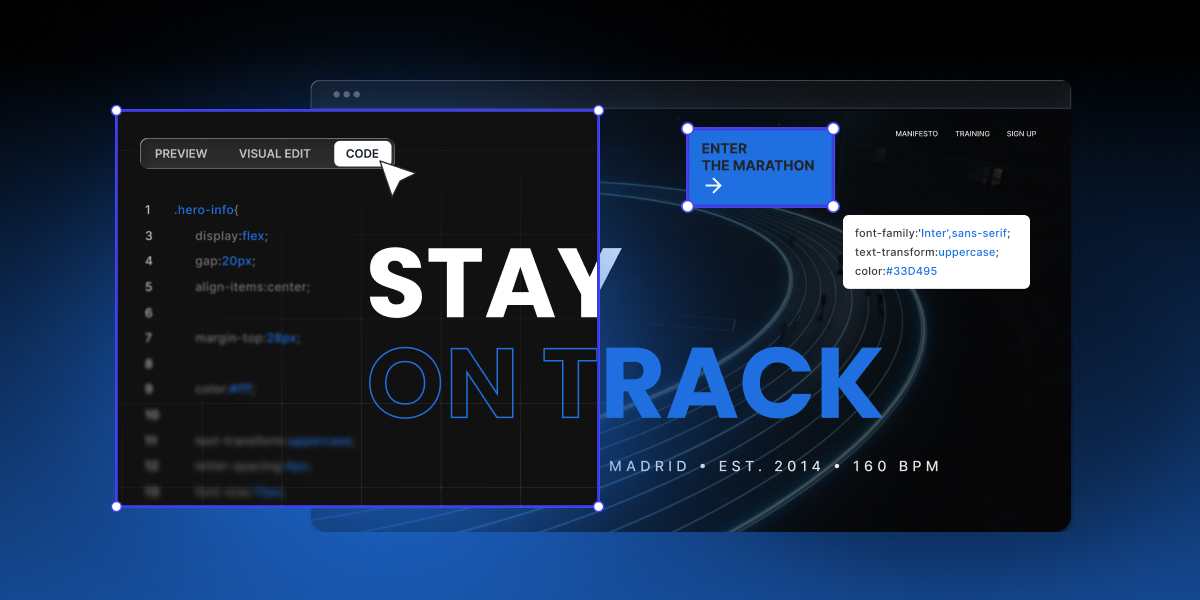
You can now access and work with every code file behind a project built with Coderick AI. This sits alongside visual editing and chat prompts as another way to shape your project. We are rolling this out as a core capability inside Coderick AI, giving you more flexibility, control, and confidence in every project you create.
Edit your source code to shape any part of your project
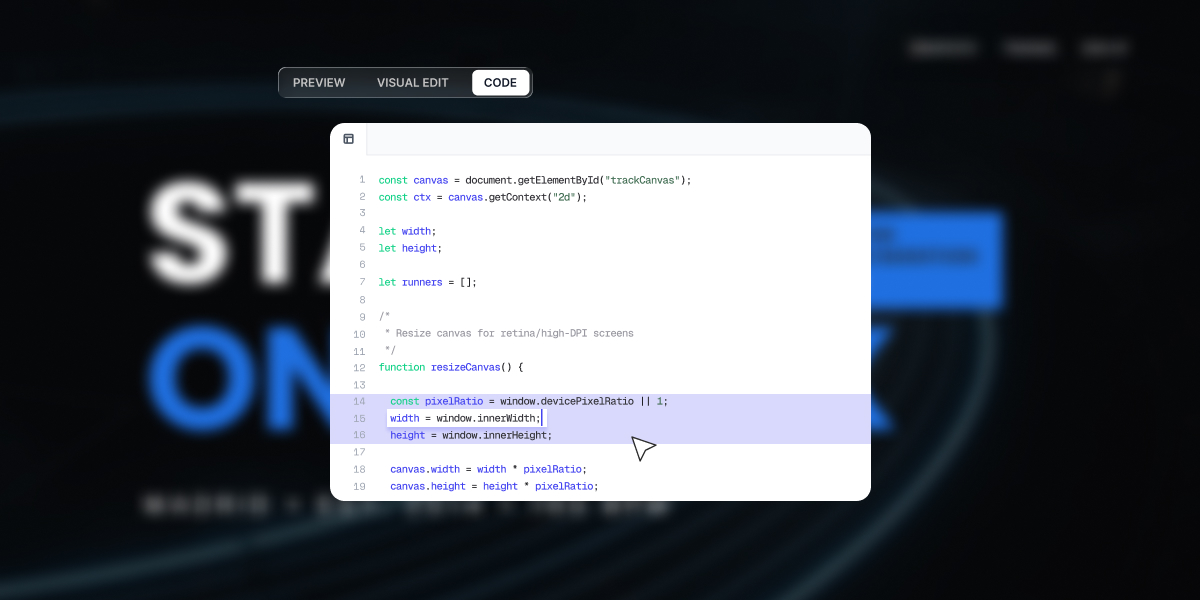
Once Coderick has built your project, you can open the code and change anything you want. A small tweak in a component, an adjustment in layout, or a quick update after a review.
Now you can open the new Code tab on any Coderick project to read and edit the code, then save those changes back into your live version. Coderick AI still handles the heavy lifting, and you can use the Code tab to extend and customize the result as much as you like, from fine tuning details to adding your own components and adjusting how your project behaves.
Inside the Code tab you can:
- Edit code manually in place, using the languages and structures Coderick already created for you.
- Adjust layouts, styles, and logic, then click Save to apply your changes to the project once you are ready.
- Discard the edits you made in your current session if you decide not to keep them.
- Use familiar keyboard shortcuts like Control plus Z and Control plus Y for undo and redo, without adding extra buttons to the interface.
Edit code without using credits. Manual edits in the Code tab do not consume credits, which means small fixes can happen as quickly as you notice them, while you keep your prompts for other changes.
Point Coderick AI at one specific file
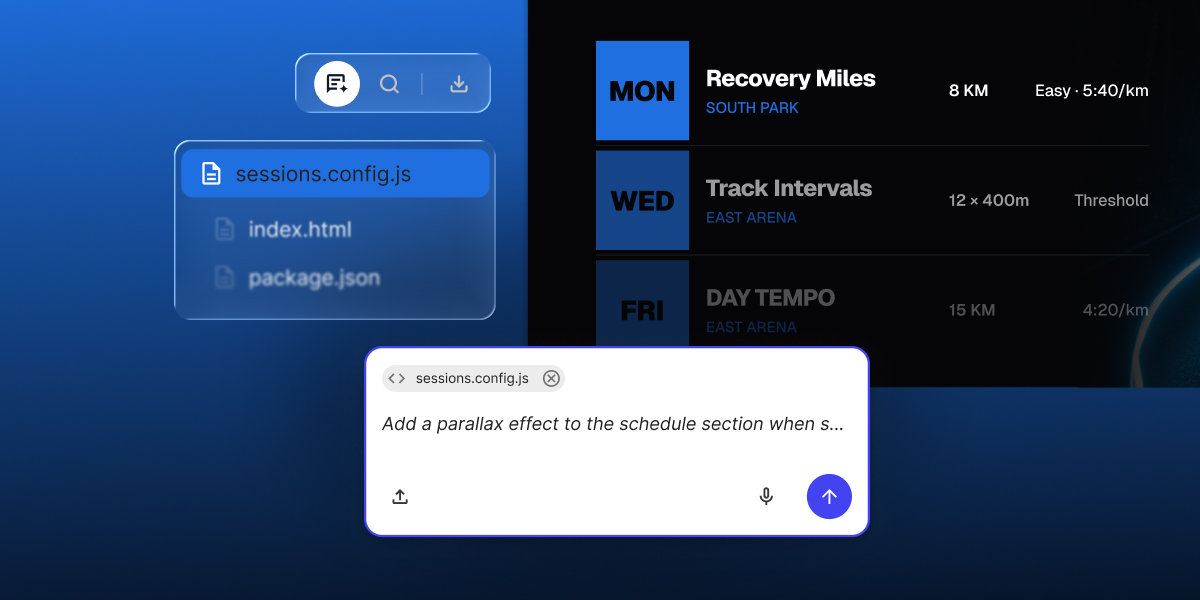
Sometimes you do not want a general change. Instead, you want Coderick AI to focus on one section. With this update you can reference any file directly from the code view in your chat, similar to how Visual Edit works today.
Pointing Coderick at a particular file does two important things:
- It scopes the model to the context that matters, which improves the precision of edits and explanations.
- It reduces the number of back and forth messages needed to get the change you want, which helps you use your credits more efficiently.
The result is a tighter loop. You mark the file, describe what you need, and Coderick responds with changes and reasoning that stay anchored in the right place.
Search project files across your whole build
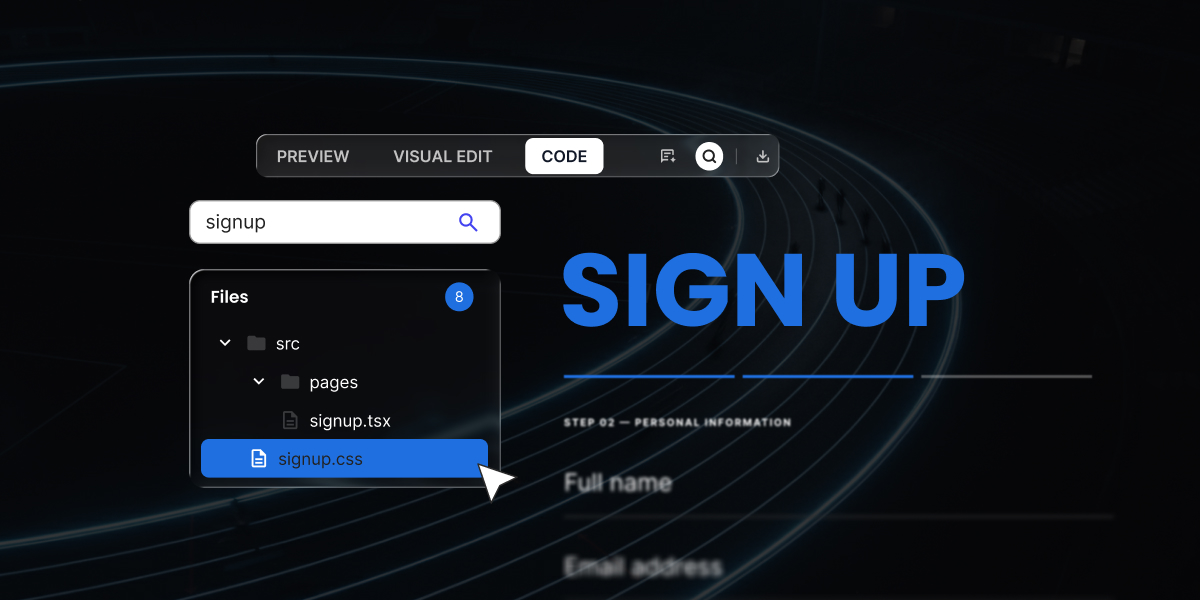
As your projects grow, the number of files grows with them. To keep things simple, the new view includes search that looks across your project tree and inside files at the same time.
You can:
- Search project files by name and by the text inside them, in one step, using the search above the file tree.
- Use a separate in-file search when you already know which file you need and want to jump to a specific snippet or selector.
This helps you navigate even large projects that Coderick has generated over multiple iterations. You get to the right place faster, without scrolling through every folder or scanning entire files by eye.
Download the source code of your whole project, or just one file
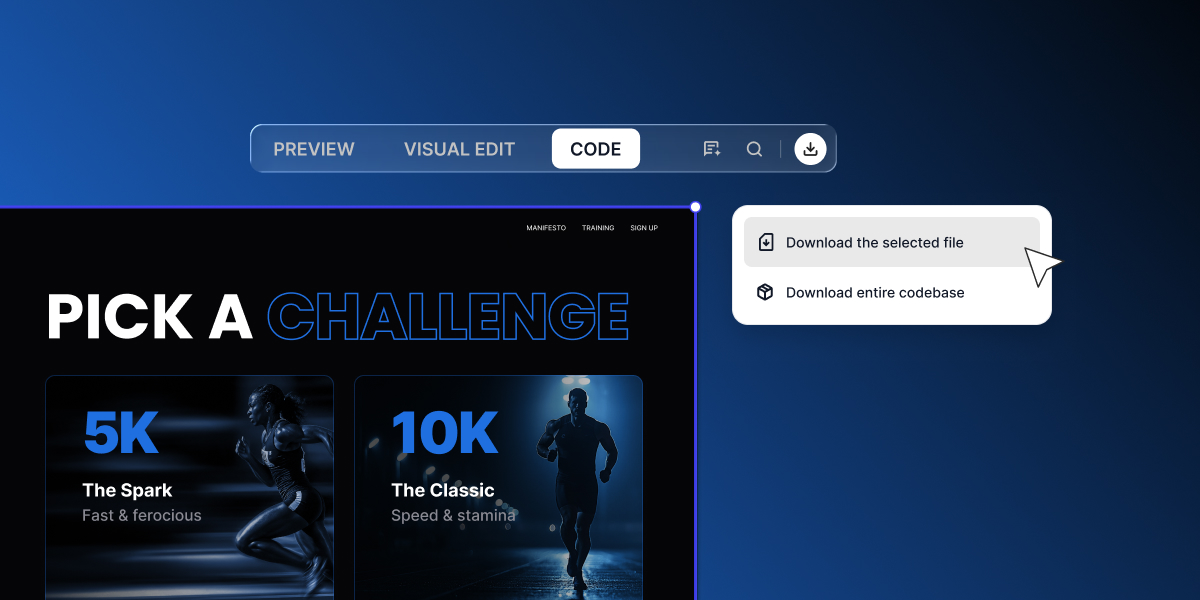
Sometimes you want to keep a copy of your work. With this new feature we give you a simple way to do that, whether you need the whole project or just one specific file.
Inside the Code tab you can:
- Download your source code for the entire project to review it locally, share it with teammates, or keep a snapshot of your progress.
- Download a single file while you are viewing it, so you can quickly test, share, or reuse one specific piece of code without pulling down the whole project.
This gives you more flexibility in how you work with your projects day to day. Whether you are reviewing changes, collaborating with someone else, or keeping a local copy for reference, everything is just a few clicks away.
Your edits are safe to experiment with
Editing generated code can feel risky, so we’ve made it easy to explore without fear of breaking your project. Nothing is applied until you click Save, undo and redo are always one shortcut away, and you can Discard everything from the current session in a click.
Plus, you can always revert to a previous version with one click. The goal is simple: give you room to experiment, with a safety net underneath.
Build with prompts and code, together
You still describe what you want in plain language and watch your ideas become working projects. Now, if you like working on the code behind them, you have a place to do that too. If you are already building with Coderick, open your project and look for the Code tab.
If you have not tried Coderick yet, start a new project with a 14 day free trial and see how far a simple prompt takes you.
We will keep expanding the building experience so both non technical builders and experienced developers feel at home inside Coderick AI. If you have ideas or requests, we would love to hear them.
Frequently asked questions
Source code access lets you view and edit source code for any project you built in Coderick AI, right inside the new Code tab. You can adjust layouts, styles, and logic, download source code for the whole project or a single file, and make manual edits without touching prompts.
Can I edit my project’s code directly?
Yes. The Code tab gives you a built-in code editor where you can open any file, edit code in place, and save your changes back into the project. You can also point Coderick AI at one specific file so its next changes stay scoped to exactly the part you are working on.
Does editing the code cost credits?
No. You can edit code without using credits. Manual edits in the Code tab do not consume any, so small fixes happen as fast as you spot them, and your credits stay free for prompt-based changes.
Can I download my source code?
Yes. You can download source code for the entire project to keep a local copy, share it with a teammate, or hand it to a developer. You can also download a single file on its own while you are viewing it.
How do I find a specific file or line of code?
Use the search above the file tree to search project files by name and by the text inside them at the same time. There is also a separate in-file search for jumping straight to a snippet or selector once you know which file you need.