SiteGround Optimizer 5.6 – Heartbeat control, Automatic Database Optimization and More for Even Faster Websites!

We have just launched the latest major update of the SiteGround Optimizer plugin. The new version greatly enhances what’s already the best performance solution for your website if you are hosted with SiteGround! If you follow the plugin’s changelog you will notice that for the last few years we’ve constantly improved and added more and more functionalities turning the plugin from a simple connector to our server caching systems to an overall performance solution for your WordPress site. Now I am excited to guide you through the most recent features that will help you make your site run even faster:

WordPress Heartbeat Control

The Heartbeat API allows your browser to communicate with the WordPress application when you’re logged into your admin panel. This functionality makes it possible to handle things like scheduled tasks, post and page revisions, locking of a post when someone else is editing it, and more. 

Although it’s a great piece of functionality it may cause excessive CPU usage when left unsupervised. For example, if you just leave a couple of tabs open in your browser on the post edit page, that will execute a script saving your content as a draft for each tab every 15 seconds. That alone results in 480 executions per hour and 11520 per day.

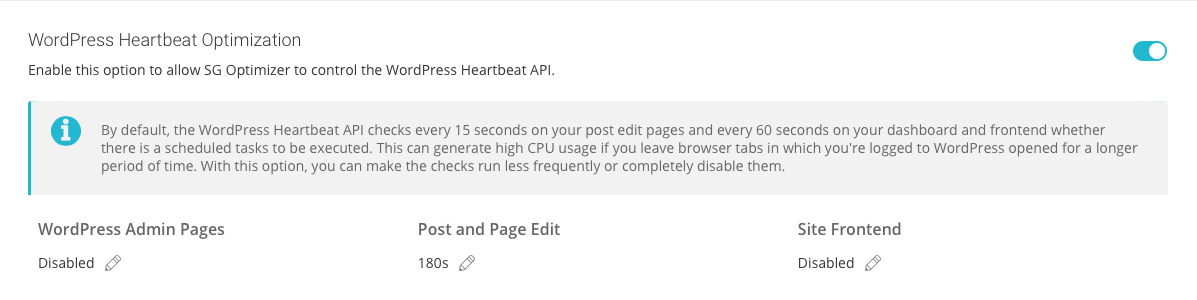
Most people don’t need to save that often. For example, if you’re writing a blog post, having a save every 3 minutes is perfectly fine. With the new settings in the SiteGround Optimizer, you can either completely disable the Heartbeat API if you don’t have any functionality requiring it, or you can set it to work at far bigger intervals. By default, we disable it on your admin and frontend pages and leave it only on post edit to run every 180 seconds.

WordPress Heartbeat Optimization

Automatic Database Maintenance

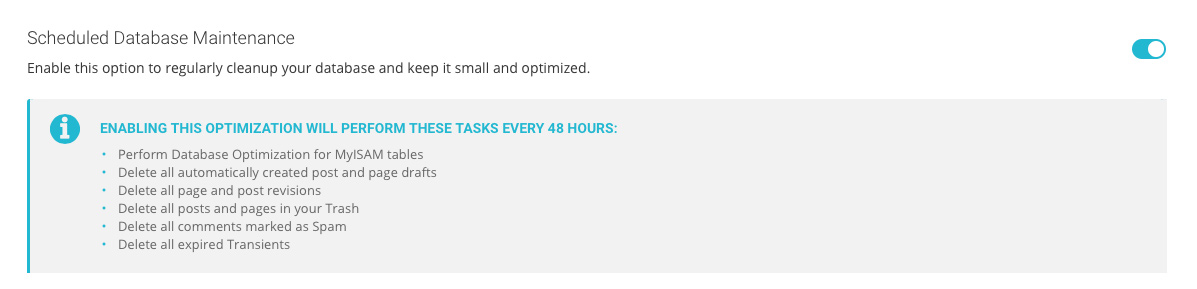
This optimization is really important for WordPress websites but often neglected by webmasters. That’s why we’ve added it to the plugin and set it to run every week. Having that feature enabled will automatically clean your spam comments and trashed posts and pages, and will perform a table optimization and clear all the expired transients from your database. Basically, you will be sure that your database is in a top condition without having to perform the same tasks manually on a regular basis.

WordPress Database Optimization

DNS Pre-fetch 

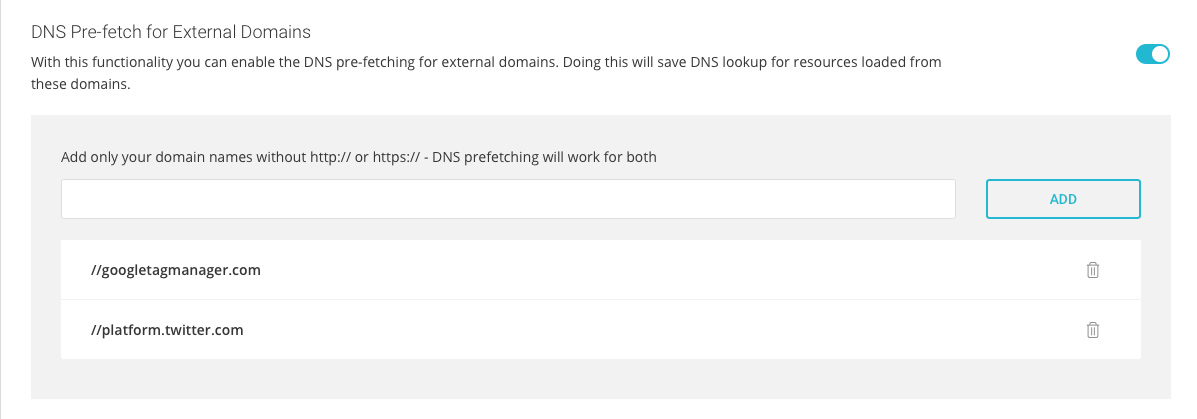
With this option, you can easily add all external domains that your site uses to serve external resources so your site can tell browsers to pre-fetch them and save time from resolving these domains each time they are used by a resource.

By default, browsers are pretty smart when it comes to domain resolution and pre-fetching all commonly used external domains. They manage to avoid resolving the same domain multiple times. But, their automatic pre-fetch doesn’t work at all times. For example, if you have external resources in your CSS and JS they won’t be automatically pre-fetched by the browser. That is why we added an option in the SiteGround Optimizer where you can list all external domains and thus make sure that the browsers will have those domains’ IP addresses ready for use. That feature helps reduce page loading times. 

Improved Memcached Integration

Memcached is a great optimization feature, but due to compulsory Memcached limits it works only for objects smaller than 1MB. That’s more than enough in 99% of the cases, but as more and more plugins and themes are dropping huge chunks of data into the options table, we have started to notice more attempts for using Memcached for bigger objects. That is why we have come up with a smart way to use Memcached in such cases too. We have added a self-learning mechanism that excludes the options with the biggest values from the object that needs to be cached, so it stays under 1MB. This way we manage to provide Memcached at least for a part of the initial big object. 

Deprecation of the PHP Switcher

In this version, we’ve decided to completely remove the functionality to switch the PHP version of a website. We took that decision for two main reasons – we wanted to avoid duplication of the functionality as that version control already exists in cPanel and Site Tools, where it logically belongs; and to alleviate the plugin so it takes less disk space and inodes.

Ecommerce Terms and Conditions Protect Your Online Store – Webinar

Does your online business have Terms and Conditions (“T&Cs”) document? If you haven’t established one for your store yet, it’s good to dedicate some time and specify your T&C because they are crucial for protecting you from potential liabilities and misunderstandings. In the case of e-commerce, that’s a vital step that you shouldn’t miss as you handle sensitive client information.

What are Terms & Conditions?

Terms and Conditions (also known as Terms of Use or Terms of Service) allow you to set the way in which your product, service or content may be used, in a legally binding way.

While they cannot be used to avoid complying with applicable law (e.g., GDPR), they protect you for almost everything else and can be used to set favorable conditions for your business.

Who needs Terms & Conditions?

Almost everyone from Bloggers to E-commerce, SaaS, and Enterprise businesses – as they are both practical and preventative. They often contain legally mandatory information which makes them not just practical, but necessary in some cases which brings us to e-commerce.

What’s the legally required information that applies in regards to e-commerce?

Under most countries’ consumer laws, in addition to the default required privacy disclosures, you’ll need to inform customers of the following:

  • Returns/Refund details;
  • Warranty/ Guarantee information (where applicable);
  • Safety information, including info on proper use (where applicable);
  • Terms of delivery of product/ service;
  • Identifying information such as a legal address and business name;
  • Industry-related legal disclosures;
  • Rights of consumers (such as withdrawal rights), where applicable;
  • Seller contact details (e.g., email address).

Note: In some cases, e.g., in the EU, where return and withdrawal specifics are not stated, the user is granted extended rights. So, for example, where the legal withdrawal/return time frame is 14 days, if you do not state this in your terms and conditions, the user is granted 14 days under the law. Likewise, if you do not specify who bears the return shipping cost, the cost falls to you by default.

How Terms & Conditions protect you?

Aside from helping you to comply with the law, terms also help you with handling user-related issues when they arise and – even more importantly – aid in preventing problems in the first place. They do this by setting a legally binding agreement between you and your users, on the subject of your rules for accessing/using your service.

  • In regards to protecting your business in a preventative way, be sure to include things like:
  • Disclaimers & limitation of liability
  • Shipping, processing and return rules
  • Account creation & termination conditions, accepted behavior
  • Setting your law of governance

How can I create legally valid Terms and Conditions to suit my specific business?

Iubenda’s Terms and Conditions Generator lets you easily generate and manage Terms and Conditions that are professional, customizable from over 100 clauses, available in 8 languages, drafted by an international legal team, and up to date with the main international legislations.

The solution is optimized for everything from e-commerce, and apps, to complex scenarios like marketplace and Affiliate scenarios. Read more about it here. We also have a 20% discount available for SiteGround users!

Watch the Webinar

To help you go through that process, we organized and held a webinar on the topic with our friends from Iubenda. Abbie Clement, Head of Content at Iubenda and Andrea Giannangelo, CEO of Iubenda, talked about how T&Cs protect your e-store, what you need to include in your T&C, and how their service can help you with that. You can watch the recording of the webinar below:

Special Discount

To make it even easier for you to start, we have set up a special discount for Iubenda’s services that you can quickly get from this link or by going to SiteGround’s Marketplace. You can find the coupon in your Client Area > Marketplace > Partner Perks.

Webinar Questions Recap

When you go to a website, and they ask you to “agree” to the Terms and Conditions, do they keep any proof that you agreed to it as proof?

Yes, this is often done. It is always a good idea to keep proof of any consent that users might give. There are several ways to keep track of this: one option is to do it manually, or you can use something like Iubenda’s Consent Solution, which records and stores proof of consent for each of your users. The solution comes with a dashboard from which you can review and manage these consents. For more information on this, please visit this page.

What should be included for a service business, such as а therapist, life coach, etc.? No products or shipping involved?

The T&Cs for this kind of service should, at the minimum, contain identifying information for the company, a description of the service, risk allocation, disclaimer and liability relation information is also important for this type of business. Also, if there exist any mandatory industry-related disclosures – it’s a good idea to also add them in your

Terms & Conditions. Do note, though, that product-based businesses and service-based businesses have different warranty and withdrawal requirements, so we invite you to read further here.

What are key items that need to be implemented through terms of use or privacy policies to be GDPR compliant?

GDPR compliance is covered by the Privacy Policy of a given website and not by the Terms & Conditions. At this link, you can find all the basic elements that need to be included (alternatively, this information is included and explained in the webinar recap video above).

How do we know what to include in T&C and how to word it? Can we add whatever we want? Go through a lawyer?

Some of Iubenda’s clients chose to work together with their lawyer when determining which clauses to add to their documents – and this is always a good idea. With that said, the Terms & Conditions Generator includes a guided set-up to id you in determining what’s needed for your site or app. Furthermore, Iubenda’s customer support staff are available via live chat or email to help you.

What are the available languages?

All of Iubenda’s solutions are available in 8 languages: English, Italian, German, French, Dutch, Russian, Spanish, and Brazilian Portuguese.

I have terms and conditions on my e-commerce site in the UK. I buy from a supplier that offers Dropship as well as wholesale. They have no terms and conditions on refunds of postage. With distance selling, I have to refund the original postage cost, if any, and the cost of goods if the customer returns the product as they don’t like it. But the supplier only returned my product cost, not the postage. Are the rules different for Dropship suppliers?

Dropshipping is a bit tricky because often, the customer cannot return the product directly to your supplier. One way to address this issue can be to state an alternative return address in your documents. Another solution can be to add in your T&Cs that the buyer pays for the shipping cost in cases where they return simply because they do not like the product.

Overall, when it comes to dropshipping, especially with overseas-based suppliers, it’s best to understand or set all terms before working with the supplier to avoid complications. Where you can’t do this, setting favorable terms and conditions document can help – provided that they do not conflict with applicable law.

How does a potential buyer who visits an e-commerce store agree to the terms and conditions stated on the site? If the visitor does not agree, can he/she still purchase from the site?

One way to implement an “agreeing” action can be to add a checkbox and statement linking to your terms and conditions at various points throughout your site (e.g., on a sign-up form). How you chose to set this up is entirely up to you – however, it is best practice to additionally link your terms and conditions from the footer of all pages of your site so that it’s always easily accessible to users.

Regarding purchases, in most cases, websites will not allow users to purchase without first agreeing to the terms and conditions. The terms can be linked at the point of payment so that the user can read and agree (by checking a checkbox, for example) before signing up or purchasing.

If the company is registered in one country but offers online services to another, to which law should we comply to?

A good general rule of thumb is to comply with the laws of the country in which you base your operations, as well as those of the country your site targets. You can read more on this topic here.

Does your Consent Solution integrate with WordPress?

Yes, it does. Here’s a guide on how to install Iubenda’s WordPress plugin.

When we work with kids and parents, what should be considered?

Regarding kids, there are enhanced requirements. The following resources will shed some light on this topic:

How can I apply the SiteGround/Iubenda discount code to the business bundle?

You need to click the link we have provided, and you are automatically redirected to Iubenda’s website. Hover over “Products and Services” and click on “Pricing” from the drop-down menu, there you need to choose “Bundles” and pick the Business Plan. The full price for 1 year is $99, and with the discount applied a bit less than $80 per year ($7 per month). The license for this also includes access to the Pro version of the Privacy and Cookie Policy Generator.

Is there a developer package, or would my clients need to purchase their own license for their individual site?

Yes, you can set up an account and purchase a multi-license subscription and resell to your clients yourself, otherwise, you can join Iubenda’s affiliate program and earn 30% on each purchase while giving a 10% discount to your clients.

On your site, you talk about a “license” is that per website? So 1 website = 1 license?

Yes, one license is needed for every website or app in 1 language. So if you have 1 website available in 2 languages, then you need to buy 2 licenses to create all the documents you need. (Note: Multi-license plans are available which offer huge discounts where more than 4 licenses are needed).

Do you give your clients a choice if they want to add terms and conditions to their site?

There are multiple integration options that include a simple embedding that allows adding a widget to the footer of your website, having a direct link that you can add anywhere on your site or app. Alternatively, you can also directly embed your document into the body of your web pages or via API. For further details, see this post.

Do you have a T&C generator for tour companies?

Iubenda’s solution works for any business – we cover everything from the most common scenarios to the most complex cases. You can read more about it here.

[subscribe_cta]

Archive Your Instagram Photos on a WordPress Site

add your Instagram photos to WordPress

Instagram has become one of the indispensable tools for marketers worldwide. Everything from hiring influencers to hawk their wares, to posting stories about how things get made or how they got where they are, if it can be expressed as a photo, Instagram is it’s home. Recent articles in marketing journals have flat out stated that Instagram is the social network. 

But Instagram, like all other social media networks, is ephemeral. Content has a very short shelf life on social media and given the time that it takes to craft great Instagram photos, that’s a shame. 

There is no need for you to lose your juice once a photo has been buried in the feed, give it new life by posting it on your WordPress site. Archive all of your Instagram photos on your site and link back to them giving them life both on and off of Instagram.

This doesn’t even require a plugin. All you need are three things.

  1. an Instagram account
  2. a WordPress powered website
  3. an If This Then That (ITTT) account.

If you are reading this, my guess is you already have the first two. You may not however have heard of ITTT. ITTT has been connecting web services for a long time. You can connect a WordPress site to:

  • Twitter
  • Instagram
  • Pinterest
  • Reddit
  • Telegraph
  • Youtube
  • Slack
  • …and more

All with the click of a few buttons on a website.

While Instagram is an Instagram → WordPress integration, there are several of the integrations that take WordPress content and share it out to other services. For instance, you can notify Twitter and a Slack channel that you have new content on your site automatically.

Since most ITTT integrations are written by users, there are usually multiple integrations for any given combination that you want, each with a unique feature set that you can tap. One of the WordPress → Twitter integrations will post the title of your latest post, a link to it, and a link to your bio page on WordPress each time you post.

One caveat, for integrations that post to WordPress, it will ask you for a user name and password. ITTT stores these credentials in their database. While they have never had a reported data breach, if they do, you will need to make sure that you change the password on that account immediately. It is highly recommended that you not use one of your administrator accounts for this, the Editor level should be sufficient. In case you’re interested to learn more about user access in your WordPress, we strongly recommend that you read the article on the Principle of the Least Privilege in WordPress.

Don’t lose your valuable content to the merciless timeline, archive, and even republish your beautiful pictures elsewhere using WordPress and If This Then That.

[subscribe_cta]

Webinar On Building a Website with WordPress

How to build a WordPress website

Last week we had the webinar “Building a Website with WordPress” where we explained how to easily set up a WordPress site with SiteGround. We received many questions and below, you can see answers to those we didn’t have time for during the webinar.

Also, if you’d like to watch the recording, here’s the video of the webinar session.

Questions about WordPress site setup

Q: Before this webinar, we tried to build the site without instruction. We had moderate success but would like to start over from square one. Is there an easy way to reset this and start from scratch?

A: The easiest way to do this is to delete your current website and then add a completely new one from your Client Area. First, go to Websites > Manage (next to the desired site), click on the kebab menu on the right, and select Delete. Then, again from the Websites list, click the New Website button. You will be prompted to select a hosting plan and after that, the Add New Website page will appear. 

If you don’t want to decide on a domain name at that moment, you can use the temporary domain option and change it afterward. On the second step of adding the new website, you will be able to choose WordPress as an application for your site, and it will be automatically installed for you. On the third step, you will be able to add some extra functionality to your site. When ready, click Finish and your new site will be up in a minute. 

Q: Will I need to purchase a separate domain to launch a new website? Is there any drag and drop application to build the frontend of the website?

A: To start a new website, you may use a temporary domain (free option available upon site creation), or use an existing domain, no matter where that domain is registered. You can change the primary domain of your site at any time from User Area > Websites > Manage website > Change Domain

If you wish to use WordPress as the backbone of your site, you may add a page builder like Elementor, or choose a theme with in-built drag and drop editor functionalities. When logging in your WordPress installation on SiteGround, you will first see a WordPress Wizard that helps you select a theme and plugins, which then get automatically installed for you. During that wizard setup, you will have the choice of adding Elementor as your page builder. 

Q: In the time I build my site, what happens with the index page?

A:
If you do not want visitors to see your new website while you are developing it, there are several methods you can use to restrict access to the website and make it visible only to yourself. For example, you can password-protect the website, set a coming soon or under maintenance page with the help of a maintenance plugin, or allow only your IP to have access to the site. Read more about these methods in this article

Q: Can I use WordPress to make mobile apps?

A: No, WordPress is a Content Management System, designed to be used to build websites. You can use WordPress plugins to build and customize a mobile version of your website though.

Questions about security 

Q: Is using Captcha good for security, which one is the best and secure Captcha to use?

A:
Using Captcha is good for security. If you choose to use a CAPTCHA on your website, the most popular one is Google’s reCAPTCHA. Alternatively, you can use the Wordfence plugin, which protects from brute force attacks by limiting login attempts.

Q: I have a main domain that is working ok with the free SSL certificate. I have also set up a subdomain. Can the SSL work with the subdomain as well?

A: The standard free  Let’s Encrypt SSL certificates cover only the domain name and the www subdomain. If you want to have an SSL certificate for another subdomain name as well, you can issue a new, free SSL certificate for the subdomain. Alternatively, you can use a free Let’s Encrypt WildCard SSL certificate for the main domain, which will cover any subdomains too.

Q: How to make sure WordPress is secure? I find Sucuri too complicated. Any tips on how to set up a security plugin without understanding what it does?

A: Security is a very important part of every website and you could check out our previous webinar where we explained the key security “layers” which every WordPress website should have, or our podcast episode “Is My Website Safe” .

Questions about plugins and themes

Q: I’m looking to create a virtual online debating arena or hall for my video hosting site uunitedtube.com that is on the way. What plugins are good for me to use to allow two separate located debating speakers and over 100s of audiences to all video streaming simultaneously, despite all their different IP addresses?

A:
The setup you describe is quite an advanced one and requires lots of customization so it would be best to hire a professional programmer to develop the necessary functionalities for your website.

Q: What themes are best for service-based businesses and ministries?

A:
ThemeForest is a trusted marketplace for WordPress themes and they have several ministry-oriented themes that you can choose from.

Q: Which plugin should I use to get a contact address?

A: Contact Form 7 is the most popular WordPress plugin for creating contact sections or pages on your website.

Q: Can you have multiple pages/titles and run a blog in each page?

A: With WordPress, you can create a custom template that renders your blogroll. Then, on the pages you want to have different blogs, simply set the Title and URL you want and configure them to use your custom template.

Questions about posts, pages

Q: Instead of creating a blog post, if I have created a page as a blog page using the Astra template, how do I create an index of blogs on that page and create a link to open a new webpage for my new blog posts, instead of just scrolling down ?

A: This is a question specific to the functionality of the Astra theme and it is best if you contact the official provider of that theme for guidance.

Q: Can you please tell me how to display recent posts anywhere I like on a WordPress website, pages as well as posts?

A: The WordPress editor (Gutenberg) has a built-in block interface for displaying your recent posts that can be easily added to any of your pages. To do this, log into your WordPress admin dashboard, go to the desired page, navigate to the part where you want your recent posts to appear, and click the “+” icon on the left. Then, from the Widgets drop-down menu, select Latest posts, and click the Update button on the top right.

Questions about transfers

Q: Is there anybody who could tell me how to transfer a full website to a new domain if I have the same WordPress id?

A: You can transfer your WordPress to a new domain name using our WordPress Migrator plugin. You can find detailed instructions on how to use it here.

Q: How can I move a site from wordpress.com to wordpress.org?

A: There is no easy way to migrate a website from the wordpress.com platform without losing elements of the look and feel, unfortunately. Here is a tutorial we prepared about this type of migration.

Q: Any tips on how to move WordPress websites with emails to SiteGround from another host, e.g. Webfaction?

A: To transfer your WordPress website you can use our Automatic Migrator plugin. For transferring your emails, you can follow the step-by-step instructions here.

Miscellaneous questions

Q: How do you add an opt-in list (to start an email list) to your website?

A:
You can use a plugin like Newsletter

Q: I have copyrighted science-based material that is for my site. Concerned about copying. Can WordPress protect my work? 23 years of research.

A: WordPress is a very well-maintained and secure software, but whether a malicious hacker would be able to hack your website depends on a combination of factors that go beyond WordPress. If you wish to store your material on your website, assumingly without allowing access of visitors to that content, we suggest that you password protect any URL containing sensitive information on your website from Site Tools > Security > Protected URLs. The tool allows you to limit access to the URLs you want, or allow access only to specific users. Also, it is extremely important to protect your admin login form with a plugin like Wordfence, or else that would stop possible brute force attacks. And, make sure you use very long and complex passwords, which you change frequently.

Q: How to encrypt the embedded video link in WordPress so that all view the video but can’t download it?

A: The embed itself can’t protect your video from being downloaded. You should rely on the video streaming service for such functionality. Note, however, that there isn’t a 100% protection against such downloads if the content is public.

Q: I want to add a captcha to my forum. How can I do it?

A:
You can use a plugin to add a CAPTCHA functionality to your WordPress. One of the most popular CAPTCHA WordPress plugins is this one.

Q: How do I link my site to social media?

A: You can use a plugin to add a “Share” button for various social network sites. One of the most popular plugins that provide this functionality is this one.

Q: What is the limit of web pages I can have on the GrowBig plan on SiteGround?

A: There are no limits on the number of pages you can add to your WordPress website on any of our plans.

Q: Hi, where should I place the Google search console code?

A: It would be best to add the code to the header of your website. To do that you can use a plugin like Insert Headers and Footers. Once you install the plugin, go to Settings > Insert Headers and Footers page and paste the Google HTML tag code you copied earlier inside the “Scripts in Header” box.

Q: How to make WordPress + Woo instant load. My web takes 10secs, and that’s bad.

A: The problem you describe is specific to the unique characteristics of your website. It may result from a multitude of factors starting with simple ones like a bad combination of plugins and getting to issues like poor scripts added to the site, It is best if you hire a specialist to examine the website and suggest optimizations. 

Q: How do you get rid of the little “Edit” word under the “Home” heading?

A:
The “Edit” button is a quick and easy way to get to your WordPress admin interface where you can edit the respective page of your website. It is only visible to you, not to your website visitors.

[subscribe_cta]

When Do You Need to Hire a Programmer

UPDATE: In case you’d like to learn more about what goes into planning, building, and deploying a website, we strongly recommend that you watch our “Web Developer AMA (Ask Me Anything) webinar”. In this webinar, our panelists – popular experts Cal Evans, Michelle Schulp, David Bisset, and Mario Peshev – will answer various web development questions and share their own experience on the topic. You can also listen to our podcast episode “Do I REALLY need to hire a developer” where host Cal Evans talks more on communication with your developer, defining budgets, reporting on the task, and so on.


If you are thinking of building a website, a web application, or a web-based store, at some point, you are going to ask yourself the question, “Do I need to hire a programmer?” The short answer to that question is “It depends.”

Three Scenarios

The real answer to that question will depend on who you are and what you are trying to build. Let’s take a look at three common entrepreneurs.

Alice

  • Alice owns her own hand-made widgets store but wants to branch out into selling her widgets online.
  • Alice understands the intricacies of hand-crafting widgets of high quality. Alice understands to a great extent who her market is and how to reach them.
  • Alice knows what she wants her website to look like but doesn’t have the skills to stand up the site, design the site, and maintain it.
  • Alice plans on managing all of the content and products on her site. She just needs someone to deal with development and design.

Alice needs both a developer and a designer to work with her to get her site up and operational. After that, she will need her developer partner on a retainer to handle monthly maintenance, and deal with issues as they arise. She will need her designer only when she wants to re-skin her site or add new graphical elements.

Bob

  • Bob has an idea for a new service that is web-based.
  • Bob understands how his idea will work.
  • Bob knows what he wants the website to look like and how the application will flow.
  • Bob is not planning on selling multiple products or services, just this single idea.

Bob needs a development partner for the long haul. Bob should seriously consider hiring a developer either part-time or full-time until the product has shipped. Bob will need a designer to develop the graphical elements, but since there is a single service involved, the relationship with the designer will be temporary.

Mary

  • Mary wants to set up a webshop to sell her photography.
  • Mary is a power-user. She understands computers and knows a little about programming.
  • Mary is comfortable with computers and has always wanted to learn programming.
  • Mary has a steady permanent income, and this project will not be her primary source of income in the beginning.

Mary probably does not need to hire a developer. Given that she is a photographer, a creative pastime, she may not even need to hire a designer. Mary can start with existing plugins and themes and customize them as necessary, using the WordPress admin interface.

If Mary chooses a good hosting partner like SiteGround, that will take care of WordPress and plugin upgrades, as well as routine backups and scanning her site for malware, she doesn’t need to immediately invest in a developer retainer to manage all of that. She can set these things up herself.

Mary may need to hire a developer in the future if she needs the functionality that does not currently exist in plugins she can download or buy. She may also want to eventually hand off the management of her infrastructure to a developer partner so that she can focus more on her photography.

Seriously, It Depends

As we’ve seen in these three different scenarios if you need to hire a developer, and at what stage of the project, largely depends on the project, and on you. If you are unsure about whether you need a developer, chances are good that you do.

Invest a little in your project by hiring a developer to sit down with you and do the “discovery phase” of your project. This is where the developer listens to your idea, asks you a LOT of questions, and then presents you with a detailed plan on how to build out your idea. They will most likely also present you with a quote for what it would cost for them to build it out.

The great thing about paying for the discovery phase though is that you now own the documentation that comes out of it. If you have any doubts about the developer you have chosen, you can shop the project around to other developers who can take the documents and give you an estimate without having to go through another discovery phase.

Don’t wait until you’ve gotten into the weeds of your project only realize that you are in over your head. Make the decision on whether to hire a developer early on in your planning phase. Then, invest the time necessary to find one with whom you feel comfortable working. Your project will go a lot smoother in the long run.

[subscribe_cta]

Website Challenges 2020: Have You Addressed Them Yet?

In our annual survey, we asked our clients what the biggest website challenges they foresaw encountering in 2020 were, wondering what we could do to help you overcome them. Now that the year is almost halfway through, it’s time to revisit what we’ve done so far to address those challenges and share some insights on how we help you tackle them, as well as tip you what to do about them on your own.  

Cybersecurity is The Biggest Challenge

The majority of our respondents (54%) saw keeping their sites secure as the biggest technical challenge in 2020. And we totally agree with you! Cybersecurity is an ongoing process that should be at the top of the mind of any Internet user, professional or otherwise. 

From the perspective of a web hosting company, here at SiteGround, we know that keeping our sites and users safe is a never-ending task. Hackers and all sorts of web criminals are getting smarter by the day and the constant and rapid evolution of technology leaves many doors open for software exploits. Keeping the software on our servers (like Apache, Nginx, PHP, MySQL, etc.) up to date is the first and most basic line of defense, but nearly not enough.

That is why we have a special team of security specialists whose main responsibility is to keep track of security reports and monitor for potential and unannounced yet exploits. Once they get a confirmation for a new vulnerability, they rapidly act to write custom firewall rules that patch it on day zero and protect the websites we host.

Then there’s keeping up with the latest technologies we can integrate. Take the encryption protocols that guarantee a secure connection between your browser and the server delivering the content. We make sure we always have the most recent one available for our clients to use – we were among the first to deploy HTTP/2, QUIC and HTTP/3, and more.  

At the same time, one of the most frequent threats against any website are the DDOS attacks, which are getting more fierce and prolonged as server resources are getting cheaper over time. That is why our system administrators monitor our servers’ health 24/7 and take immediate actions to divert the bad traffic through software and hardware devices. 

Then, there are brute-force attacks, one of the most common ways to hack a website by guessing their login details. We extend our server-level protection with an in-house AI-powered anti-bot software that monitors for malicious traffic and blocks from 500,000 to 2 million brute-force attempts per day. 

All the security work we do as your host should give you peace of mind, but it would work even better if you follow a few security guidelines yourself: 

  • Use complex passwords and do not share them with anyone. It’s recommended to use a preferably meaningless combination of letters and numbers about 8 symbols long to make sure that guessing or brute-forcing your password is extremely hard.
  • Install an SSL certificate. In case of a security breach, the encryption of the connection will keep your data safe (we offer the Let’s Encrypt certificate for free ).
  • Use two-factor authentication to log into your apps and more specifically your SiteGround Client Area. This will make it quite hard for anyone to log in even if they know your username and password. Read here how you can enable the two-factor authentication
  • Make sure you run on the latest stable version of PHP and WordPress or any other CMS you may be using for your site. Many clients postpone PHP updates, and even the more simple WordPress updates, out of fear that they may break their site and they will need to pay a developer to fix it. But believe us, when we say this – it’s a lot more expensive to fix a hacked website than the few broken queries potentially resulting from a version update. Additionally, we offer Managed WordPress auto-updates and a Managed PHP service, enabled by default for all new accounts, and which means that we will automatically upgrade your PHP and WordPress, so you don’t have to. 
  • We recommend installing a malware scanner as well, directly on your site so you can get an alert in case of a breach and act quickly. You can use a plugin, if it’s a WordPress installation, or use an external feature, like the popular anti-malware scanner we offer.

To find more on the best practices on WordPress Security, we highly recommend to check out our ebook 21 Tips to Keep Your WordPress Secure.

Improving Website Speed is The Second Biggest Challenge

Improving website speed is the second biggest challenge for webmasters, coming at 48% of all respondents mentioning it. There are a lot of things that could be done to improve website performance and just like security, it’s a never-ending task. As a website host, we’ve done a lot of things to boost the speed of websites on our servers, but we’ll focus on some of the more recent ones. 

We have been working on a complete WordPress performance solution built in our SiteGround Optimizer plugin. The plugin makes a connection with the host server to allow sites to take advantage of the caching capacity and also integrates a wide array of front-end performance features, which you can read more about here. 

An even bigger step for our performance-boost this year was the migration to Google Cloud infrastructure, which allows us to use their extremely fast network, high redundancy, and powerful N2 CPUs which offer nearly 40% faster performance

Additionally, with the launch of our new Site Tools, we replaced the Static Cache with a new NGINX Direct Delivery. We no longer serve images, CSS, JS files, and other static content from the server memory, but we use NGINX for direct loading of these files from the SSD instead. This improves browser caching for your site and also makes CDN usage easier and more efficient. Most importantly, NGINX Direct Delivery allows more RAM space to be used for dynamic content caching, without compromising on static content loading speed. Read more here.

Since website speed is such a critical factor, there are some additional things you can do yourself in order to improve performance:

  • Use the SiteGround Optimizer plugin and turn the dynamic caching ON. By default all our sites on all plans have the standard cache (Nginx direct delivery) turned on and it helps tremendously to the majority of the sites. But more dynamic sites also need dynamic caching and even Memcached turned on as well.
  • Turn the SiteGround Optimizer front-end performance features – image compression, using WebP format and lazy loading, minifying CSS and javascript, these may have smaller impact individually, but when added up together, the effect on the page loading speed is spectacular.
  • Use a CDN (Content Delivery Network). CDNs speed up sites immensely by caching up and delivering static content from the closest to the user location, saving precious fractions of time. Keep in mind that a CDN also blocks malicious traffic and even reduces SPAM, so there are other advantages in using one.

If you want to read additional tips on how to speed up your WordPress site, make sure to check the free ebook 21 Expert Tips for an Ultra-Fast WordPress Website eBook

Handling Site Growth is Also In the Top 3 Challenges

About 32% of all our users said that handling the growth of their website was a challenge they expected to experience in 2020. There are two types of traffic that we should consider – expected and unexpected. In the era of Internet virality, you never know when your site will become popular on Reddit or other media and get bombarded with traffic. At the same time, you can reasonably well predict the Black Friday growth and other seasonalities. So here’s how we approach the site growth issue:

Monitor your site’s normal growth

The more your business grows, the more traffic you will get, the more orders will be processed and hence the busier your website will be. There are two indications that your site is growing and you need to evaluate its performance: slow loading of pages and errors on the website (site becomes unavailable occasionally). 

  1. The first thing you should do is try to optimize your site – have a developer review your code, plugins, database queries, and structure and suggest improvements. Starting with simple things like removing old and unused plugins, reducing the number of plugins, activating cache, and going into more complex ones like re-writing some of the code, there are a lot of things that can help at this stage, which are also good for the long-term health of your site.
  2. Once you are sure you have optimized everything you could and you still experience issues, consider upgrading your hosting platform. If you started on shared hosting, maybe it’s time to move to a cloud and configure precisely the RAM, CPU, and space that you need.

Be Prepared For the Unexpected

This is trickier as obviously there isn’t much that you can do for things that you don’t expect, but there are 3 things that can help:

  1. Turn caching on – again, caching is awesome not only because it speeds up your site, but also because it saves server resources, especially RAM, by using the NGINX to load files from the SSD directly. Saving resources means that you will be able to process more visitors at the same time.
  2. Activate CDN – acts the same way as caching, because the CDN caches your content and stores it on many servers worldwide, then delivers it from the closest server to your visitor. Thus it does not use server resources to deliver the information and again your site is capable of processing a lot more visits simultaneously.
  3. Activate autoscaling on cloud – the option automatically and instantly increases your cloud’s CPU and/or RAM resources in times of need, preventing downtimes in crucial moments, such as Black Friday or Christmas shopping.

We hope that we have both given you a report on what we, as your website host, do to help you with your top 3 website challenges this year, as well as ideas on what more you can do yourself to tackle them.

[subscribe_cta]
Faster CPUs, More Data Centers, Bigger GoGeek Plans

When we migrated our infrastructure to Google Cloud Platform a few months ago, we knew this was not just a one-time event but the base for continuous improvements for our customers. Today we are happy to announce that thanks to this move, we are able to perform a massive upgrade to faster CPUs, we have two more data center locations and our GoGeek plan offers more space than before. 

40% Faster Processors 

We will update all processors used to host our clients on the Google Cloud infrastructure. The new N2 CPUs perform roughly 40% faster than the ones we used previously. Both our shared and cloud customers will benefit from faster delivery of dynamic content due to more efficient script execution. With the upgrade, your site is expected to need less CPU seconds than before when serving the same type and number of visitor requests. This generally means more room for growth before you need a plan upgrade. Of course, the benefit for each individual site will be unique, based on its own code and database optimizations. 

The upgrade of our current CPUs will be done in the next few weeks. There will be a 24-hour notification about it in your Customer Area. The upgrade will involve minimal downtime due to a necessary reboot (roughly 15 minutes per server). Upgrades are scheduled to happen during the time of the day with historically least amount of traffic. Basically, that should happen very early in the morning, taking your data center local time into consideration. 

Two new data centers – Sydney and Frankfurt

Another great benefit of our migration to the Google Cloud Platform is that we can now add more data center locations around the world. It is a great advantage that we can now count on a single data center partner everywhere and benefit from their uniform high-quality service. We have been a host of choice for many Australians for the past 15 years and now we are extremely happy to provide a data center location on their own continent – in Sydney. 

A data center in Frankfurt, Germany is also available as a response to the numerous requests for German location by our customers. All new plans for customers from these locations are now activated in the new data centers. Existing hosting accounts can be relocated through the marketplace page in the customer area.

More space for GoGeek hosting plan

Our GoGeek hosting plan is often chosen by people reselling hosting service or hosting multiple sites of their own customers. After the move to Google Cloud platform, we are now able to increase one of the resources our resellers need most — the webspace, without changing the plan price. The GoGeek plans have been upgraded with 10 GB, and now include 40 GB disk space. Existing GoGeek plans have also received this upgrade completely free of charge.

[subscribe_cta]

What’s New in WordPress 5.4

What's New In WordPress 5.4

On March 31st, the latest version of WordPress was released, number 5.4 and named after Nat Adderley, an American trumpet player, continuing the tradition of naming WordPress releases after jazz players.

I had the honor to be involved once again as the release co-lead, in the role of coordinator. This was possible with the support of SiteGround, donating my hours to the project.

By now, depending on the settings of your auto-update function in the SiteGround user area, your version of WordPress should be updated to 5.4, so let’s check the most exciting new features from the WordPress end-user perspective. 

Two new blocks

You can now add social media widgets in your post. By clicking on each icon you can add your link and show them inside a post.

The second one is the button block: now you don’t have to fiddle around with CSS to create your own buttons to use in those Call to Actions at the end of your sales page. Just add the button, or the buttons, you can have multiple inside the same block, adjust the settings (background color, text color, border width, link) and hit publish!

More Coloring options 

You can now selectively color parts of a text within a block. Gradients were added to the button and cover blocks and you can now apply color options to  Group and Columns blocks.

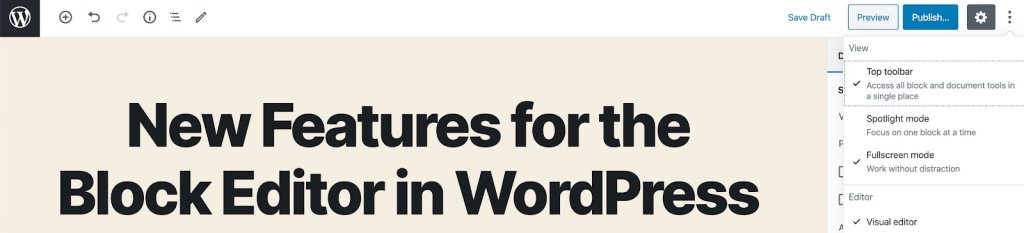
Fullscreen Editing 

New WordPress installs now open the block editor in fullscreen mode by default for a distraction-free writing session. The W logo in the left corner is the shortcut to going back to the admin area, Posts list. If you want to switch off the fullscreen mode, click on the three small buttons to the right of your screen and unflag “Fullscreen Mode”. 

Full Screen Editing

Improved navigation and accessibility

It is now clearer to see what block you are using with block breadcrumbs: you will notice them on the very bottom of the screen.

breadcrumbs navigation

With each new release, the block editor becomes more accessible for people that rely on screen readers or keyboard navigation to use WordPress. The tabbing across elements has been improved and your screen reader will tell you if you are un Edit or Navigation mode.

What’s next

WordPress 5.4 has just been released, but the Core team is already working on preparing for the next two planned releases for 2020, 5.5 and 5.6. Josepha Haden, the WordPress.org Executive Director, wrote an update on the status of some upcoming projects and these are some of the features I am most excited about:

  • A block directory, so you can discover blocks and easily install them on your website like you would do for plugins. This is an opportunity to experiment with blocks and think of new ways to organize and show your content.
  • Support for blocks in the Customizer to make it easier to change the appearance of your website. This is another step towards full site editing via blocks. Endless possibilities!
  • A navigation block that will allow you to add a menu inside a post or a page. For example, you could create a “Where to start page” with links to relevant sources that might help your visitor move around easily.

Passing the mic to you

What do you like the most about the new release? What are you excited about in terms of future features. Let us know in the comments!

[subscribe_cta]

Even faster WordPress sites with our Speed Optimizer plugin (formerly SiteGround Optimizer)

Even faster WordPress sites with our SiteGround Optimizer plugin

During the past few years, the SiteGround Optimizer plugin has become an essential part of the SiteGround WordPress hosting product. We’re constantly adding new features and improving existing functionality to make your WordPress sites faster. Now, we would like to tell you more about the most exciting changes we have introduced with the latest versions of our plugin. Read below to find out about the most recent front end and media optimizations in the plugin and how to test your site speed easily through your site backend using our cool integration of the Google PageSpeed test.  

Stop render-blocking JavaScripts from slowing down your site

Very often JavaScripts in the site header do not allow the rendering of the rest of your web page until they are fully loaded. With our new feature you can defer render-blocking JS and load the rest of the page without waiting. Thus, your visitors will see a fully loaded page faster. We are aware that some scripts should always remain render-blocking. For example, like in the case of the jQuery script, there might be other scripts that rely on them. To accommodate such scripts, we’ve created an easy-to-use functionality to exclude specific scripts from being deferred. You can find and manage this new option in the Front End tab of the SiteGround Optimizer plugin.

Stop render-blocking JavaScripts from slowing down your site

Avoid unnecessary video loading with our new lazy load options

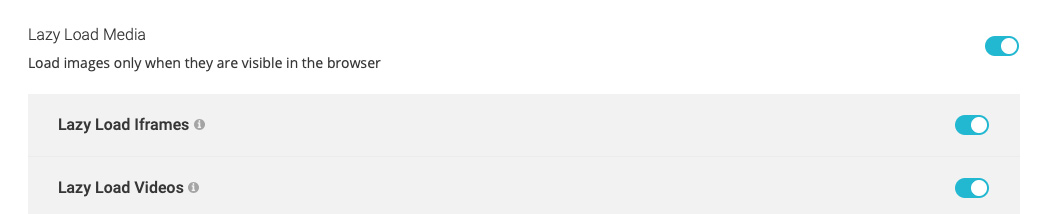
Lazy load of images has been available in the SiteGround Optimizer for quite some time. When enabled, it stops images from loading until they are scrolled to in the browser. Thus the first visible part of your page is loaded faster without waiting for images, that may never be reached by the visitor, to load at the background. Now you can use lazy load for iframes (YouTube, Vimeo & other embeds) and directly imported videos too. Another new feature allows you to select whether you want to lazy load your site on mobile devices or not.

Avoid unnecessary video loading with our new lazy load options

Use the latest and fastest web image format – WebP

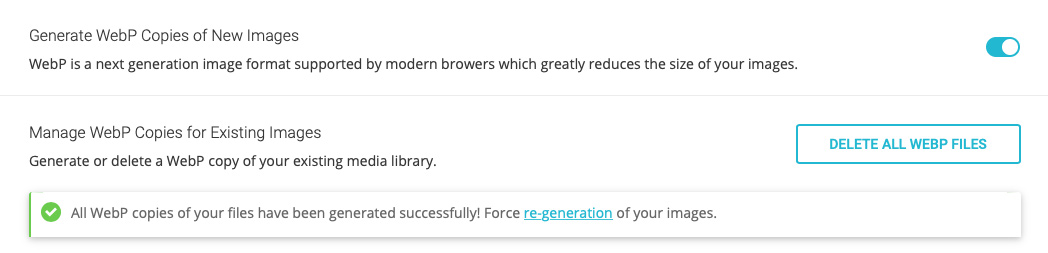
WebP is the newest, extremely exciting image format that has a great potential to optimize loading speed of all images on the web. This format may decrease the size of your images between 25% and 35%. The SiteGround Optimizer now allows you to create webP versions of all the images from your WordPress site with a click. Once you do that, we will load these smaller and faster images for browsers that support this format.

Use the latest and fastest web image format - WebP

IMPORTANT: WebP support is available for websites hosted at SiteGround using our Site Tools. 

Load Google Fonts without slowing down your website

Using multiple fonts, weights and languages from an outside source like Google can easily add up a lot to the number of site requests and slow it down if those requests are done in a render-blocking way. To tackle this, we’ve developed a mechanism to catch loaded fonts, parse them and load them in-line asynchronously. This method proved to be the fastest way to handle Google fonts, the most commonly used font sets online. Once they get cached by your browser, the effect they have on your page speed is reduced to zero.

Load Google Fonts without slowing down your website

Test your site speed with Google Pagespeed 

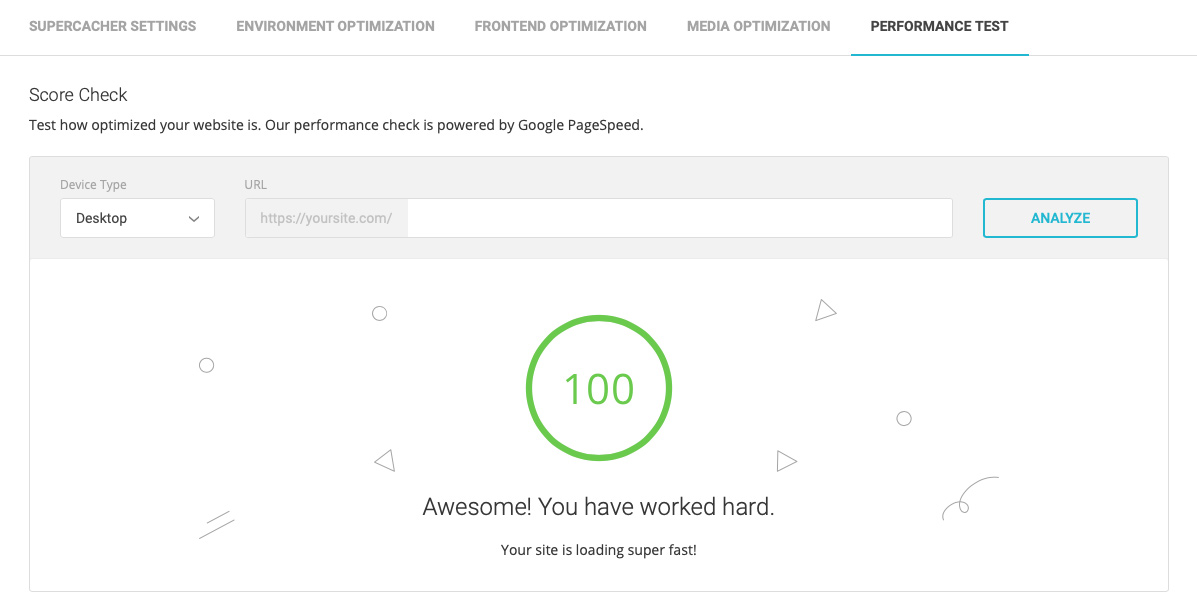
Another great functionality we’ve added to the plugin is the ability to test your site speed using the Google Pagespeed test right from the SiteGround Optimizer interface. Not only that, but we’ve linked each performance recommendation to a specific functionality in the plugin to guide you how to better optimize your site and achieve top performance!

Test your site speed with Google Pagespeed

Although we believe that the plugin now is the best optimization solution for every WordPress site on a SiteGround server, there are still things that we want to implement and will introduce with upcoming updates. Our roadmap is full of awesome new ideas that will soon become available to you. So keep an eye on our blog and the SiteGround Optimizer change log!

[subscribe_cta]

Moving to Google Cloud

We are excited to announce that we have started using the Google Cloud platform to host part of our infrastructure.  We are constantly researching possible new data center options so that we can offer the newest technologies and the highest level of speed and reliability at convenient geographical locations to our clients. During the last year, we have explored services provided by the biggest cloud providers to evaluate who could meet our needs best and the Google Cloud platform stood out. The first Google Cloud locations, which we already use, are in Iowa, USA; Eemshaven, Netherlands; London, UK; and Singapore. All of our new customers get activated in these locations and we have started to move some of the existing US and European customers too.  

Continue reading “Moving to Google Cloud”