
WordPress 7.1 features and compatibility: what to test before updating

A promotional digital graphic for WordPress 7.1 set against a dark blue, cloudy night sky. On the left side, bold white text reads "7.1" next to a dark square icon displaying circular update arrows above the word "WordPress". On the right, an open laptop rests on a rugged stone cliff edge, displaying the WordPress administration dashboard on its screen.

WordPress 7.1 is the second major WordPress release of 2026, scheduled for August 19. It builds on version 7.0 with native responsive styling, a rebuilt client-side media processing, richer Notes, and two new blocks. WordPress 7.1 refines existing systems rather than laying new foundations, which makes it a lower-risk update than 7.0 for most sites.

Key takeaways:

  • WordPress 7.1 is scheduled for August 19, 2026. The date is marked “tentative,” so it could still move if a last-minute problem turns up.
  • The Classic block is staying. If you write posts using the older, simpler editor, nothing changes. A plan to hide it from the block inserter was reversed on July 7, 2026.
  • WordPress 7.1 adds easier responsive design controls. You can now style how your site looks on phones and tablets, and how buttons react when someone points at them, without touching any code.
  • Faster image uploads through WordPress 7.1 client-side media processing. Photos are prepared inside your visitor’s web browser instead of on your server, which lightens the load on your site.
  • A few talked-about WordPress 7.1 roadmap features did not make it. Real-time co-editing, a big behind-the-scenes code upgrade, and two smaller items were pushed to a later release.
  • Most sites can update with little to worry about. The only real risk is for sites with custom-built features or old plugins, and this guide shows you how to spot them.

When is WordPress 7.1 released, and is it safe to update yet?

WordPress 7.1 is scheduled for release on August 19, 2026, the final day of WordCamp US, WordPress’s big annual conference, held this year in Phoenix. Right now the release is in its last testing stage, called the Release Candidate phase, which started on August 5. At this stage, the features are locked, so nothing new will be added between now and release day.

The date is still marked tentative on the official release roadmap, and WordPress has moved a big release before: version 7.0 was pushed back from its original April date. So plan for August 19, but don’t build a product launch or a client deadline around it being set in stone.

Should you install the WordPress 7.1 update the moment it arrives? Not on your live site. The safe approach for any major WordPress update is always the same: make a copy of your site, apply the update to the copy, and check that everything still works before you touch the real thing. That copy is called a staging site, and we’ll cover how to make one later. First, take a full backup so you have a saved version to restore if something goes wrong. For a simple site, this is a five-minute check. For a site with lots of plugins or a custom design, it’s the difference between a calm update and a stressful one.

If your site is hosted on SiteGround, major WordPress releases install automatically 24 hours after they come out, and a full backup of your site is taken right before that happens. You can change the timing, delay it further, or skip a release from Site Tools > WordPress > Autoupdate.

Pro tip: Check your plugins before you even build a staging site. Every plugin in the official WordPress directory has a “Tested up to” line on its page, showing the newest WordPress version its developer has checked it against. Open the pages for your most important plugins. Any plugin that hasn’t been updated in over a year, or that only lists compatibility up to 7.0, is your first suspect if something breaks. You can also simply ask the AI Agent for WordPress to list your active plugins and review their WordPress 7.1 compatibility and update status for you.

What’s new in WordPress 7.1, and what is expanded from WordPress 7.0?

WordPress 7.1 is a polishing release rather than a reinvention. The two biggest items, responsive styling and client-side media processing, aren’t brand new: they started in WordPress 7.0 and are being expanded here. The things that are genuinely new in 7.1 are the interactive design controls, two new content blocks, a new way to add icons, and a behind-the-scenes change to how the editor loads. Here is what each one means for you.

Responsive styling in WordPress 7.1 without custom CSS

CSS is the code that controls how your site looks: fonts, colors, spacing, and how things rearrange on smaller screens. Traditionally, changing those details meant writing CSS or paying someone who could. WordPress 7.1 moves a lot of that into simple on-screen controls.

“Responsive” styling means controlling how your site looks on different screen sizes: a wide desktop monitor, a tablet, or a phone. WordPress 7.0 let you show or hide parts of a page depending on the screen. WordPress 7.1 goes further and lets you set different styles for each screen size, and for the first time it lets you style interactive states without code. An interactive state is simply how something looks when a visitor points at it, clicks into it, or presses it, such as a button changing color when you hover over it.

These interactive controls arrived for a limited set of blocks first rather than every block at once, so check the specific pieces of your design that depend on them. Site designers also get adjustable “breakpoints,” the screen widths where your layout switches from the desktop version to the tablet or phone version.

Here is where these controls appear: After you update, open any page in the editor and select a block, like a button or a heading. In the settings panel on the right, look for the small device icons: a desktop, a tablet, and a phone. Clicking those lets you set styles for each screen size, and the hover and click styles live in the same panel under that block’s styling options. If you’ve ever paid a developer to write “mobile CSS” for you, this is the feature that may save you that bill next time.
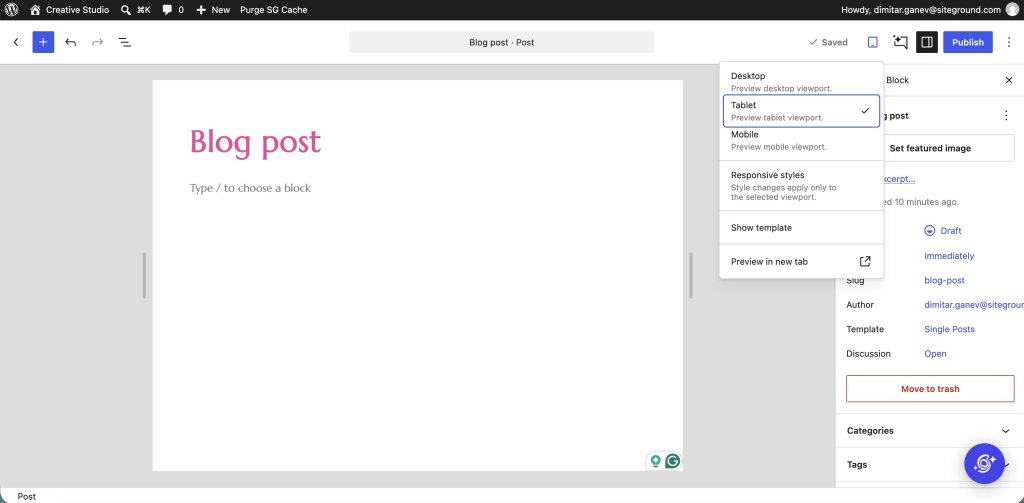
A screenshot of the WordPress block editor while editing a new article titled "Blog post." An open device preview dropdown menu near the top right highlights the "Tablet" viewport selection, listing additional choices for Desktop, Mobile, Responsive styles, Show template, and Preview in new tab. On the right, the post settings sidebar displays metadata including draft status, slug details, author information, template options, and a red "Move to trash" button.

How WordPress 7.1 client-side media processing works

When you upload a photo to WordPress, it normally gets resized and compressed on the server where your website lives. “Client-side” media processing moves that work into the web browser of the person uploading, so it happens on their own computer before the image is even sent to your site. The payoff is less strain on your server and support for more modern image formats. WordPress 7.0 introduced this for basic resizing; 7.1 makes it the main way images are handled.

It works on Chrome and other Chrome-based browsers, and browsers that can’t do it, like Firefox and Safari, fall back to the old server-side method automatically, with no loss of quality. Nothing breaks for those visitors. The only people who need to test this carefully are those running plugins that do something special with images on upload.

If image credits or copyright info matter to you, test one upload. Photos often carry hidden data called metadata: the photographer’s name, copyright, or where a shot was taken. Because image handling now happens in the browser, it’s worth uploading one test image after you update and checking that this hidden information is still attached the way you expect. Photographers, stock-image users, and anyone with licensing rules will care about this.

Notes, the media editor, and the new blocks

WordPress 7.1 adds two new blocks and improves a collaboration tool called Notes.

Notes are comments you can leave on a page while editing, handy when more than one person works on your content. In 7.1, you can tag a specific person with the @ symbol so they get pulled in, attach a note to an exact sentence rather than a whole section, run several separate discussion threads, and format your comments. There’s also a suggestion mode and emoji reactions. If you’re the only person who edits your site, you may never touch this. If you work with a team or a client, it’s the change you’ll feel most.
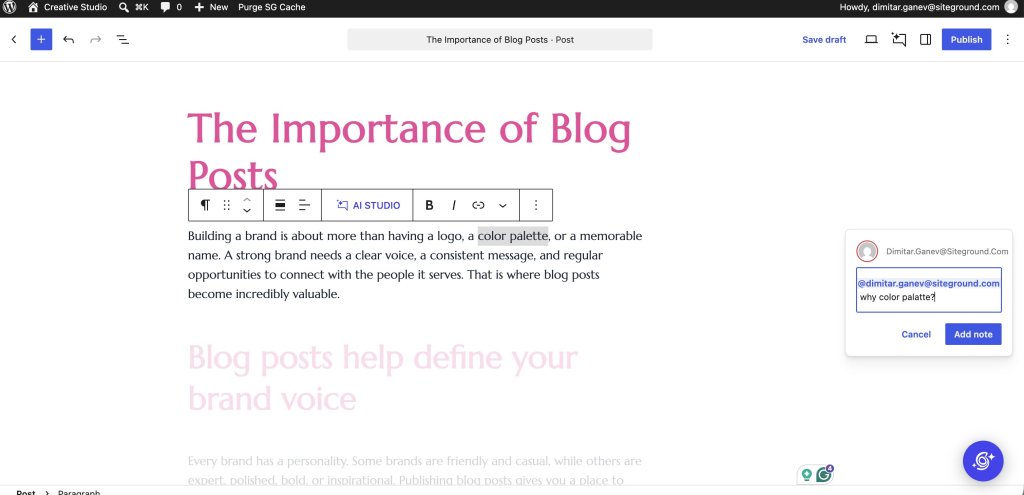
A screenshot of the WordPress block editor while editing an article titled "The Importance of Blog Posts." A phrase in the body text, "color palette," is highlighted, opening a feedback note box on the right where a user enters the comment "@dimitar.ganev@siteground.com why color palatte?" above an "Add note" button. Above the selected paragraph, the active block toolbar features an "AI STUDIO" button alongside standard text formatting tools.

The first new block is Playlist, which gives you an audio player with a visual sound-wave display. If you publish podcasts, music, or audio versions of your posts, it replaces a job that used to need a separate plugin.

The second is Tabs, which lets you organize content into clickable tabs, so you can put something like FAQs, specs, and reviews behind separate tabs on one page without any extra tools.
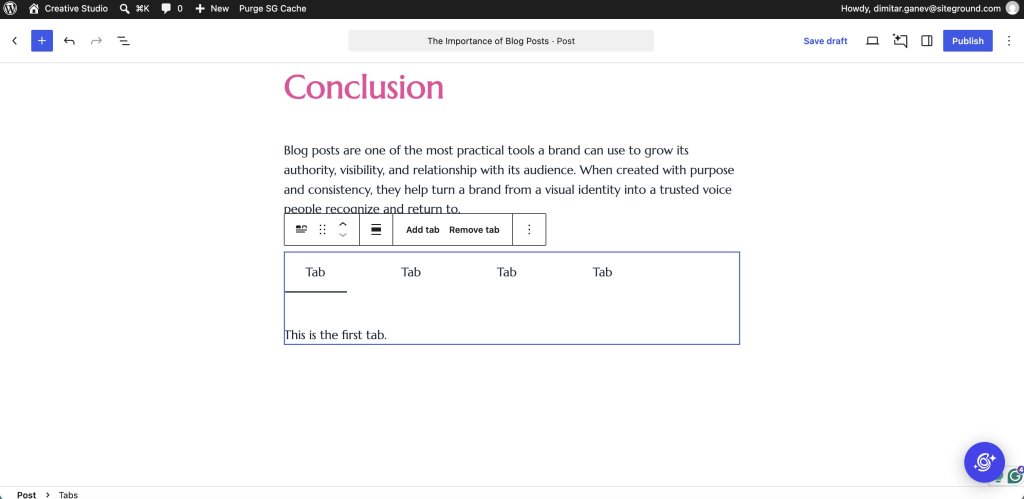
A screenshot of the WordPress block editor displaying the "Conclusion" section of an article titled "The Importance of Blog Posts." Below a paragraph about brand authority, an active Tabs block is selected with a blue bounding box. The toolbar above the block provides options to "Add tab" and "Remove tab." The block contains four tab headers labeled "Tab," with the active first tab displaying the text "This is the first tab."

There’s also an improved image editor built right into the page editor. Clicking the Crop button on an image now opens a dedicated editing window over your page, replacing the older tool that worked inline. Inside it you can crop by dragging to any shape you like or snap to a preset such as square or widescreen, rotate in small steps with guides that help you straighten a crooked photo, flip the image, and edit its details, all in one place. Close the window, and you’re back on your page where you left off. The goal was to stop basic fixes from needing a separate photo app.
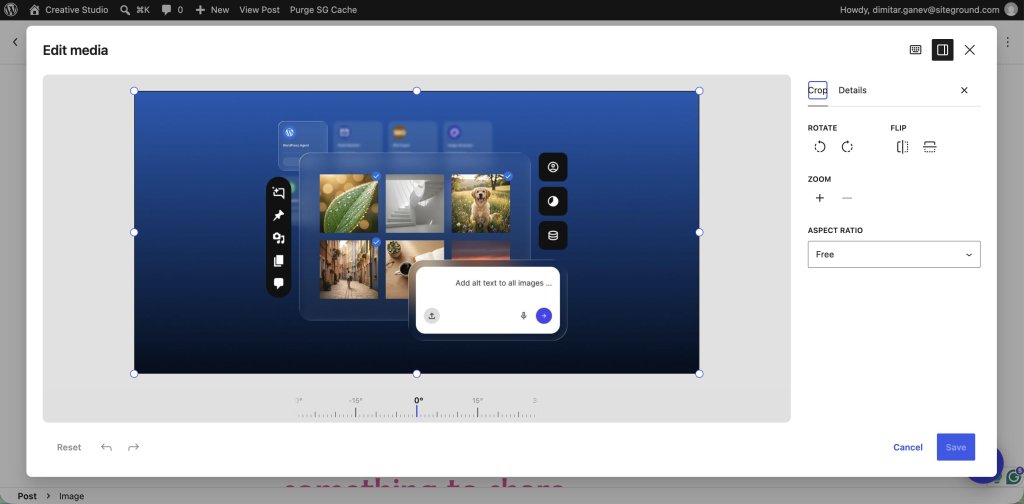
A screenshot of the WordPress "Edit media" modal overlay displaying image cropping and editing controls. In the main canvas, a blue image is surrounded by interactive blue cropping handles and a bottom rotation angle slider. The right sidebar includes controls under the "Crop" tab for "ROTATE," "FLIP," "ZOOM," and an "ASPECT RATIO" dropdown set to "Free," with "Cancel" and "Save" buttons in the bottom right corner.

WordPress 7.1 also gives your site’s branding a home of its own. A new Identity screen, at Appearance > Editor > Identity, brings your site title, tagline, logo, and favicon (the small icon in a browser tab) together in one place, with editing right there on the screen. These settings used to be scattered, so this is a small change that saves a lot of hunting.
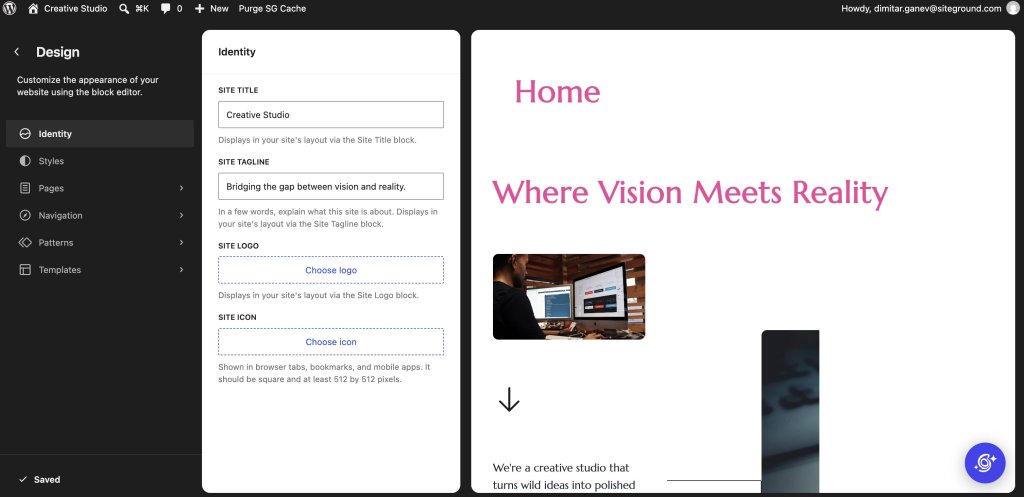
A screenshot of the WordPress Site Editor displaying the site Identity customization panel alongside a live website preview. The center panel shows input fields for SITE TITLE set to "Creative Studio" and SITE TAGLINE set to "Bridging the gap between vision and reality.", along with buttons to select a site logo and site icon. The right panel displays the live homepage preview featuring the pink heading "Where Vision Meets Reality" and an image of a designer working at dual monitors.

What is not in WordPress 7.1

There is a lot of outdated coverage, so if you came across it, let’s reassure you first: WordPress 7.1 does not remove the Classic block. The Classic block is the older, simpler way of writing posts that works like a basic word processor, and many long-running sites still rely on it. What was actually proposed was narrower: hiding it from the block inserter so it would not appear when you add a new block, while every existing Classic block kept working. Even that was reversed on July 7, 2026. Nothing changes.

Here’s what else people are asking about that is not in this release:

  • Real-time co-editing didn’t make it. Having two people edit the same page at the same time, the way Google Docs works, is still not ready. It’s on the wish list but has open questions, and the team put its effort into the improved Notes instead.
  • A big code upgrade was delayed. WordPress’s editor is built on a piece of software called React. An upgrade to the newest version, React 19, was expected but got pushed back. It’s available only as an experimental option for developers to try, not switched on by default. Most site owners will never notice this either way.
  • A house style tool for AI did not make it into core. Guidelines lets you write your editorial rules once, things like tone, preferred wording, and words to avoid, so WordPress can remember them instead of you repeating them to an AI tool every time. It has been available as a Gutenberg plugin experiment since March, but the proposal to build it into WordPress itself was declined in July, five days before the first beta, because it needs more real-world use first. You can try it, but it is not part of 7.1.
  • Two smaller features were pulled: support for email addresses that use non-English characters, and a “Table of Contents” block. Both were moved to a later release.

What about the AI features?

Worth clearing this up, since 7.1 was widely billed as an AI release. The AI you can actually see and use arrived in WordPress 7.0: the AI Client, which gives plugins one standard way to talk to services like ChatGPT or Gemini, and the Connectors screen where you connect a provider and paste in your key. Our guide to how AI works in WordPress 7.0 covers what that means in practice.

What 7.1 works on sits underneath all that, in something called the Abilities API. Think of it as a catalog of what your site can do, written so that software can read it: create a post, update a product, change a setting. It has been building over the last few releases, and it matters because an AI tool connected to your site is guessing until it can look up what actually exists there.

The 7.1 changes make that catalog easier and safer to work with. Tools can search it rather than read the whole thing. Entries can be marked as open to outside tools or kept private. The catalog describes itself in a standard format, so software can understand it without custom code. And there are checkpoints that run whenever an entry is used, which is where permissions and logging get attached. None of that is a button you press, but it decides how safely AI tools can work on your site later.

Two more additions work the same way. The AI code library bundled inside WordPress can now stream responses as they are generated, rather than waiting for a whole answer, and create embeddings, which is the technology behind search that understands meaning rather than matching exact words. Both are there for plugin developers to build on, and nothing in the editor uses them yet.

There is one change you might actually see. The Connectors screen now accepts a username and application password as well as an API key, which is a more familiar way to connect a service and means one less provider key to look after. WordPress also closed a gap where browsers could offer to autofill your saved passwords into the API key field. Beyond that, the parts of 7.1 you will click are about design, media, and teamwork.

WordPress 7.1 compatibility: what to test before upgrading

Here’s a table showing every change, who it affects, and what, if anything, you should check:

WordPress 7.1 changeNew or inheritedWho it affectsWhat to testStatus
Responsive and interactive styling (per screen size; hover and click states; no code)Expanded from 7.0Designers, theme authors, agenciesHow the site looks on phone and tablet, and whether hover and click styles behaveConfirmed
Client-side media processingExpanded from 7.0Image-heavy sites, image plugins, hostsCustom image sizes, format conversion, and any image-upload pluginConfirmed
Editor now loads in a sealed frame (block themes)NewSites with custom-built blocksCustom blocks (need Block API v3), editor styling, add-on panelsConfirmed
Built-in image editor (crop, rotate, edit info)New Content and editorial teamsCropping, rotating, and editing image details in the editorConfirmed
Better Notes (@mentions, notes on specific text, threads, formatting)Imroved
Editorial and content teams
Mentions, threads, and comment permissionsConfirmed
Playlist and Tabs blocksNew Anyone using plugins for these todayThe audio player and the tabbed panelsConfirmed
Toolbar and color scheme that stay put across editorsImprovedAll editor usersToolbar and color scheme carrying into the Site EditorConfirmed
New way to add custom icon setsNewTheme and plugin developerswp_register_icon_collection(), icon file safety checksConfirmed
React 19 upgrade (editor’s underlying software)DeferredDevelopers onlyExperimental option only. Don’t rely on itExperimental only
Real-time co-editingNot confirmedTeamsNothing. Don’t plan production useRoadmap only
Hiding the Classic block from the inserterReversedClassic-block usersNothing. It stays in the inserterNot happening
Table of Contents block; non-English email addressesDeferred / pulledn/aNeither ships in 7.1Not in 7.1

If you run a standard WordPress site (most people)

If your site runs on WordPress’s standard blocks and a regularly-updated theme (the design template that controls your site’s look), WordPress 7.1 is a low-risk update. The changes you’ll actually notice are the friendly ones: the better Notes, the new crop-and-rotate image tool, and the Tabs and Playlist blocks. Update a staging copy, run through your normal routine of writing and publishing a post, and check that any plugin you use for tabs or audio still plays nicely with the new built-in blocks.

If you design WordPress sites for others

If you build or heavily customize sites, test the new design controls against your existing work first. The adjustable breakpoints are a real improvement, but they can also change how your carefully-tuned mobile layouts appear. Open your main page templates and view them at desktop, tablet, and phone widths, confirm your buttons still look right when hovered or clicked, and compare the result against what you had before.

If your WordPress site has custom blocks or features

This is the section to forward to your developer if you have one, or to read slowly if you’ve had custom features built for your site. Two changes carry the main WordPress 7.1 compatibility risk of something breaking, and almost no other article mentions them.

The first is a change to how the editing screen loads. For modern “block” themes, the editor now loads inside a sealed frame, a bit like a window within a window (developers call this an “iframe”). Custom-built blocks made with an older set of building rules, known as Block API version 2, need updating to the newer version 3, or they may look broken after the update. This is the most common cause of an editor that suddenly looks wrong.

The second involves plugins that do something when you upload an image: resizing it a special way, adding a watermark, or creating custom sizes. Because image handling moved into the browser, the technical connection points those plugins rely on (developers call them “hooks”) may not fire the way they used to. Any plugin that touches image uploads needs a test upload after updating. This is the single most likely thing to trip up a customized site, and the easiest to miss, because it only shows up when someone actually uploads a file. One extra note for developers: the new Tabs block’s internal data store was removed during final clean-up, so don’t build anything against it yet.

Not sure whether the “block theme” changes even apply to you? Here’s a 10-second check. In your WordPress dashboard, open the “Appearance” menu. If you see an “Editor” option there (sometimes called the Site Editor), you’re using a block theme, and the editor-loading change applies to you. If you only see “Customize” and no “Editor,” you’re on a classic theme and can skip that particular worry entirely. This one check tells you whether half of this section is even relevant to your site.

How to test WordPress 7.1 safely

The golden rule before the WordPress 7.1 update: test on a staging site, never on your live one. A staging site is a private copy of your site where you can try updates, break things, and fix them, without any visitor ever seeing it.

On SiteGround, you can create a staging copy from your Site Tools dashboard, run the update there, and publish it to your live site only once you’re happy.

To get the pre-release version of WordPress 7.1 onto that copy, the simplest route is a free plugin called WordPress Beta Tester. Install it, choose the “Bleeding edge” option, and it will offer you the latest test build. If you just want a quick look at the new features without touching your own site at all, WordPress Playground runs a temporary, throwaway WordPress site right in your browser tab, with nothing to install and nothing you can break. Use Playground for a tour, and a real staging copy for a proper compatibility check before you update for real.

Conclusion

For most people, WordPress 7.1 is a safe and worthwhile update, and if you build or design WordPress sites, it’s a genuinely nice one: the new design controls take a real chunk of code out of everyday work. The only real caution is narrow. If your site has custom-built features, or plugins that handle images in a special way, test those on a staging copy before you update. For everyone else, a quick check that your site still works is enough.

The safe path is the one that has always worked: back up your site, test on a copy, then update for real. If managing all that yourself sounds like more than you signed up for, WordPress hosting with one-click staging and automatic updates that can roll back if anything goes wrong takes the pressure off update day, so you can try WordPress 7.1 properly and go live only when you’re ready.

FAQs

When is WordPress 7.1 released?

WordPress 7.1 is scheduled for release on August 19, 2026, the final day of WordCamp US in Phoenix. The date is marked tentative on the official schedule, so it could shift if a release candidate uncovers a serious bug.

Should I update to WordPress 7.1 as soon as it is released?

You should not update your live site to WordPress 7.1 on release day. Test on a staging copy first, especially if you run custom-built blocks, a heavily customized theme, or plugins that process image uploads, and update the live site once that testing is clean. If your site is hosted on SiteGround, decide this before release day rather than after. By default, SiteGround’s WordPress Autoupdate tool installs major releases 24 hours after they come out, and it takes a full backup of your site immediately before the update runs. You can lengthen the delay, skip the release, or update sooner from Site Tools > WordPress > Autoupdate.

Will WordPress 7.1 break my plugins and themes?

WordPress 7.1 will not break most sites built on standard blocks and an up-to-date theme. The real risk is for custom-built blocks made with the older Block API version 2, which need updating to version 3, and for plugins that handle image uploads, because browser-based image processing changes when some of their connection points run.

Does WordPress 7.1 remove the Classic block?

No. WordPress 7.1 does not remove the Classic block, and removal was never proposed. A narrower plan to hide it from the block inserter was reversed on July 7, 2026, so the Classic block remains available and works as before.

Does WordPress 7.1 include real-time collaboration or React 19?

No, not as finished features. Real-time collaboration remains on the roadmap with open questions, and the React 19 upgrade was delayed, returning only as an experimental option for developers. The improved Notes received the collaboration work for this release.

How does WordPress 7.1 process images in the browser?

WordPress 7.1 client-side media processing prepares images inside the visitor’s web browser on Chrome-based browsers, handling compression, resizing, and format conversion before upload. Browsers without support fall back to the older server-based method automatically, so nothing breaks.
5 WordPress pain points small businesses can solve faster with AI

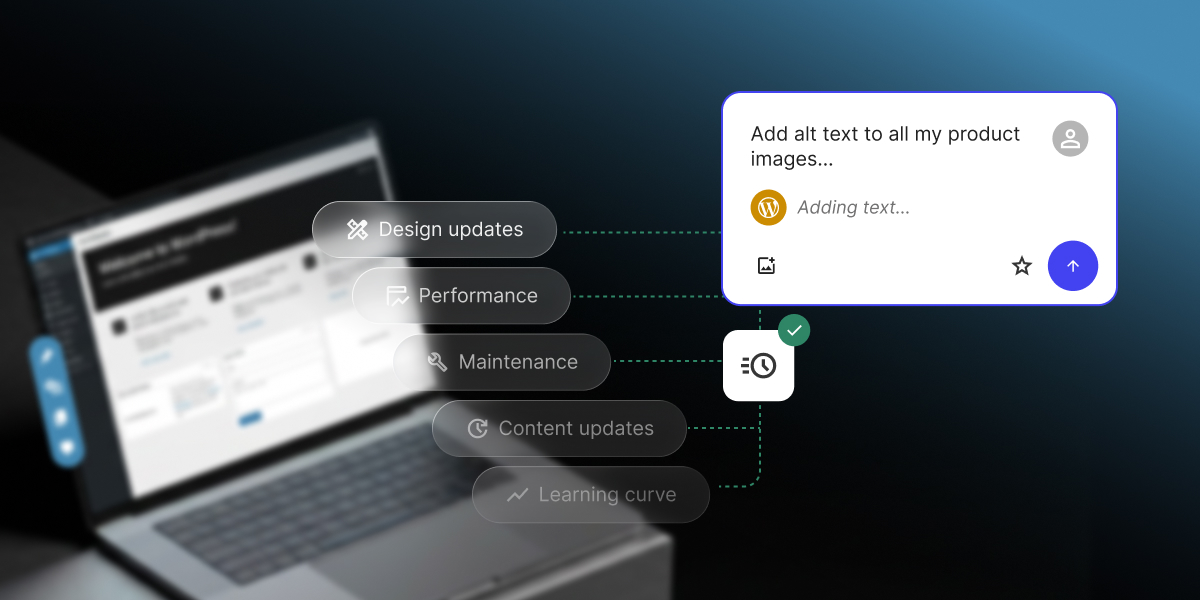
A digital graphic highlighting AI automation for common WordPress challenges against a dark blue gradient backdrop. On the left, an open laptop displays a blurred WordPress administrative dashboard alongside five translucent pill-shaped tags connected by green dotted lines: "Design updates", "Performance", "Maintenance", "Content updates", and "Learning curve". On the right, a white floating chat card captures a user prompt, "Add alt text to all my product images..." alongside a WordPress AI status reading "Adding text..." above a small speed icon marked with a green checkmark badge.

If keeping your WordPress site running has ever felt like more work than it should be, you’re in good company. Our 2026 report on AI in WordPress for small businesses found that most small business owners running their own sites hit the same walls: design and site updates, performance optimization, technical maintenance, content updates, and the steep learning curve of how the platform actually works.

This guide walks through the WordPress pain points that cost small businesses the most time, and how you can easily address them with a new kind of AI solution: an AI Agent for WordPress that connects directly to your site and executes real changes.

What are the most common WordPress pain points?

The most common WordPress pain points for small businesses are recurring WordPress site management challenges: design and site updates, performance optimization, technical maintenance, content updates, and the platform’s learning curve. They consume time because owners often manage the site themselves while running the rest of the business and trying to, you know, live their lives.

In our new research, which included a survey of more than 7,000 small businesses, managing design and performance optimization came out on top (respondents could pick more than one pain point, so the shares below add up to more than 100%):

WordPress pain pointShare of small business owners
Managing design and site updates33.5%
Performance optimization33.1%
Technical maintenance29.5%
Managing content updates28%
Steep learning curve20.5%

But here’s what most users don’t know: you can now handle all these pain points quite easily with the help of specialized AI for WordPress site management.

And we’re not talking about a chatbot that can tell you where to click in the dashboard or a plugin that can spit out a blog post. We’re talking about an AI Agent for WordPress that connects directly to your site and executes real changes: not just suggestions or generated text, but actual site management. It transforms tasks that typically take hours of manual WordPress admin work into minutes of simple chat with AI, freeing you to focus on growth and productivity.

Let’s see how you can manage the most common WordPress pain points with the help of SiteGround’s AI Agent for WordPress.

1. Managing design and site updates (33.5%)

Managing design and site updates tops the list as the biggest pain point for small business owners, and the reason is that almost nothing about it is as quick and easy as it sounds. Swapping a hero image, nudging the spacing between two sections, or changing how your menu behaves on a phone can send you deep into settings panels and half-matching tutorials, and it’s common to lose an afternoon (or a weekend) to a single change that never quite works.

And the moment your site grows past a page or two, you’re adding pages, arranging them into parent and child sections, and building the navigation menus that tie it all together so visitors can actually find their way around. Done by hand, that can be hours of repetitive clicking through the same screens, and one wrong setting can leave you with broken links or a website menu that makes no sense.

How AI can simplify WordPress design and site structure updates

This is where the AI Agent for WordPress earns its keep, because it handles the whole job in a chat, not just the fiddly bits:

  • Set up or switch a theme. Ask it to search the WordPress repository, install and activate the theme you pick, or update and remove old ones, so managing the look of your site becomes a sentence instead of a trip through the Appearance menu.
  • Sort out your images. Have it pull up your media library, upload the new photos you want live, and clear out the old or oversized files that clutter your site and slow it down.
  • Structure at scale. Ask it to draft and publish a new landing page, edit one that exists, or remove a page you’ve outgrown, and it can even take a full page structure and create the pages for you in one go.

A full site structure in 40 minutes instead of 8 hours? One early adopter of the AI Agent for WordPress needed a multi-level site with more than 20 pages and three navigation systems, which is close to 8 hours of work by hand. The AI Agent did it in 40 minutes. Download our 2026 report on AI in WordPress for small businesses to see how they did it, along with more real-world results.

2. WordPress performance optimization (33.1%)

Performance optimization is a close second WordPress pain point at 33.1%, and for most small business owners, the trouble starts before any fixing: you can’t easily tell whether your site is as fast as it should be. And if you do sense it’s slow, the causes are the kind of thing you’d need to be fairly technical to chase down: oversized images, a plugin loading on every page, or caching that was never set up. So it lands in the “I should look into that” pile, while a slow site can cost you visitors and search rankings.

How AI can help diagnose WordPress performance problems

You can just ask the AI Agent for WordPress something very simple like “Is my website running as fast as it should?” And because the Agent is directly connected to your site, it goes and checks, then tells you what it found.

But instead of just giving you a diagnostic report and making you do the work, it acts as your hands-on technical administrator. You can use simple natural language commands to execute performance-enhancing updates directly in the chat:

  • Clear your caches instantly: You can simply instruct the Agent to clear your site’s cache, and it will automatically flush it to ensure your pages load quickly.
  • Update outdated software: Old core files, plugins, and themes can drag down speed and pose security risks. You can command the Agent to check your site health and instantly update your WordPress core, themes, and plugins to their latest, most optimized versions.
  • Remove site bloat: Unused software takes up valuable server resources. You can ask the agent to list all installed plugins and themes, and then instruct it to permanently delete the inactive ones.
  • Clean up the media library: To save storage space, you can have the agent retrieve your media library files and instruct it to delete specific old or unused images.

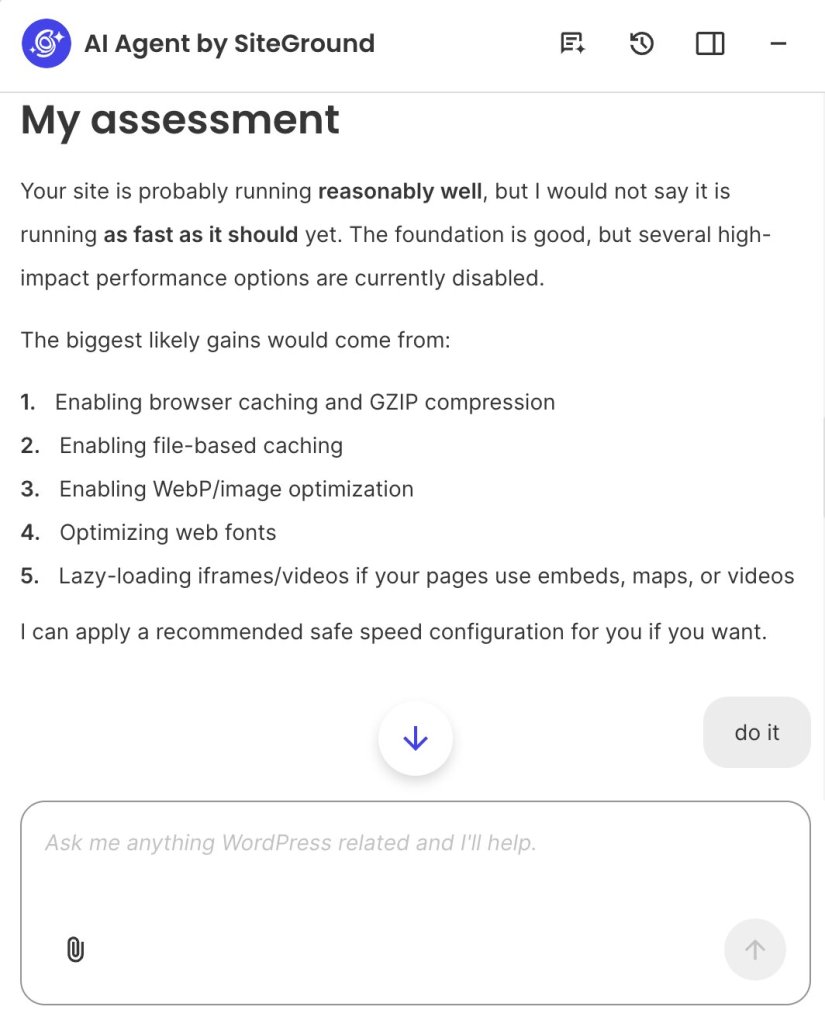
By the way, you don’t need to give the Agent elaborate instructions or even know what cache is. After asking simply “Is my website running as fast as it should?”, the AI Agent recommends what to change in order of impact, and then it offers to make those changes for you:

A screenshot of the AI Agent by SiteGround chat interface presenting a performance evaluation titled "My assessment." The response notes that while the site foundation is good, several performance options are disabled, listing five optimization suggestions:

Enabling browser caching and GZIP compression

Enabling file-based caching

Enabling WebP/image optimization

Optimizing web fonts

Lazy-loading iframes/videos

Below the recommendations is a gray action button reading "do it," situated above a text input field with the placeholder "Ask me anything WordPress related and I'll help."

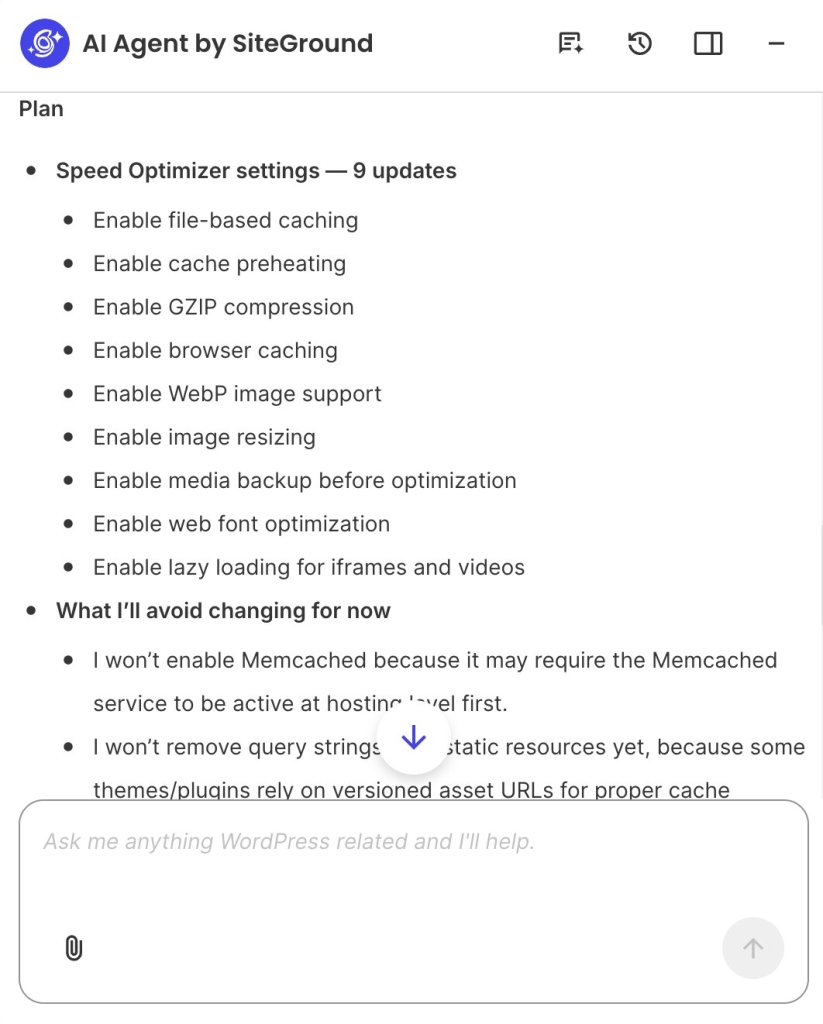
Tell the AI Agent to go ahead, and it first shows you a plan: the exact settings it intends to switch on, alongside a short note on what it’s choosing to leave alone for now and why, such as holding off on options that could depend on your hosting setup or break how certain themes behave. Then it asks whether you’re happy with that set before it applies anything. 

A screenshot of the AI Agent by SiteGround interface outlining an optimization strategy titled "Plan." The screen displays two main sections:

Speed Optimizer settings — 9 updates: Bulleted list of planned actions, including enabling file-based caching, cache preheating, GZIP compression, browser caching, WebP image support, image resizing, media backup, web font optimization, and lazy loading for iframes and videos.

What I’ll avoid changing for now: Detailed list explaining why Memcached and query string removal for static resources are currently skipped to avoid hosting or compatibility issues.

At the bottom, a blue down-arrow scroll button hovers over the text above a prompt input bar reading "Ask me anything WordPress related and I'll help."

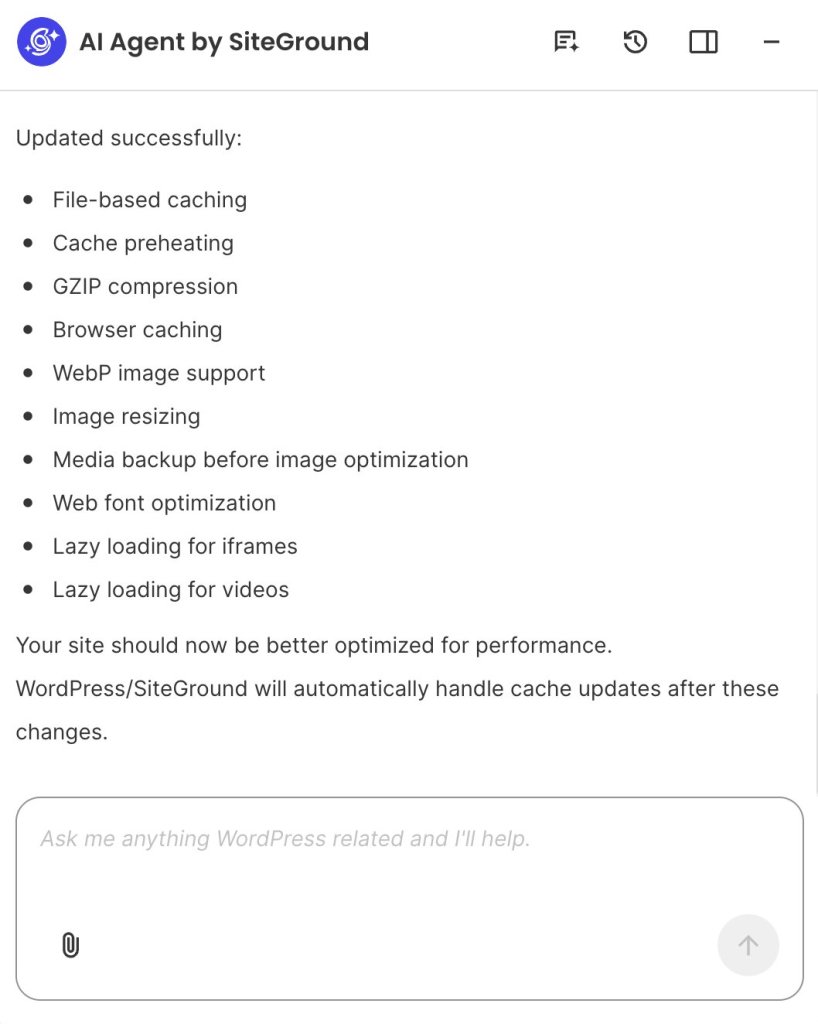
Give it the go-ahead, and it makes the changes, then reports back on what it did. So what started as a question you couldn’t answer, “is my site running as fast as it should?”, ends a few messages later with a faster site and a record of what changed, and you never had to open a settings panel.

A screenshot of the AI Agent by SiteGround interface displaying a confirmation message titled "Updated successfully:" listing ten applied performance optimizations:

File-based caching

Cache preheating

GZIP compression

Browser caching

WebP image support

Image resizing

Media backup before image optimization

Web font optimization

Lazy loading for iframes

Lazy loading for videos

Below the list, text notes "Your site should now be better optimized for performance" and explains that cache updates will be handled automatically by WordPress/SiteGround. At the bottom sits a prompt input bar with the placeholder "Ask me anything WordPress related and I'll help."

3. Technical maintenance (29.5%)

Technical maintenance is a pain point for 29.5% of small business owners, and since most of them aren’t developers, it’s a similar issue to performance optimization: you’re not sure what actually matters, and you’re nervous about doing it. WordPress flags some of it: for instance, there’s an update badge in your dashboard counting the plugins and core files that are behind. But a number on a menu doesn’t tell you whether an update is an urgent security fix or a trivial tweak, what might break if you run it, or what to do first.

It also doesn’t help that outdated core software (the base software that runs your site) and plugins are the most common way small WordPress sites get hacked, so the delay carries a real cost.

How AI can reduce recurring WordPress maintenance work

The AI Agent for WordPress works like a site administrator you can talk to, keeping the WordPress maintenance tasks that pile up under control. It does the essential upkeep without you opening a settings screen:

  • Run your updates. Ask it to update your WordPress core and language files along with your plugins and themes, so the security patches you keep putting off actually get applied.
  • Manage plugins and themes end to end. Have it install and activate something new, update what you already run, or list everything installed so you can audit it and permanently delete what you no longer need.
  • Change core settings without menu-hunting. Just tell it the setting you want changed, like your site title, timezone, or address, and it updates it, no digging through the Settings screens.
  • Tidy up who has access. Ask it to list your user accounts so you can spot the old freelancer or former employee who still has a login, then have it change roles or remove the accounts that shouldn’t be there.

Pro tip: See our guide to 25 WordPress AI Agent prompts you can copy and adapt for ready-made prompts covering technical maintenance and other jobs that are slow to do by hand.

4. Managing content updates (28%)

Even now, when anyone can generate a blog post in seconds with AI, content updates still weigh on 28% of small business owners. That’s because publishing a single post in WordPress means drafting it, then formatting it block by block, sorting it into the right categories, adding tags, writing the metadata, uploading images, and adding alt text so it’s accessible and searchable. Try to publish regularly, keep a content calendar moving, go back and refresh old posts so they don’t fall out of date, fix broken links, and update internal links as your site grows, and it becomes a permanent part-time job.

And if you run a WooCommerce store, every product needs its own description, images, and metadata, and then the real grind starts: changing prices across a seasonal sale, updating stock and availability, adding a discount to a whole category, refreshing dozens of descriptions when a line changes, and translating it all if you sell in more than one language. All of it is repetitive, easy to postpone, and slow to catch back up on.

How AI can speed up WordPress content updates

The agent is happy to work at any scale, from one post to a whole WooCommerce catalog, and it makes the change directly rather than just handing you text to paste. You describe what you want, and it does it across the site:

  • Write and publish posts and pages. Ask it to draft a new blog post, publish a landing page, edit copy that’s already live, or clear out old posts, and it can run the same change across many items when you need a batch done.
  • Organize and optimize for search. Tell it to sort content into categories and tags and write the SEO metadata (the title and short description search engines show), so a growing library stays structured and nothing goes out with the gaps that cost you traffic.
  • Handle your comments. Ask it to pull up recent comments and then approve the good ones, hold the questionable, or trash and mark spam, instead of moderating them one by one.
  • Help with your store. Have it create and update WooCommerce products, categories, and coupons, change prices across your catalog, and check or update orders, all from the same chat.

Because it’s connected to your site, it works from real data: when it writes a product description, it’s describing your actual product at your actual price, not guessing from a prompt.

Updating 200 product images in no time. Another early adopter of the AI Agent for WordPress had more than 200 product images that all needed alt text, titles, descriptions, and keywords. Done by hand, that is about 58 hours of work. The AI Agent did it in 4.5. Download our 2026 report on AI in WordPress for small businesses to see how, plus more real results.

5. The steep learning curve (20.5%)

The learning curve is a pain point for 20.5% of the small business owners we surveyed, and it comes down to one thing: WordPress is powerful because it can do almost anything, and that same flexibility can make it hard to use.

Themes, widgets, permalinks, taxonomies, blocks: none of it means much until you have some real experience. Even simple-sounding changes can send you looking for a setting that’s three menus deep, or into a page builder you have to learn first, and anything more ambitious often runs into code.

How conversational AI can reduce the WordPress learning curve

This is the pain a conversational agent like the AI Agent for WordPress was built for, because it lets you skip learning the dashboard altogether:

  • You ask in plain English. Instead of hunting for the right setting, you just describe what you want, and the Agent does it for you.
  • It’s built for non-technical people. It’s made specifically for small business owners, solo founders, freelancers, bloggers, and small teams, so you can get real work done without knowing WordPress internals.
  • Help stays where you work. The agent sits in a chat box in the bottom-right corner of your WordPress admin, on every screen, so you’re never hunting through menus or tabbing out to a tutorial.
  • There’s nothing to figure out to get going. Setup is completely frictionless, making it incredibly easy to connect your site and start chatting, whether you host with SiteGround or somewhere else.

This all makes the AI Agent for WordPress the most practical WordPress site management approach you can pick up, and the shortest path to making the platform less of a headache.

WordPress pain pointHow the AI Agent for WordPress helps
Managing design and site updates (33.5%)Ask it to find, install, or switch a theme, upload images, and build or edit whole pages applied straight to your live site.
Performance optimization (33.1%)Instruct it to execute performance optimizations directly in the chat, such as clearing your caches, updating software, or permanently deleting the specific inactive plugins and old images weighing you down.
Technical maintenance (29.5%)Have it list your installed core files, plugins, themes, and user accounts so you can easily audit them. Then, command it to instantly run updates or remove unused extensions and lingering logins.
Managing content updates (28%)Ask it to draft, publish, or edit posts and pages, write SEO metadata, moderate comments, and manage WooCommerce products, prices, and orders.
Steep learning curve (20.5%)Built for non-technical small business owners, with minimal setup, so you don’t need to know how WordPress works.

What AI can’t (and shouldn’t) do for you

As capable as it is, the AI Agent for WordPress is built to do the work, not to decide what the work should be. It can suggest a layout, draft your copy, and roll a change across the whole site, and it’s genuinely good at all of it. But the judgment calls stay with you: the final word on your brand, big structural decisions, and a human review of anything your customers will see. As it’s often the case with AI, the best way to use it is to treat its output as a strong first draft you approve.

That’s the thinking behind its Power Mode feature. To prevent a simple typo from accidentally breaking your site’s layout or permanently erasing data, the agent pauses before high-impact actions (like deleting plugins, changing core settings, making bulk content edits, or managing WooCommerce orders). It reminds you that the action is irreversible and waits for you to explicitly click “ENABLE” to authorize it before proceeding. For ultimate control, you can also toggle Power Mode on or off directly from the plugin’s settings page inside your WordPress dashboard.

Where to start: pick the pain point costing you the most

If any of these WordPress pain points sound familiar, whether it’s one nagging thing or the whole list, the easiest way to see what AI can do for you is to give it something real to handle. Think of the task you’ve been putting off, and just ask the AI Agent for WordPress. If maintenance is the drain, have it audit your plugins and users. If it’s content, point it at a backlog of product descriptions. If it’s design, ask it to refresh a page that’s been bothering you. In all cases, you’ll be just describing what you need instead of clicking through it yourself.

The AI Agent for WordPress comes with the Essential AI Studio plan, free for every SiteGround customer, and includes 20,000 free AI tokens a month.

FAQs

What are the most common WordPress pain points for small businesses?

The most common WordPress pain points for small businesses are managing design and site updates, performance, technical maintenance, content updates, and the learning curve. In SiteGround’s 2026 survey of more than 7,000 users, those five ranked highest among owners with live sites.

Why does WordPress take so much time to manage?

WordPress takes so much time to manage because most owners do it all themselves, and the platform tucks everyday tasks behind layers of menus and settings. About 67% of small business owners run their own site, so the small, recurring jobs stack up, and each one means another trip into the admin panel.

Can an AI agent help with WordPress design changes?

Yes. A site-connected AI agent can install or switch themes, manage images, and build or edit pages, applying the changes straight to your live site. Because it makes only the change you ask for, it does this without flattening your existing layout or formatting.

Can AI improve WordPress performance?

Yes. AI can clear your caches, tune your speed plugin, and remove unused plugins, themes, and oversized or orphaned images that slow a site down. On SiteGround-hosted sites it can also clear SiteGround CachePress. The best approach is to let it audit first, then approve what gets removed.

Which WordPress maintenance tasks can AI handle?

AI can handle WordPress maintenance tasks such as updating core, plugins, and themes, auditing and removing what you no longer use, changing core settings, and managing user accounts. Higher-risk changes, like removing users or deleting plugins, wait behind Power Mode for your approval, so routine upkeep gets done safely.

How does AI help with WordPress content updates?

It creates, edits, and publishes posts and pages, organizes categories and tags, moderates comments, and updates WooCommerce products, coupons, and orders, including bulk changes across many items at once, while leaving your existing formatting untouched.

Can beginners manage WordPress through an AI agent?

Yes. Beginners can manage routine WordPress tasks through an AI agent by describing the result in plain English through a chat box in your WordPress admin, and the agent carries it out, so you never have to learn where each setting lives. That’s how AI takes the WordPress learning curve off the table.

Which WordPress tasks still need a human?

The WordPress tasks that still need a human include creative strategy, brand decisions, and big structural choices, as well as reviewing anything customer-facing. The best way to work is to treat AI output as a first draft you approve, keeping human judgment on the high-impact calls.