
Rebuild the site you have into the one you want with Coderick AI (webinar video and Q&A)

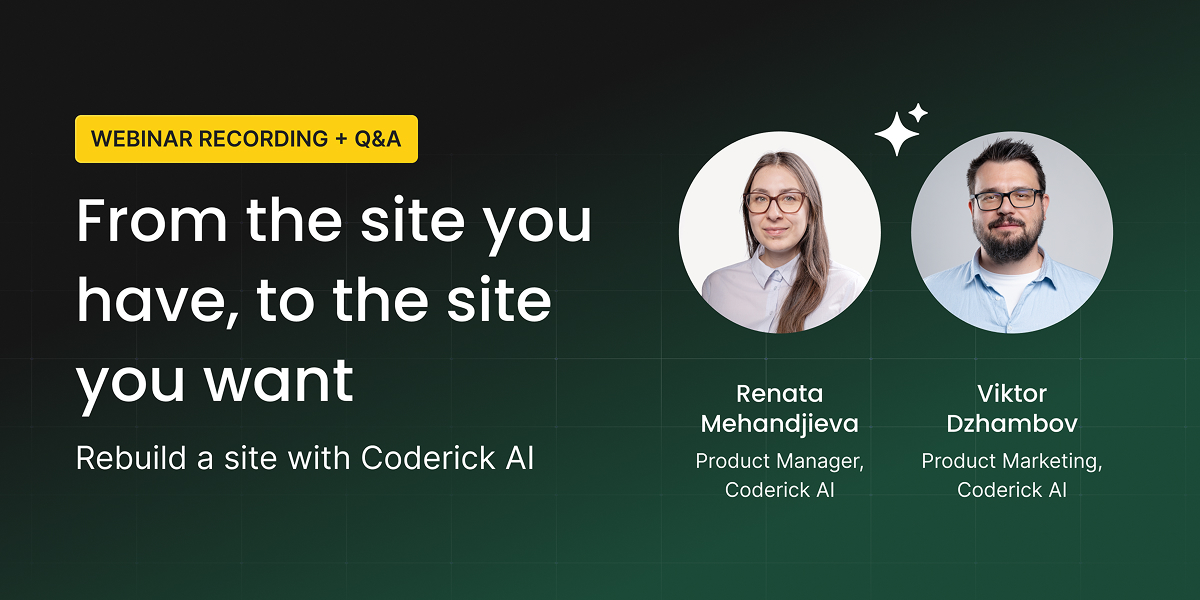
image showing the host and the topic of SiteGround's webinar focused on Rebuilding from URL feature

During our latest webinar, our Product Manager Renata Mehandjieva and Product Marketing Manager Viktor Dzhambov took a real website built on a traditional site builder and turned it into something new with Coderick AI‘s Rebuild from URL feature. They pasted the site’s URL, got a fully editable rebuilt version, changed its entire direction with a single prompt, and added features the original site never had. All of it through plain conversation, and all of it published live before the hour was up.

If you missed it or want to rewatch, the full recording is available on our YouTube channel:

Below are the key takeaways from the session, followed by answers to your most asked questions.

Key takeaways from the webinar

1. You can now start a Coderick AI project from the site you already have 

Until now, you could start a Coderick AI project from a prompt, a screenshot of a design you like, or uploaded design and code files. Rebuild from URL adds the option most of you asked for after our last webinar: rebuilding your existing website.

You paste your site’s URL, and Coderick AI visits it and reads its publicly reachable pates just the way an AI crawler would. It reads the pages, the design, the content and images, and rebuilds the top 5 pages from your sitemap as a new, fully editable project. The whole process takes around 8 to 10 minutes, while your original site stays live and completely untouched. What you get is not a locked template but a real project you can reshape freely: your content, your images, your structure, ready to become the site you actually want.

2. Changing your site’s whole direction is now one prompt, not a teardown

This was the moment of the webinar. The demo site started as a general recipe website, and the owner wanted to pivot it entirely to Mediterranean cooking. On a traditional platform, that kind of change means a new template, reconfigured pages, broken layouts to fix, and plugins to re-check, or a developer quote. In the webinar, it was a single prompt: redesign the site with a Greek, Mediterranean feel, keep the existing content, and add new content where needed.

A few minutes later, the entire site had a new identity: new colors, typography, animations, and copy that matched the new direction, with all the original recipes intact. A second prompt then reorganized the recipes into regional categories, complete with descriptions, images, and working filters. Coderick AI even filed the existing recipes into the right categories on its own.

The lesson from the live builds: you don’t need to talk like a designer. “Make it feel Mediterranean” works. And if you know exactly what you want, down to fonts and layouts, Coderick AI follows your direction instead of improvising.

3. The biggest win: adding features your old site never had

Rebuild from URL isn’t just about a fresh look. Once your site lives in Coderick AI, you can extend it with the kind of functionality that would normally send you hunting for plugins or hiring a developer.

In the webinar, one prompt added a “Share Your Recipe” page where visitors submit their own recipes. Behind that simple form, Coderick AI built everything the feature actually needs: a database to store submissions, secure handling of visitor details, and an admin panel, visible only to the owner, where each recipe waits for approval before it appears on the site. None of that backend work had to be described. And as a finale, one more prompt added an interactive map showing where each community recipe comes from, integration included.

4. You experiment in a safe copy, and every change is reversible

Everything in the demo happened in a Coderick AI project. Rebuild from URL only reads your live site, it never modifies it, so there’s no risk to what you have while you rebuild, redesign, and test. You preview your project on its own address, and nothing goes live until you hit Publish.

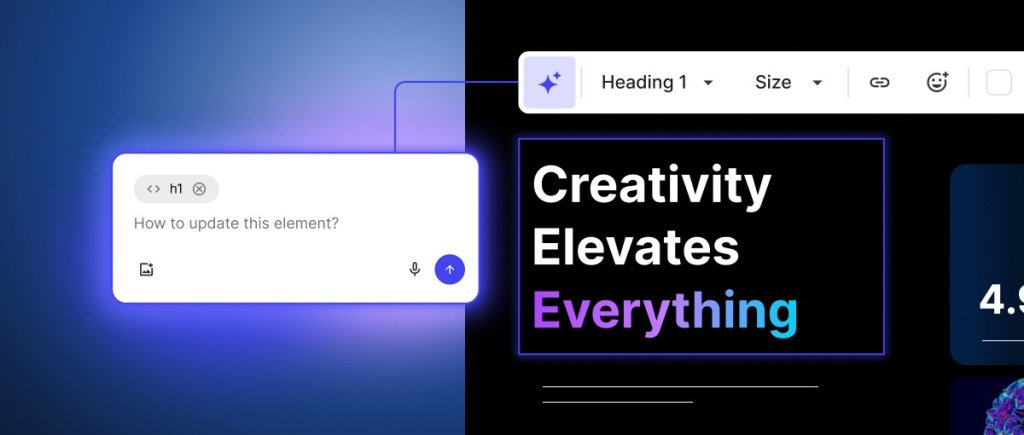
Inside the project, built-in version control lets you try bold ideas and revert to any previous version with one click if you don’t like the result. For small fixes like a headline tweak or a typo, the Visual Editor lets you click directly on the page and type the change. It’s instant, and it doesn’t use any credits.

Add it all up and the numbers speak for themselves: a full redesign, restructured content, a brand new community feature with its own database and admin panel, and a live published site, in about 30 minutes of prompting.

Coderick AI and Rebuild from URL: your questions answered

We had far more questions during the live session than we could answer on air. Here are the most common ones, answered in one place.

I have a WordPress site. Can I use Coderick AI, and do I still need WordPress?

Coderick AI and WordPress are two different ways of building for the web, and both are great at what they do. WordPress gives you a mature ecosystem of themes and plugins that millions of sites, including many we host, run on happily. Coderick AI takes a different approach: you build and change everything by describing it in a conversation, and the design, content, database, backend, and hosting are all part of one project.

They don’t plug into each other. Coderick AI doesn’t install into WordPress and doesn’t edit your WordPress site. What it can do is use your WordPress site as a starting point: Rebuild from URL reads your live site and recreates it as a separate Coderick AI project, while your WordPress site keeps running exactly as it is, for as long as you want it to. If you publish the rebuilt version, that new site is a Coderick AI project rather than a WordPress site, so from then on you manage it through chat instead of themes, plugins, and the WordPress admin.

So there’s no forced choice here. If WordPress works well for you, keep it, and let the AI Agent for WordPress in AI Studio speed up your work inside it. If you’re curious what the conversational approach feels like, rebuild a copy and experiment. Nothing about your current site changes while you decide.

I built my site with Divi, Elementor, Drupal, or a purchased theme. Does that matter?

No. Rebuild from URL reads your live site the way a visitor sees it: the pages, the design, the content, not the software that produced it. Whether there’s Divi, Elementor, a purchased theme, Drupal, Joomla, or hand-written PHP behind it, the rebuild works the same way. The rebuilt version doesn’t carry the original platform over, so it’s a fresh, self-contained project with no dependencies on your old setup. That also makes it a great option for an aging site on a platform you no longer have anyone to maintain.

What’s the difference between Coderick AI and SiteGround’s AI Studio?

They solve different problems, and they complement each other. AI Studio is your AI workspace, and its AI Agent for WordPress manages and updates an existing WordPress site through chat: content edits, WooCommerce tasks, SEO fields, all inside the site you already have. Coderick AI is a vibe coding builder: you use it to create a complete standalone website or web app.

So if your goal is to keep improving the WordPress site you have, AI Studio is the better fit. If you’re ready to rebuild it into something that gives you more freedom to build, that’s Coderick AI.

Can Coderick AI make changes directly to my live site, or replace just one page on my domain?

No, Coderick AI never operates on your live site. Here’s how the Rebuild from URL works: you paste your URL, Coderick AI reads the site and creates a separate, new project from it. You preview and improve that project on its own address, and when you’re happy, you publish it and decide whether to connect your domain. At no step is your current site modified.

That also means you can’t swap out a single page of your existing site or export a Coderick-built page into it. If what you want is smaller changes to an existing WordPress site, the AI Agent for WordPress in AI Studio is built for exactly that.

What if my site has more than 5 pages? Do I have to re-add the rest manually?

The rebuild from URL currently covers the top 5 pages from your sitemap, which for most websites are the ones visitors actually spend time on, so it’s a strong landing ground to build from. For the rest, you don’t have to recreate anything page by page: export the additional content in a file format (HTML, Word, CSV, even screenshots), upload the files to your project, and tell Coderick AI to add them. It can take in many files at once.

We’re also actively working on a way to bring larger amounts of content into your rebuilt site much more easily. Keep an eye on our emails and product updates in the coming weeks.

My site is a WooCommerce store with hundreds of products. Is this still viable?

The rebuild from URL reads your live public pages, not your entire product database, so a store with hundreds of products won’t transfer catalog and all. For a content site, a business site, or a store with a compact catalog, the rebuild plus a file import gets you a long way. For a full ecommerce operation with hundreds of products, orders, and integrations, a dedicated ecommerce platform will serve you better, and SiteGround Ecommerce is built for exactly that: running a complete online store, catalog included.

Will the rebuild keep my exact content, or can it change things?

The rebuild works from your actual site: your text, your images, your structure. That’s the whole point, it captures what makes your website yours. That said, review the result before you publish, especially text-heavy pages. When Coderick AI can’t bring a piece of content over cleanly, or when a redesign creates new sections that need copy, it writes new text in the style of your site rather than leaving gaps. If a page didn’t transfer the way you want, upload the original as a file and tell Coderick AI to use it word for word. And for any smaller fix, the Visual Editor lets you correct text directly on the page in seconds.

Can I make it use only my images, or leave placeholders for images I’ll upload later?

Yes. The rebuild uses the images from your site by default, and AI-generated images only enter the picture when you ask for them or when a change you requested needs visuals that don’t exist yet. If you want full control, say so in your prompt: tell Coderick AI to use only your uploaded images, or to leave placeholders you’ll fill in yourself. You can also completely change the color scheme to match your brand palette, either by describing it or by uploading a reference.

What about unpublished pages, membership content, or staging sites?

Rebuild from URL can only read what’s publicly reachable on the internet. Unpublished pages, content behind a login or membership wall, and staging environments aren’t visible to it, so they won’t be copied, and they won’t be touched either. If you want that content in your new project, export it and upload it as files. The rebuild also doesn’t copy things that aren’t publicly visible by nature, like databases or third-party integration code.

My site is protected by a captcha or blocks bots. Can Rebuild from URL still read it?

Not while the protection is active, since Coderick AI visits your site the way an AI crawler would. The good news is that you only need to allow crawler access briefly: adjust the setting in your security plugin, firewall, or CDN, run the rebuild (around 8 to 10 minutes), and switch the protection back on once your project is ready.

Is it safe to do this with a live site, or should I use staging?

You don’t need staging to protect the live site during the rebuild, because the rebuilt project effectively is your safe copy. Rebuild from URL only reads your live site; it never writes to it, changes it, or takes it offline. Everything you build, break, and experiment with happens in the separate Coderick AI project, on its own preview address, and version control lets you revert any change with one click.

After the new site goes live on my domain, what happens to my old one? Can I go back?

Your old site isn’t going anywhere. Coderick AI never deletes, moves, or modifies it; it stays wherever it’s hosted, for as long as you keep it. Pointing your domain at the new site is your decision, and pointing it back is just as possible. One thing to be clear about: the two sites are separate from the moment of the rebuild, so changes you make in Coderick AI don’t flow back into your WordPress or builder site. Going back means returning to your old site as it was.

If both sites are online, won’t that be duplicate content for SEO?

Duplicate-content risk arises only if both are publicly live with the same content at the same time. While you’re working, your rebuilt project sits on its preview address and doesn’t compete with your live site. When you’re ready to switch, do a clean handover: point your domain to the new site and retire the old one, so search engines only ever see one.

After publishing, how do I make edits? Is there a CMS or admin panel?

The way you built the site is the way you keep managing it. Bigger changes: describe them in the chat. Quick fixes: click directly on the page with the Visual Editor. There’s no separate CMS to learn.

If you want one, though, you can have it built just by describing it. Ask Coderick AI for a custom admin panel with exactly the controls your workflow needs, which is precisely what the recipe approval dashboard in our demo was. Add a blog and want to publish posts, swap images, and edit text from a dashboard instead of the chat? Ask for a CMS, and Coderick AI builds one for your site.

Can I see or export the code, or move my project to another platform?

Coderick AI is a fully managed platform: your project is built, hosted, and run on SiteGround’s infrastructure, and the current interface doesn’t expose the source code for direct editing or export to another host. That’s by design, and it’s what keeps everything fast, secure, and maintenance-free. If code-level control matters to your workflow, a built-in code editor is on the roadmap, so watch our product updates.

What features can I add? Galleries, video, search, events, members-only areas?

If it runs in a browser and you can describe it, it’s very likely buildable. From the webinar audience alone: a gallery page with lightbox effects using your own images, yes. Videos, yes, embed from YouTube or upload your own and tell Coderick AI where to place them. Site search, yes. Event pages with ticket sales, yes, with payments handled through the Stripe integration. Members-only areas and paywalls, yes: describe who can sign up and what members see that visitors don’t, and Coderick AI builds the signup, login, and gated content. Before you share it, test the whole flow yourself. Nothing goes live until you publish.

Does Coderick AI support payments like Stripe and PayPal?

Stripe, yes, and it’s brand new: as of this month, Coderick AI integrates with Stripe, so the sites you build can take real payments. Tell Coderick AI what you want to sell, then connect a new or existing Stripe account right in the chat, or set it up anytime from the new Integrations page.

And because checkout runs through Stripe, your site can offer the payment methods Stripe supports, including PayPal: enable it in your Stripe settings, and it appears as an option for your customers. A separate PayPal integration isn’t available yet, but expanding payment options is on the roadmap.

Can forms connect to Google Sheets or other external tools?

Not directly yet. Form submissions are stored in your project’s own database on SiteGround’s infrastructure, and you can view and manage them through an admin panel Coderick AI builds for you, which covers what most people use a spreadsheet for. Stripe is the first third-party integration, and more external connections are planned.

Can I use it if my website is in another language, or bilingual?

Absolutely. Chat with Coderick AI in any language, and it picks it up. Your rebuilt site keeps its original language, and you can ask for translations or a fully multilingual setup, including bilingual sites like French and English. Regional conventions like date formats and currencies follow your instructions too.

How do I handle SEO on a rebuilt site?

The same way you handle everything else: you ask for it. The rebuild brings over your content, which carries much of your SEO substance, but not the technical SEO configuration of the old platform. One prompt along the lines of “optimize my site for SEO” and Coderick AI works through the technical side: unique titles and meta descriptions for every page, a sitemap, robots.txt and llms.txt for AI search engines, clean page structure, SSL included, and the loading-speed improvements rankings reward. It can go further when your content calls for it. For a recipe site like the demo, it can add the structured data that lets Google show recipes in search results with photos, ratings, and cook times.

How secure is a Coderick AI site, and what support do I get?

Every Coderick AI project runs on SiteGround’s managed infrastructure, so hosting, SSL, security, and the database are handled as part of the platform, backed by 20 years of hosting expertise. Data your visitors submit, like the emails in the demo’s recipe form, is stored within that same infrastructure, not with a third party. And because there are no external plugins or themes in a Coderick AI site, one of the most common sources of website security issues simply isn’t there. If you run into anything, SiteGround’s support team is there to help, the same way it is for our hosting services.

What does Coderick AI cost after the free trial?

There are three plans depending on how many projects you run and how many credits you build with, starting from $10/month. Every plan, including the entry one, has everything you need to take a project live: publishing, premium SiteGround hosting, custom domain support, and professional email. There’s no separate hosting bill. Start with the 14-day free trial, see how far your ideas go, and pick the plan that fits. You can compare them at Coderick.ai.

Who owns the rebuilt site, and can I rebuild any website I find?

You own what you create: your content, your data, your project’s functionality and output. Coderick AI hosts and runs it on SiteGround’s infrastructure, but the work is yours. As for whose site you can rebuild: Rebuild from URL is meant for your own website, or one you have the rights to. By submitting the URL, you confirm that.

Try Rebuild from URL on your own site

The webinar started from a generic recipe site its owner had quietly stopped touching, because every change meant learning yet another tool. Thirty minutes of plain conversation later, it was a redesigned Mediterranean food site with regional categories, a community submission feature with its own database and admin panel, and a recipe map, published live.

Your website can make the same jump. Go to Coderick.ai, start your free 14-day trial, paste your site’s URL, and watch the rebuild. Your current site stays exactly as it is while you do.

That thing you’ve been meaning to do with your website for years? Do it now.
WordPress 7.0 x SiteGround AI Studio: Webinar Video and Q&A

WordPress 7.0 x SiteGround AI Studio: Webinar Video and Q&A

In our recent live webinar, Yavor Popov and Ivan Stefanov went through the new WordPress 7.0 AI features and showed how SiteGround AI Studio and the SiteGround AI Agent for WordPress build on top of them to handle real WordPress tasks directly in the WordPress admin. The session covered what changed in WordPress 7.0 for AI, how AI Studio fits into the new environment, and a live demo of the Agent across image generation, WooCommerce, SEO, campaigns, and multiple site management.

If you missed it or want to rewatch, the full recording is available below.

Key takeaways

Below are the key takeaways from the webinar and answers to the most common questions from the session.

1. WordPress 7.0 introduces an AI framework that unifies how AI works inside WordPress 

WordPress 7.0’s real contribution is structural: a shared AI framework that gives every plugin and core feature a standard way to use AI directly in WordPress core. Two pieces turn that framework into something you can use. The official AI plugin enables the AI capabilities and surfaces them where you work, for example Generate buttons for images in the Media Library and text right inside Gutenberg. The connectors supply the model access and tokens that make those capabilities actually run, and SiteGround AI is one such connector. In other words, 7.0 defines the standard, the AI plugin exposes the features, and a connector powers them.

2. The AI Agent by SiteGround plays two roles at once: the connector that powers native features and the plugin that adds new ones

This is what makes SiteGround AI more than another connector, and what makes it the easiest path into WordPress AI. As a connector, it supplies the tokens behind WordPress 7.0’s native AI features, routing each request to the best-suited model in the background so you never create accounts, paste API keys, or fund balances across providers yourself. As a plugin, through the SiteGround AI Agent for WordPress, it adds a whole layer of functionality on top of what WordPress ships natively. And on SiteGround-hosted sites the whole thing is already set up: the connector comes pre-installed and pre-connected as the default, with 20,000 free tokens a month, so the native AI features and the Agent are ready to use with nothing to configure. Sites hosted elsewhere get there in a couple of steps, just install the plugin and sign in, rather than wiring up multiple providers by hand.

3. Together, native features and the AI Agent by SiteGround can save hours on everyday WordPress work, including bulk tasks across multiple sites

The combined value of the new AI capabilities in WordPress 7.0 and the SiteGround AI Agent for WordPress show up in time saved. The native features handle single actions, and the Agent picks up the multi-step work that doesn’t fit one button: building posts and pages, editing product images in bulk, creating WooCommerce products from a spreadsheet, applying SEO improvements across a whole blog, and pushing changes across multiple connected sites at once. The live demo showed exactly this, compressing what would normally be hours of manual, screen-hopping work into a single guided workflow.

AI Agent by SiteGround: your questions answered

We had so many great questions during the live session. Here are the most common ones, answered in one place.

Is the SiteGround AI Agent for WordPress free?

Yes. Every SiteGround client gets the Essential AI Studio plan activated for free, and it includes the AI Agent for WordPress along with a monthly allowance of 20,000 tokens that resets automatically each month. With the AI Agent, WordPress users can handle everyday content and site-management tasks faster – from drafting and improving pages or blog posts, to generating product descriptions for WooCommerce stores, to getting help with more complex workflows that content creators and store owners need.

Can I use SiteGround AI Agent for WordPress if my site isn’t hosted on SiteGround?

Yes. SiteGround AI Agent for WordPress is part of SiteGround AI Studio, which you can use regardless of where your WordPress site is hosted. Once you have SiteGround AI Studio, you can use the WordPress Agent to manage posts, pages, plugins, themes, WooCommerce products, prices, and other site tasks through simple chat.

If WordPress 7.0 already adds AI, why do I still need a plugin?

WordPress 7.0 lays a powerful AI foundation, and plugins build the experience on top of it. It introduces a shared AI framework and a Connectors page that give every plugin and core feature a standard way to talk to AI providers. To turn that foundation into AI buttons in your admin, two pieces complete the picture: the official AI plugin enables the native capabilities and surfaces them where you work, for example Generate buttons for images and text inside Gutenberg, and a connector supplies the model access and tokens that make those capabilities run. SiteGround AI is that connector, and the SiteGround AI Agent plugin adds a further layer of functionality on top. If you only want the Agent or want to power other AI-enabled plugins, the WordPress “AI” plugin isn’t required.

How do I set up or activate the SiteGround AI connector?

On SiteGround-hosted WordPress 7.0 sites there’s nothing to set up: the SiteGround AI connector is already installed and set as the default, so it appears as active out of the box. For a site hosted elsewhere, you add it as an external website in AI Studio, generate a connection key, install the AI Agent by SiteGround plugin, and paste the key. For a step-by-step walkthrough, see our Knowledge Base article on activating SiteGround AI.

Which AI models power SiteGround AI?

SiteGround AI isn’t built on a single model. It’s a connector that gives you access to multiple leading models from Anthropic (Claude), OpenAI (ChatGPT), and Google (Gemini), plus image models. You don’t choose a provider manually and you don’t connect each one yourself: the system automatically selects the best and most token-efficient model for each task in the background.

How do tokens work?

Tokens are how AI usage is measured. Each request and the AI’s response consume tokens based on their length and complexity, so there’s no fixed “hours of work” or “number of images” figure, since a short request costs far less than a long, multi-step one. Your Essential plan includes 20,000 tokens per site each month, and you can monitor usage directly in AI Studio, where each chat shows a token consumption breakdown at the top. To see exactly how usage is counted, read our article “How Token Usage Is Counted.”

What happens when I run out of tokens? Am I charged automatically?

You won’t be cut off mid-task and you won’t be charged automatically. Before you start a task that would exceed your allowance, you’ll get a notification that you’re approaching the end of your tokens. Additional tokens are added manually through the Plus plan, so topping up is always your decision rather than an automatic charge.

Can the AI Agent for WordPress build full pages and sections, not just images?

Yes. Beyond single actions like generating an image or an excerpt, the AI Agent for WordPress can create full blog posts and pages, including the structure and sections, so you’re not limited to dropping in individual generated elements. Page generation currently builds with Gutenberg.

Can it edit my existing content in bulk?

Yes. The Agent can edit existing pages and posts, including text, structure, and headings, and it can apply those changes across many pages at once rather than one at a time. This bulk capability is one of the biggest time-savers, whether you’re refreshing copy, restructuring content, or standardizing pages across a site.

Does AI Agent by SiteGround work with WooCommerce

Yes, and WooCommerce is one of the Agent’s strongest areas. It can bulk-create products from a spreadsheet, edit product images in bulk, and set up coupon-and-banner campaigns, turning what’s normally a lot of repetitive store admin into a single guided workflow. For actions that change or remove content, the Agent asks for confirmation before applying anything.

Does the AI Agent by SiteGround work with Elementor and other builders?

Partly, and it depends on the task. For page generation, the Agent currently builds with Gutenberg, so Elementor and other page builders aren’t supported for building pages yet. Most of the Agent’s other capabilities, including editing content, managing plugins, WooCommerce, users, and SEO tasks, work regardless of your theme or builder. Elementor support is a request we’ve heard and the team is looking into it; for the current status, keep an eye on our announcements or check with support.

Can the Agent help with image SEO?

Yes. The Agent can add and edit the SEO-relevant fields for your images, including alt text, titles, and descriptions, and it can do this in bulk across your media. The images it generates are stored in your own WordPress site, and you’re free to manage their details for search.

How does Google treat AI-generated content?

Google evaluates content on quality, helpfulness, and relevance to the reader, not on whether AI was involved in producing it. AI-generated content is indexed like any other content, and it performs well when it’s accurate, useful, and genuinely serves the search intent. The advantage of the Agent here is speed: it helps you produce and optimize content faster, including the SEO fields, while the editorial judgment about quality stays with you.

Can the Agent undo changes, and do I need to back up first?

You don’t need to back up before using the Agent. It keeps the context of what it did, so you can simply ask it to revert or fix a change. And if your site is hosted on SiteGround, automatic daily backups give you an added safety net that you can restore with a single click.

Could the Agent break my site by changing code or plugins?

The Agent doesn’t directly edit PHP, JavaScript, or CSS files in your WordPress codebase. It can help with routine maintenance like updating plugins to their latest versions, and as with any plugin update, conflicts can occasionally happen depending on your setup. If that occurs, the Agent can help install a previous plugin version, and on SiteGround-hosted sites automatic daily backups are there as a fallback, so a problem is always recoverable.

Is my data private, and who owns what the AI creates?

You own what the AI creates for you. Both the prompts and content you provide (your inputs) and the content the AI generates (the outputs) are treated as your Customer Content under the SiteGround AI Studio Terms, and generated images and text are stored in your own WordPress site for you to use.

To produce those outputs, your inputs are sent to the third-party AI providers that run the models, since that’s how each request gets processed. Because of that, you stay in control of what you share. None of your data is used for training purposes for any of these models. 

On retention, your AI Studio chats and files stay in your account while you use the service, and anything you delete through the interface is permanently removed within about 30 days. For the complete detail on how inputs and outputs are processed, stored, and shared, see the SiteGround AI Studio Terms and the SiteGround Privacy Policy.

Where can I watch the recording and get setup help?

The full webinar recording is available at the top of this post, so you can rewatch any part of the demo. For setup, activation, and troubleshooting, our Knowledge Base has step-by-step guides, and our support team is available if the connector doesn’t appear or you run into anything during setup.

Start using the AI Agent by SiteGround today

The best way to see what the AI Agent can do is to put it to work. Open your WordPress admin, hand it a real task, and watch something that used to take an afternoon get done in minutes. No complicated setup, just your free monthly tokens and a site that’s ready to go.

And when you find a workflow that saves you real time, share it in the comments. Your use case might be the one that helps someone else work smarter too.

Follow our blog for news and updates on WordPress & AI.

File uploads in Coderick AI: bring your code and design exports in the chat

Coderick AI Files preview showing bringing existing code file from Claude to Coderick AI and how it turns into a real section in Coderick-generated site

Building with Coderick AI is really amazing. You describe what you want, and Coderick AI builds it for you. That works beautifully when you’re starting from an idea. But sometimes you’re not. Sometimes you already have something done elsewhere that you wish to reference or use.

Maybe you prototyped a layout with Claude Design and you want it as your homepage. Maybe a Claude artifact got you close on a component and you just need it inside a live, hosted project. Maybe you found an HTML template that’s almost right, and you’d rather hand the file over and request a few changes, than describe it from scratch in three paragraphs.

That’s what file uploads in Coderick AI are for.

Build on top, not from scratch

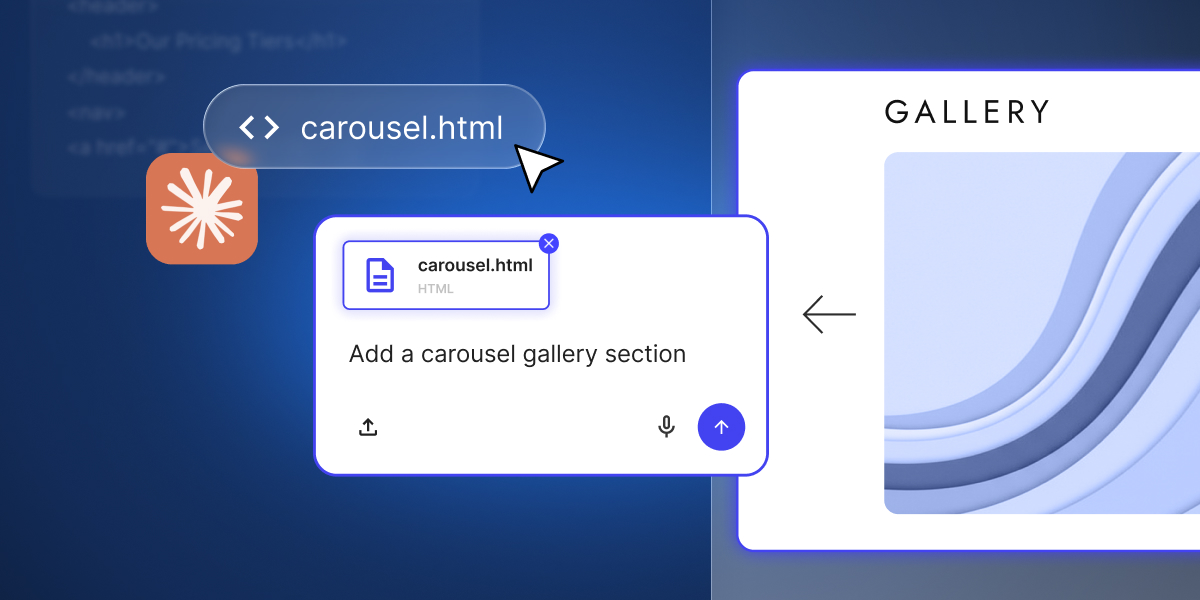
Use the file upload functionality as a starting point and prompt Coderick to work with it. Add new sections to a homepage layout you’ve uploaded. Turn a single page into a multi-page site. Wire up functionality around a static design.

Coderick builds on top, adds new elements, improves your draft, and finalizes the project, instead of starting from scratch. You save time, credits, and enhance the value of the work already done.

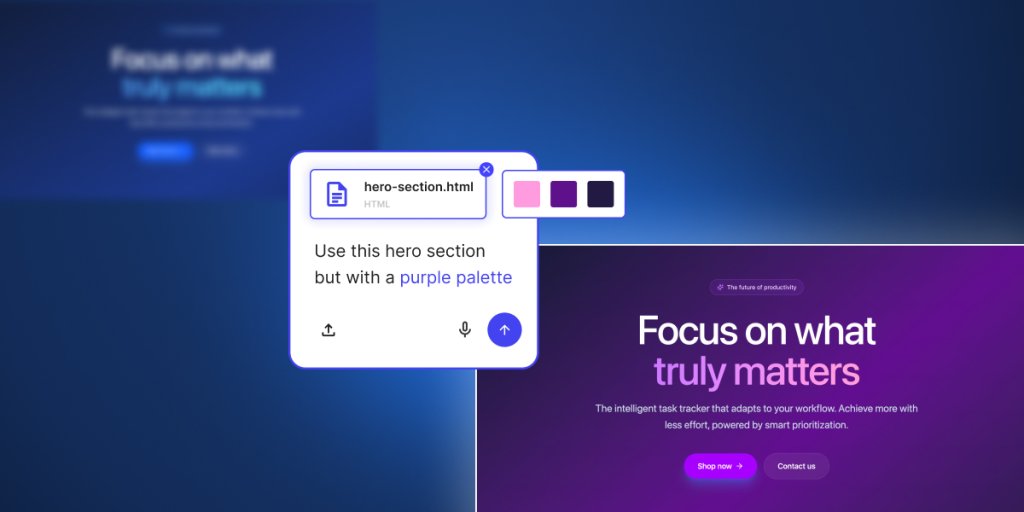
Coderick AI code files upload previews taking ready html file, updating its colors and adding the section to a real Coderick AI project

Keep your own styles

You can tell Coderick to apply a file directly. Your uploaded HTML becomes the basis for your homepage. The styles you uploaded get used across the project. Coderick reads the source and rebuilds it inside your project – your structure, your styles, your specific elements.

Before, you needed to describe any existing work you’ve done with words – the spacing, the columns, the hover effects, any visual element you care for. And anyone who’s tried to describe design specifics to AI knows how that usually goes: you get something that’s 80% of what you wanted, and the last 20% is a long fine-tuning through follow-up prompts.

Push your work live faster

Uploading your files to Coderick AI turns your work in progress into a live project faster. You save the time you’d spend re-prompting what you’ve already built, and put it into turning the design into a real, live site or web app.

What file types Coderick AI supports

Coderick AI accepts the text-based file types you’re most likely to already have:

File typeWhat you’d typically use it for
.htmlPage structure, landing pages, exported templates
.css, .scssStyling, layout, design systems
.js, .jsxJavaScript behavior, interactive elements, React components
.ts, .tsxTypeScript logic, typed frontend files, React + TypeScript components
.mdDocumentation, specs, content briefs, project notes

You can upload up to 30 files at once, with a combined size of 500kB. Image uploads stay separate and support up to 10 images.

Getting the most out of file uploads

File uploads give Coderick more to work with, but how you use them shapes the result. 

You still need to be specific: “Apply this design as the homepage” beats “use this file” every time – Coderick reads what you upload, but it still needs you to say where the file goes and what role it plays.

Upload all relevant files together: If your design is split across an HTML file and a CSS file, upload them together so Coderick gets the full picture.

Clean your files from unnecessary elements: A quick check on your source files before uploading is worth the time: unused styles, leftover comments, and wrapper code from other tools can all get mistaken for intent. Cleaner files in, cleaner work out.

One thing worth knowing – file uploads aren’t a way to import a full project (yet). They’re for the specific files you want Coderick to focus on: a page, a component, a stylesheet. Pick the parts that matter, and let Coderick start there.

Go to Coderick AI and drop in what you already have – a Claude export, a template, or a component you’ve been refining. Build from there.

Visual Edit and AI image generation are now live in Coderick AI

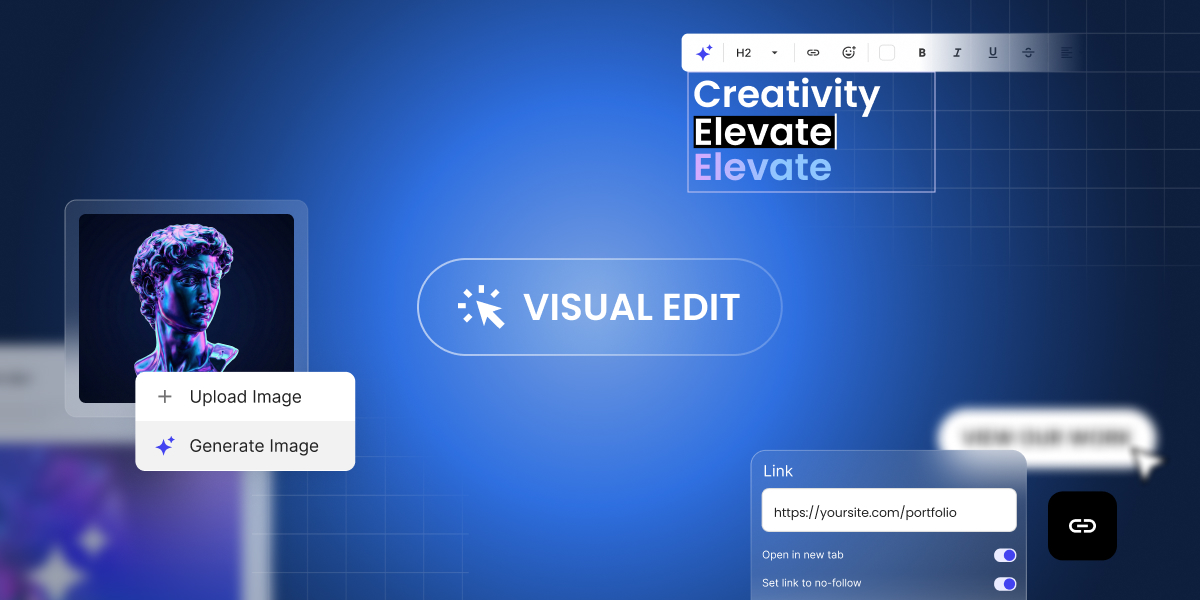
Coderick AI Visual Edit preview showing click-to-edit text, link settings, and image options to upload or generate an AI image.

If you’ve been building with Coderick AI, you know the drill: describe what you want, and Coderick AI builds it for you. It’s fast, it’s intuitive, and it works. But once your project starts taking shape, not every change needs a full prompt. Sometimes you just want to fix a typo, swap out an image, or adjust a button color – and you want to do it now, not through another round of back-and-forth with the AI.

That’s exactly why we built Visual Edit in Coderick AI.

Click, change, done – that’s Visual Edit

Visual Edit mode button in Coderick AI for editing directly in the project preview.

Visual Edit is a new way to make changes to your Coderick AI projects – directly in the preview, with a click. Instead of going to chat and writing a new prompt every time you want to tweak something small, you can now click on any text, button, image, link, or section and change it on the spot.

Update a headline. Fix a typo. Change a button label. Swap a link. Adjust a color. All of it happens right where you see it, with no prompt needed – and zero credits used.

It’s the kind of editing that feels obvious once you have it – and frustrating to live without once you’ve tried it.  

Generate images with AI, right where you need them

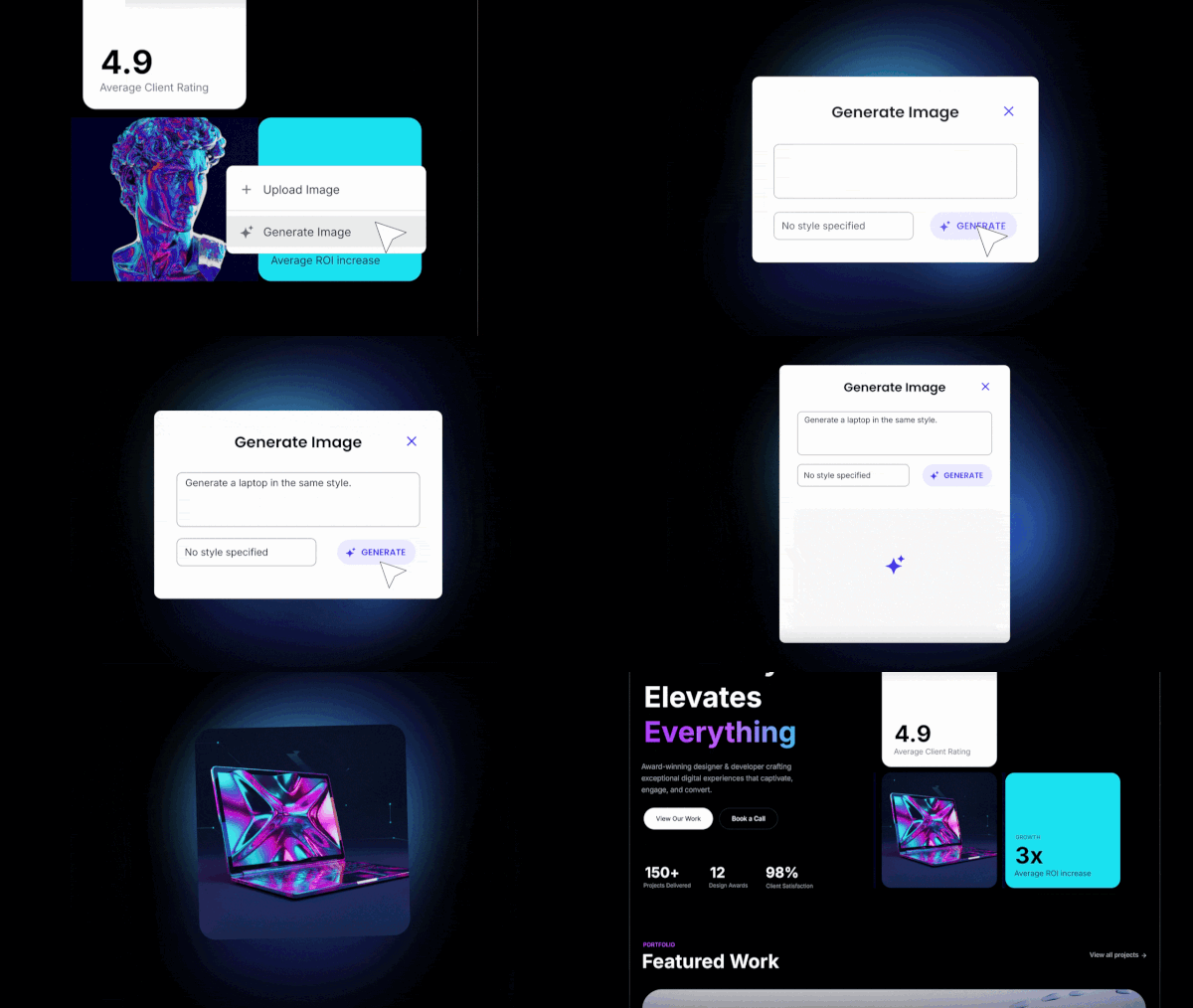
Coderick AI image menu in Visual Edit with options to upload an image or generate an AI image and swap it in place.

Building a project usually means you’ll need images – and until now, that meant leaving Coderick AI, finding or creating an image somewhere else, and uploading it back. With AI image generation in Coderick AI, you can now click on any image in your project, generate a new one with AI, and swap it in on the spot. Review it in context and move on – no extra tools, no context-switching, no manual uploads.

And if you already have the right image for the spot, upload and replace it directly. This action doesn’t need AI and costs you zero credits.

Transform sections or update elements at scale with focused AI edits

Edit with AI in Visual Edit: selecting a section and prompting Coderick AI to rework only the chosen element in the preview.

Some changes go beyond a quick text swap but don’t need a full project prompt either. Maybe your pricing section needs a completely different layout. Or the navigation bar of your site needs a different design direction. These aren’t small tweaks, but they’re not “build me a new page” territory either.

That’s what focused AI edits in the Visual Edit are for. From Visual Edit, select a section or an element, and click Edit with AI. The Coderick AI chat locks onto your selected element – describe what you want changed, and the AI reworks just that part. The rest of your project stays exactly as it is.

The difference from the main Coderick AI chat is simple: the chat is for full-project work like adding new pages or making structural changes. Focused AI edits are for when you already know what needs to change and you just need the AI to do it, precisely, in that one spot or section. Shorter prompts, no unintended side effects, better results.

Save credits for the work that matters

Not every edit needs AI, and now, not every edit costs credits. Quick edits through Visual Edit use zero credits. Your balance stays untouched for the work that actually needs AI – generating new sections, reworking layouts, or creating images. And when you do use Edit with AI, it targets only the section you select, so you get more precise results with fewer credits per edit.

Here’s how credits work:

What you’re doingHowCredits

Edit text, buttons, links, colors
Visual Edit (direct click)Zero
Swap or upload your own imagesVisual Edit (direct click)Zero
Generate an image with AIAI image generationUses credits
Rework a specific sectionEdit with AIUses credits (section-level, not full project)
Build something new from scratchChat prompt
Uses credits

How to use Visual Edit?

Getting started takes seconds:

  1. Open any project in Coderick AI.
  2. Click the Visual Edit button to switch from the chat-based builder to the visual editor (preview editing).
  3. Click on any element in your project preview – text, buttons, images, links – and edit it directly.
  4. To generate an image, click on an existing image and use the AI image generation option.
  5. For bigger changes, select a section and choose Edit with AI to rework it with a targeted prompt.

When you’re done, click Save to keep your changes, or Exit to discard them.

Ready to try it?

Coderick AI was built to get your vibe coding from idea to live project as fast as possible. But speed isn’t just about the first build – it’s about everything that comes after. The tweaks, the refinements, the “can you just change that one thing” moments that add up.

Visual Edit makes those moments faster and cheaper. Quick edits cost zero credits. Bigger changes are more targeted. And AI image generation means one less reason to leave your project or your workflow.

Visual Edit and AI image generation are now available in all Coderick AI projects. Open a project, switch to Visual Edit, and see how it feels to click, change, and keep building.

START BUILDING WITH CODERICK AI →

Build anything with Coderick AI by SiteGround (Webinar Video and Q&A)

In our recent live webinar, our Growth Marketing Director Monika Dimitrova and our Product Director Daniel Kanchev put Coderick AI to the test: taking three projects from a blank screen to fully functioning applications, in real-time.

They built a staff scheduling app, a full website with a booking system for a local vet clinic, and a brand new website using an existing one as a visual reference. Three projects, three very different use cases, all created through plain language conversation with Coderick AI.

Along the way, they shared tips on prompting effectively, showed how to iterate on designs, and answered dozens of questions live. If you missed it or want to rewatch, the full recording is now available on our YouTube channel:

Below are the key takeaways and the most common questions from the session, answered.

Key takeaways

The three builds showed very different use cases – and the same workflow

The webinar covered three projects back to back, and each one stretched Coderick AI in a different direction. The staff scheduling app was a pure internal tool – backend logic, user roles, shift management. The vet clinic was a full public-facing website with appointment booking baked in. And the third project started from an existing website used as a visual reference, showing how you can take a design you like and rebuild it as something new.

What stood out is that the workflow was the same every time: describe what you want, review what Coderick AI builds, then refine through follow-up prompts. Whether it’s a website or a web app, the process doesn’t change.

The three projects took about 40 minutes in total – but none of them were finished products. They were strong starting points. The more you iterate, the further you can take it. “Easy and in minutes” is real – it’s just the beginning, not the whole story.

How you prompt makes a difference

The better and more specific your description, the closer the first result is to what you actually need – and the fewer iterations it takes to get there.

During the vet clinic build, the prompt didn’t just say “make a vet website.” It described the pages needed, the booking flow, the kind of information to show. That level of detail meant the first version was already close to usable. Compare that to a vague prompt – you’ll get something, but you’ll spend more time (and credits) refining it.

Think of it like briefing a developer. You don’t need to know how to code, but you do need to know what you want. And if you’re not sure, just describe your goal and let Coderick AI suggest an approach – it’s a conversation, not a one-shot command.

Design isn’t locked – it’s iterative

The first result gives you something real to work with – from there, you shape it. “Make the header darker”, “switch to a two-column layout”, “use the color palette from this screenshot.” Each prompt adjusts the design without starting over. You can even describe a mood or a feeling to Coderick AI and see where it goes. During the session, a single prompt for the vet clinic produced a full warm, Japanese-aesthetic redesign complete with paw prints.

This works with visual references, too – not just words, as the third project showcased. You can share a screenshot of a design you like, and Coderick AI uses it as a starting direction. From there, you shape it into something your own.

You end up with a working project on a real URL – hosting, database, security included

Unlike most AI builders where you generate something and then figure out where to host it, Coderick AI projects go live on SiteGround’s infrastructure automatically. Database, hosting, SSL, deployment – all handled. Hit publish, and it’s live.

Coderick AI – your questions answered

Can a non-technical person really build a full app or website with Coderick AI?

Absolutely – that’s the entire point. Coderick AI was built specifically for people who don’t code. You describe what you want in everyday language, and the AI generates a complete, working project for you – structure, design, database, backend logic, and all.

If you happen to have a developer on your team (even a basic one), that’s a bonus. They can guide the prompts with a bit more technical clarity, which often means better results faster. But it’s not required. Thousands of non-technical users are already building real websites and web apps with Coderick AI – from portfolio sites and booking systems to CRM dashboards and invoice trackers.

Can Coderick AI rebuild or refresh my existing website?

Coderick AI can’t directly edit or update your current website – but it can do something arguably better. You can use it to rebuild your site from the ground up. Describe what you want, attach screenshots of your current design as a reference for the direction you’d like to take, and Coderick AI will generate a fresh, modern version.

For smaller updates like rewording text or restructuring your menu on an existing site, SiteGround’s AI Studio is a better fit – and it’s included free with your hosting plan. The two tools complement each other nicely: AI Studio for quick content updates, Coderick AI for when you’re ready for a complete transformation.

Can I customize the design of the apps built with Coderick AI?

Yes – and this is where Coderick AI really stands out compared to template-based builders. There are no preset themes limiting your design. Every project is built from scratch based on your description, which means you have complete creative freedom.

Want to change colors, layouts, fonts, spacing, or navigation? Just tell Coderick AI what you’d like. You can say things like “make the header simpler,” “switch to a dark color scheme,” “add more white space between sections,” or “make the call-to-action button larger and green.” You can also attach screenshots of designs you admire as visual references.

Every element is customizable through conversation – from the overall look and feel down to individual buttons and form fields. No CSS knowledge required. Just describe your vision, and Coderick AI brings it to life.

How is Coderick AI different from building with WordPress?

With WordPress, you’re assembling pieces – picking a theme, installing plugins, configuring settings, and often hiring a developer when things get complicated. With Coderick AI, you skip all of that. You describe what you want in plain language, and the AI builds a fully working website or web app for you – complete with frontend, backend, database, and hosting, all included from the start.

There’s no theme to configure, no plugins to maintain, and no dashboard to learn. You just chat with Coderick AI, and it handles the technical side. Think of it as going from idea to live project in minutes instead of weeks. And because everything runs on SiteGround’s infrastructure, your site is fast, secure, and production-ready the moment you hit Publish.

Can Coderick AI work alongside my existing WordPress site?

Coderick AI is a standalone platform – it doesn’t plug into WordPress or run as part of it. It’s a completely different approach to building for the web.

That said, there are practical ways to connect the two. You can build a tool, calculator, booking page, or any web app with Coderick AI and link to it from your WordPress site. Each Coderick AI project lives on its own domain, so it works beautifully as a companion to your existing setup – especially for functionality that would normally require complex plugins or custom development in WordPress.

How do credits work?

Credits are how Coderick AI measures AI usage. Every action – from generating a new project to making small tweaks – uses a certain number of credits. Simpler prompts use fewer credits, while more complex or detailed requests naturally use more.

Your credit balance resets monthly with your plan, and you can always see how many credits you’ve used and how many remain directly in the interface. The free trial comes with 50,000 credits so you can test and experiment before committing. Paid plans start from just $10/month and include premium SiteGround hosting – so there’s no separate hosting bill to worry about.

Pro tip: Building in small, focused steps isn’t just better for results – it’s also more efficient with credits.

How many credits does a typical project actually use?

It depends on scope, but here’s a useful frame. A simple landing page or single-purpose app uses far fewer credits than a multi-page site with a database, user login, and booking system.

Paid plans start at 100,000 credits per month on Essential, 200,000 on Plus, and 400,000 on Pro – so there’s room to build, iterate, and maintain without constantly watching the counter. 

Pro tip: The best way to stretch your credits is a specific, well-thought-out first prompt – the closer your brief, the less back-and-forth it takes. If you’re a SiteGround customer, a great way to plan ahead is to use AI Studio to shape and refine your idea before bringing it into Coderick AI.

How does Coderick AI compare to other AI builders like Bolt, Lovable, or Replit?

There are many AI app builders out there, and at first glance they might seem similar – you describe what you want, then AI generates it. The meaningful difference is in what happens after the build.

Most vibe coding tools are builders only and once your project is generated, you still need to figure out hosting, deployment, database, and security. Some platforms bundle these extras, but they typically come from third-party providers and cost on top of the base plan.

Coderick AI is an all-in-one platform. The building, hosting, database, SSL, and deployment are handled together from the start on SiteGround’s infrastructure – no separate bills, no configuration, no second project. You hit Publish, and it’s live. And with 20 years of hosting expertise behind it, your project runs on the same foundation that powers some of the web’s most demanding sites.

Can I build an e-commerce store with Coderick AI?

Yes – and it’s one of the most popular use cases. Coderick AI can build product catalogs, order forms, landing pages, and even membership areas with user login. You describe your products, how you want them displayed, and what the ordering flow should look like, and Coderick AI generates a clean, working storefront for you.

It’s a great fit for businesses that want an online presence without the complexity of WooCommerce or a full e-commerce platform. If your model relies on cash on delivery, bank transfers, or simple order capture, Coderick AI handles it right out of the box – no plugin setup, no overhead.

What about payments like Stripe and PayPal?

Payment gateway integrations aren’t available yet – but stay tuned. This is one of the most requested features and something we’re actively working on. For now, Coderick AI is perfect for order forms, product catalogs, and checkout flows where payment happens outside the platform (think bank transfers, invoicing, or cash on delivery). You get a fully functional storefront with a working backend that captures every order – you just handle the payment step separately for the time being.

How do I fix errors without technical knowledge?

You don’t need to understand a single line of code. If something isn’t working the way you expected, just tell Coderick AI what’s wrong – in plain language. Describe the issue, and it will debug and fix it for you.

That said, the more specific you are, the better the result, and adding a screenshot gives Coderick AI much more to work with.

And here’s the safety net: Coderick AI has built-in version control. If a fix doesn’t work or something goes sideways, you can roll back to a previous working version with one click and try a different approach. The best practice is to build in small, incremental steps – that way, issues are easy to spot and quick to resolve. Think of it as working with a developer who’s always available and never judges you for not knowing code.

How do I maintain my Coderick AI project after it’s built? 

The same way you built it – by talking to Coderick AI. Want to update a product listing, add a new page, or change the wording on your homepage? Just describe what you want, and Coderick AI applies it. 

There’s no separate admin panel to learn, no theme editor to navigate. Your ongoing conversation with Coderick AI is how you manage the site.

Can I see or edit the code that Coderick AI generates?

Coderick AI is designed so that everything happens through conversation: you describe what you want, and the AI builds it. The generated code runs under the hood, and the current interface doesn’t expose it for direct editing in the way a traditional code editor would. For most users, that’s the whole point: no code to write, read, or maintain.

For those of you who want to go deeper, a built-in code editor is in the roadmap – so if code-level control matters to your workflow, keep a look out for news and product updates.

What integrations are currently available?

Right now, Coderick AI handles everything that’s built in: databases, user authentication, email functionality for authentication, and all the backend logic your project needs. Third-party API integrations – like connecting to Stripe, Google Workspace, or external services – aren’t supported yet.

But here’s the exciting part: this is actively being worked on, and there are some big announcements coming soon. In the meantime, there are creative workarounds. 

Who owns what I build with Coderick AI?

You retain ownership of your project ideas, content, data, and everything you create – the website functionality, text, images you upload, and the overall output. It’s your work.

Coderick AI is designed as a fully managed platform, which means your projects are hosted and run on SiteGround’s infrastructure. There’s no option to download the raw source code or export projects to another hosting provider. This is by design – it’s what keeps everything fast, secure, and hassle-free. You focus on building and growing your project; the platform takes care of the rest.

What are the realistic limits of what Coderick AI can build?

Coderick AI is remarkably capable – but it’s good to know where it shines brightest. Here’s a quick breakdown:

What it does well: Business websites, landing pages, portfolios, product catalogs, dashboards, CRM systems, booking pages, membership areas with login, order management tools, task trackers, invoice generators, and internal business apps. You can also ask for animations, parallax scrolling effects, and custom design elements.

What’s coming in the future: Payment gateway integrations, connections to external APIs and third-party services, and expanded e-commerce features.

What it doesn’t do: Coderick AI builds web-based projects that run in a browser. It can’t create standalone desktop applications for Windows or Linux. It also doesn’t currently support agentic workflows or direct connections to external platforms like AWS.

The sweet spot? Any web-based tool, site, or app that you can describe clearly – Coderick AI can likely build it for you.

Can Coderick AI build apps with a database – and can I manage the data myself?

Yes, and Coderick AI creates the database automatically when your project needs to store and retrieve data (user accounts, bookings, product listings, form submissions, inventory records), Coderick AI creates a database for it. No configuration required — it’s there when you need it.

Once the database exists, you can manage it directly through the built-in database dashboard in the Coderick AI interface. From there, you can add records, edit existing entries, or create new data collections. So a real estate agent can add new property listings directly. A restaurant owner can update their menu items. A studio manager can remove past events.

One thing worth highlighting: your database is stored on SiteGround’s own infrastructure – meaning it’s part of your hosting environment, covered by the same data protection and security standards your site already runs on.

Pro tip: You can also ask Coderick AI to build you a custom admin panel – with personalised views, user roles, and exactly the controls your workflow needs.

How do I get the best results when describing what I want?

The quality of your output depends on the quality of your input – and the good news is, you don’t need to be technical to write great prompts. Here are the key principles:

Be specific. Instead of “build me a website,” try “Build a yoga studio website with a class schedule, an about page, instructor bios, and a contact form that collects name, email, and message.”

Build incrementally. Start with the core structure, review it, then add features one at a time. This keeps things clean and makes issues easy to spot.

Use screenshots as references. If you see a design you like, attach a screenshot and pair it with a description. For example: “I want a layout similar to this, with a horizontal navigation bar and a three-column feature section below the hero image.”

Describe problems clearly. If something isn’t right, tell Coderick AI exactly what’s happening and what you expected instead. The more precise your feedback, the faster the fix.

Think of it as collaborating with a talented developer – the clearer your brief, the closer the result is to your vision on the first try.

Can Coderick AI build websites in languages other than English?

Yes. Because Coderick AI generates content based on your prompts, you can build in any language. All you need to do is write in the language you want the site to use, or specify it explicitly.

The same applies to regional variations: if you want UK English rather than American English, or want to make sure dates, currencies, and formatting follow local conventions, just include that in your instructions. Coderick AI will follow your lead.

How do I publish my project live?

It’s as simple as hitting the Publish button inside Coderick AI. Once you do, your project goes live – no extra setup, no third-party hosting to configure, no deployment steps to figure out.

You can either use the system URL that’s automatically generated for your project or connect your own custom domain for a more professional look. Either way, your site is accessible and ready to share the moment you publish.

And here’s the best part: every Coderick AI plan comes with premium SiteGround hosting built in. That means your site is fast, secure, and backed by SiteGround’s infrastructure from day one – security and performance optimization all included. There’s no separate hosting bill and nothing to manage on the technical side. You build it, you publish it, and it’s live.

What’s coming next for Coderick AI

Coderick AI is evolving fast, and the roadmap is packed.

Third-party integrations are with high priority on our roadmap, including connecting to external services like payment providers. It’s a frequently requested feature and one we’re committed to building out.

Beyond that, we’re working on in-preview editing so you can make changes directly in the visual preview, text-to-speech capabilities, and deeper AI enhancements that will make the building experience even more intuitive. In addition, you can expect soon to have professional emails that you can use with your Coderick AI project’s custom domain.

Coderick AI is already a powerful vibe coding tool for building websites and web apps without writing code. What’s coming next will make it even harder to find a reason not to start.

Everything you saw in the webinar – the live builds, the tips, the speed – you can try it right now. Coderick AI comes with a free 14-day trial, no credit card required. Describe your first project, and see what happens.

What would you like to see in Coderick AI next? Drop a comment below – we read every one, and your ideas can shape the roadmap.