SiteGround Wins Google Cloud DORA Award for Culture of Performance and Innovation

SiteGround Wins Google Cloud DORA Award

We’re thrilled to announce that SiteGround has been honored with the Google Cloud DORA Award for Nurturing Team Culture of Performance and Innovation. This recognition places us alongside global leaders like GitLab, Uber, Vodafone, Virgin Media O2, and more, acknowledged by the awards for their industry excellence throughout the years. The SiteGround Google Cloud DORA Award is a testament to the hard work and dedication of our team, highlighting our efforts to continuously improve our operations, work processes, technology, and infrastructure for the benefit of our clients. 

Innovating DevOps for Performance and Growth 

The Google Cloud DORA award recognizes organizations at the forefront of advancing DevOps through DORA research. Our award demonstrates how we implement effective DevOps processes that lead to a more productive work environment, better teamwork and efficiency, and deliver top-notch performance while ensuring our clients have the best possible experience.

What Does DORA Measure?

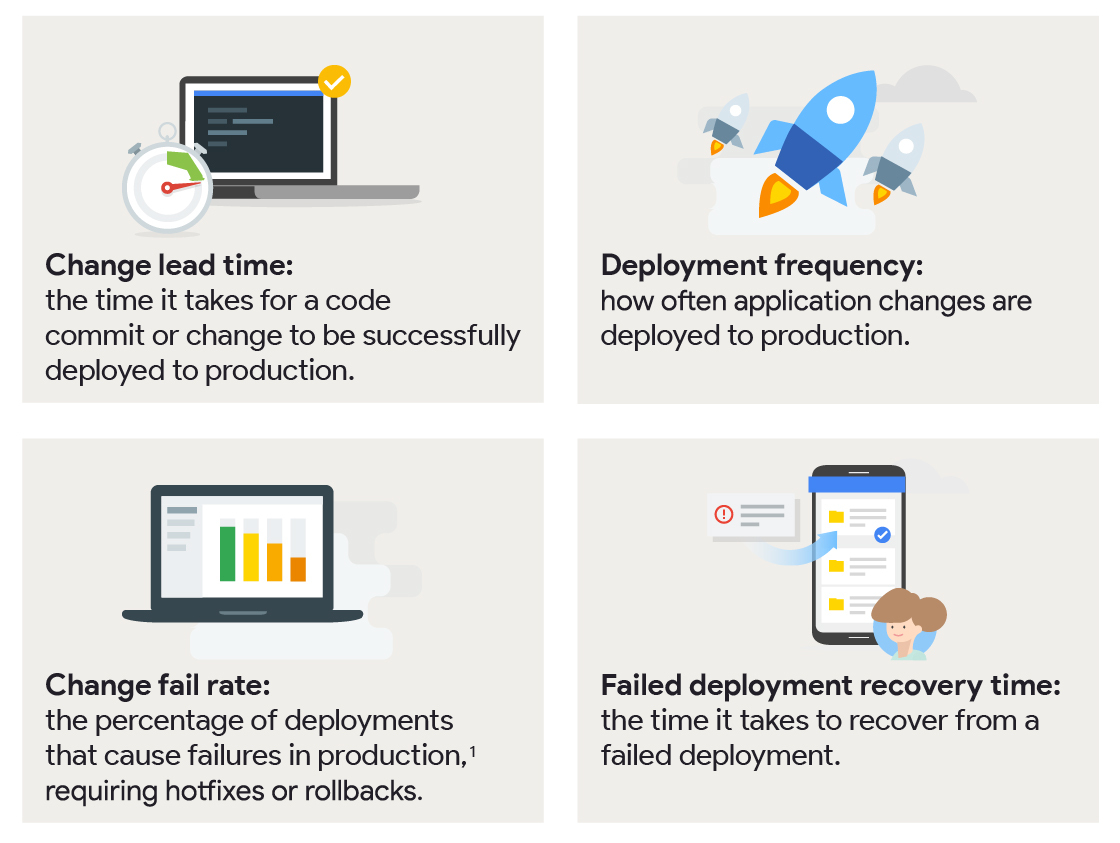
The DevOps Research and Assessment (DORA) team developed the Four Keys project, which helps organizations like ours track important aspects of our software development. This allows us to see how well we’re doing and find ways to make our software delivery and teamwork even better, ultimately enhancing our clients’ experience with our services. 

These four key metrics are: 

  • Deployment frequency
  • Change fail rate
  • Failed deployment recovery time
  • Lead time for changes

For over a decade, DORA has validated these software delivery metrics as an effective way of measuring the outcomes of the software delivery process. Each year the DORA research team publishes a comprehensive Accelerate State of DevOps Report, collecting data through an annual, worldwide survey of professionals working in technical and adjacent roles.

This year nearly 3,000 working professionals from a variety of industries around the world participated in the survey to help form a better understanding of the factors that drive high-performing, technology-driven organizations. The DORA awards outline companies with exceptional results in the field, and SiteGround is proud to be recognized among the top-performing organizations with a DORA award!

SiteGround’s Performance on Key DevOps Metrics

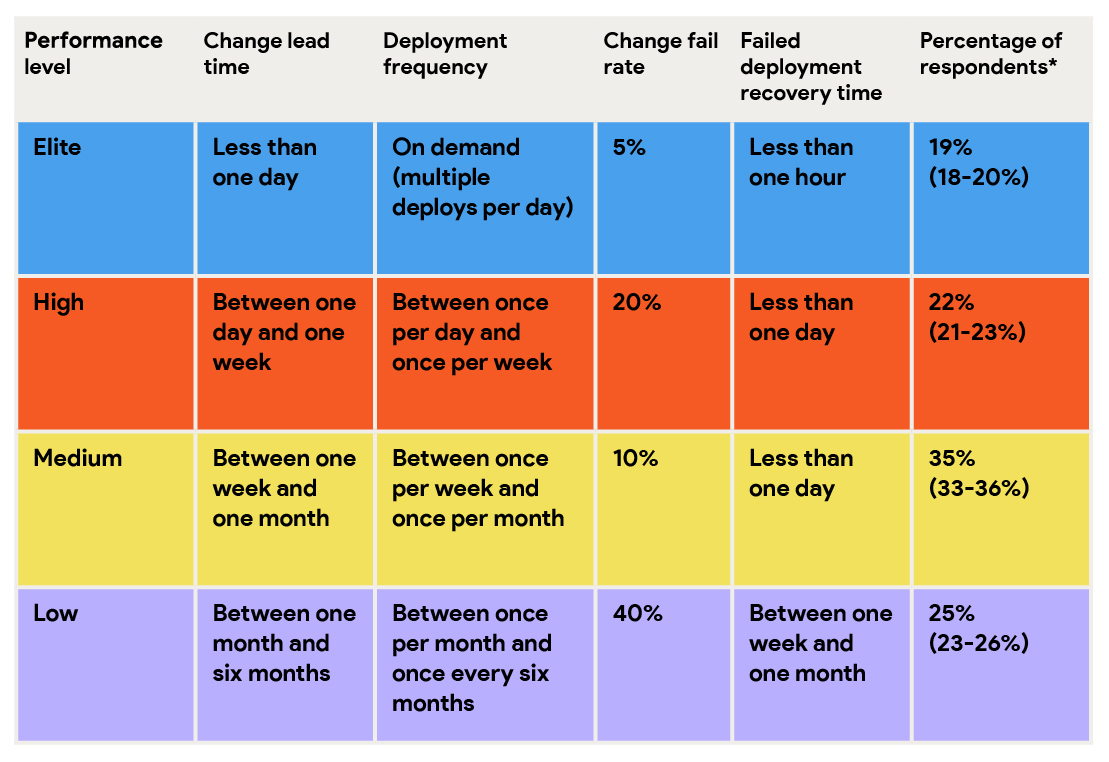
According to DORA’s analysis of the state of DevOps across all 3,000 respondents in 2024, four clusters of companies emerged, based on their software-delivery performance: Elite, High, Medium, and Low.

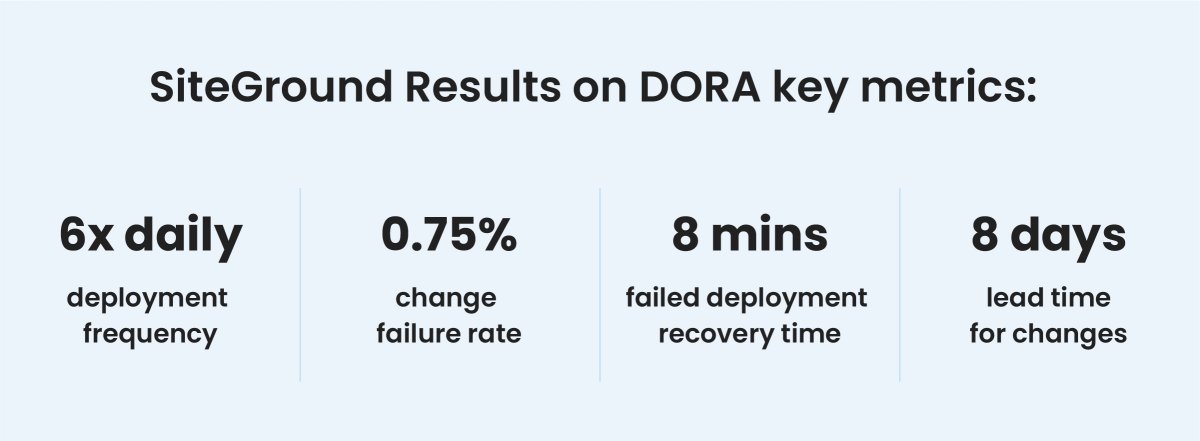
Here is how SiteGround stacks up in each metric of our software delivery process today:

Deployment Frequency

This measures how often we update our software with new features or fixes. Frequent updates mean you’re always getting the latest improvements, product features, and fixes. 

Our current deployment rate of 6 times per day places SiteGround in the Elite group of companies – under 19% of all surveyed respondents with multiple deployments per day according to the DORA report for 2024. 

Change Failure Rate

This measures the percentage of updates that cause problems and need fixing. A lower rate means our updates are more reliable, giving you a smoother experience. Our change failure percentage of just 0.75% ranks us at the forefront in this category, with a 5% considered Elite performance.

Failed Deployment Recovery Time

If something goes wrong after a release or a change in production, this metric shows how quickly we can fix it and get everything back to normal. At SiteGround our failed deployment time is exceptional – only 8 minutes, with less than an hour considered Elite performance.

 Lead Time for Changes

This shows how quickly we can take a new idea or fix it and make it live for you to use. Faster times mean we’re responding quickly to your needs. According to the DORA report for 2024, our lead time of 8 days places us on the verge of the High performers group with up to one week lead time for a change. 

Modernizing our DevOps to Empower Millions of Websites to Succeed

Our results and recognition in the Nurturing Culture of Performance and Innovation category are rooted in the synergy of our team-empowering work ethic, effective solution-building, and proactive approach to technology, which was unleashed to its full potential after we switched our bare metal to Google Cloud infrastructure. That transition opened up the resources to improve our software development cycle, our cross-team work efficiency and quality, and more effectively track and measure the results from this targeted effort. 

Ultimately, this enabled us to rapidly expand our product portfolio, making us evolve from a leading web hosting provider into a comprehensive digital experience platform. We now offer cutting-edge products to empower clients to not only maintain high-performing websites but also build a more successful online presence – all under one roof. 

What This Means for Our Clients?

Winning the Google Cloud DORA Award is not just an honor for us, but a commitment to our clients. Here’s how our focus on the DORA principles benefits SiteGround’s clients: 

Leading the Way of Innovation

At SiteGround, we pride ourselves on being at the forefront of technological advancements in web hosting and digital solutions. Our commitment to frequent deployments means we’re constantly integrating the latest technologies and features into our platform. Our proactive approach ensures that your website is equipped with cutting-edge tools to stay competitive in a rapidly evolving digital world.

Quick Response and Agility 

Our reduced lead time for changes means we can swiftly implement your feedback and adapt to new market demands. Whether it’s a new feature you’ve been waiting for or a critical fix, our agile development processes ensure that your needs are met promptly, keeping your operations running smoothly and efficiently.

Reliability You Can Count On 

We understand that downtime can significantly impact your website. That’s why our focus on minimizing the time to restore services ensures that any disruptions are addressed quickly, with minimal impact on your operations. Our robust systems and processes are designed to provide you with a reliable service you can depend on.

Quality and Consistency

Our low change failure rate reflects our commitment to delivering high-quality updates. You can trust that our improvements and new features will enhance your experience without causing disruptions. This reliability allows you to focus on your online presence, knowing that your digital infrastructure is in safe hands.

Empowering Client Goals and Team Innovation 

At SiteGround, it’s the expertise and dedication of our technology-driven team paired with our focus to always drive our services and products forward that positions us as industry leaders. Your success is our success, and we’re committed to providing the best tools and services to help you achieve your goals. Winning the Google Cloud DORA Award underscores our technical excellence and our commitment to nurturing a company culture of performance and innovation for the benefit of our clients and our industry as a whole.

How to Keep Your Site Safe with Site Scanner Security Service (Webinar Video + Q&A)

q&a and webinar session explaining site scanner service

As hackers become more and more ingenious, protecting your website is an on-going process. To help you boost your website security even further, we’ve recently enhanced our Site Scanner addon service with new features and introduced a Premium plan for ultimate website safety. As many of you wanted to learn more about this service improvement, we held a live webinar with our Product and Technology Lead, Daniel Kanchev. He explained how the latest Site Scanner update will boost your site security and replied to your most frequently asked questions. If you did not have a chance to attend, you can now catch up with the recording of our Site Scanner live webinar on YouTube. We also summarized some of the answers to your most popular questions, as well the ones that we didn’t have enough time to answer during the live webinar.

Why should you protect your website in the first place?

Contrary to popular belief, all websites – big or small – are targets to hacker attacks. At the end of the day, attackers don’t care whether you have a brochure website or a big eCommerce store, whether you have a couple of hundred users or hundreds of thousands of visitors. Their goal is to maximize the impact of the attack, causing harm to both your business and your users. Some of the ills they cause include stealing credit card details, sending spam emails, hosting malware on your site, storing files on your account, etc.

Bottom line is that everyone can be a target and get affected. That’s why it’s important to know how to protect your website. At SiteGround, we’re fanatical about the security of the websites hosted on our platform. We’re taking a multi-level approach to secure your sites on infrastructure, server, and application levels, but since the security of a website is also the responsibility of every website owner, we’re constantly adding new features and services to help you in this process and save you time, effort, and money, because dealing with the aftermath of a website attack is time consuming, generates losses and requires certain technical skills.

Isn’t SiteGround taking care of my website security?

SiteGround has adopted a security-first approach in our services and we are taking a comprehensive care of the websites hosted on our platform. Here are some of the things we do:

General website security measures

  • Hosting account isolation makes sure that your site is secured and will not be affected in case another website on the same server gets hacked. It isolates your website from all other websites. If another client’s website gets hacked, this won’t affect your website. It’s good to keep in mind, though, that multiple applications within the same website (e.g. in different folders, or subdomains of the same website) will need some more attention, as they share the same isolated protected space. Hacking one of them might lead to exploiting the other application as well. Therefore, it’s a good idea to protect all your sites with strong passwords, and our SiteGround Security plugin for WordPress websites, for example.
  • Web Application Firewall (WAF) rules, being written by our security experts, prevent your site from being hacked due to a security hole in a popular plugin, theme, etc. We write such smart firewall rules for a really big percentage of WordPress plugins, themes and other applications.
  • Smart AI anti-bot system analyzes all servers, websites and traffic, and blocks illegitimate website requests, or shows a CAPTCHA, when it’s not 100% sure the requests are legitimate. Our AI anti-bot system also takes care of brute-force attacks.
  • Geographically distributed backups to have your data safely available at another location, in case something happens to your server and data center.
  • 24/7 server monitoring of the servers by our experienced system administrators to prevent security attacks, mitigate DDOS, and react in a timely manner against any known or unknown threat.

WordPress-specific website security measures

  • We offer automatic WordPress core and plugin updates to make sure your website is up-to-date and secure.
  • We have developed a free WordPress security plugin available to clients and non-clients alike – the SiteGround Security plugin. It allows you to put additional layers of security to your website and application.

Why do you need our Site Scanner security service then?

Even with all of the above security measures in place, there is always a chance that your site can be hacked by an attacker who has found a way to gain access to it.

Let’s imagine you’re connected to a public wifi network and you’re accessing your FTP account from it. If the hacker is on the same wifi network and it’s an open network, they can sniff the traffic and see your username and password. This is only one of the numerous examples of how attackers can “enter” the backdoor of your website.

That’s why our Site Scanner is useful – even if something happens to your site, it’ll notify you about the issue and you’ll be able to react, as it:

  • Checks regularly for websites threats and detects malware
  • Sends you timely threat alerts and notifications
  • Gives you tools for reaction, if your site is under attack (NEW)

Site Scanner is a great add-on to everything else we do, because it gives you visibility and control, if something suspicious is going on with your website, and provides you with a mechanism for a timely reaction to limit the scope of an attack.

FAQs on how Site Scanner works to protect your website

With the latest Site Scanner update, we offer two different Site Scanner plans – Basic and Premium that provide your website with various security features. Here you’ll find the answers to the most frequently asked questions about these features:

How often does Site Scanner run?

Both versions of the Site Scanner security service run daily scans of the crawlable URLs, while the Premium version includes automated daily scans of the files uploaded for that website.

Does Site Scanner scan the subdomains as well, or only the main website?

The part of Site Scanner that opens up the website in a browser and browses through pages works for the domain name for which you ordered the service. If you ordered a Site Scanner for yourname.com, then it will scan pages on this website. If you have subdomains like blog.yourname.com, they won’t be scanned by Site Scanner in this way – the service will only open the main website in a browser and scan through it.

On the Site Scanner Premium plan, the file scans will work for all the subdomains you have as part of this website. That’s because from a folder structure point of view, all the public HTML folders (the web root folders of the websites) are in one site.

Can Site Scanner scan files, as well as index.php, .htaccess, .txt? How does it work with old HTML sites?

No matter if it’s a PHP, .html, CSS, JavaScript, Python, Pearl, Go, or another type of file, the file scan will be performed. Our Site Scanner scans and looks for malicious patterns through the whole file system, no matter what type of files are in the folders.

If you have an HTML site, chances are that you will not be a target of an attack so often in comparison to a dynamic website; yet, HTML websites can still be hacked and malicious code can be inserted in the HTML. For example, if you have an index.html, someone can inject malicious JavaScript in those html pages, but Site Scanner will detect those.

Does Site Scanner affect website speed or CPU usage?

Site Scanner is lightweight and consists of two main things. The first one is the scanning from a browser perspective, and it runs on a different infrastructure, not on your server. Every day, it opens your website and browses through some pages, generating about 10 or 15 page hits per day which is quite minimal and can be ignored. Second, there are the file scans and the file upload scans. These are things that run on your hosting server, but they’re lightweight and consume very little CPU time. Thus, neither website loading speed, nor CPU usage are affected by Site Scanner.

Is Site Scanner white-labeled?

If you’re reselling services, your end users will see the Site Scanner interface inside Site Tools (it’s white-labeled in that way), but they will not get the email reports. These reports will be delivered to the owner of the website only (the SiteGround client that owns the website). Your clients will also be able to use the quarantine option, they will be able to see the history of scans, as these are also white-labeled.

How to activate Site Scanner?

You can simply log in to your SiteGround Client Area > Marketplace > Hosting services > Additional services and select Site Scanner. You will then see the comparison table between the Basic and Premium plans to choose from, along with their respective prices.

Site Scanner vs. SiteGround WordPress Security plugin

Site Scanner protects your website by detecting threats, attacks and vulnerabilities, sends you notifications, and gives you tools to react. The SiteGround Security plugin on the other hand gives you the ability to increase the level of security of your WordPress website by placing more firewall rules, e.g. you can enable 2FA, block an IP address that is trying to access your website too many times, etc. 

While the plugin increases the security of your WordPress website, Site Scanner works for non-WordPress websites as well. If you have a WordPress website, we recommend that you get the plugin to boost your site security and also get Site Scanner to have a peace of mind that if something happens, you will be notified, able to react easily through the Site Scanner interface and do it on time.

Does 2FA work for the content users on WordPress?

In the SiteGround Security plugin, 2FA can only be enabled for users with elevated privileges, such as administrators, publishers, editors, etc. Once you enable 2FA, these users would have to fill in a token, generated on their Google Authenticator application, to be able to proceed with the login process.

We surely recommend enabling 2FA for your registered users. The only thing that you need to keep in mind is that this might require you to spend some more time supporting end users, when they don’t have access to their phone/email address.

At the end of the day, it depends on your business – if you want your clients to have easy access to your website and to the information you provide, it doesn’t make much sense to enable 2FA. If the website provides access to confidential information that should be protected, then it makes a lot of sense to enable 2FA for the end users of the website.

Does SiteGround have something similar to the “Limit Login Attempts” blacklist feature and how effective is it?

We have this feature in the SiteGround Security plugin and it has proven effective for preventing brute-force attacks.

Can you use Site Scanner and SiteGround Security plugin, if your website is hosted elsewhere?

Our Site Scanner service can be used only for websites that are hosted on our platform. However, the SiteGround Security plugin can be used for any WordPress website, regardless of your web hosting provider, so installing it is the least you can do for your WordPress website security.

What is the best way to prevent visitors or bots from sending emails that appear to come from the domain of your website?

When attackers forge the ‘From’ email address, that’s called email spoofing. There is no way to completely prevent that, but you can restrict it. To do that, you need to specify in the DNS zone of each of your domains which mail servers/IPs are authorized to send emails on behalf of that domain by creating these DNS records: SPF, DKIM, DMARC. In this way, the mail servers of the recipients will be able to better distinguish if the emails are legitimate ones, which were sent from your mailboxes, or phishing attempts.

[subscribe_cta]

Raising WordPress Default Memory Limit for SiteGround Clients

raising WordPress memory limit to 256 mb

At SiteGround we always strive to go the extra mile for our clients and make website management on our platform as easy and hassle-free as possible. This is especially true for WordPress websites, us being one of the first web hosts to start offering managed WordPress services to spare you tons of manual work and hassle. The extra effort we put into it goes steadily throughout the years, complemented by a strong involvement from our team in the WordPress dev and hosting projects. 


As of recently, we have been receiving a growing amount of requests from clients for an increase of the default WP memory limits – a request reinforced by a new discussion within the WordPress community about raising the default memory limit of the software, since the current values are old and no longer relevant to the present day. Being the resource efficiency geeks that we are, we decided to increase the default values at a platform level and offer a global solution for all WordPress users on our hosting.

Why is an update of the WP memory limits needed?

The WordPress ecosystem, including WordPress themes, plugins, and the software itself is constantly evolving and growing and with that, the need for more resources. WordPress site builders, online store management, e-learning management, etc. get more complex and heavier with time, and require more resources to operate properly. If you have a low memory setting, this can lead to issues with saving your page (as WordPress does not have enough Memory to save the page content to the database). This can also be a cause for critical error messages, or memory-exhausted errors on your WordPress site.

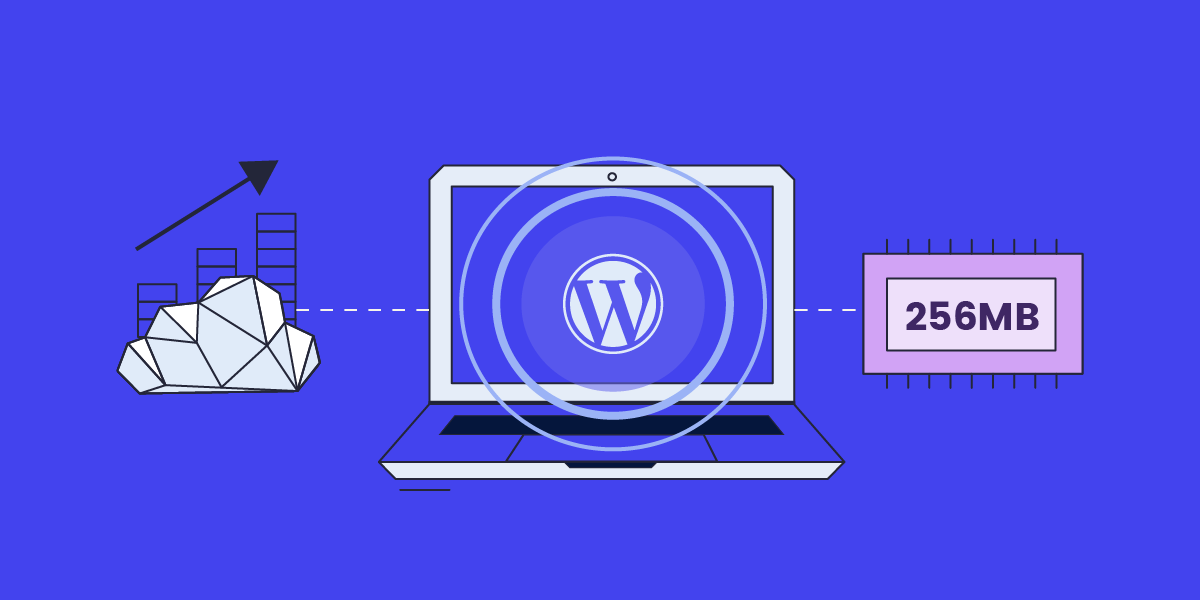
The current WordPress default memory limits are 40 МВ for WP and 64 for WPMU – while many new plugins and themes require a minimum of 128 MB of memory to run properly – and most of them recommend 256 MB, if possible. We’ve always made sure to provide plenty of hosting resources for our clients but unfortunately, the way your application default settings are set to work plays a big role into how efficiently you are using the resources we provide. For example, the current PHP Memory Limit on SiteGround servers is 768 MB, so it definitely allows a higher WP Memory limit.

Currently, if you’re using a heavier plugin, and need a higher WordPress memory limit, you have to specifically contact your hosting provider and request it, or you have to do it manually yourself. But it’s a hassle, even if you know what you’re doing. 
That’s why we decided to override the default WordPress memory settings for SiteGround clients, increasing them to 256M from the default 40 МВ for WP and 64 for WPMU. Here is how we went about it:

All new WordPress Installations on SiteGround Now Come with the Higher Memory Limit Out of the box

We started out by including a new custom config file which overrides and automatically updates the default memory limit for all our new WordPress installations through SiteGround Site Tools. That way all new WordPress instances on our servers get a head start straight from the moment of installation. Same goes for all new WordPress transfers from other hosting companies to our servers, performed with our free WordPress Auto-migrator plugin.

All Existing WP instances will be gradually updated to the new default ones

The situation with our existing WordPress clients was a bit more complicated to tackle, since we needed to be mindful that some of you may have already set a custom WordPress memory limit on your applications. So our solution will not override any custom WordPress memory limit you might have set yourself.

Since we always test, double test, and then test some more everything before going full-scale, we have decided to start gradually updating only the default WordPress memory limit server by server to monitor and perform health checks for each. 

!NB If you have installed WordPress manually in your account, and have not added it to your Site Tools, then our system has no way of knowing about you using it, and your default WordPress limit will not be updated. You will need to do that manually yourself, if needed. In any case, adding your WordPress applications is quite easy. You can do that with a few clicks from Site Tools > WordPress > Install & Manage > Add Existing Site.

That’s why we highly recommend you use our WordPress installer whenever launching new WordPress installations, or WordPress Auto-migrator when migrating an existing WordPress site to us. That way you can take full advantage of our best-in-class WordPress managed hosting services, and multiple improvements that we keep on adding.

How can you check your WordPress Memory limit?

To check the current WP memory limit of your installation you can access your WP admin backend and go to Tools –> Site Health. Then select “Info” and expand the “WordPress Constants” list. Look for WP_MEMORY_LIMIT – this is the memory limit for the website you want to check.

[subscribe_cta]

Content Delivery Networks and SiteGround CDN Explained (Webinar Q&A + Video)

SiteGround CDN webinar questions and answers

Your website speed is a crucial part of your online success. To help you optimize your website loading time even further, we recently launched our own SiteGround CDN for our clients. Since many of you were curious about this in-house solution, we organized a live webinar with our Product and Technology Lead to answer the most common questions about our latest speed-boosting CDN service, available for free with each of our hosting plans as a Basic version, and as a paid upgrade Premium version. Here are the answers to the frequently asked questions by our webinar audience, as well as to those that we didn’t have the time to answer during the live session.

What is a CDN?

Every website lives on a server somewhere around the world. For example, SiteGround offers several data center locations in the U.S., Europe, Asia and Australia, which you can choose from when purchasing our web hosting services. When your website visitors open your website, they connect to the server that hosts your website. The closer your visitors are to your host server, the faster your website loads, and the better their user experience. However, the purpose of a website is to be accessible and fast from every point of the world, 24/7/365. For this purpose, a CDN exists.

What does CDN mean? It’s a content delivery network that caches parts of your website or the entire website and distributes it on servers that are closer to your visitors. Basically, it keeps copies of your website in many locations around the world. Thus, if you have an active CDN, every time a user visits your site, it will be loaded from a location that’s the closest to them instead of loading it from the origin server. As a result, a CDN service tremendously reduces page loading times and speeds up your website.

What are the benefits of using a CDN for your website?

Websites with international visitors

If your website has a lot of international traffic, it will be distributed well among different CDN locations. For example, when we launched our SiteGround CDN in locations where we didn’t have data centers, the response time for end users improved drastically – between 6 and 8 times for some websites, and even 10 times for others. Currently, SiteGround has 14 CDN locations all over the world (including the newest CDN location in Sao Paulo, Brazil, as well as our new data center and CDN location in Madrid, Spain) that optimize website performance for international visitors.

Websites with users in remote areas

In many locations around the world, people do not have access to fast internet. Thus, a CDN is very beneficial for users in remote areas, where the internet connection is not so good. When they want to load a website, they will be connected to a server which is closer to their location and thus the website will load faster.

Websites that change content frequently

A CDN caches your website content on a server close to your site visitors and delivers this cached version to them every time they visit your site. So the period you want the CDN to keep a cache of your files is important. If you set your CDN to keep the cached copies for too long – for example, one month – but you make changes to your site frequently within this timeframe, then they won’t be displayed live until you clear the cache manually. Similarly, if you set the cache time to be too short, then it will pretty much not be working as it should be, because the idea behind it is to store a cached version for a particular period of time. Therefore, it’s good to choose a period of time that will suit your site depending on how frequently you intend to make changes to it. For instance, SiteGround CDN cache time to live is set by default to 12 hours, and you can easily customize cache time to live to your own needs on the Premium version.


You also need to consider your website software application. For example, for WordPress websites, we have the SiteGround Optimizer plugin which connects to WordPress in such a way that when you make changes to your site (e.g., change a post or theme, install a plugin, etc.), the plugin detects those changes in real time, it connects to our CDN and flushes only the respective pages that have been changed. This is super handy! For any other type of CMS/application that you may use on your site, we honor the standard cache headers of your application. If your application allows you to set a certain amount of time for caching your pages and resources, then our CDN will honor that time.

CDN Benefits for websites with no international traffic

Even websites with no international traffic will benefit from using a CDN. For instance, if your business is in the U.S., you may have website visitors from the East coast, from the West coast and the central states. If you have a US-based website with us, it will be hosted in our data center in Iowa. In this case a visitor from New York for example will have to wait some more time compared to other users, if you don’t have a CDN enabled. Switching on our CDN service that offers several CDN locations in the US  will make your website load much faster for all US-based users. A similar case scenario applies to pretty much all the rest of the continents in the world.

How does SiteGround CDN compare to third-party services?

Compared to a third-party provider, SiteGround CDN offers many benefits for your website, because it is a service developed around three main pillars:

Easy-to-use

Let’s assume you’re using a third-party CDN provider that’s not integrated with your hosting provider’s services. Then, you’ll need to manage the hosting from one place and configure the CDN settings from another place which often may cause issues. What is more, you’ll have to apply different configurations on your own, depending on the CDN provider you use. For example, in certain cases, when you enable a specific CDN provider, you need to go and reconfigure all of your images to be loaded from specific URLs, in order for those images to be loaded from the CDN.

Therefore, we built our SiteGround CDN in a way that doesn’t need much configuration to be enabled. In fact, you just click one button and it starts working. What is more, it is super easy to use. We’ve given you the smart defaults and from then on you can change some of the things depending on your website needs with just a few clicks. Our CDN allows you to enable it without technical knowledge required, as well as use and change its functionalities hassle-free, with a click of a button.

Blazingly-fast

Another benefit of our CDN is that it makes your website load blazingly-fast because it’s based on the same cloud network which our hosting services are based on – the Google Cloud network. What is more, by utilizing this network, data travels securely through it. Using the same private network allows us to improve website performance and offer fast website loading speed.

In-house built

  • Safety net for issues

Usually, a lot of website owners use a CDN service. If something goes wrong with this service, their whole website and/or business depends on it. Therefore, we believe it’s important that we have full control over any potential issues that may arise and thus, we built our SiteGround CDN in-house. Since it’s an in-house built product, our support team will be able to fix a potential issue with it, as it is a core service we offer.

  • Room for expansion

There is always room for improvement and when the time comes for a new feature or our clients require a new functionality, we’ll be able to add them, as we’ve already built the service ourselves and know its technical specifics. We will consider and evaluate feature requests based on the business case and the feature type. What is more, we’ll be able to do it in a timely manner, as we’ve built the whole CDN for a year and a half (including the research phase). This gives us the confidence that we can expand the service as much as we want to.

Do you need to first disable other CDNs?

In the general use case scenario, it’s enough to have the domain pointed to the SiteGround Central DNS and enable SiteGround CDN. In this way, the DNS will route the requests to our CDN, even if you have Cloudflare enabled, for example. However, in some cases, the apps are configured to use CDN subdomains for static resources, for example, or in other custom CDN setups, it would be better to disable the other CDN and enable only SiteGround CDN.

Can you use SiteGround CDN with our SiteGround Optimizer plugin for WordPress?

A lot of you already use our top-rated SiteGround Optimizer plugin for your WordPress sites. Since the plugin offers multiple website caching benefits, resulting in optimized WordPress website performance, we get a lot of questions about how that would work with our CDN. One of the perks that both of these tools were developed in-house by our team, is that they are designed to be compatible and complement each-other. For example, if you have SiteGround CDN enabled, purging the cache from the SiteGround Optimizer will purge the cache both on the CDN and your origin server. This is true for every type of our CDN plan. Keep in mind that this will not be working for combinations with other CDN providers, i.e. the SiteGround Optimizer plugin won’t flush the cache on another CDN provider.

Website Caching and SiteGround CDN

Is it best to use several of your options or is CDN alone enough?

Your website would be optimized for the best performance, if you have Premium CDN with the following features enabled: Advanced dynamic caching and “Always online” mode to ensure that the CDN edges will serve cached copies of your pages, if there’s a problem with the site on the origin server. What is more, when hosted with us, our Dynamic cache feature will be enabled by default for your site. If you’re using WordPress for your website, you can also take advantage of our SiteGround Optimizer plugin which offers powerful caching options that complement the rest of the above-mentioned features.

Is dynamic content cached statically or is it computed at the CDN edge?

Dynamic cache means that after the PHP on the origin server processes the PHP request and generates the HTML, the origin server sends this HTML as a response and the HTML itself is cached on the CDN edge servers. The default cache time to live (TTL) on the CDN edges is set at 12 hours. However, you can always change the cache TTL from your application or .htaccess file. Alternatively, if you have the SiteGround CDN Premium, you can customize your cache TTL with just a few clicks.

What happens to sites that pull data into the site real time, e.g. a real estate site?

The answer to that question would depend on whether you want to pull the data each time, or pull the data and then cache it. If you want to pull and cache the data, it’s better to use our Premium CDN with dynamic cache. However, if you want to pull the data from the remote source on each request without caching it, and to deliver the freshly pulled data to your client, then you don’t necessarily need dynamic cache.

What is and isn’t delivered by the CDN local node?

If you use the free CDN, only your static files will be delivered from the CDN edge cache. If you use Premium CDN, you can also have dynamic cache. This caching logic is similar to the SiteGround hosting server’s cache logic. Just like it is on the SiteGround hosting server, logged in users, carts, checkout pages and others are bypassed by the cache. What is more, if you’re using WordPress, you can also download the SiteGround Optimizer plugin to exclude specific pages from the cache.

Does it matter for the CDN, if the website is WordPress or not WordPress content-based?

The simple answer to this question is no, the CDN is respecting the cache-control headers and you can pass such headers to control the CDN cache, no matter what application you’re using. The cache files generation and manipulation works the same way for every application.

However, for WordPress sites we do more and automate cache flushing for example. Certain WordPress pages are excluded by default too. We do advise WordPress users to go for the Premium CDN combined with the WordPress Optimizer plugin.

How quickly does a cached page update over the CDN when a page is updated?

If you’re using WordPress with our SiteGround Optimizer plugin, you can take advantage of all caching features and purging options, such as “Purge cache” or “Auto-purge” from the plugin. If you’re not a WordPress+SiteGround Optimizer user, there won’t be an auto-purge, so you’ll need to purge the cache from your Site Tools > CDN section. The cache purge usually happens immediately but in some cases, you might need to allow 30 seconds for the cache to be purged on all CDN edges.

How to choose between SiteGround Free CDN with each hosting plan & Premium CDN Version

Can you touch on the difference between free version and premium version?

Our SiteGround CDN is an in-house built solution that comes with each of our hosting plans completely free of charge. The free plan allows you to take advantage of different functionalities, such as caching of your website static content; up to 10 GB bandwidth CDN traffic per month; immediate initiation of purge of all cached resources for your website (the cache purge usually happens immediately, but in some cases you might need to allow 30 seconds to purge the cache on all edges); development mode to temporarily suspend caching, make changes to cacheable content and see those changes right away.

What is more, SiteGround CDN also comes with a Premium version that offers even more benefits for your website. The Premium plan allows for advanced dynamic caching; unlimited CDN traffic; activation of the CDN for all your domains (including subdomains and parked); custom time to live for you to choose for how long website resources are cached; “always online” feature that will keep delivering the already cached pages, in case your website starts returning errors.

What happens if you exceed the traffic quota on the Basic plan?

As mentioned above, the traffic quota on the Basic plan is limited to 10 GB per month. If you reach that limit, the Free CDN will automatically stop working. Yet, 10 GB is enough for all the small to medium-sized businesses hosted with us, because that was one of the conclusions during the SiteGround CDN Beta period. If your website makes more traffic than that, you’ll definitely need to upgrade to the Premium version.

How to set up SiteGround CDN?

The setup of SiteGround CDN is easy – you can enable it with the click of a button from your Site Tools > Speed > CDN section.

How will this process affect the existing DNS entries?

In order to use our CDN, you need to be using our central DNS service. To do that, you need to make sure that your domain is pointing to our name servers: ns1.siteground.net & ns2.siteground.net. Read some more information on how to change the name servers of your domain. Why do we need to be in control of the whole DNS zone for your domain name? So that we know exactly how to configure the service without breaking anything else, such as Microsoft Office 365, or Google Workspace, or a similar service. 

What will we do? We’ll only change the DNS A records for your domain name and for www.yourdomainname.com. Thus, by enabling the CDN, we’ll change the IP address to which your domain name resolves, but other than that, there won’t be any other changes. All the traffic for your domain name and for www.yourdomainname.com will be routed to the closest CDN location, but no other related services should be affected. That’s the perk of us controlling all these services, such as web hosting, DNS part, and CDN part – we can guarantee to some extent that we will not break other connected services.

Note: If you are migrating your DNS management to SiteGround’s Central DNS please make sure that you manually create all needed DNS records via the Site Tools interface before actually pointing your domain name to ns1.siteground.net and ns2.siteground.net.

Do I have to run my server to www or can I do it without www?

There’s no need to convert your website to a www version (if it’s not), as SiteGround CDN works either way.

Does the CDN give you any extra server resources?

If you use the SiteGround CDN, it will allow you to better utilize the existing resources of your hosting plan. This means that extra resources will not be added but your current hosting plan will probably be able to handle a bit more traffic.

What is the best way to set up SiteGround CDN for client sites?

The setup process is a piece of cake. As mentioned above, as long as the domain is using our name servers, it’s a matter of a few clicks in your Site Tools.

Can you enable the CDN once for all sites you run?

If you have more than one website, the SiteGround CDN should be enabled separately per each individual website from the SiteGround Site Tools panel.

[subscribe_cta]

SiteGround CDN Is Now Officially Here

SiteGround new feature CDN official release

UPDATE

We’ve already launched a newer, even faster version of our CDN service – SiteGround CDN 2.0! It increases the website loading speed by 20% on average, going up to 100% for visitors located in some specific parts of the world, by utilizing the power of anycast routing and Google network edge locations.

We are excited to announce that the SiteGround CDN is out of its beta period and is now officially available for use to all our customers. SiteGround CDN is a site speed optimization service developed in-house specifically for our customers, who receive traffic from different geographic locations. Thousands of users have enabled the CDN during its beta phase and are already actively using it. We are happy and thankful for their strong positive feedback and their input that helped us apply the final touches to our CDN before its official release today.

What are the benefits of the SiteGround CDN

Our SiteGround CDN is an in-house built solution that provides you with a simple On/Off service with smart defaults and native server performance. It is carefully developed to incorporate all related services needed for best results. Here are some of its main benefits:

Blazing-fast websites loading speed

Our SiteGround CDN ensures the fastest loading speed for your websites to its visitors from different parts of the world, thanks to the facts that:

  • Our CDN service is hosted entirely in the Cloud where content is cached and replicated across multiple locations on 4 continents and thus served to your website visitors with minimal latency.
  • Our CDN ensures blazing-fast loading speed of your websites because it uses a super fast private network between our client-specific CDN locations and our hosting servers.

No configuration and easy management

Setting up your SiteGround CDN and managing its features happens with a few simple clicks in your Site Tools -> Speed -> CDN section, thanks to the fact that every layer of our system is built in-house. The activation of the CDN happens with a single click with NO additional site reconfiguration needed regardless of your site setup. No matter if your site is opened with www, or without www, or if it uses SSL or not, the CDN simply works.

SiteGround CDN plans and features

SiteGround CDN includes a free and a premium plan, that you can choose from, based on your website’s needs. Find out more about the two plans in the following sections:

Features in the Free CDN plan

If you choose to use the Free CDN plan, you can take advantage of the following functionalities, completely free of charge:

  • CDN activation for primary domain names with just one click
  • Caching of your website static content on CDN servers
  • Up to 10 GB bandwidth CDN traffic per month
  • Immediate initiation of purge of all cached resources for your website
  • Development mode for checking the latest website changes live quickly and ensuring everything looks good

Features in the Premium CDN plan

The Premium CDN plan includes all of the above-mentioned features in the free plan and in addition, it gives you access to the complete list of premium CDN functionalities:

  • CDN activation for all domains, including subdomains and parked domains
  • Advanced dynamic caching, delivering cached copies of the dynamically generated pages of your site by default
  • Unlimited CDN traffic
  • Custom TTL (time to live) that allows you to choose your desired cache time to live
  • “Always online” feature that keeps delivering the already cached pages from our CDN servers, in case your site starts returning errors

How to get started

You can switch on the Free CDN for your website with a single click from your Site Tools > Speed > CDN section. If you want to unlock the premium CDN features, you need to purchase the Premium CDN service from Client Area > Marketplace > Hosting Services > Additional Services, currently available with 50% off for the first 12 months, starting from $7.49/mo USD (prices are subject to change).

If you would like to use the SiteGround CDN, keep in mind that you cannot use it simultaneously in combination with another CDN. To be able to utilize the CDN service, you need to be using our centralized DNS as well, i.e. your domain should point to our name servers:

  • ns1.siteground.net
  • ns2.siteground.net

Try out our new CDN service for yourself and feel free to leave us a comment, in case you have any feedback or suggestions.

[subscribe_cta]

Introducing SiteGround Cloud CDN in Beta

Not so long ago we launched a Centralized Anycast DNS service which made DNS management on SiteGround really easy and significantly boosted domain name resolving speed and redundancy for SiteGround clients compared to using local DNS servers. Our Centralized DNS also laid the foundation for another feature that is essential to website speed and performance –  our own Cloud-based Content Delivery Network – SiteGround CDN.

Why did we develop SiteGround CDN?

For the past 10 years, we’ve been partnering with CDN providers to offer free built-in CDN as part of our hosting services. However, third-party services invariably require additional setup and configuration, often involving managing things from separate interfaces or technical knowledge about DNS, HTTP, cookies, etc. On top of this, using third-party services may sometimes cause confusion for users or issues which are outside of our control. And at SiteGround, we’ve always strived to minimize the hassle as much as possible for our clients. 

That’s why we wanted to build our own CDN solution to provide a simple On/Off service with smart defaults and native server performance. SiteGround CDN is developed specifically for our clients to incorporate all related services needed for best results:

  1. Smart Anycast DNS to route the traffic to the geographically nearest CDN location
  2. More control over the backend hosting servers to increase redundancy and offer more features out of the box
  3. Greater flexibility to configure things for our clients without them having to do anything

What are the benefits of SiteGround CDN compared to a third-party service?

Cloud-native Performance

Our new CDN service is hosted entirely in the Cloud – multi-region, highly available, and redundant groups of servers, making it possible for your content to be cached and replicated across multiple locations, and be served to your website visitors with minimal latency. It works with our Centralized DNS and its high-speed Anycast routing technology to direct your site’s visitor requests to the closest SiteGround CDN location. In turn, it will serve the content from the cache in our CDN cloud (if the specific content has been cached previously) or proxy it to your site’s hosting server ensuring near-native server performance.

Client-specific Locations with Premium Networking

We carefully analyzed the aggregated main website traffic sources on our servers and created the following list of locations currently powering our CDN network: Tokyo (Japan), Singapore, Sydney (Australia), Warsaw (Poland), Hamina (Finland), London (England), Frankfurt (Germany), Eemshaven (Netherlands), Council Bluffs (Iowa, US), Moncks Corner (South Carolina, US), The Dalles (Oregon, US), Los Angeles (California, North America). 


Having CDN cloud servers at the locations above gives us a great advantage in terms of network performance. The fact that we have network control over both the CDN layer and your website’s hosting server makes the communication between them blazing-fast. By using internal routes between the servers we are eliminating any delays and latency that might be observed with third-party CDN providers utilizing the public network to communicate with your site’s hosting server. In short, this ensures the fastest private network between our CDN locations and our shared hosting servers, resulting in faster website loading speeds for our clients.

No Configuration and Simple Management

Thanks to the fact that every layer of our system – from the hosting environment, through your website management panel, to the Centralized DNS – is built in-house, we can provide our clients with an easy and comfortable way to add a CDN layer to their websites with literally one click. It also allows us to implement the CDN functionalities you need and make them available in an easy-to-use interface directly within SiteGround’s website management interface – Site Tools. 

Everything from setting up your SiteGround CDN to enabling/disabling a certain feature is handled automatically in our backend. The only thing left for you to do is click a few simple buttons in the Site Tools -> Speed -> CDN section of your site. This way we’re saving you a ton of annoying actions:

  • No external CDN control panels – you don’t need to log anywhere else except your Site Tools area
  • No need to change and use external Nameservers – it all happens within our central DNS records
  • No need to create additional DNS records for the www-prefixed version of your domains – we will route absolutely everything through our CDN service, regardless of whether your site is opened with the WWW or non-WWW version of your domain. 
  • No additional HTTP configuration – no specific Cookie settings, no need to implement anything in your application. You just click the “On” button and your content will be served from the closest SiteGround CDN location point to your site visitors.

SiteGround CDN Beta Features

After successfully passing our detailed internal testing, SiteGround CDN Beta is now available for testing. Currently, SiteGround clients can enable it for their sites’ primary domain names with one click, absolutely free. Here’s a quick overview of the features that are currently available for all users that decide to use the SiteGround Cloud CDN in Beta:

  • Access all available CDN locations that we currently offer
  • Static & Dynamic caching with no extra configuration – third-party CDN services usually only cache and serve static content by default ( website images, CSS, Javascript, ect). With SiteGround Cloud CDN, you can choose to cache both your site’s static and dynamic content with a single click. This way our CDN will instantly deliver cached copies of the dynamically generated pages of your site by default, instead of static content only.
  • Cache TTL (time to live) modification – SiteGround CDN currently has a global default value of 12 hours. However, if you want to set a different cache TTL you will be able to do it by simply choosing the desired cache time to live from a drop-down menu in your Site Tools interface.
  • Development mode – caching is good, but we know that sometimes you want to check the latest website changes live quickly to ensure everything looks good. Our Development mode functionality will allow you to bypass the cache and fetch fresh content from your site’s hosting server, instead of the CDN. So there’s no need to turn the CDN service on and off again and again when you’re making website changes.
  • “Always online” feature – we also know that sometimes things can go wrong. Our Always online feature tells our system to keep delivering the cached pages from our CDN servers, which comes in handy if your website application starts returning an error for some reason.

You can find detailed instructions on how to use our CDN interfaces in our CDN tutorial.

How to take advantage of the SiteGround CDN Beta?

You can activate SiteGround CDN Beta from Site Tools -> Speed -> CDN section of your site. Currently, it’s available for primary domain names only, and completely free with its full feature list. The official SiteGround CDN release will feature two plans – basic and paid with different functionality. All clients who activate the Beta version of our CDN get access to the complete list of features, and will be able to continue using them for free for 3 months after the Beta period is over.

Gaining even more data and insights during the Beta period, in addition to client feedback, would help us polish and perfect the nitty-gritty details. All clients using SiteGround CDN in Beta will be able to test its performance benefits and provide feedback about the service or what we can improve directly in our Support HelpDesk, so you’ll be able to communicate and share your opinion directly with the people who designed and developed the whole system. And how often, really, do you get to have that – free performance optimization and a direct feedback loop to the people who created it. At SiteGround it’s a win-win for all.

[subscribe_cta]

Speed Optimizer (formerly SG Optimizer) is Now Available аnd Free for All WordPress Sites

When we started developing the SiteGround Optimizer plugin back in 2012 we wanted it to be a bridge between our services and our clients’ WordPress sites. During the years we introduced more and more features and the SiteGround Optimizer (now named Speed Optimizer) became one of the best performance optimization plugins for WordPress, based on popular ratings. And naturally, we started getting inquiries about how websites non-hosted on our platform could benefit from it. That interest gave us a push to decouple the plugin from its dependency on our infrastructure and convert it into a hosting-agnostic, completely free solution for all. We are now excited to announce that as of its latest version, the Speed Optimizer plugin can be used by any WordPress website, regardless where it’s hosted! 

Features Available on Any Hosting Platform

Making the Speed Optimizer available on other platforms wasn’t a simple task. Part of the success of the plugin is tied to the SiteGround server setup that is built with performance in mind and takes advantage of some of its unique features. To open it up, for every feature that was dependent on our platform’s services, we had to come up with a solution that would work just as effectively on different platforms and configurations. 

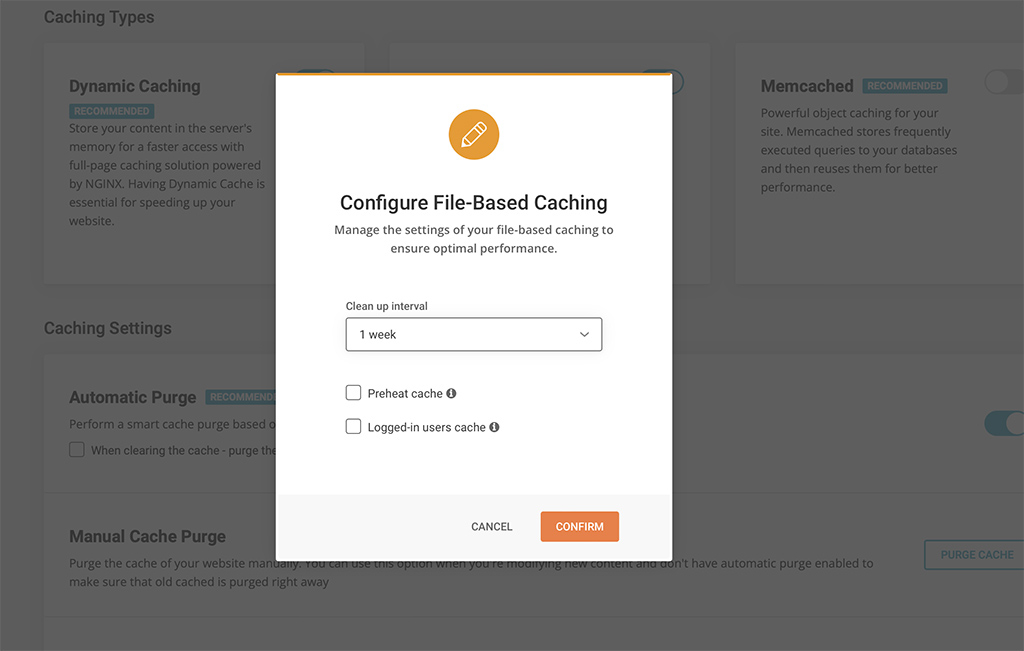
File-based Caching (NEW FEATURE)

File-based Caching introduces preheating and cache for logged-in users!

Nowadays caching is one of the most effective means to optimize performance. When looking for alternatives to Dynamic Caching (built-in feature for all SiteGround websites) we decided to implement File-based caching because of its versatility and compatibility with different hosting configurations. File-based Caching can be used on its own on websites hosted outside SiteGround or as an additional caching layer for SiteGround customers who already have Dynamic Caching and Object caching (Memcached) enabled. 

Some great features of the File-based caching are the ability to keep cache for logged in users, pre-heating cache (especially useful for rarely opened pages that are opened for the first time in a while) and defining longer cache expiration. These options are configurable in the plugin interface. Although file-based caching alone is generally slower than the Dynamic caching, our tests show that its implementation in Speed Optimizer is still up to 20% faster than any other plugin that provide similar performance-optimization functionality that we have tested.

Environment Optimizations

All users can enjoy several types of environment optimizations that will tidy up your WordPress environment to achieve top performance. Here you can find features like WordPress Heartbeat Optimization where you can define how the WordPress API interacts with your application to optimize resource usage, and  Schedule Weekly Database Maintenance to make sure that your WordPress remains tidy and uncluttered.

Frontend Optimizations

The website’s front-end code can often be heavy and significantly reduce loading speed. There are several features in the Speed Optimizer that can optimize it and as a result speed up your website. Minifying your HTML, CSS and JavaScript output will decrease the size and number of server requests related to these types of files and as a result decrease loading time. We have made these functionalities available through simple toggles in the plugin. You can specify which types of files you want to minify, combine and even exclude from minification or combination. And if all of this sounds too technical for you, you can just look for the “Recommended” labels next to each option to figure out what would have the greatest impact on your website’s performance.

Media Optimizations

There are several media optimization tools in the Speed Optimizer that will work on all hosting platforms. You can enable Lazy Load with which only the media in the visible part of the browser will be loaded. This makes loading faster and smoother for longer pages with multiple media items. You can also define the Maximum Image Width allowed for images on your website. A lot of themes and plugins tend to upload excessively large images that slow loading speed without ever being displayed in their full width. 

SiteGround Exclusive Features

As mentioned earlier, our platform has some unique speed settings and services, which cannot be replaced with plugin functionality alone since they need the specific server environment to run as designed. These remain exclusively available to websites hosted on SiteGround. 

Dynamic Caching and Object Caching 

One of the best speed-enhancing features you can get for your website and our top choice when we talk about speed, is the Dynamic Caching. The Dynamic Caching is part of our proprietary 3-level server caching implementation that relies on NGINX Direct Delivery for static cache handling, Dynamic Cache for dynamic content and Object Caching (Memcached) for storing data and objects in the RAM. We believe that Dynamic Caching is essential for every website and we have it included in all of our hosting plans. From the Speed Optimizer plugin you have control over advanced WordPress-specific settings for the Dynamic Cache and Memcached to get the most of this technology. 

Image compression and WebP

The Image Compression and WebP features of the Speed Optimizer plugin are two essential features available to websites on the SiteGround platform exclusively. With our image compression algorithm you can decrease your image size (and respectively the time it takes for your images to load) by up to 85%, while keeping the image quality high for your visitors. You can also enable WebP which will convert your images to a WebP format which adds an additional reduction in size without affecting image quality. 

Opening the plugin to websites hosted outside of SiteGround was a big step for us. After running multiple tests on different hosting platforms and benchmarking performance against WordPress plugins with similar functionalities, we’re confident that the Speed Optimizer plugin is the best performance optimization tool you can get for your website regardless where it’s hosted. And it’s completely free. Download it here, try it yourself and let us know how it works for you by leaving a comment in the section below.

[subscribe_cta]

Moving to PHP 7.4 and Discontinuing Some Old Versions

A large part of our service involves keeping server-side and client-side software up to date, secure and fast. One of the key elements of our server stack that requires expert maintenance is the PHP programming language, which is a prerequisite for the functioning of the majority of the websites. PHP is an extremely popular and well-supported language and, as any software, its development involves the continuous release of new versions. New versions introduce new features and important performance and security enhancements. As a managed hosting service provider we keep track of how each PHP version evolves, especially how fast it is adopted by the leading application developers, and we make proactive efforts to make sure our customers get all the benefits of the newer versions as soon as possible. Here is our latest PHP maintenance update.

PHP 8.4: Stay Updated! 🚀 Check out our latest blog post to explore the newest features and enhancements in PHP 8.4.

Moving to PHP 7.4 as the server default

As of June 2021, we will be switching the default version on our servers to PHP 7.4. This means that all new sites will be using 7.4, unless manually switched to a different one. PHP 7.4 has been around for more than 2 years now and has already become widely compatible with different CMS’s, themes and plugins, where PHP 7.3 (our current default) is already out of active support and will get out of security support too by the end of this year. Keeping your PHP version up to date has undeniable performance and security advantages and that is why we are now helping you switch to PHP 7.4.

All websites using our Managed PHP service will also be upgraded to 7.4 in the period June 10-21, 2021. PHP 7.3 will still be available on our servers and can be set up manually for any site by our clients from Site Tools > Dev > PHP Manager.

Discontinuing support for 7.2, 7.1, 7.0, 5.6 and lower at the end of the year

At the same time, the security support for all PHP versions below 7.3 has been officially over for quite some time, and given the exploits that leak out once in a while, we believe the risk of using them is growing higher. Additionally, the performance of websites using old PHP versions is considerably lower compared to sites using newer versions. That is why we are starting a process of discontinuation of PHP 7.2, 7.1, 7.0, 5.6 and lower on our servers. After June 21, 2021 we will be gradually updating the sites using old PHP versions to PHP 7.4. PHP versions below 7.3 will no longer be supported on our servers after December 31, 2021.

What to do if you are using an old PHP version?

This PHP update will affect many websites on our platform. That is why we have started communicating the update one month ago and we strongly encourage you to evaluate the impact of upgrading to 7.4 on your site as soon as possible by using this tool:

your-domain.com/.well-known/sg-php-try-v74

To see if a site will work properly after the upgrade, please type the above URL using your own site domain in the browser and browse through the site, its subdomains (if any) and its admin area. If anything does not look or behave as expected, we highly recommend that you further investigate your site compatibility with PHP 7.4 and fix any issues before the update. If you have broken plugins or a theme, consider updating or replacing them. If that’s too hard, or the problem is elsewhere, contact your developers for assistance.

Note: By opening your website through the link above you will browse it using PHP 7.4. This change affects ONLY your current browser session. All other visitors will continue to access your site with its current PHP version. To stop the compatibility check browsing mode in your own browser, please close the browser and access your site again via its standard URL.

Magento special case: Sites using Magento 2.3.6 or lower are not compatible with PHP 7.4 That is why, if you have such a website, we strongly recommend you update it to 2.3.7 as soon as possible, so that it is compatible with PHP 7.4 and ready for the PHP upgrade.

We are aware that sites currently using PHP version 7.2 or lower may need longer time to fix possible incompatibilities with PHP 7.4. That is why, the owners of such sites were provided with a link for possible opt-out in the email about the update, sent over the past few days. By opting out through this link, clients confirm that they do not want us to update their site PHP version for them, but are aware that this version will nonetheless stop functioning after December 31, 2021.

For clients using PHP 7.3, we strongly recommend that they do not postpone their PHP update, but in case this is really needed they may simply switch to manual PHP version management, until their site is ready for PHP 7.4.

Looking forward to seeing more secure and much faster sites after the update!

[subscribe_cta]

Piping Email with PHP and SiteGround

One of the fun things to do with computers is to think outside the box, to use tools for things they aren’t exactly designed for. Email is one of my favorite toys with which to play with. Email is universal, and everyone has it. So when you create a new user for it, everyone can now do that.

What can we make email do that it doesn’t do already? Well, email is a delivery system, so we can use it to not only deliver data of some kind, but also to trigger an event that causes a computer somewhere to do something. If necessary, email can also respond back to you.

In the early days of the web, there were email addresses you could send an email to with a URL in the body. It would retrieve the URL and send you back the copy. Email pre-dated the web on the Internet, so there was a time when people had email but not web browser. This was a great way to get to the web before you got a web browser. The downside was that most email at that time didn’t support images, but this was okay because most webpages at this time didn’t HAVE images. 🙂

I’ve also used email to deliver data and trigger processing. Last year for Mother’s day, I built my mother and mother-in-law digital picture frames based on Raspberry Pis. The front-end media management for these frames is a WordPress site. This gave me a convenient API already built to deliver images to. The problem is that my siblings are not programmers, so I needed an easy way for them to send images to these frames. Email was that easy way.

I created a system that allows them to send a picture via email. Each digital picture frame has an email address, and they can send pictures to it. While WordPress handles all the user management and image processing, SiteGround’s email system allows me to make all of this happen.

The way to do this is called a “pipe” because you are “piping” the contents of an email to a program of your choosing.

I’ll stop here and tell you upfront that if you are not a programmer or at least a very technical user, this is not for you. Programmers can write programs (like I did) to take the input and process it. Technical users may also be able to install programs on their server that will accept the input and do something with it. If you are not in one of these two groups, I suggest you go find a programmer you trust and hire them to help you do this.

In SiteGround, the process is pretty simple. You first create an email address, then you create a filter for that email address. In my case, I created momspictureframe@example.com (not the real email address) in my Site Tools.

Then I went to filters and created a filter for momspictureframe@calevansxample.com.

  • I gave it a name that I could recognize, “Pipe Pictures to Mom’s Frame”.
  • I set the proper condition. I want this filter to trigger any time any email comes to momspictureframe@example.com. So I set it to:
    • IF ANY
      And then, I set it to trigger on the TO email address.
    • TO EQUALS momspictureframe@example.com
  • Finally, I set it to perform actions. In this case, I perform 2 actions.
    • First, “Pipe to a program”
      This is where you need to be a programmer. I wrote the program necessary to process the emails and uploaded it to my SiteGround site. I have to know the exact path and program name for this to work. Even a good programmer is going to have to experiment a little to get this right. Still, once they get it right once, it’s easy to do it again for other pipes.
    • Second, I set a “Discard Message” action.
      Remember that the first thing I did was create an actual email address? This means that unless I do something, emails will actually be stored for this address. Since I never plan to log into the email server to view them, I want it to toss each and every email coming to momspictureframe@example.com after I’ve handed it off to my script for processing. If I wanted to archive the email for future use, I would drop this action.

That’s it. Assuming you have a program handy that will accept the contents of an email and do something, you can now trigger it using a SiteGround email pipe.

Once you understand the power of piping emails to programs, the possibilities are endless. The example I gave you was a simple one but by no means the only one I’ve written. Again, since email is ubiquitous and available on just about any platform, you can open up a whole new world of processing and interactions for your users.

One word of caution, be aware that email is designed to be mostly insecure. You need to build security into your applications to make sure that only the users you want to, can interact with your system. The easy way to do this is to check the sender of the email, but that’s also insecure. If you do this, it should just be one of the checks you do.

[subscribe_cta]

When Do You Need to Hire a Programmer

UPDATE: In case you’d like to learn more about what goes into planning, building, and deploying a website, we strongly recommend that you watch our “Web Developer AMA (Ask Me Anything) webinar”. In this webinar, our panelists – popular experts Cal Evans, Michelle Schulp, David Bisset, and Mario Peshev – will answer various web development questions and share their own experience on the topic. You can also listen to our podcast episode “Do I REALLY need to hire a developer” where host Cal Evans talks more on communication with your developer, defining budgets, reporting on the task, and so on.


If you are thinking of building a website, a web application, or a web-based store, at some point, you are going to ask yourself the question, “Do I need to hire a programmer?” The short answer to that question is “It depends.”

Three Scenarios

The real answer to that question will depend on who you are and what you are trying to build. Let’s take a look at three common entrepreneurs.

Alice

  • Alice owns her own hand-made widgets store but wants to branch out into selling her widgets online.
  • Alice understands the intricacies of hand-crafting widgets of high quality. Alice understands to a great extent who her market is and how to reach them.
  • Alice knows what she wants her website to look like but doesn’t have the skills to stand up the site, design the site, and maintain it.
  • Alice plans on managing all of the content and products on her site. She just needs someone to deal with development and design.

Alice needs both a developer and a designer to work with her to get her site up and operational. After that, she will need her developer partner on a retainer to handle monthly maintenance, and deal with issues as they arise. She will need her designer only when she wants to re-skin her site or add new graphical elements.

Bob

  • Bob has an idea for a new service that is web-based.
  • Bob understands how his idea will work.
  • Bob knows what he wants the website to look like and how the application will flow.
  • Bob is not planning on selling multiple products or services, just this single idea.

Bob needs a development partner for the long haul. Bob should seriously consider hiring a developer either part-time or full-time until the product has shipped. Bob will need a designer to develop the graphical elements, but since there is a single service involved, the relationship with the designer will be temporary.

Mary

  • Mary wants to set up a webshop to sell her photography.
  • Mary is a power-user. She understands computers and knows a little about programming.
  • Mary is comfortable with computers and has always wanted to learn programming.
  • Mary has a steady permanent income, and this project will not be her primary source of income in the beginning.

Mary probably does not need to hire a developer. Given that she is a photographer, a creative pastime, she may not even need to hire a designer. Mary can start with existing plugins and themes and customize them as necessary, using the WordPress admin interface.

If Mary chooses a good hosting partner like SiteGround, that will take care of WordPress and plugin upgrades, as well as routine backups and scanning her site for malware, she doesn’t need to immediately invest in a developer retainer to manage all of that. She can set these things up herself.

Mary may need to hire a developer in the future if she needs the functionality that does not currently exist in plugins she can download or buy. She may also want to eventually hand off the management of her infrastructure to a developer partner so that she can focus more on her photography.

Seriously, It Depends

As we’ve seen in these three different scenarios if you need to hire a developer, and at what stage of the project, largely depends on the project, and on you. If you are unsure about whether you need a developer, chances are good that you do.

Invest a little in your project by hiring a developer to sit down with you and do the “discovery phase” of your project. This is where the developer listens to your idea, asks you a LOT of questions, and then presents you with a detailed plan on how to build out your idea. They will most likely also present you with a quote for what it would cost for them to build it out.

The great thing about paying for the discovery phase though is that you now own the documentation that comes out of it. If you have any doubts about the developer you have chosen, you can shop the project around to other developers who can take the documents and give you an estimate without having to go through another discovery phase.

Don’t wait until you’ve gotten into the weeds of your project only realize that you are in over your head. Make the decision on whether to hire a developer early on in your planning phase. Then, invest the time necessary to find one with whom you feel comfortable working. Your project will go a lot smoother in the long run.

[subscribe_cta]